Free trial
No trial is needed: the free web version is the product, with 5 captions per image, no sign-up and no stored images.
Learn moreFree AI captions for any image, no account needed
Own Image Caption Generator? Verify ownership to get a dofollow link

Image Caption Generator is a content writing tool. A free, no-signup web tool that writes five AI captions for any uploaded image, with 29 tone presets, 39 languages, optional context notes, HEIC support and an alt text mode. Best for quick social posts and accessibility copy rather than project management or brand-level consistency.
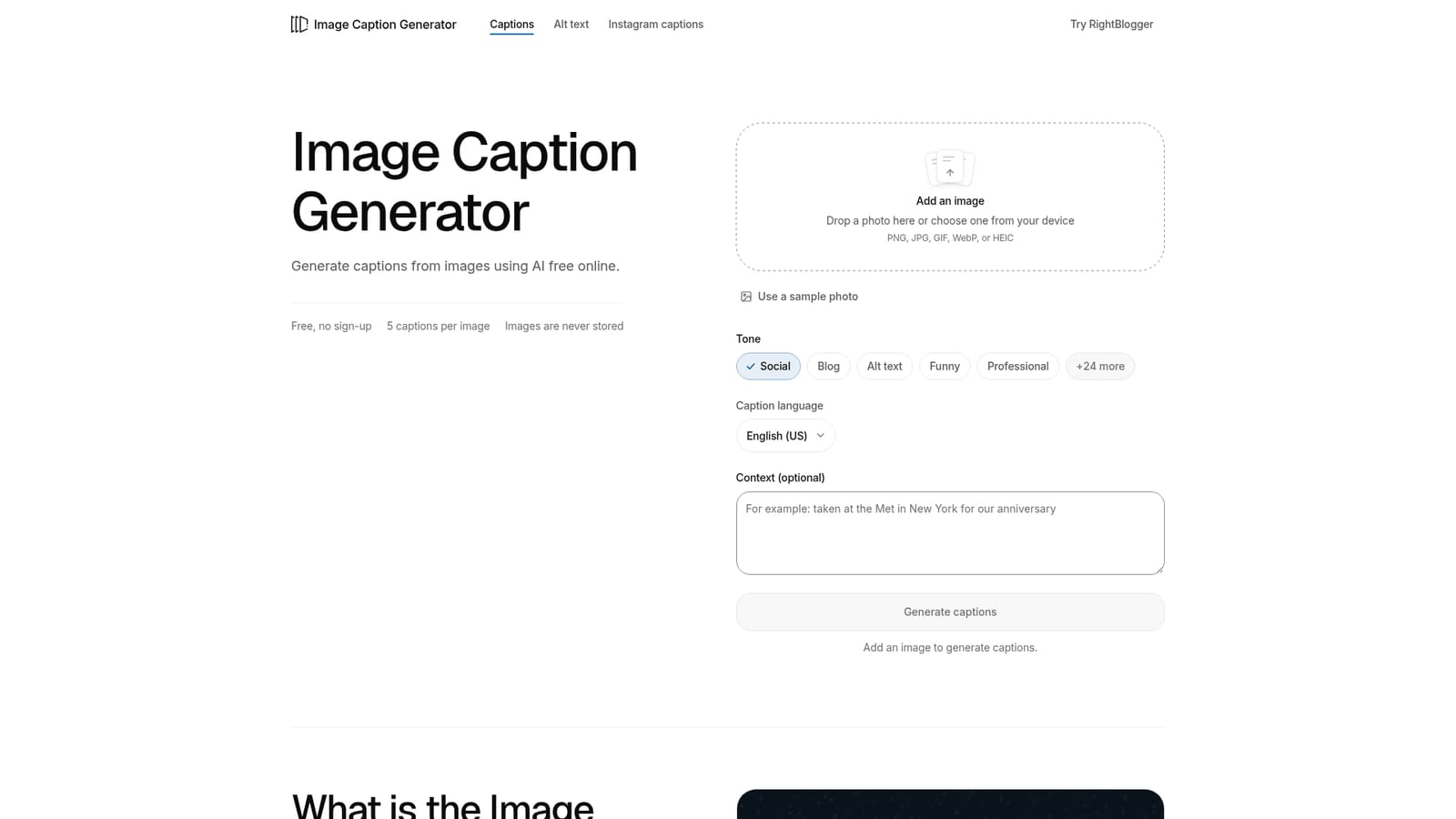
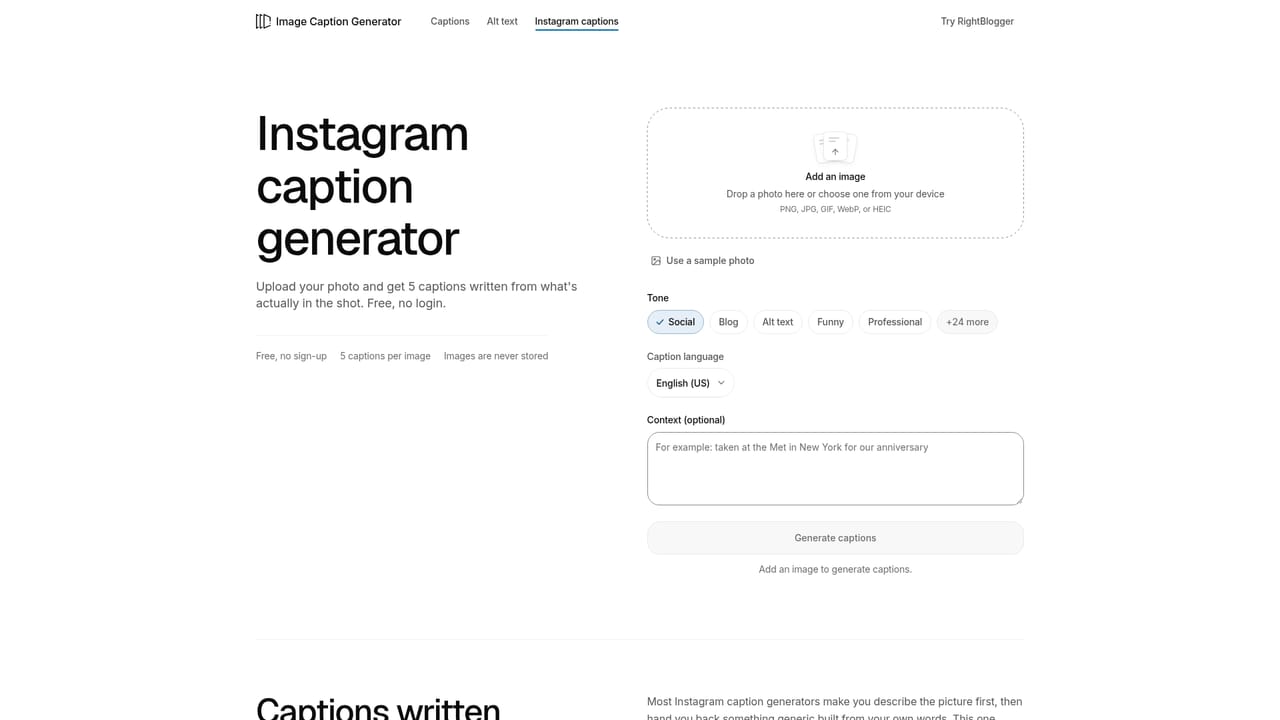
Image Caption Generator is a free browser tool that turns a single photo into five ready to use captions. It is built for social media posters, bloggers, marketers, e-commerce sellers and content creators who need text that fits an image quickly, and it also serves teams that care about accessibility and image SEO. There is no sign-up, no email address and no account dashboard: the file goes up, the captions come back. The workflow is deliberately narrow. You drop a PNG, JPG, GIF, WebP or HEIC file onto the page or pick one from your device, choose a tone from 29 presets (social, blog, alt text, funny, professional and 24 more), pick one of 39 caption languages, and optionally type context such as where the photo was taken or what it is for. The AI then returns five different captions per run, and each can be copied with one click. HEIC photos from an iPhone are converted inside the browser before upload, so phone shots work without a conversion step. Choosing the alt text tone switches the output toward screen reader descriptions rather than marketing copy. The tool sits at the light end of the captioning market. It is a single purpose utility rather than a social media scheduler or a full writing suite, and the homepage points to two narrow siblings, a dedicated Instagram caption generator and an alt text generator, for people who only do one of those jobs. It also names Pallyy, Ahrefs, RightBlogger and ThreadCreator as alternatives, and notes that unlimited access and better models live in the RightBlogger version. Captions are a commodity feature in most writing tools, so the free, no-login, privacy-leaning framing is the main differentiator here. Privacy is stated plainly: images are never stored and are only sent to the AI model for the analysis. The trade-off is a short feature list. There are no saved projects, no brand voice profiles, no API and no way to refine a single caption in place beyond running the generator again with different tone or context. It is a fast first draft machine, not a caption management system, and heavier users will outgrow it quickly.
No trial is needed: the free web version is the product, with 5 captions per image, no sign-up and no stored images.
Learn moreThe tool is free to use on the website with no account or email required. The homepage notes that unlimited access and improved AI models are available through the RightBlogger version of the Image Caption Generator, but it does not publish prices for that plan.
Learn moreFive captions per image, 29 tone presets (social, blog, alt text, funny, professional and more), 39 caption languages, an optional context field, and in-browser HEIC conversion for iPhone photos. Images are never stored. A dedicated alt text tone produces descriptions for screen readers, and separate Instagram caption and alt text generators cover those single jobs.
 AI Angels400+ customizable AI girlfriends for NSFW chat, voice calls, and roleplay
 Candy AIExperience the future of companionship with AI friends who chat, role-play, and connect with you on a human level.
 ourdream.aiA vast AI roleplay platform with millions of characters for chat, images, video and voiceAI Angels400+ customizable AI girlfriends for NSFW chat, voice calls, and roleplayCandy AIExperience the future of companionship with AI friends who chat, role-play, and connect with you on a human level.ourdream.aiA vast AI roleplay platform with millions of characters for chat, images, video and voice