Free trial
The keywording tool itself is free and needs no account. Pixify Studio adds 100 free credits once a payment card is stored with Stripe; nothing is charged and the credits do not expire.
Learn moreFree AI keywording for stock photos, titles and descriptions in seconds
Own AI Keywording Tool? Verify ownership to get a dofollow link

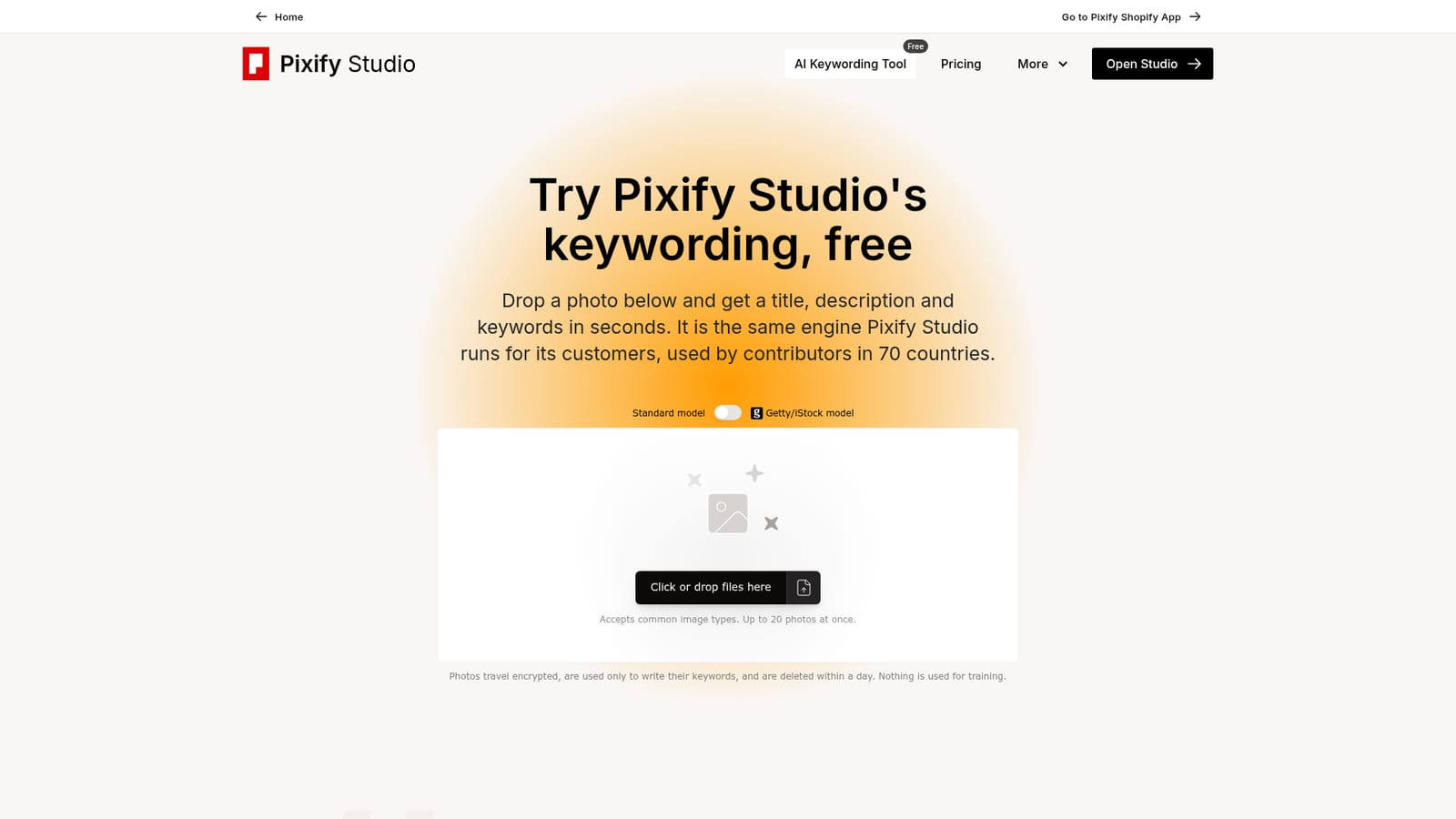
AI Keywording Tool is a content generation tool. Pixify's free keywording page generates a stock-ready title, description and keywords for uploaded photos in seconds, using the same engine as the paid Pixify Studio. It supports single images or batches of up to 20, with a separate Getty/iStock model.
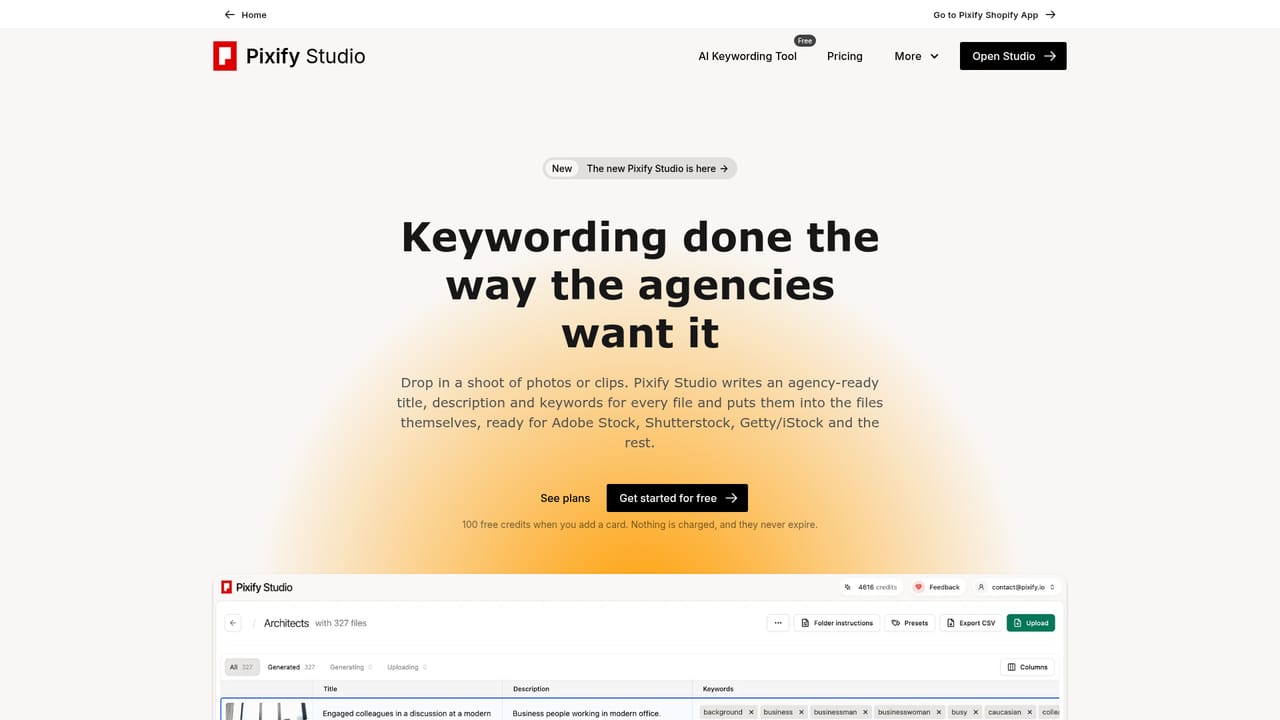
The AI Keywording Tool is a free, browser-based utility from Pixify that writes a title, description and keyword set for a stock photo in seconds. It runs on the same engine as Pixify Studio, the paid keywording product Pixify sells to stock contributors, so the free page is effectively a live sample of the commercial service rather than a separate cut-down model. You drop an image onto the page (or several, up to 20 at once), pick either the standard model or a Getty/iStock-tuned model, and read the generated metadata on screen. The tool is aimed at stock photographers, videographers and illustrators who submit to agencies such as Getty, iStock, Shutterstock or Adobe Stock and lose hours to metadata entry. It also suits sellers on marketplaces and print-on-demand shops who need descriptive copy for product images. The workflow is deliberately minimal: no account is needed to try the page, files travel encrypted, are used only to generate keywords, and are deleted within a day. Nothing is used for model training, according to Pixify. In practice the free page is a testing ground, not a production queue. It gives you a feel for the phrasing Pixify produces and lets you judge whether the Getty/iStock model is worth the extra credit in the paid product. The full Studio adds batch folders, human review and correction, metadata written into the files, per-agency CSV exports, video up to 10 GB per clip, a customer API on the Pro plan and a Lightroom Classic plugin. Against general-purpose vision models or manual tagging, the pitch is agency-ready structure (title, description, keywords) rather than raw captions, and wording tuned for search visibility on stock sites. Pixify reports contributors in 70 countries using the engine and cites customers who say it saved them dozens of hours per year. The free tool itself is the lowest-risk way to check those claims before committing to a subscription, since Studio starts with 100 credits after a card is added.
The keywording tool itself is free and needs no account. Pixify Studio adds 100 free credits once a payment card is stored with Stripe; nothing is charged and the credits do not expire.
Learn moreThe keywording page is free to use. Pixify Studio, the paid product behind it, runs on credits: 1 credit per photo on the standard pass, 2 in high-quality mode, 1 extra per file for Getty/iStock keywords, and 1 credit per started 5 seconds of video. New accounts get 100 credits after adding a card; those credits never expire. Plans and monthly prices are not listed on this page.
Learn moreSupport is handled through Pixify's Studio help resources and FAQ; the free tool page lists no separate support channel, email address or live chat.
Studio exposes a customer API on the Pro plan, with keys created under Connections, and a Lightroom Classic plugin that uses the same key. Files can also arrive by FTP on Pro. The free keywording page itself has no integrations.
Learn moreGenerates an agency-style title, description and keyword set from a dropped image in seconds. Supports up to 20 photos per drop, offers a standard and a Getty/iStock model, encrypts transfers, deletes files within a day and excludes them from model training. The underlying Studio adds batch folders, a review editor, metadata embedded in files, per-agency CSV exports, video up to 10 GB, an API on Pro and a Lightroom Classic plugin.
 AI Angels400+ customizable AI girlfriends for NSFW chat, voice calls, and roleplay
 Candy AIExperience the future of companionship with AI friends who chat, role-play, and connect with you on a human level.
 ourdream.aiA vast AI roleplay platform with millions of characters for chat, images, video and voiceAI Angels400+ customizable AI girlfriends for NSFW chat, voice calls, and roleplayCandy AIExperience the future of companionship with AI friends who chat, role-play, and connect with you on a human level.ourdream.aiA vast AI roleplay platform with millions of characters for chat, images, video and voice


