Free trial
Three free renders are offered with no watermark applied, which allows a full quality check on one or more real project views before committing to a plan.
Learn moreTurn sketches, plans and 3D screenshots into photorealistic architectural renders

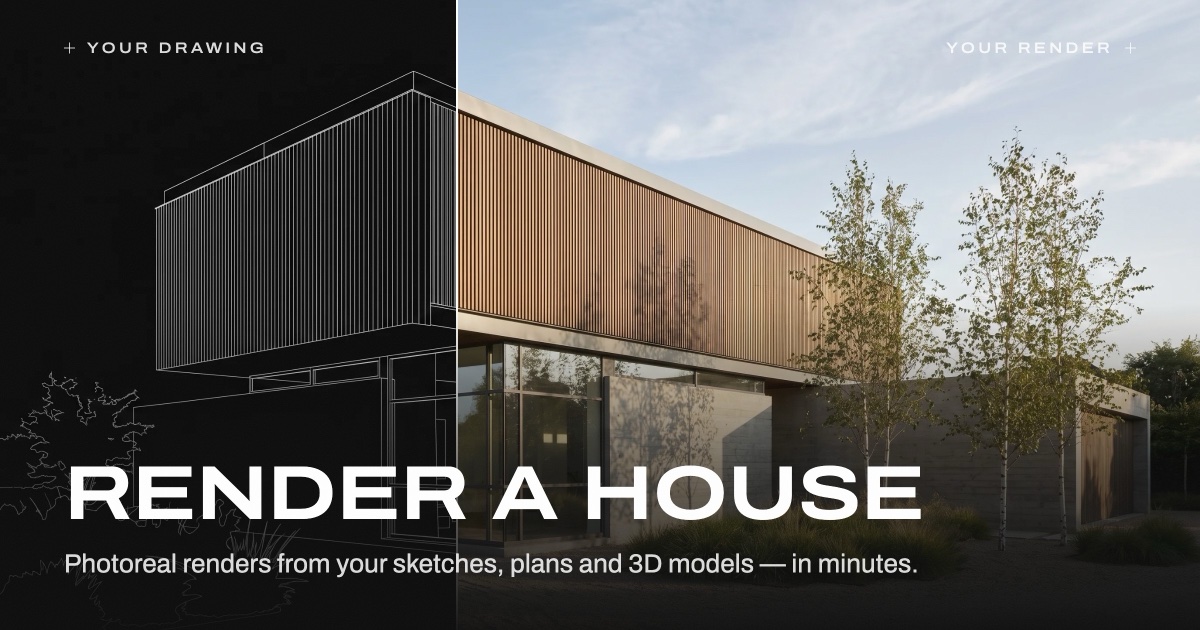
ArchiVinci is an architecture diagram tool that turns sketches, plans and 3D screenshots into photorealistic architectural renders. AI rendering software for architects and interior designers that converts sketches, photos, floor plans and 3D model screenshots into photorealistic exteriors, interiors, masterplans and furnished rooms in seconds, with no GPU required and a browser-based workflow.
ArchiVinci is an AI rendering platform built specifically for architectural work. Designers upload a sketch, a photo, a 2D floor plan or a screenshot of a 3D model, pick a module that matches the input, and the system generates a photorealistic image in seconds. Because the engine is tuned for buildings rather than general imagery, it aims to hold on to geometry, material assignments and surface detail instead of inventing a new design. The workflow is organised around modules rather than one generic generator. Exterior rendering covers façades and streetscapes, interior rendering handles room shots, floor plan coloring turns 2D drawings into presentation-ready 3D views, and separate modules exist for masterplans, landscape concepts and furnishing empty rooms. A modify module swaps materials, furniture and styles while keeping the rest of the frame intact, and the floor plan maker adds an interactive 3D walkthrough on top of a 2D plan. A geometry protection feature reports near-full tracking and warns when a long prompt starts pulling the output away from the original structure. It suits architects, interior designers, visualization artists and real estate marketers who need client-facing imagery before a full render pipeline is justified. The homepage claims more than 800,000 users across 165 countries and over 5 million renders, and states that no GPU is required because processing runs in the browser. Against conventional render engines, ArchiVinci trades physical simulation for speed and iteration count: lighting and material experiments happen in seconds, so more options reach the client. Against general purpose image generators, the advantage is discipline around the input model, though results still depend on a clear screenshot and a sensible module choice. The platform also ships as a SketchUp extension alongside the web app.
Three free renders are offered with no watermark applied, which allows a full quality check on one or more real project views before committing to a plan.
Learn moreThe homepage confirms a free starting point of three renders without a watermark and states that unlimited renders come with a paid plan, but it does not publish prices or tier names. Current rates and inclusions are listed on the pricing page.
Learn moreNo formal integrations are documented beyond a SketchUp extension available in the Extension Warehouse, and image import from any CAD or modeling package through standard PNG, JPEG or WEBP files.
Modules cover exterior rendering, interior rendering, floor plan coloring, floor plan to 3D walkthrough, masterplan and site plan rendering, landscape design, room furnishing and material or furniture modification. Geometry protection reports near-full tracking and warns when prompts grow long. Renders run in the browser without a GPU, take seconds, and accept any PNG, JPEG or WEBP screenshot from common CAD and 3D tools.
Learn more AI Angels400+ customizable AI girlfriends for NSFW chat, voice calls, and roleplay
 Candy AIExperience the future of companionship with AI friends who chat, role-play, and connect with you on a human level.
 ourdream.aiA vast AI roleplay platform with millions of characters for chat, images, video and voiceAI Angels400+ customizable AI girlfriends for NSFW chat, voice calls, and roleplayCandy AIExperience the future of companionship with AI friends who chat, role-play, and connect with you on a human level.ourdream.aiA vast AI roleplay platform with millions of characters for chat, images, video and voice