Canva AI Assistant

Chat-driven design assistant that builds editable Canva layouts and copy
Beginner
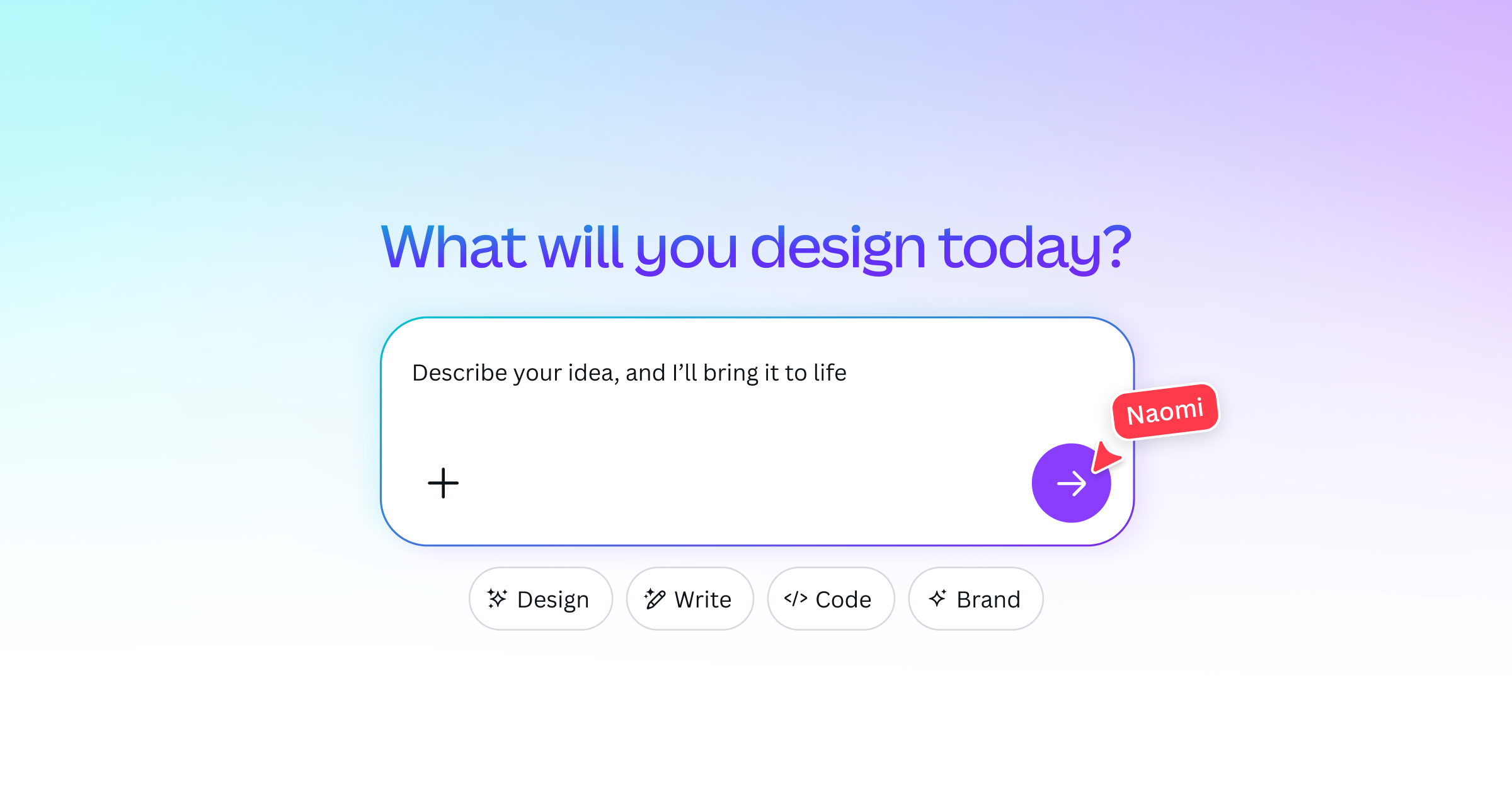
Screenshot of Canva AI Assistant, Chat-driven design assistant that builds editable Canva layouts and copy

What is Canva AI Assistant?

Canva AI Assistant is a content generation tool. Canva AI Assistant lets users design through conversation, generating fully layered, editable layouts, copy and images in Canva, with brand memory, app connectors and admin safeguards for teams.

Canva AI Assistant is the conversational layer of the Canva design platform, built around a release the company calls Canva AI 2.0. Instead of opening separate tools for brainstorming, writing, image creation and layout, a user describes the goal in a chat and the assistant produces designs, documents and images inside the Canva editor. Input can be typed, spoken or supplied as an image, and the same assistant is reachable from desktop and mobile. The practical difference from a generic chatbot is that results are not flat pictures. Text boxes, images and graphics come out as separate layers, so a single element can be swapped or rewritten without disturbing the rest of the layout, either by asking the assistant or by editing by hand. Requests such as changing an icon, adjusting a theme or turning one idea into several formats are handled through follow-up messages. If a generated design misses the mark, the assistant falls back to suggesting matching templates. It can also read an uploaded design or document, answer questions about it, extract details or build something new from the answers, and writing help is powered by Magic Write. Personalization is a central selling point. A memory feature, surfaced as the Memory Library, learns brand system details, tone of voice and past work, while Brand Kit selection keeps output on-brand. Connectors link apps such as Slack, Gmail, Google Drive and Notion so source material can feed directly into a project. For organizations, Canva Shield adds configurable AI access controls, content safeguards and privacy settings. The audience the page targets is marketers, creatives and sales professionals who produce campaign assets, client pitches and proposals. Among alternatives, it competes less with standalone image generators than with chat assistants that hand back text and leave layout to another app. Its value is highest for people already working in Canva, since the editor, templates and brand assets all sit behind the same conversation.

How do you use Canva AI Assistant?

  1. 1Open Canva AI
    Start from the Canva AI page and choose the option to try the assistant, then sign in to a Canva account to reach the chat.
  2. 2Describe the design you need
    Type or speak a prompt that states the format, audience and goal, or attach an image for reference. The assistant returns a layout you can open in the editor.
  3. 3Refine through follow-up messages
    Ask for specific changes such as swapping an icon, rewriting text, adjusting the theme or producing extra formats. Each element stays editable by hand as well.
  4. 4Add brand and source material
    Select a Brand Kit and upload assets, or connect apps like Slack, Gmail, Google Drive or Notion so the assistant can draw on existing content.
  5. 5Generate copy and images
    Use the writing help powered by Magic Write for drafts, and describe visuals in plain words to produce text-to-image results.

Pros and cons

Pros

  • Generated text, images and graphics arrive as separate editable layers, so one element can change without breaking the layoutAI
  • Accepts text, voice or image input on desktop and mobile, which lowers the learning curveAI
  • Memory Library and Brand Kit selection help keep outputs consistent with a brand's style and toneAI
  • Connectors for Slack, Gmail, Google Drive and Notion bring existing work context into the chatAI
  • Template suggestions appear when a prompted design fails, so a request rarely ends empty-handedAI

Cons

  • Value is tied to the Canva ecosystem, so users outside it gain little from the assistantAI
  • The homepage gives no pricing or plan details for Canva AI 2.0, making cost hard to judge up frontAI
  • Brand learning and memory depend on accumulated projects, so early output may feel genericAI
  • Safety and access controls are framed around Canva Shield for enterprises, with no detail on individual-user optionsAI
  • Marketing claims about on-brand output and style learning are not backed by shown examples or benchmarksAI

How much does Canva AI Assistant cost?

Integrations

Connectors link Slack, Gmail, Google Drive, Notion and other apps so conversations and content feed into designs. Assets can be uploaded or attached from favorite tools.

Features

Conversational design, fully layered editable outputs, text, voice and image input, text-to-image, Magic Write copy, Docs creation, file Q&A, Memory Library, Brand Kit, template fallback and multi-format resizing by request.

Frequently asked questions about Canva AI Assistant

  • How do you use Canva AI Assistant?
    The walkthrough on this page covers 5 steps: 1. Open Canva AI 2. Describe the design you need 3. Refine through follow-up messages 4. Add brand and source material 5. Generate copy and images.
  • What platforms does Canva AI Assistant support?
    Canva AI Assistant is available on Web App, iOS and Android.
  • What does Canva AI Assistant integrate with?
    Connectors link Slack, Gmail, Google Drive, Notion and other apps so conversations and content feed into designs. Assets can be uploaded or attached from favorite tools.
  • What are the limitations of Canva AI Assistant?
    Value is tied to the Canva ecosystem, so users outside it gain little from the assistant. The homepage gives no pricing or plan details for Canva AI 2.0, making cost hard to judge up front. Brand learning and memory depend on accumulated projects, so early output may feel generic.

Status

StatusActive
Views0
Outbound clicks0
Added10/8/2026

Platforms

Web AppiOSAndroid

Pricing

Freemium