Free trial
The homepage invites visitors to start for free, which implies a no-cost entry path, but the scope of that free access (chart limits, watermarks, feature gating) is not described on the page.
Learn moreTurn a spreadsheet and a sentence into a finished chart
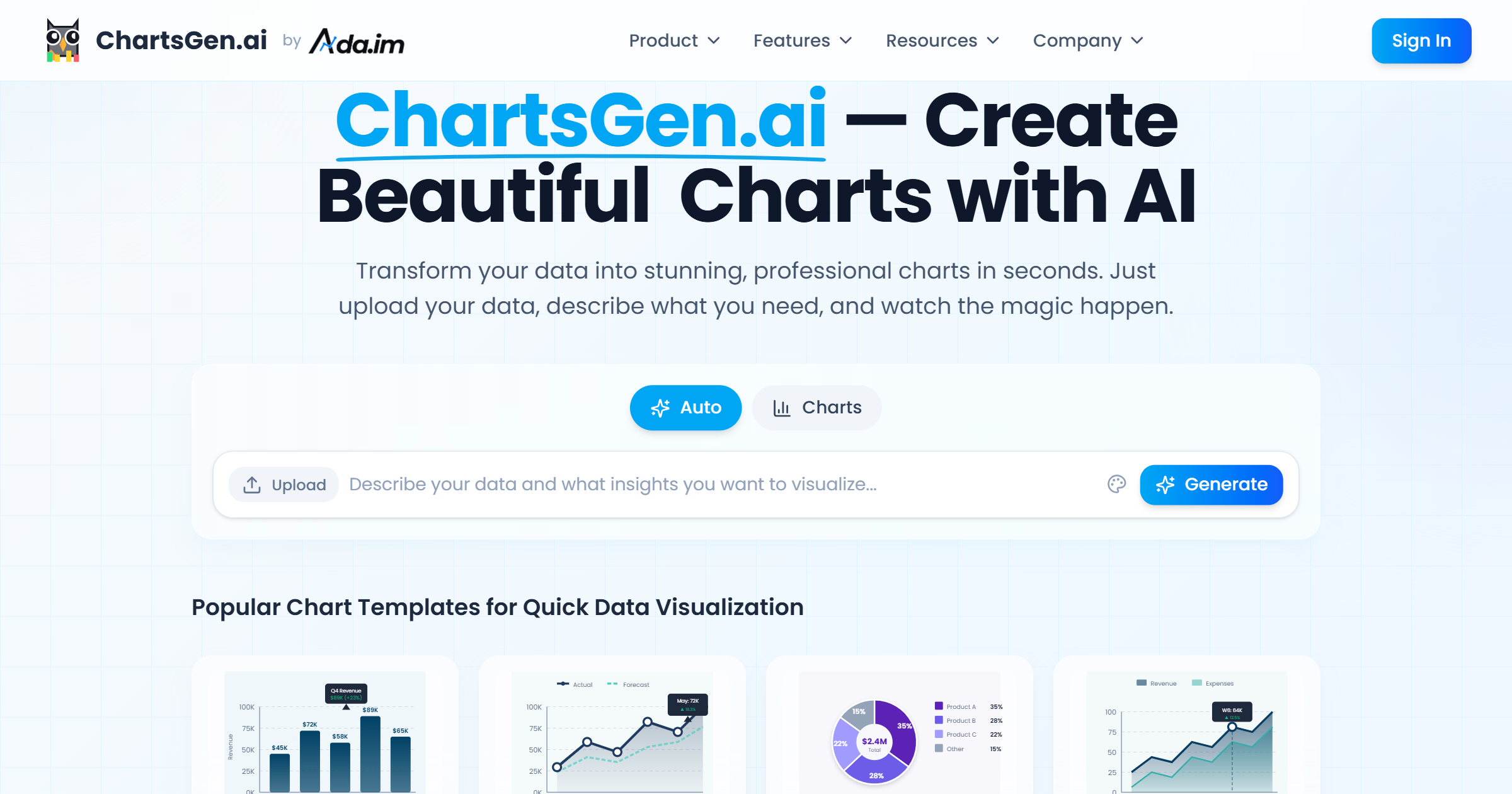
ChartGen is an economics graph maker tool that turns a spreadsheet and a sentence into a finished chart. An AI chart generator that takes an uploaded dataset plus a written description and returns a styled, presentation-ready chart in seconds, with a palette-based template gallery for a faster start.
ChartGen is a browser-based chart builder that trades manual formatting for a short written prompt. The workflow has three parts: upload a dataset, describe the chart you want in plain language, and let the generator return a finished visual. The homepage frames this as AutoCharts and states an average generation time under five seconds, so the product is aimed at the gap between having numbers and having something presentable to show. The tool is pitched at people who work with data but not necessarily with design software: data analysts, marketing managers, product designers, financial analysts, sales directors and research scientists all appear among the example user profiles. Sample datasets cover sales, marketing, finance, survey results, HR analytics and e-commerce, which suggests the intended starting point is a business spreadsheet rather than a database export. When you would rather not start from scratch, a template gallery offers named palettes such as Navy Blue, Ocean Teal, Royal Purple, Emerald Green and Slate Gray, each with a preview chart and a single button to adopt the style. Several previews show more than basic bars and lines: grouped series, revenue versus forecast, funnel-style breakdowns and a heatmap grid, which points to a reasonable spread of chart types beyond the bar, line and pie called out in the site description. Comparisons depend on what you value. Against a spreadsheet's built-in charting, ChartGen removes the fiddly axis and colour work but gives you less granular control over every element. Against a general-purpose AI chatbot that can emit chart code, it packages the whole loop of data upload, styling and rendering into one screen. The site cites more than two million charts created, 50,000 active users, 1,200 companies and a presence in over 110 countries, alongside 4.8 ratings shown for G2 and SourceForge. Those are vendor-published figures and worth treating as marketing until you validate them yourself. Pricing tiers, export formats, data retention terms and any integration options are not spelled out on the homepage, so buyers with compliance or workflow requirements should confirm those details directly before committing a team.
The homepage invites visitors to start for free, which implies a no-cost entry path, but the scope of that free access (chart limits, watermarks, feature gating) is not described on the page.
Learn moreCore features are an upload-and-describe chart generator, a template gallery of twelve named palettes with live previews, and sample datasets for sales, marketing, finance, surveys, HR and e-commerce. Previews show grouped bar and column charts, revenue versus forecast lines, funnel breakdowns and heatmap grids alongside standard bar, line and pie output.
 AI Angels400+ customizable AI girlfriends for NSFW chat, voice calls, and roleplay
 Candy AIExperience the future of companionship with AI friends who chat, role-play, and connect with you on a human level.
 ourdream.aiA vast AI roleplay platform with millions of characters for chat, images, video and voiceAI Angels400+ customizable AI girlfriends for NSFW chat, voice calls, and roleplayCandy AIExperience the future of companionship with AI friends who chat, role-play, and connect with you on a human level.ourdream.aiA vast AI roleplay platform with millions of characters for chat, images, video and voice


