Free trial
The tool is described as free and uploads are labeled free on the homepage, but no trial terms, limits or account requirements are stated.
Learn moreAutomatic AI cutouts that keep hair, edges and product detail intact
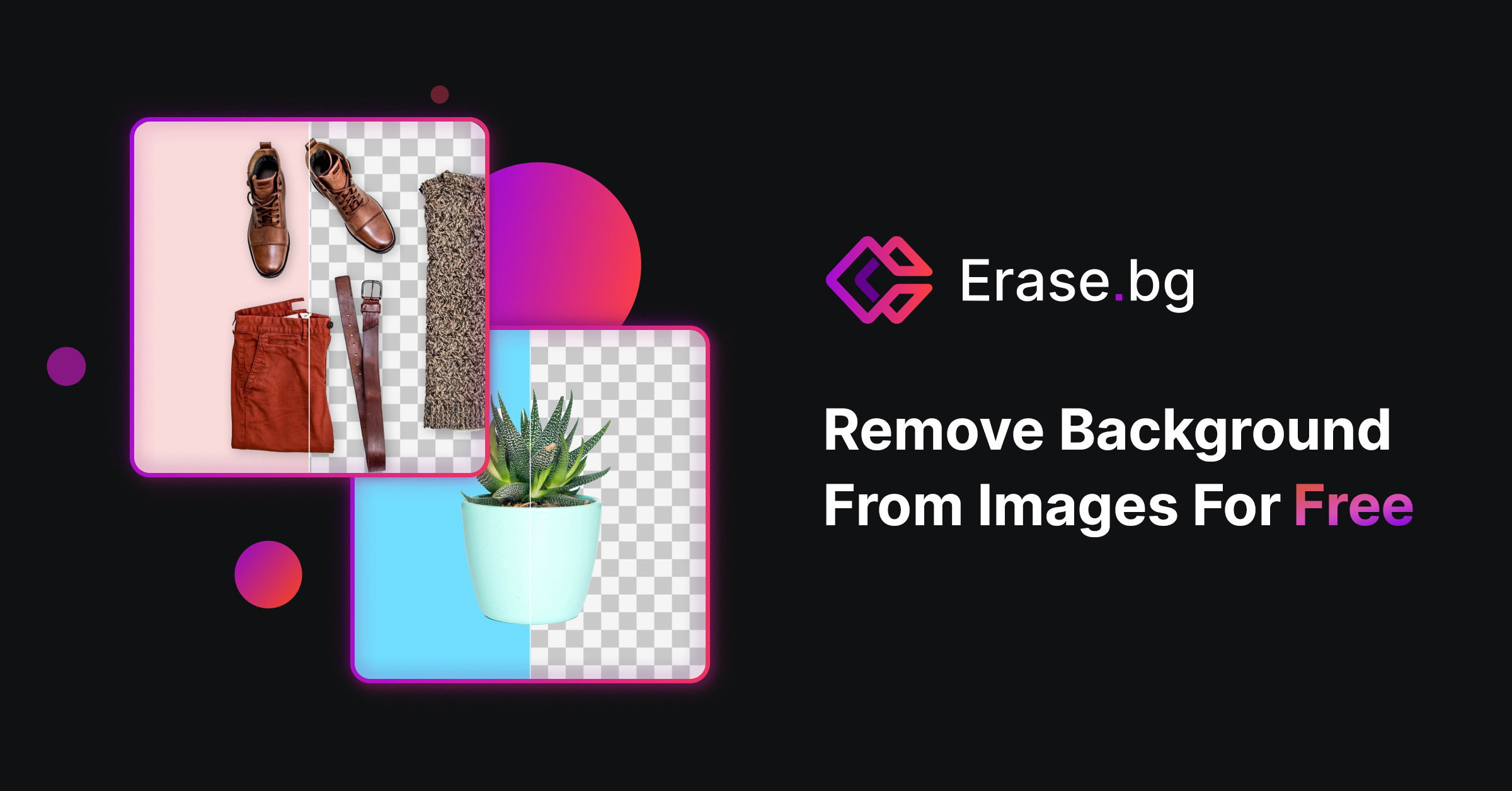
EzRemove is a background tool. Browser based AI background remover that isolates subjects into transparent PNGs in seconds, with General, Logo, Text, Anime and prompt driven Custom modes, background replacement, and a separate batch tool for high volume image sets.
EzRemove is a browser based background remover built around a single promise: upload a photo, get a clean transparent PNG in a few seconds. The engine detects the main subject automatically and cuts around the difficult parts, hair strands, thin borders, reflective surfaces and soft transitions, rather than slicing hard and leaving a visibly edited outline. The site reports roughly 50 million images processed and advertises removal in under three seconds. No install and no Photoshop license are involved. Four modes steer the model toward the right kind of source material: General for everyday photos, Logo for brand graphics, Text for screenshots, and Anime for illustrations. A Custom mode takes a short written instruction, so you can ask it to erase a photobomber or clear an object from the frame. Export is a transparent PNG. From there the tool can hold the transparency, apply a solid color, or generate a replacement scene from a text description, which makes it useful for catalog shots and creator content that needs variety without a reshoot. Volume work is covered by a separate batch background remover for pushing several photos through at once, plus companion tools on the same site for upscaling, product image generation, photo editing and room design. The practical audience is ecommerce sellers, photographers delivering sets, social media creators and designers who need consistent cutouts across a whole image library rather than one hero shot. Against general purpose editors, EzRemove trades breadth for focus: it is narrower than a full design suite but faster than masking by hand, and the mode and prompt options add control that one click removers often lack. The main caveats are that GIFs are not supported and get redirected to a different tool, and that tricky edges still occasionally need a manual refine pass before download.
The tool is described as free and uploads are labeled free on the homepage, but no trial terms, limits or account requirements are stated.
Learn moreAutomatic AI subject detection with removal in roughly three seconds, five modes (General, Logo, Text, Anime, Custom prompt), transparent PNG export, solid color and AI generated background replacement, an AI background generator for scene swaps, a dedicated batch remover, and adjacent tools for upscaling, product images, photo editing and room design.
Learn more AI Angels400+ customizable AI girlfriends for NSFW chat, voice calls, and roleplay
 Candy AIExperience the future of companionship with AI friends who chat, role-play, and connect with you on a human level.
 ourdream.aiA vast AI roleplay platform with millions of characters for chat, images, video and voiceAI Angels400+ customizable AI girlfriends for NSFW chat, voice calls, and roleplayCandy AIExperience the future of companionship with AI friends who chat, role-play, and connect with you on a human level.ourdream.aiA vast AI roleplay platform with millions of characters for chat, images, video and voice