Free trial
No free trial of the plugin is stated on the page. A standalone Gyre bundle is offered as a way to test the server portion.
Learn moreStable Diffusion and DALL-E 2 image generation inside Photoshop
Own DALL-E 2 and Stable Diffusion (flying dog)? Verify ownership to get a dofollow link
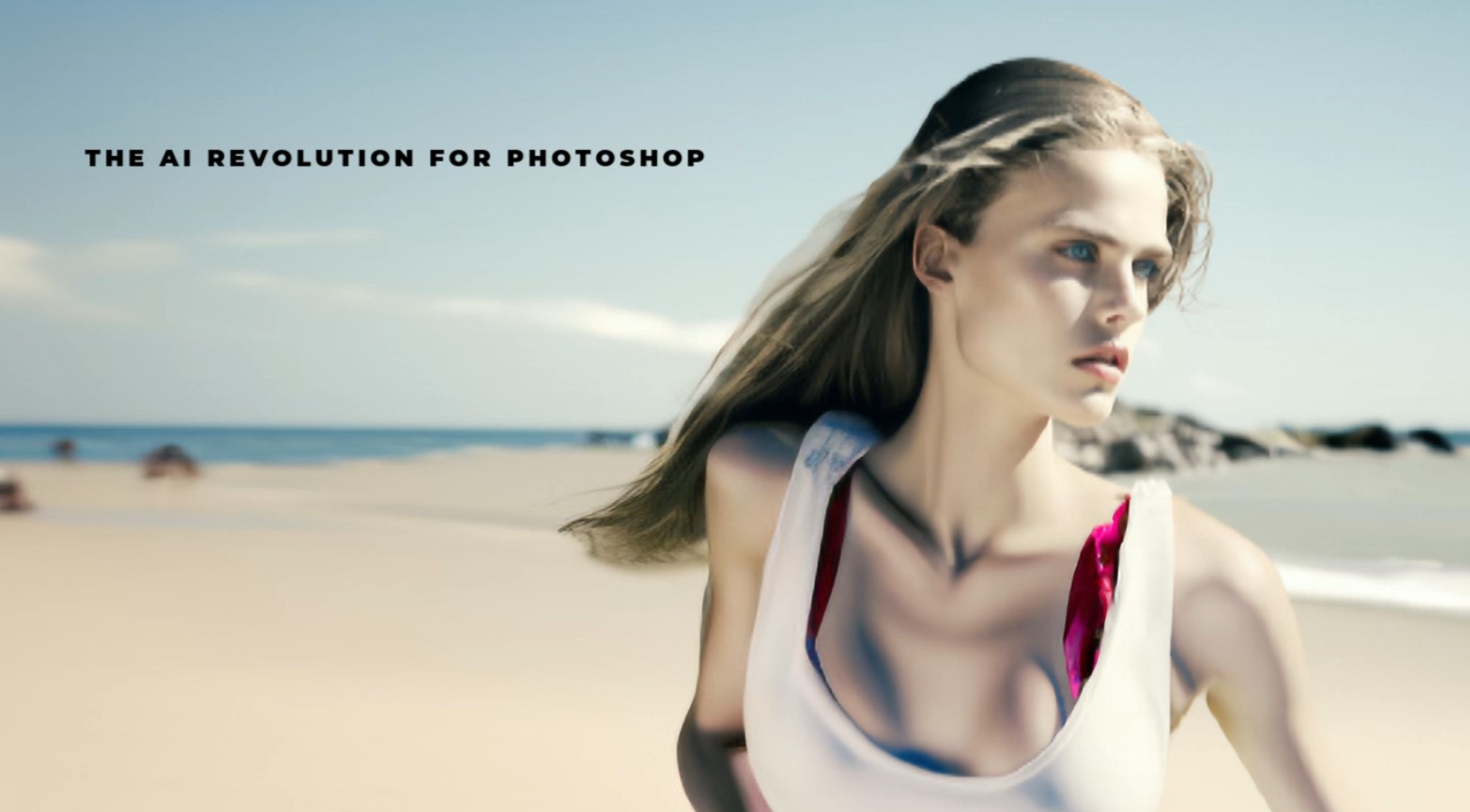
DALL-E 2 and Stable Diffusion (flying dog) is an AI image upscaler tool. A Photoshop plugin that puts Stable Diffusion and DALL-E 2 generation on layers, with inpainting, outpainting, ControlNet, text layers, 3D guidance, upscalers and background removal. Built for designers who want AI inside their existing editing workflow.
This Photoshop plugin from flying dog connects Adobe's editor to four separate AI image backends: Gyre, DALL-E 2, Automatic1111 and StabilityAI Cloud. Instead of working in a browser front end, users generate, edit and composite images directly on Photoshop layers, which means the full toolset (selections, masks, groups, blend modes) stays available throughout the process. The plugin covers text to image, image to image, inpainting and outpainting, and it adds specialised layers for AI text rendering, 3D primitives, pose and scribble guidance, segmentation, background removal, upscaling and vectorisation. ControlNet and T2I Coadapter types can be attached to an image layer, so composition and style can be locked down before a generation runs. In practice the plugin is aimed at designers and retouchers who already earn a living in Photoshop and want AI to shorten repetitive steps: replacing a stock image search with a prompt, extending a canvas with outpainting instead of content-aware fill, or repairing hands and faces produced by another generator. Gyre is the recommended server because it is the only connector that supports outpainting well, AI text generation, background removal and upscalers, and it can run locally on an NVIDIA GPU or on RunPod with no local hardware, which makes it usable on a Mac. DALL-E 2 is the simplest route for Mac users who do not want to manage a server, though it lacks image to image and ControlNet. Automatic1111 suits tinkerers who want community models but delivers weaker outpainting, and StabilityAI Cloud is limited to basic generation. The purchase is made through Adobe's marketplace rather than flying dog directly, so refunds follow Adobe's terms. The plugin requires Photoshop 24.3 or later. Local server installations need an NVIDIA card (6 GB recommended, more for images above 512x512), and Mac users must either use RunPod or DALL-E 2. Among alternatives, it competes less with standalone generators like Midjourney and more with Photoshop's own generative features and with web UIs for Stable Diffusion; its argument is control and layer-based workflow rather than raw model novelty.
No free trial of the plugin is stated on the page. A standalone Gyre bundle is offered as a way to test the server portion.
Learn moreThe plugin is sold through Adobe Exchange; the page does not list a plugin price. Gyre server costs 0.29 dollars per hour on RunPod. Local Gyre and Automatic1111 are free to run, DALL-E 2 and StabilityAI Cloud charge per generation.
Learn moreSupport is available by email and through the flying dog Discord for the plugin. Automatic1111 installations receive community support only; refunds are handled by Adobe Support.
Connects to Gyre (local or RunPod), DALL-E 2, Automatic1111 and StabilityAI Cloud. Runs inside Adobe Photoshop 24.3 or later.
Text to image, image to image, inpainting and outpainting; AI text layers with font control; 3D primitive and asset layers; pose, scribble and segmentation guidance; ControlNet and T2I Coadapter; background removal; upscalers and vectorizer; custom models and LoRA on Gyre and Automatic1111.
 AI Angels400+ customizable AI girlfriends for NSFW chat, voice calls, and roleplay
 Candy AIExperience the future of companionship with AI friends who chat, role-play, and connect with you on a human level.
 ourdream.aiA vast AI roleplay platform with millions of characters for chat, images, video and voiceAI Angels400+ customizable AI girlfriends for NSFW chat, voice calls, and roleplayCandy AIExperience the future of companionship with AI friends who chat, role-play, and connect with you on a human level.ourdream.aiA vast AI roleplay platform with millions of characters for chat, images, video and voice