Pricing
The homepage does not state plan tiers or prices for Mappedin Maker; it points readers to a separate pricing page and invites larger requirements to a sales conversation.
Learn moreAI-assisted 3D indoor maps built from uploaded floor plans

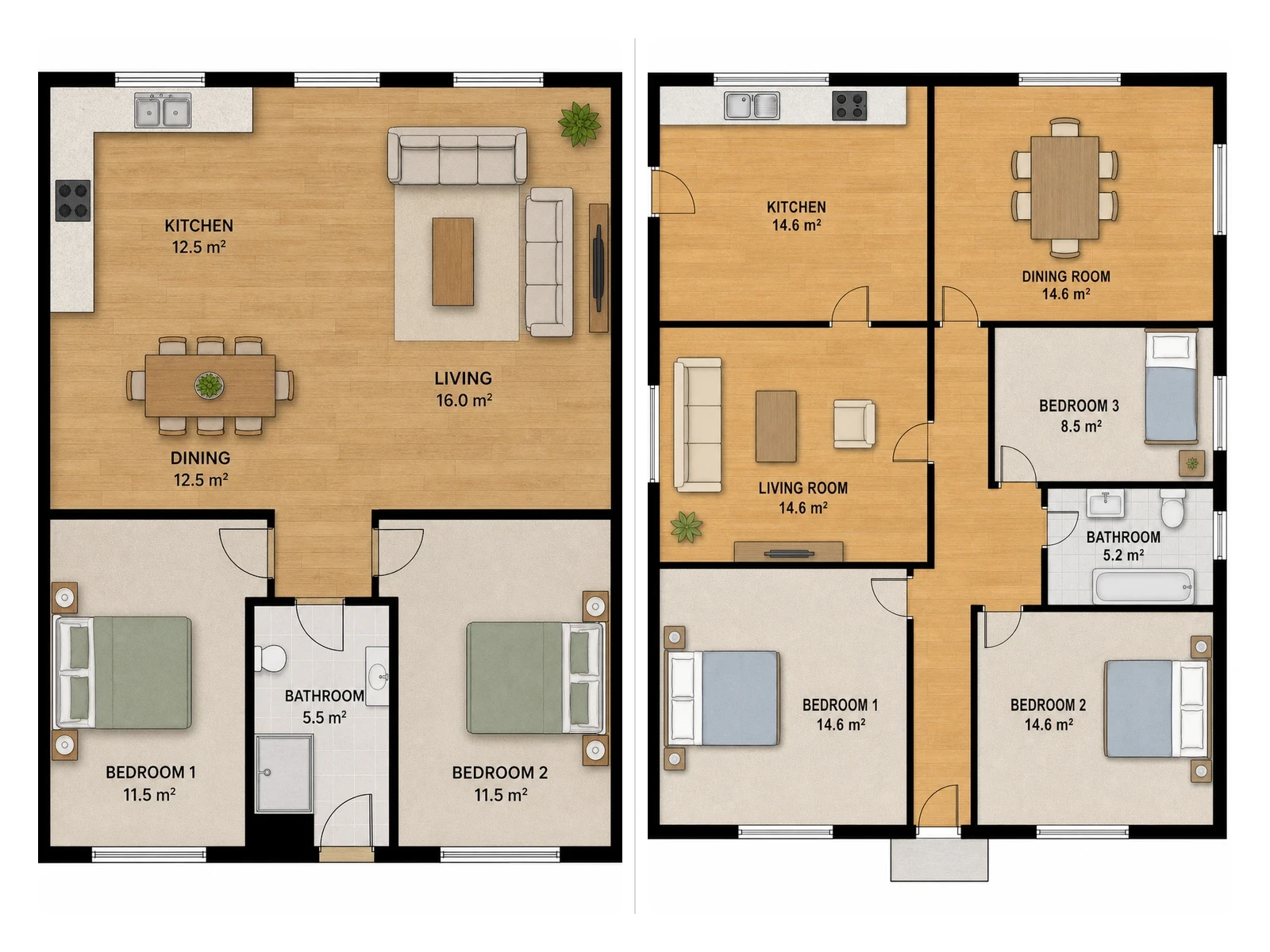
Mappedin is an office layout tool. Mappedin Maker turns uploaded floor plans into data-rich 3D indoor maps with AI detection of walls, doors and windows, plus an iOS scanning option and team collaboration.
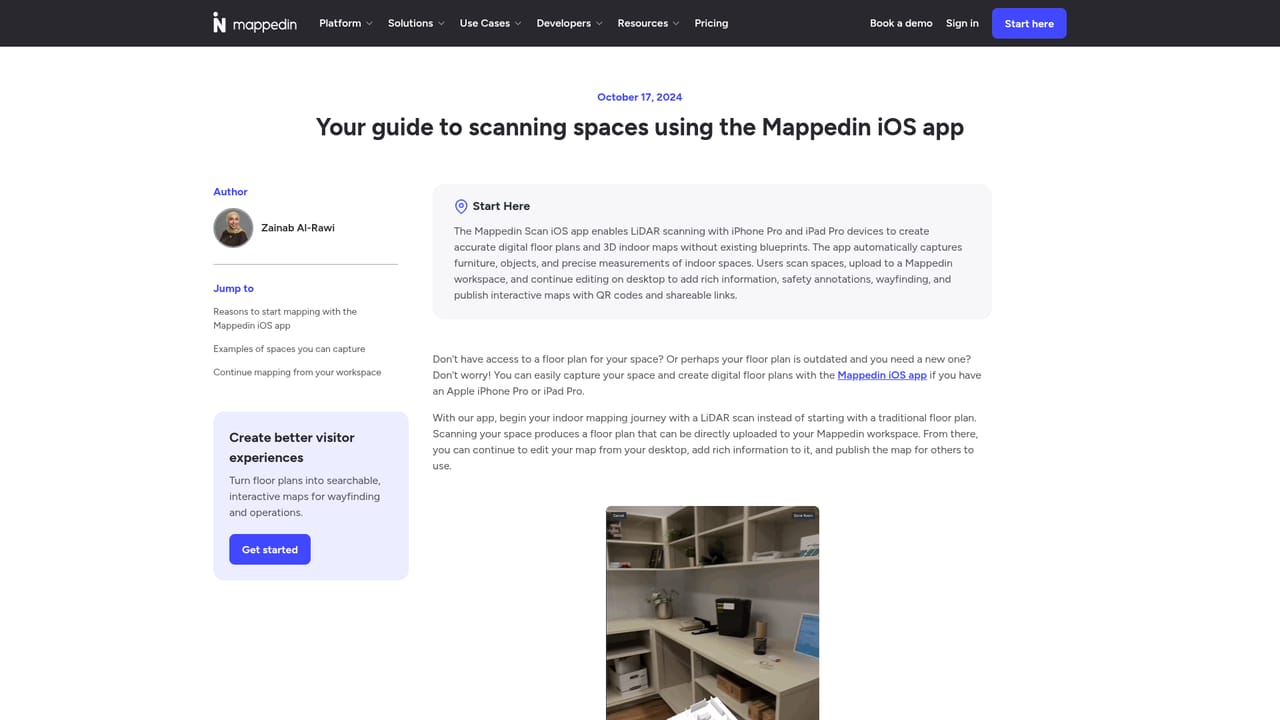
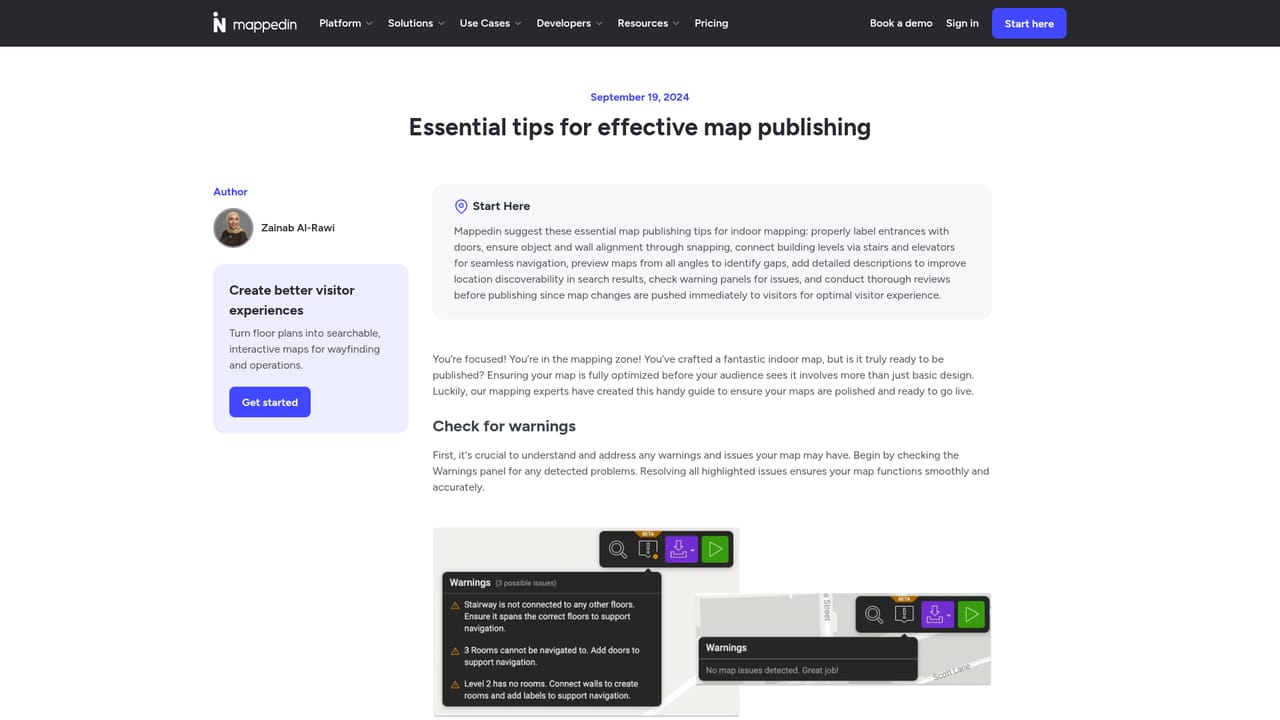
Mappedin Maker is the do-it-yourself side of Mappedin, a company that positions itself as the market leader in indoor mapping. The pitch is simple: take an existing floor plan, hand it to the AI, and get back a navigable 3D indoor map without a CAD specialist or a GIS team. The system detects and draws structural elements such as doors, windows and walls automatically, and mapmakers then layer on the details that make a venue usable, from operating hours to website links. The core workflow suits facilities teams, retail chains, campus administrators and agencies that need indoor maps for a store, office, library, school or mall but do not want to commission a bespoke survey. Uploading a floor plan is the usual starting point. For spaces where no usable plan exists, the Mappedin iOS app can scan a room and generate a floor plan from the scan. From there the editor handles styling, point-of-interest data and publishing, and teammates can be invited with assigned roles so a large venue does not depend on one person holding all the map knowledge. Safety annotation is a notable extra. Emergency exits and fire extinguisher locations can be labelled directly on the map, which gives visitors, staff and emergency responders a shared reference for a building's layout. That pushes Mappedin beyond wayfinding and into operational documentation. Alternatives tend to divide into developer-first indoor mapping SDKs, which demand engineering time, and general design tools that can draw a floor plan but have no concept of indoor navigation. Mappedin Maker sits in between, closer to a self-serve product with a professional mapping backend behind it. Businesses that outgrow the maker tools can move to Mappedin's other products and a sales conversation.
The homepage does not state plan tiers or prices for Mappedin Maker; it points readers to a separate pricing page and invites larger requirements to a sales conversation.
Learn moreSupport runs through a sales contact route, with a team available for questions on products, pricing and implementation. No self-serve help centre is described on the homepage.
Learn moreAI floor plan conversion that detects walls, doors and windows, 3D map styling, point-of-interest data such as hours and web links, safety annotations for exits and fire extinguishers, team collaboration with role assignment, and room scanning through the Mappedin iOS app.
Learn more AI Angels400+ customizable AI girlfriends for NSFW chat, voice calls, and roleplay
 Candy AIExperience the future of companionship with AI friends who chat, role-play, and connect with you on a human level.
 ourdream.aiA vast AI roleplay platform with millions of characters for chat, images, video and voiceAI Angels400+ customizable AI girlfriends for NSFW chat, voice calls, and roleplayCandy AIExperience the future of companionship with AI friends who chat, role-play, and connect with you on a human level.ourdream.aiA vast AI roleplay platform with millions of characters for chat, images, video and voice