Free trial
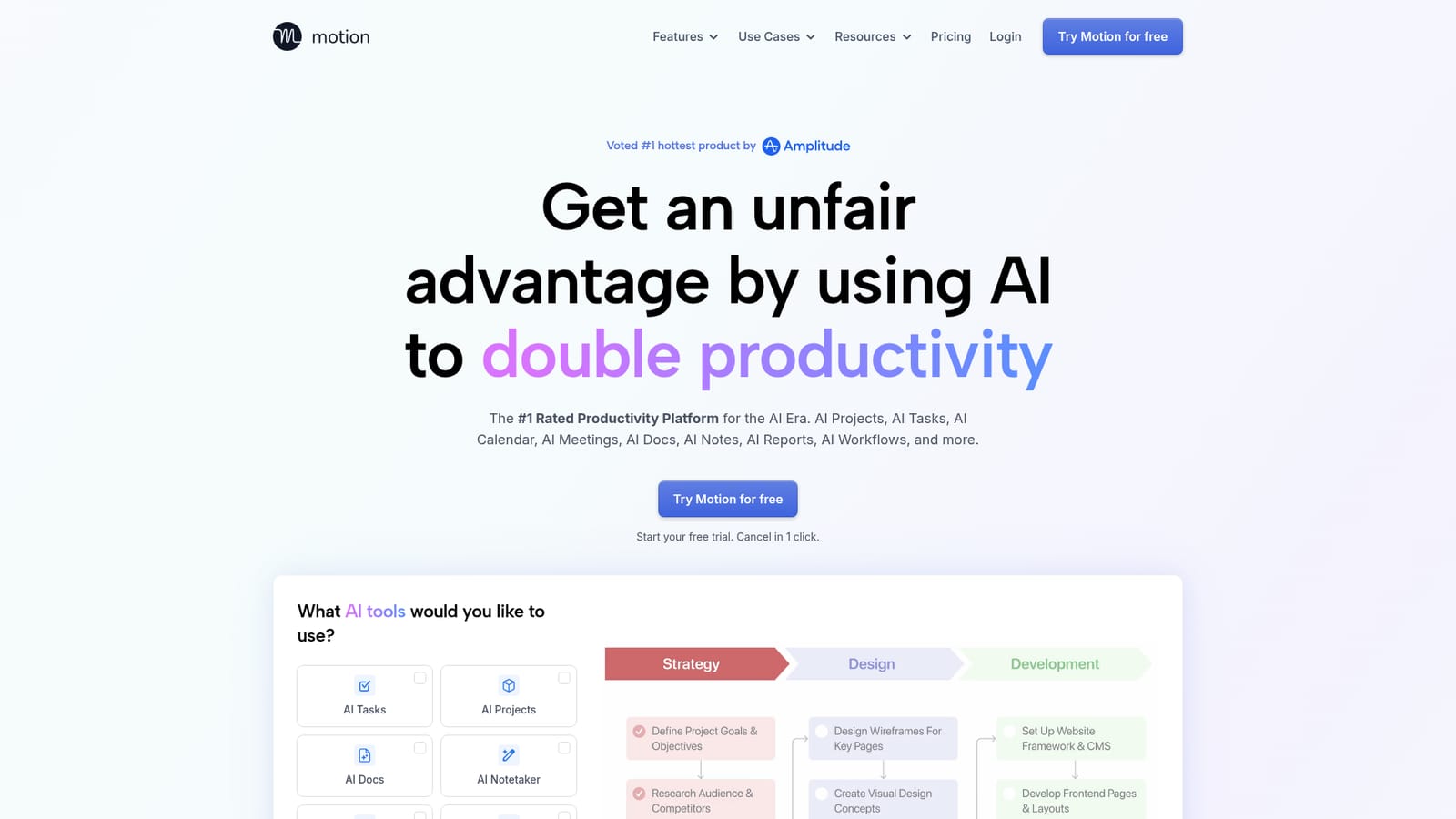
The homepage promotes a free trial with cancellation in one click. No trial length or plan limits are stated on the page, so check the plan details before signing up.
Learn moreAn AI work platform that plans your calendar, tasks, projects and meetings

Motion is an AI project builder tool. An AI work platform that combines tasks, projects, docs, calendar and meeting notes so one assistant can schedule your day, generate projects and keep plans current as priorities change.
Motion is an AI powered work platform that bundles task planning, project management, documents, calendar scheduling and meeting notes into a single product. The premise is that the separate tools most teams use (a task list here, a project board there, a calendar that nobody keeps current) leave gaps where work stalls. Motion closes those gaps by letting one AI layer see tasks, projects, docs and calendar together and replan around changes automatically. The core of the product is an AI task planner and calendar. You enter tasks with priorities, deadlines, dependencies and estimated duration, and Motion timeblocks them into your day, re-optimizing the plan many times a day as things shift. It distinguishes between the date a task is due and the date you actually work on it, and warns you days or weeks ahead when something looks at risk. Tasks can be pulled in from Gmail, Outlook, iCloud, Zoom, Meet, Teams and Slack, and calendar accounts from the same providers can be merged into one view so work and personal schedules do not collide. Around that core sit several companions. The project manager generates a full project (tasks, deadlines, assignees, stages) from a short written brief. The meeting notetaker records, transcribes and summarizes calls, extracts action items into tasks, and can draft follow-up email. The docs assistant turns messy notes into organized tasks and projects, and the workflow builder converts a written SOP into a reusable project template. Motion suits individuals who want their day planned for them and teams that want project status to update without chasing people. Occasional users and people who want fine manual control over every block on their calendar may find the automatic replanning intrusive. Reported outcomes such as faster project completion come from the vendor and customer quotes rather than independent study.
The homepage promotes a free trial with cancellation in one click. No trial length or plan limits are stated on the page, so check the plan details before signing up.
Learn moreThe homepage names Gmail, Outlook, iCloud, Zoom, Meet, Teams and Slack as sources for tasks, meetings and calendar accounts. No dedicated integrations directory is listed.
AI task planner with automatic prioritization and timeblocking, AI project manager that generates projects from a brief, AI docs and notes, calendar assistant that merges accounts and creates booking pages, meeting notetaker with transcripts and action items, AI search across work, and a workflow builder that turns SOPs into projects.
 AI Angels400+ customizable AI girlfriends for NSFW chat, voice calls, and roleplay
 Candy AIExperience the future of companionship with AI friends who chat, role-play, and connect with you on a human level.
 ourdream.aiA vast AI roleplay platform with millions of characters for chat, images, video and voiceAI Angels400+ customizable AI girlfriends for NSFW chat, voice calls, and roleplayCandy AIExperience the future of companionship with AI friends who chat, role-play, and connect with you on a human level.ourdream.aiA vast AI roleplay platform with millions of characters for chat, images, video and voice


