OLVA

Bot-free AI meeting assistant with live answers, coaching, and multilingual capture.

Beginner

What is OLVA?

OLVA is a bot-free AI meeting assistant for live transcription, question detection, live answers, and AI coaching across 60 languages. It works on desktop and mobile for video calls and in-person meetings, then generates summaries and searchable memory afterward.

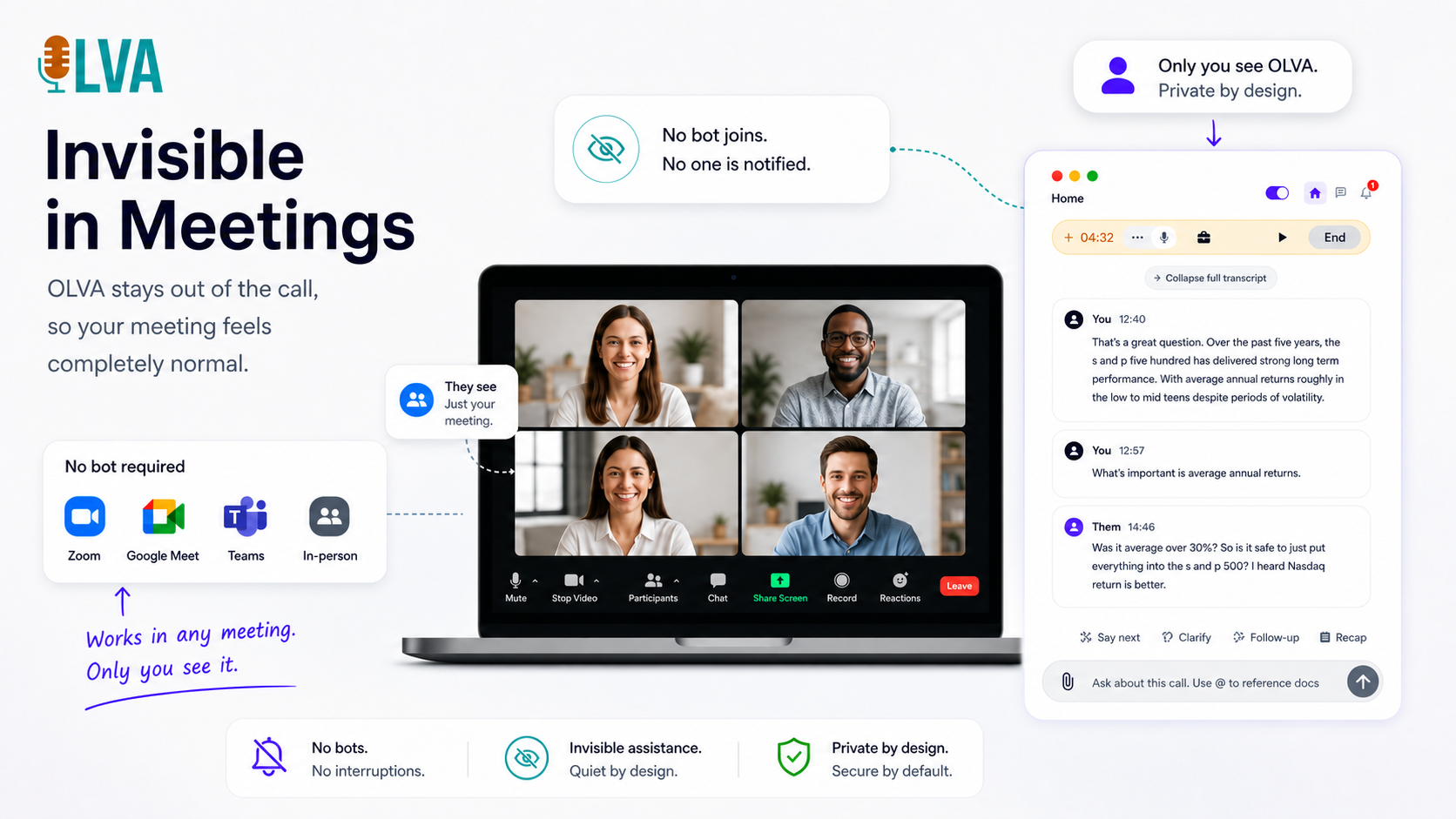
OLVA is a bot-free AI meeting assistant that delivers live intelligence during Zoom, Google Meet, Microsoft Teams, Slack huddles, Webex, and in-person conversations. It captures audio directly from your device rather than joining the meeting as a visible participant, so it never appears on the roster. The core workflow centers on the live moment: a real-time transcript follows each speaker across up to 60 spoken languages with automatic detection, and OLVA flags questions as they are asked so you can address them without breaking the flow of conversation. Beyond transcription, OLVA offers live Q&A that draws on the active transcript and any reusable meeting context you have attached, such as notes or uploaded documents (PDF, Word, PowerPoint, Markdown, text). An AI coach surfaces prompts for what to say next, sharper framing, or follow-up questions. Optional live insights add fact-checks and risk signals while the meeting is still running. This makes OLVA suited to sales calls, client visits, consulting sessions, and product discussions where the value lies in responding well in the moment, not just producing notes afterward. The tool runs on Windows and macOS desktops, with iOS and Android companion apps for in-person capture using the device microphone. After meetings, OLVA generates summaries, minutes, action items, and searchable meeting memory, and can turn a completed conversation into an editable PowerPoint deck. A Free plan exists with limited AI usage, while paid tiers scale meeting time and AI model access. Compared with Granola, Fireflies.ai, Fathom, and Otter.ai, OLVA emphasizes live coaching and question detection over post-call review, though its bot-free design depends on device capture rather than native platform integrations.

How do you use OLVA?

  1. 1Download and install OLVA for desktop
    Get the Windows x64 installer from the homepage and install OLVA locally. MacOS support is also available through the platform's app listings.
  2. 2Set up your meeting context
    Open the context manager to add notes or import files such as PDF, Word, PowerPoint, or Markdown. Assign the context to a folder or select it when starting OLVA so answers and insights can draw on your documents.
  3. 3Start bot-free capture in a meeting
    Launch OLVA before or during your Zoom, Google Meet, Teams, Slack huddle, or Webex call. It captures device audio without joining the meeting roster, and live transcription begins automatically.
  4. 4Use question detection and live Q&A
    As questions are detected, OLVA brings them forward with suggested answers. Use the in-meeting chat to ask for clarification, fact-checks, or context-aware responses while the conversation continues.
  5. 5Capture in-person conversations on mobile
    Install the iOS or Android app and use the device microphone to transcribe in-person meetings. Keep OLVA open to monitor capture, then review recaps and ask follow-up questions later.
  6. 6Review post-meeting outputs
    After the call, return to OLVA for summaries, minutes, action items, decisions, and searchable meeting memory. You can also generate an editable PowerPoint deck from the conversation.

Pros and cons

Pros

  • Bot-free capture keeps OLVA off the meeting roster and avoids the social friction of a visible recording bot.AI
  • Automatic question detection surfaces questions in real time so you can respond without scrambling.AI
  • Live AI coach and in-meeting Q&A provide practical prompts and answers while conversation is happening.AI
  • Supports up to 60 spoken languages with automatic detection and optional live translation.AI
  • Post-meeting memory, action items, and editable PowerPoint deck generation extend value beyond the call.AI

Cons

  • Mobile apps do not capture another app's system audio; only the device microphone is used for in-person capture.AI
  • Desktop incognito screen sharing is a Pro/Ultra feature and is not guaranteed against every capture or detection method.AI
  • Deep AI model usage consumes the plan's AI balance faster, so heavy use can run out before meeting time does.AI
  • Reliance on device audio capture means system audio setup must be configured correctly for each meeting platform.AI
  • No public API is documented, which limits custom integrations for teams with existing workflows.AI

How much does OLVA cost?

Pricing

OLVA uses a tiered subscription model with Free, Starter, Plus, Pro, and Ultra plans priced by meeting volume and AI usage. The Pro plan is $24.99 per month and includes unlimited meeting history, 50k words of reusable context, live transcription, translation, AI coach, and post-meeting Q&A. Annual billing is available, and AI usage is sold as a balance that can be topped up monthly.

Learn more

Support

The homepage links to an FAQ page and a product facts page for feature details and comparison sources. Desktop users can access in-app how-tos and a contact option via the mascot menu during meetings.

Learn more

Integrations

OLVA works alongside Zoom, Google Meet, Microsoft Teams, Slack huddles, Webex, and in-person conversations by capturing system audio directly, avoiding the need for native platform bots or calendar integrations.

Features

Core capabilities include bot-free audio capture, real-time transcription across 60 languages, automatic question detection, live Q&A, AI coaching prompts, live insights with fact-checks, reusable meeting context from notes and documents, in-person mobile capture, post-meeting summaries and searchable memory, and editable PowerPoint deck generation.

Learn more

Frequently asked questions about OLVA

  • How much does OLVA cost?
    OLVA uses a tiered subscription model with Free, Starter, Plus, Pro, and Ultra plans priced by meeting volume and AI usage. The Pro plan is $24.99 per month and includes unlimited meeting history, 50k words of reusable context, live transcription, translation, AI coach, and post-meeting Q&A. Annual billing is available, and AI usage is sold as a balance that can be topped up monthly.
  • How do you use OLVA?
    The walkthrough on this page covers 6 steps: 1. Download and install OLVA for desktop 2. Set up your meeting context 3. Start bot-free capture in a meeting 4. Use question detection and live Q&A 5. Capture in-person conversations on mobile 6. Review post-meeting outputs.
  • What platforms does OLVA support?
    OLVA is available on Windows, MacOS, iOS and Android.
  • What does OLVA integrate with?
    OLVA works alongside Zoom, Google Meet, Microsoft Teams, Slack huddles, Webex, and in-person conversations by capturing system audio directly, avoiding the need for native platform bots or calendar integrations.
  • What are the limitations of OLVA?
    Mobile apps do not capture another app's system audio; only the device microphone is used for in-person capture. Desktop incognito screen sharing is a Pro/Ultra feature and is not guaranteed against every capture or detection method. Deep AI model usage consumes the plan's AI balance faster, so heavy use can run out before meeting time does.

Status

StatusActive
Views0
Outbound clicks0
Added10/21/2026

Platforms

WindowsMacOSiOSAndroid

Pricing

FreemiumSubscription