Free trial
The homepage invites users to try the tool free and to get clips for free with no sign up needed, though the scope and any limits of that free usage are not spelled out on the page.
Learn moreAI clipping that turns one long video into dozens of social-ready shorts
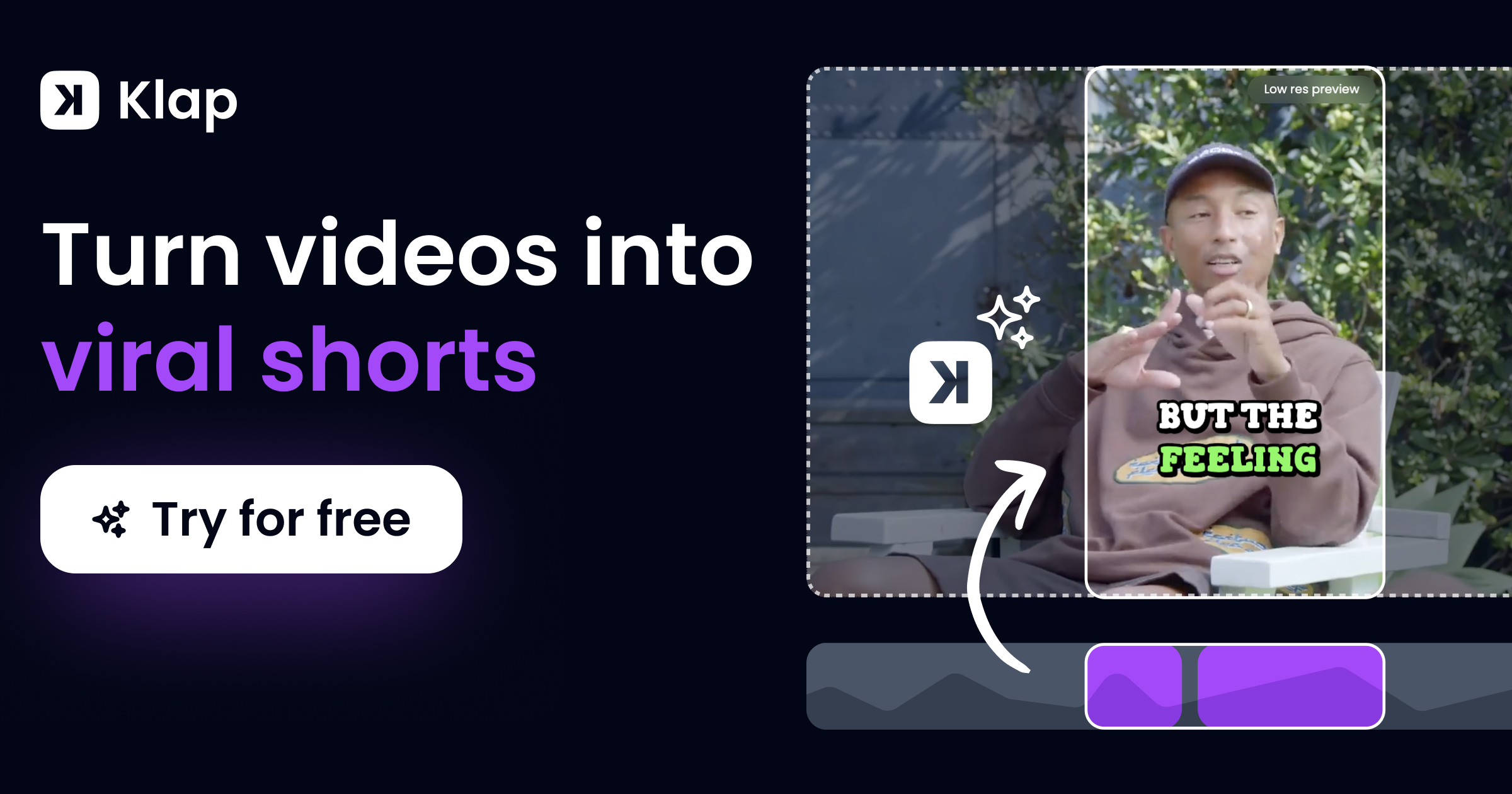
Vizard is an AI clipping tool that transcribes long videos and automatically cuts them into vertical clips with captions, AI B-roll and social caption text for TikTok, Reels and Shorts. A text-based editor, timeline, caption translation and brand templates sit on top, aimed at podcasters, coaches, marketers and agencies.
Vizard is an AI video repurposing platform built around one core promise: upload a long recording and get back a batch of short vertical clips formatted for TikTok, Instagram Reels and YouTube Shorts. The system transcribes the source video, scans the transcript for engaging moments, and cuts those moments into standalone clips automatically. Because the cuts are driven by the transcript rather than a waveform, every clip arrives with editable captions attached, and deleting a line of text removes the matching footage. Reframing is handled for you. Vizard detects the main subject and centers it in a 9:16 frame, so a widescreen podcast or webinar does not need manual re-cropping before it can be posted. On top of the cuts, the platform layers in AI captions with emoji, AI-selected B-roll, and generated social captions with hashtags. A separate mode called Vizard Agent works from prompt-style templates (product ads, talking head, podcast clips, explainers, localization and others) for teams that want a guided starting point rather than a raw highlight reel. The editor is where most of the practical work happens. Text-based editing lets a user trim by deleting words, a timeline view allows second-level fine-tuning, one-click resizing adapts a cut for different platforms, and captions can be translated into more than 100 languages for multilingual audiences. Brand templates keep fonts and styling consistent, and finished clips can be downloaded, shared by link, or published straight from the tool. Team Workspace adds shared projects, member invitations and client-facing previews. Vizard sits in the same bracket as other transcript-first clipping tools. It is aimed at podcasters, coaches, marketers, agencies and course creators who already produce long-form video and want volume without hiring an editor. The homepage cites 10 million plus creators and businesses, and positions the tool as cheaper and faster than manual clipping. Anyone needing frame-accurate creative editing, motion graphics or color work should still expect to finish in a dedicated NLE.
The homepage invites users to try the tool free and to get clips for free with no sign up needed, though the scope and any limits of that free usage are not spelled out on the page.
Learn moreThe homepage does not describe support channels, though one quoted customer review mentions reaching real humans. No help centre or documentation page is listed on the site pages provided.
Core features include AI highlight detection, one-click cutting and automatic vertical reframing for TikTok, Reels and Shorts. Clips can carry AI captions with emoji, AI B-roll and generated social captions with hashtags. The editor supports text-based trimming, timeline fine-tuning, one-click ratio changes, caption translation into over 100 languages, brand templates and link sharing, with a Team Workspace for collaboration and 22 prompt templates inside Vizard Agent.
 AI Angels400+ customizable AI girlfriends for NSFW chat, voice calls, and roleplay
 Candy AIExperience the future of companionship with AI friends who chat, role-play, and connect with you on a human level.
 ourdream.aiA vast AI roleplay platform with millions of characters for chat, images, video and voiceAI Angels400+ customizable AI girlfriends for NSFW chat, voice calls, and roleplayCandy AIExperience the future of companionship with AI friends who chat, role-play, and connect with you on a human level.ourdream.aiA vast AI roleplay platform with millions of characters for chat, images, video and voice