Free trial
Signing up is free and the homepage states no credit card is required, so the workspace can be tried before any payment. Plan tiers and limits are not listed on the homepage.
Learn moreA 24/7 cloud computer that runs your files, chats, automations and websites

Zo Computer is an AI project builder tool. A persistent cloud computer with an AI assistant that organises files, runs scheduled automations, hosts websites and exposes a browser and terminal, aimed at founders and non-technical builders who want one machine for work and side projects.
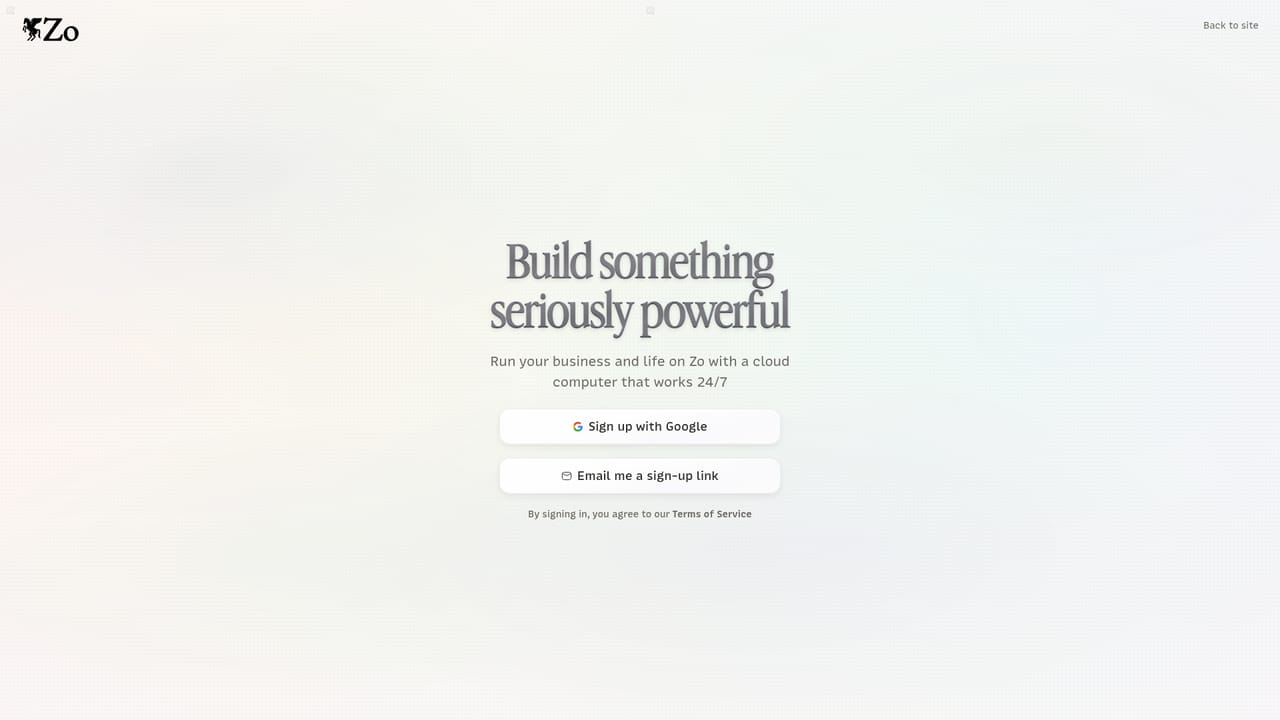
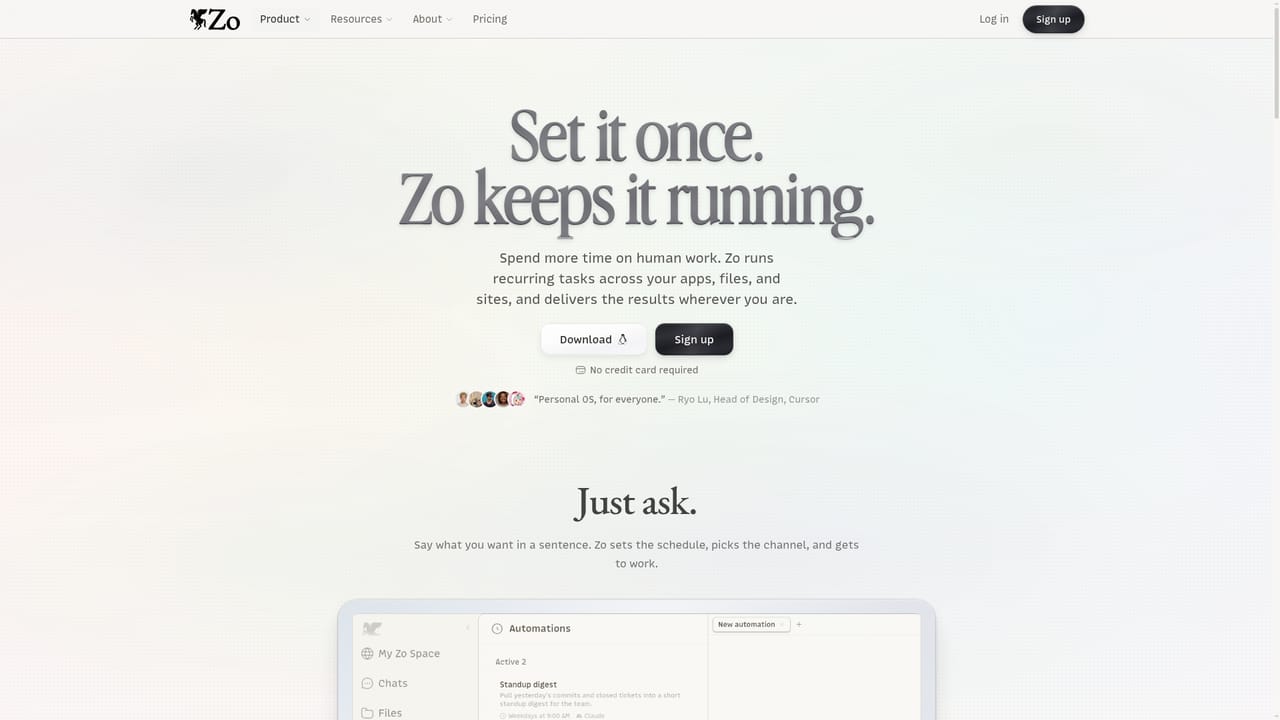
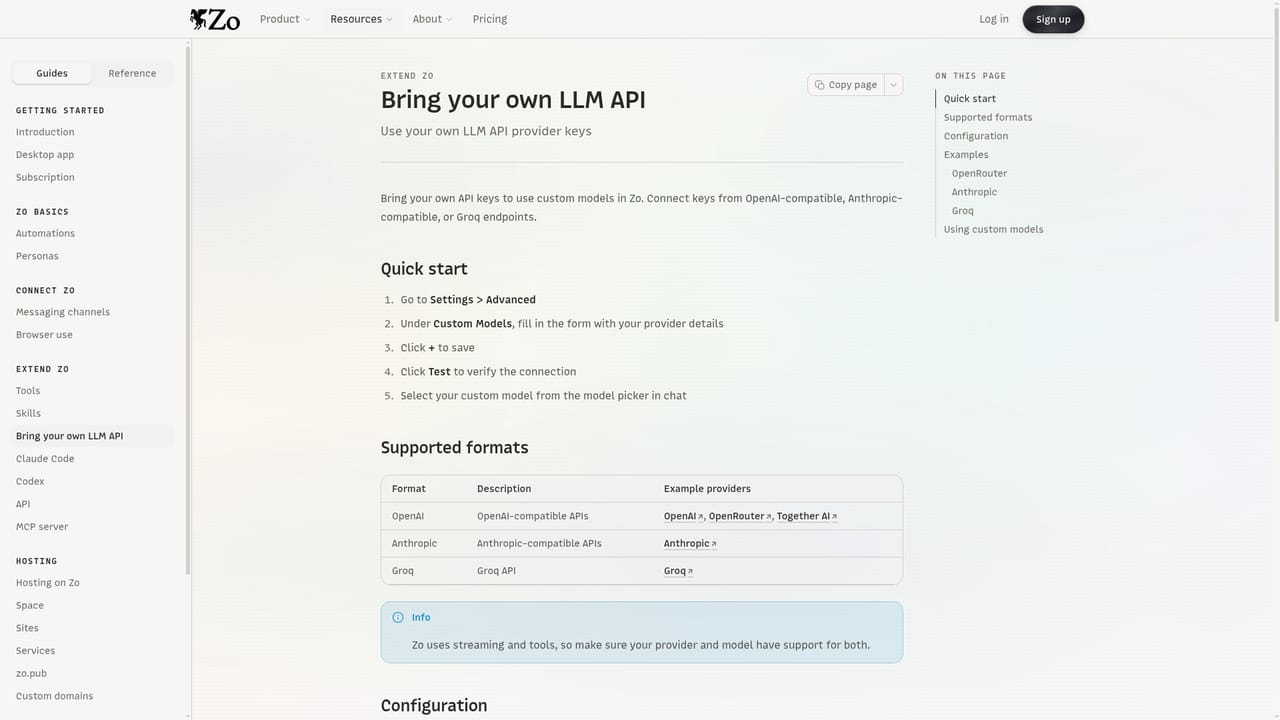
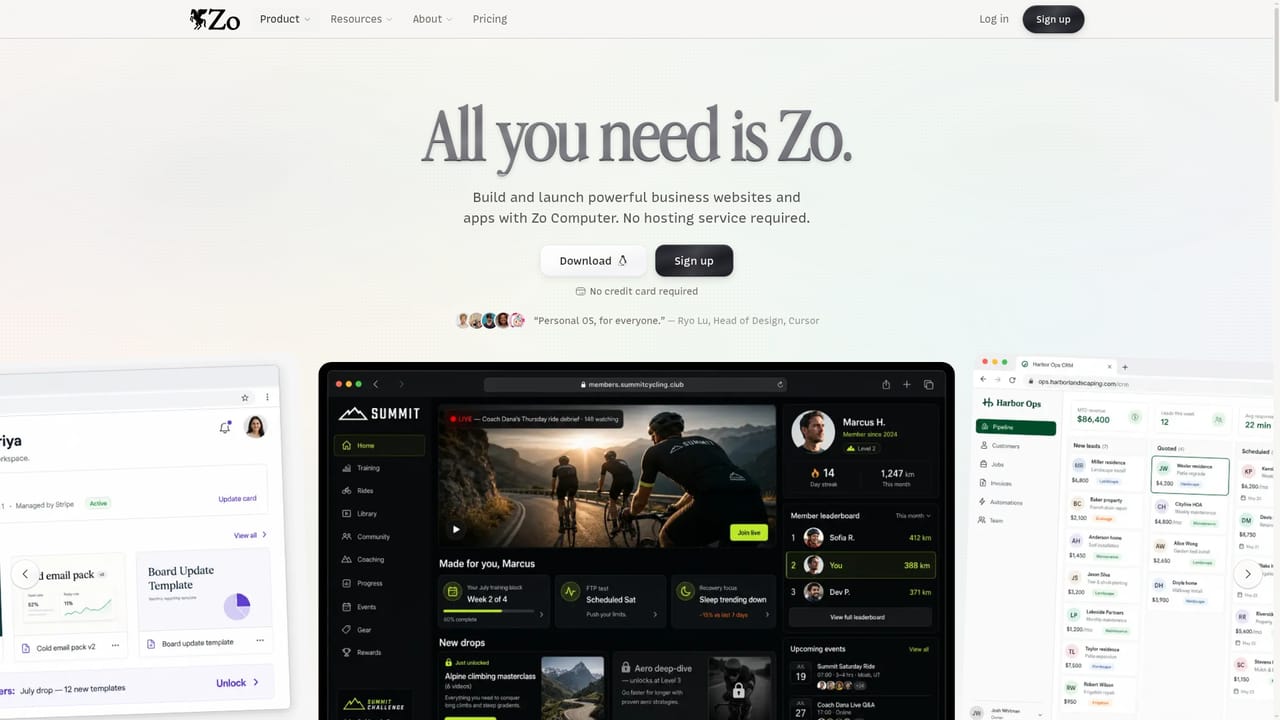
Zo Computer is a personal cloud computer rather than a single-purpose chatbot. Signing up gives you a persistent machine with storage, compute and networking, and an AI layer that can act on what lives there. Files, chat threads, automations, integrations, skills, a browser, hosted sites and a terminal all sit in one workspace the product calls a Zo Space, reachable from the web and from a downloadable client for Linux-based desktops. In practice the assistant works across the material you keep on the machine. The homepage shows a request to sort ten files, answered by grouping them into Documents, Images, Media, Data and Web folders. Voice notes become journal entries; contracts and invoices are searchable alongside notes. Automations extend this beyond chat: a prompt becomes a scheduled or triggered job that runs while you are away, which is the main reason the 24/7 framing matters. A builder layer turns the same space into public pages, with custom domains such as a personal speaker site referenced on the homepage, so a site can be edited by describing the change. Vibe coding is the natural entry point. Non-technical founders, solo operators and small teams can describe an outcome and let the agent write files, run terminal commands and wire up a page, with model choice exposed in the interface and options to bring your own keys or route through Codex-style workflows. The audience overlaps with people who would otherwise stitch together a notes app, a cloud drive, a scheduler and a website builder. Against alternatives, Zo competes less with chat assistants and more with the combination of a VPS, a no-code site builder and an automation tool. That is powerful but also means the product asks you to trust one machine with your working life, and the homepage leans on showcase spaces rather than deep documentation of limits.
Signing up is free and the homepage states no credit card is required, so the workspace can be tried before any payment. Plan tiers and limits are not listed on the homepage.
Learn moreA dedicated integrations area connects external services to the Space so automations and the assistant can act on outside accounts. The specific service list is not enumerated on the homepage.
Learn moreA persistent personal cloud machine with file storage, compute and networking. The assistant organises files, drafts from voice notes, searches past chats and answers questions about your documents. Scheduled automations run tasks unattended, a browser and terminal are built in, skills extend behaviour, and Space sites can be published to a custom domain. Model choice, bring-your-own-key and Codex-style workflows are supported.
Learn more AI Angels400+ customizable AI girlfriends for NSFW chat, voice calls, and roleplay
 Candy AIExperience the future of companionship with AI friends who chat, role-play, and connect with you on a human level.
 ourdream.aiA vast AI roleplay platform with millions of characters for chat, images, video and voiceAI Angels400+ customizable AI girlfriends for NSFW chat, voice calls, and roleplayCandy AIExperience the future of companionship with AI friends who chat, role-play, and connect with you on a human level.ourdream.aiA vast AI roleplay platform with millions of characters for chat, images, video and voice