CleverType

An AI keyboard that cleans up your writing wherever you type

Beginner
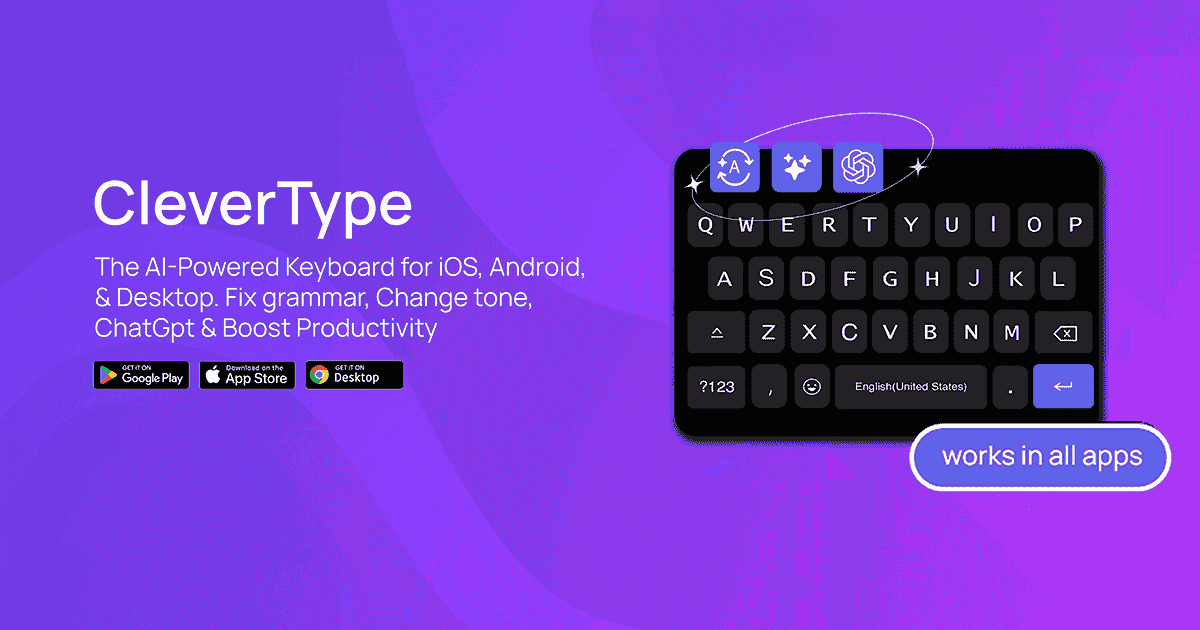
Screenshot of CleverType, An AI keyboard that cleans up your writing wherever you type

What is CleverType?

CleverType is an AI keyboard for Android, iOS, Chrome and desktop that fixes grammar, adjusts tone, transcribes speech, translates and drafts replies inside any app, without copying text into a separate writing tool.

CleverType is a replacement keyboard that puts an AI writing layer directly on top of the text field you are already using. Instead of copying a sentence into a separate web app, correcting it, and pasting it back, the correction happens in place: the keyboard suggests a revised version and a single tap swaps it into the message. The same approach covers tone changes, translation, replies, and free-form prompting. The core tools are practical rather than experimental. Fix Grammar handles spelling and sentence structure and standardises the output regardless of the writer's fluency. AI Voice Typing converts speech into finished prose, adding punctuation, capitalisation and paragraph breaks, dropping filler words, and turning spoken lists into numbered or bulleted ones. Tone adjustment offers a long menu (professional, casual, polite, empathetic, funny, poetic, sarcastic, Gen-Z and more) plus user-defined custom tones. Clever Reply drafts responses to the last message in a thread and can expand a short note into a full reply, with neutral, positive and negative directions. The keyboard also carries a ChatGPT connection and more than 20 preset assistants for tasks such as summarising, writing social captions, humanising text, emojifying phrases and generating pickup lines, and users can save their own prompts as assistants. Translation is built for conversational use, aiming to preserve meaning and tone rather than produce a literal rendering. The company reports 4 million users across Android, iOS, a Chrome extension and a desktop app, with 40+ languages and a 4.7 store rating. CleverType suits people who write in many different apps and do not want a separate writing tool for each one: chat, email, social and messaging all get the same assistance. It competes less with long-form editors and more with the default system keyboard, which is the habit it asks you to break.

How do you use CleverType?

  1. 1Install the app for your device
    Pick the Android build from Google Play, the iPhone build from the App Store, the Chrome extension, or the desktop app. Install on the device you type on most.
  2. 2Set CleverType as your keyboard
    Enable the keyboard in your system settings and switch to it in any text field. This step happens in the operating system, not inside CleverType.
  3. 3Run a first correction
    Type a sentence with a deliberate error in any messaging app, open the suggestion, and use replace to swap in the corrected text.
  4. 4Try tone and voice
    Rerun the same sentence through the tone menu to see how far a shift like professional or casual goes, then tap the microphone key and dictate a short update to check formatting.
  5. 5Build a custom assistant
    Save a prompt you repeat often as a personal assistant so it sits alongside the built-in ones on the keyboard.

Pros and cons

Pros

  • Works inside whatever app holds the text field, so there is no copy and paste round tripAI
  • Tone menu is unusually broad and supports user-defined custom tonesAI
  • Voice typing returns formatted text with punctuation and real lists, not a raw transcriptAI
  • Preset assistants can be extended with custom prompts saved as personal toolsAI
  • Free to install across Android, iOS, Chrome and desktopAI

Cons

  • Replacing the system keyboard is a lasting commitment, and users who like their current autocorrect or gesture typing may resent the switchAI
  • Full pricing, usage limits and any paid tier are not documented on the homepage, so cost is unclear before installingAI
  • No public API or third-party integration documentation is offered, which rules out embedding the assistance in your own productAI
  • The long list of preset assistants leans heavily on novelty prompts, which adds clutter around the genuinely useful grammar and tone toolsAI
  • Broad keyboard permissions are a real privacy consideration, and the homepage does not explain what text is processed or retainedAI

How much does CleverType cost?

Features

Grammar and spelling correction with one-tap replace, AI voice typing that returns punctuated and formatted text, tone adjustment across a long preset list plus custom tones, an AI reply drafter with neutral, positive and negative directions, a ChatGPT connection with 20+ preset assistants, custom prompt assistants, and context-aware translation on the Android and iOS keyboards.

Frequently asked questions about CleverType

  • How do you use CleverType?
    The walkthrough on this page covers 5 steps: 1. Install the app for your device 2. Set CleverType as your keyboard 3. Run a first correction 4. Try tone and voice 5. Build a custom assistant.
  • What platforms does CleverType support?
    CleverType is available on Android, iOS, Browser extension, MacOS and Windows.
  • What are the limitations of CleverType?
    Replacing the system keyboard is a lasting commitment, and users who like their current autocorrect or gesture typing may resent the switch. Full pricing, usage limits and any paid tier are not documented on the homepage, so cost is unclear before installing. No public API or third-party integration documentation is offered, which rules out embedding the assistance in your own product.

Status

StatusActive
Views0
Outbound clicks0
Added10/21/2026

Platforms

AndroidiOSBrowser extensionMacOSWindows

Pricing

FreeFreemium