Free trial
The homepage states the tool is free to try with daily credits that reset according to the current service allowance, with no paid tier described.
Learn moreEdit the words inside any image without rebuilding the design from scratch.

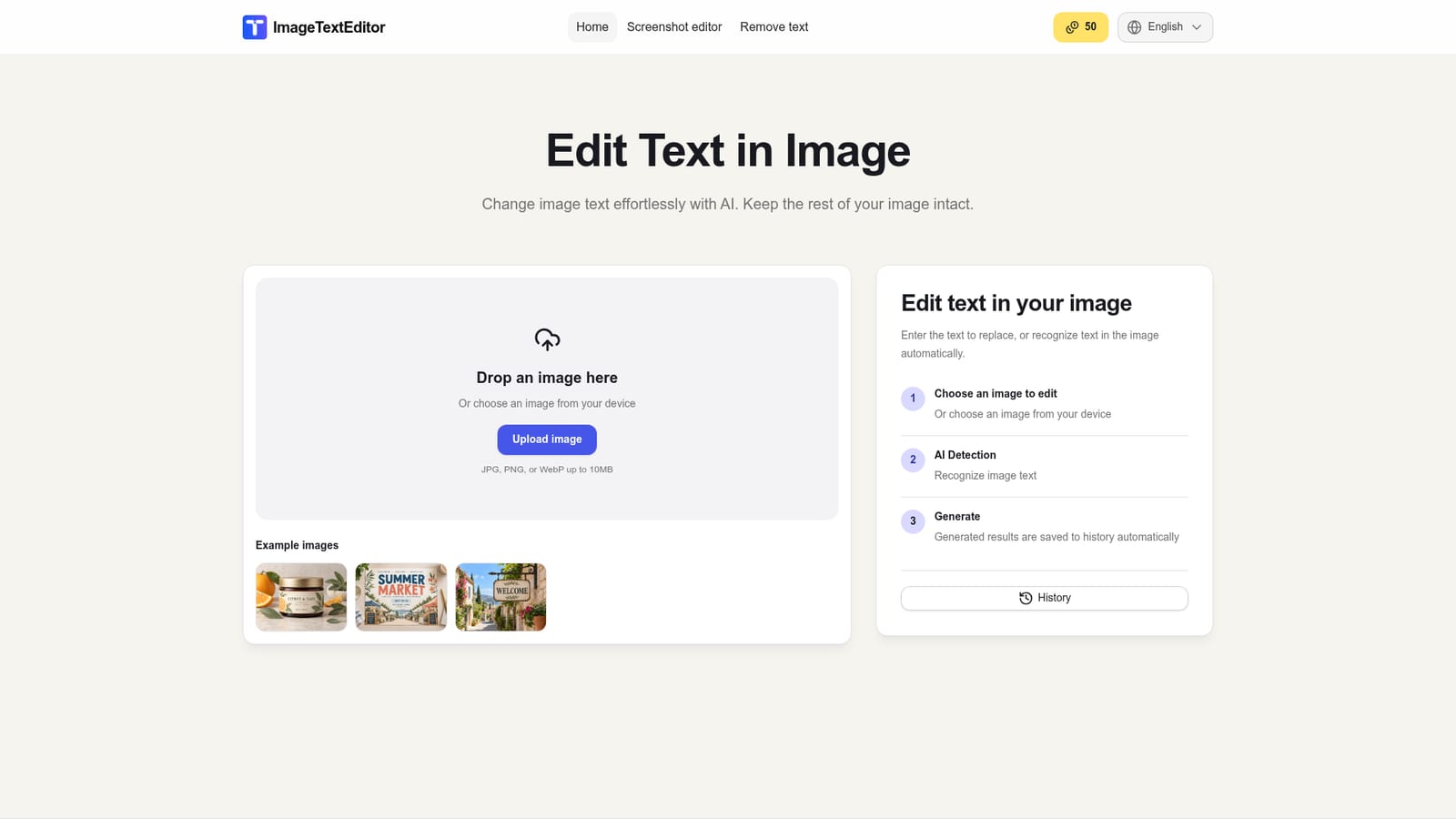
ImageTextEditor is an image editing tool that edits the words inside any image without rebuilding the design from scratch. A browser-based AI editor that lets anyone change, add, remove, extract, or translate text embedded in an image without rebuilding the original design.
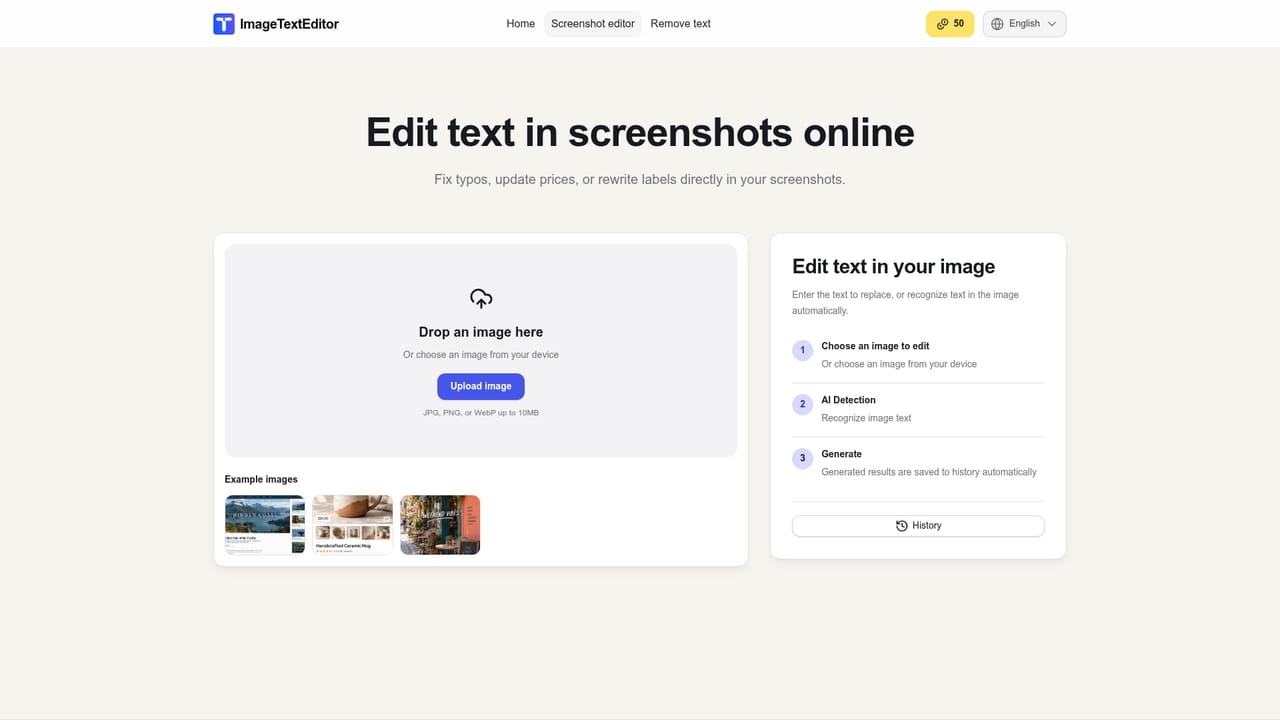
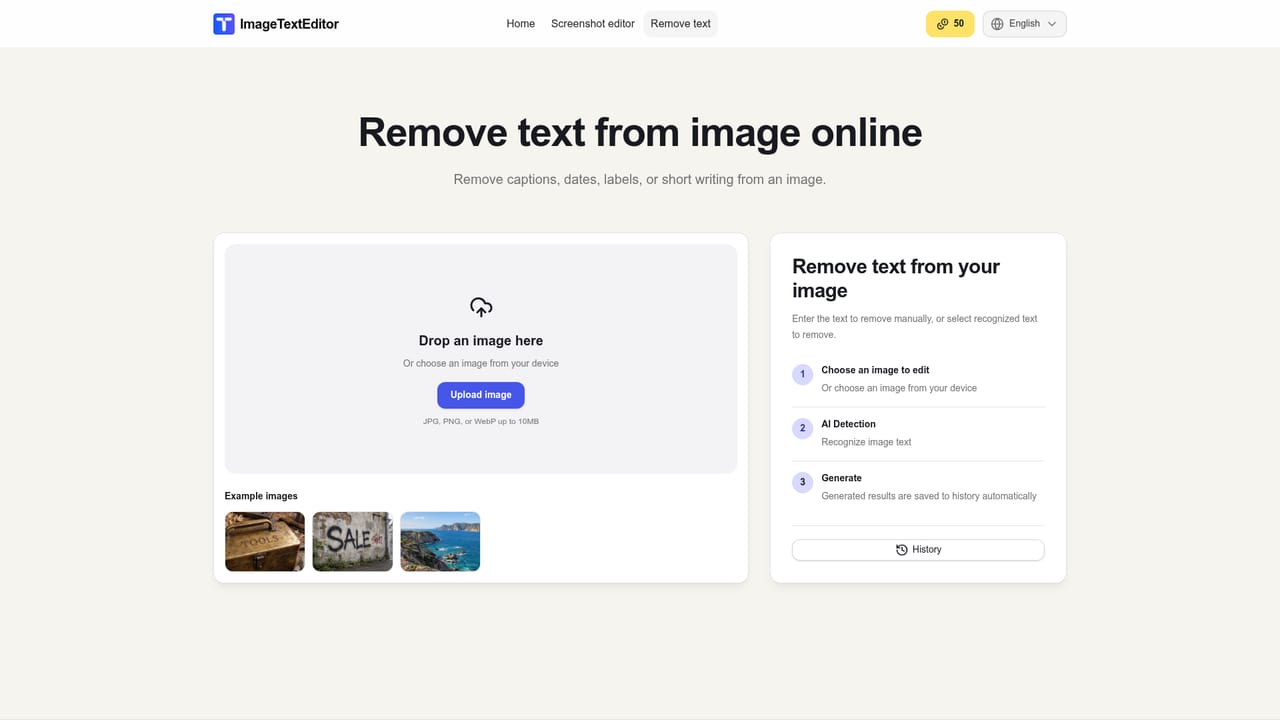
ImageTextEditor is a browser-based tool for changing text that already exists inside an image. Instead of opening a full design file, a user uploads a JPG, PNG, or WebP image and the AI detects or accepts manually entered text, then replaces, adds, or removes it while trying to preserve the surrounding layout and background. The tool also extracts text from an image into copyable form and can translate text found inside an image, which is useful for working with screenshots, signs, or printed material in another language. The product is aimed at people who need a fast, targeted fix rather than a full creative suite. Content creators correcting a typo in a finished poster, marketers updating a product label or an outdated announcement, e-commerce sellers refreshing a listing image, and students or professionals pulling text out of a screenshot are the clearest fits. Anyone without access to the original design file but with a finished image in hand can still make a specific text change. In practice the workflow is three steps: upload the image, select or detect the text to edit, add, remove, extract, or translate, then review and download the result. A dedicated screenshot editor handles screen captures specifically, and a separate text removal workflow focuses on stripping unwanted wording and reconstructing the background behind it. History of generated results is saved automatically within a session. Compared with full photo editors such as Photoshop or GIMP, ImageTextEditor trades flexibility for speed and simplicity: it is not meant for complex compositing or layered design work, only for text-focused edits on an existing image. It competes more directly with lightweight AI image-text tools and inpainting utilities than with professional design software, and its value depends on how closely the AI preserves font style, background texture, and layout during a replacement.
The homepage states the tool is free to try with daily credits that reset according to the current service allowance, with no paid tier described.
Learn moreContact is available through an email address listed on the site; no dedicated help center, live chat, or documentation page is mentioned.
Core features include replacing, adding, or removing text inside an image, extracting embedded text into editable copy, translating image text, a dedicated screenshot editor, and a separate text removal workflow, all through a browser-based upload and review process.


