Support
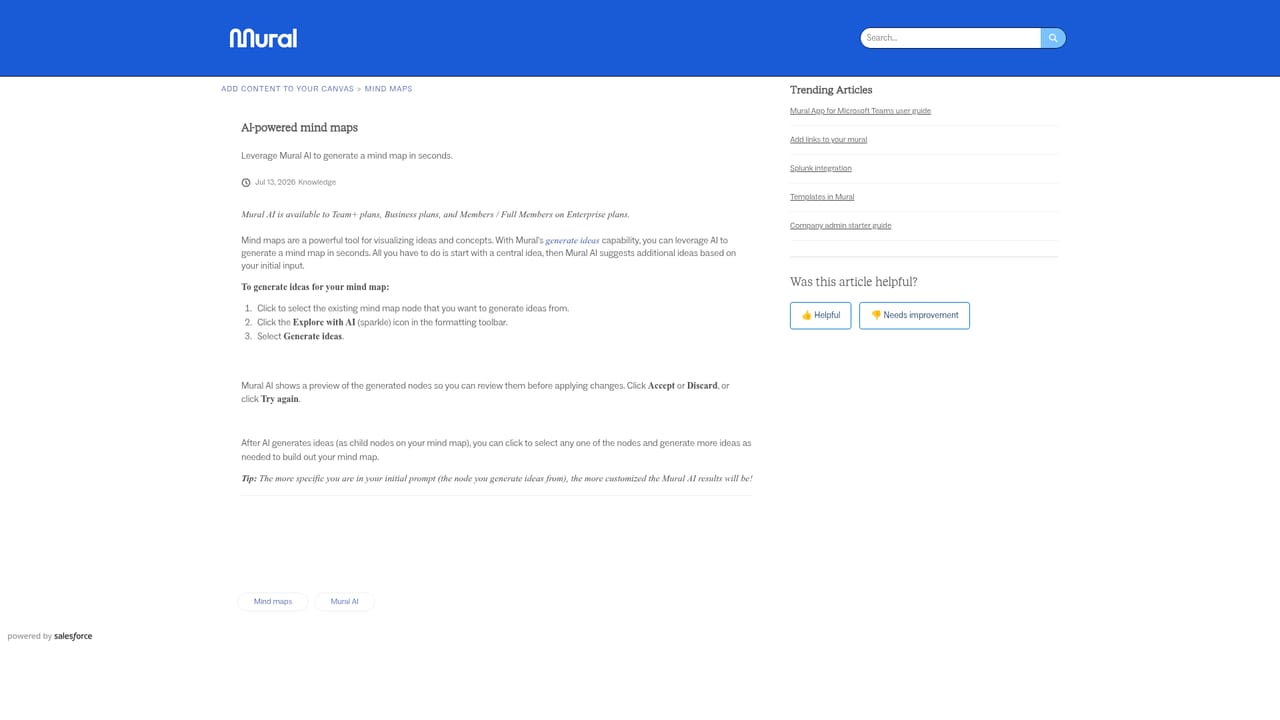
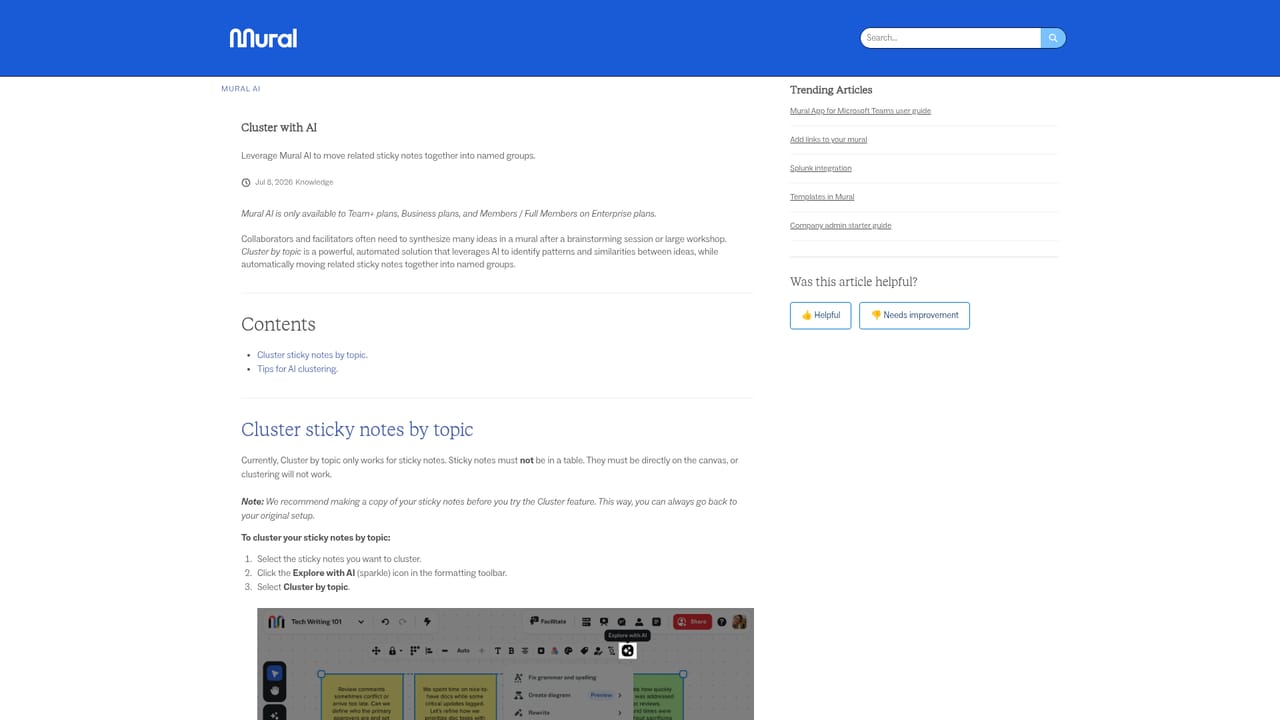
Help center articles cover using Mural AI, AI clustering and AI-powered mind maps. Contact options for support and sales are listed, and a system status page tracks service availability.
Learn moreAI features that turn messy Mural canvases into shared team understanding

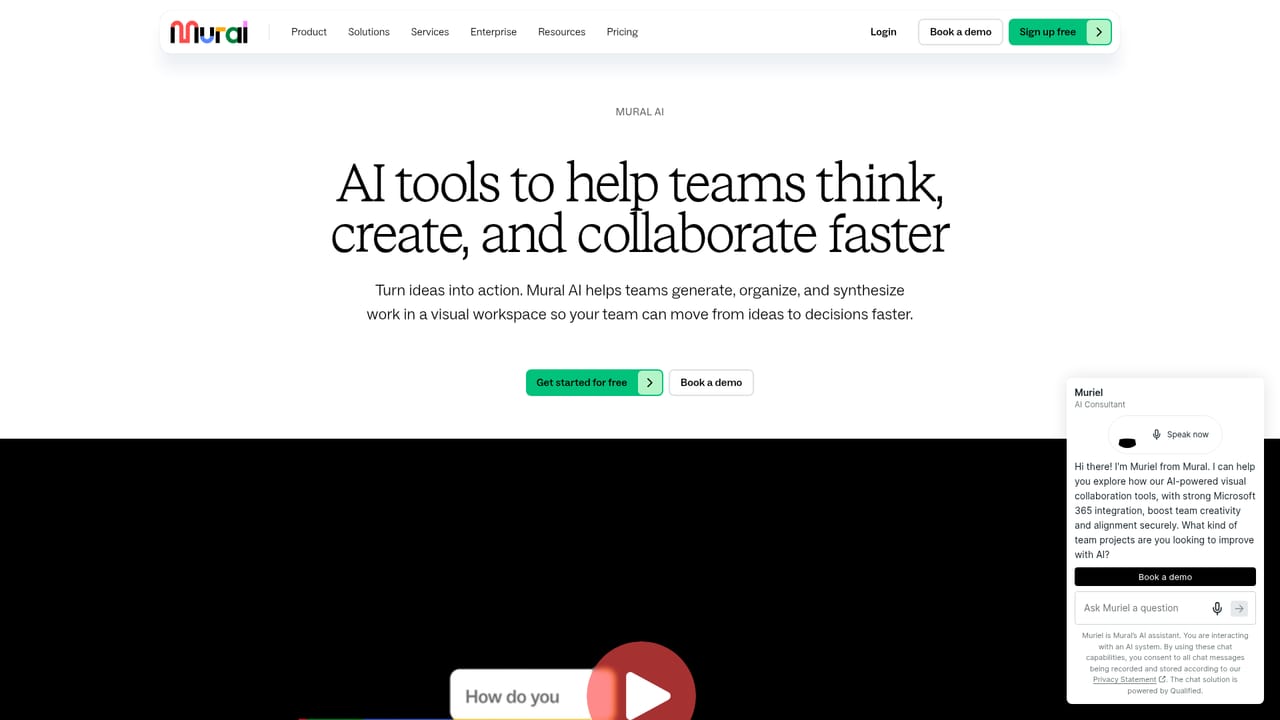
Mural AI is a task completion tool. Mural AI adds mind mapping, clustering, summaries, sentiment classification and ideation prompts directly to Mural's collaborative canvas, plus an MCP route for external AI agents and Microsoft 365 Copilot support. Useful for teams that need to make sense of large sticky note sessions.
Mural AI is the artificial intelligence layer built into Mural, the visual collaboration platform teams use for workshops, brainstorming and planning. Rather than a standalone chatbot, it lives on the canvas itself. Teams generate mind maps to open up a topic, group sticky notes by theme, summarize what a board contains, or classify feedback by sentiment, all without leaving the workspace. That placement matters: the output arrives where the discussion is already happening, so the group can react to it together. The feature set splits roughly into five jobs. AI mind mapping produces and expands visual maps of ideas and connections. Clustering sorts sticky notes by topic or other criteria so patterns surface quickly. Summaries and synthesis pull key themes and takeaways out of accumulated canvas content. Sentiment analysis and classification tag notes so feedback trends become visible. Ideation support generates prompts, questions, hypotheses and opportunity statements as raw material for the team to refine. A separate route exists through Mural MCP, which lets an external AI agent create and edit canvas content, pull in research, documents, transcripts or tickets, and later push outcomes out as summaries, action items or tickets. Microsoft 365 Copilot users can also find murals and templates and summarize canvas text through Copilot. The audience is anyone running collaborative sessions that tend to drown in sticky notes: facilitators, product and design teams, consultants, and workshop leaders who need to converge on themes fast. Beginners can lean on clustering and summaries without writing a prompt; the heavier MCP and agent workflows are aimed at teams already invested in an AI assistant. Against whiteboard rivals and general chat tools, Mural AI competes on context: it works over the artifacts your team already produced. The trade-off is scope. This is not a general writing or image assistant, and the AI is only useful once there is canvas content to work with. Mural publishes guidance on its security and responsible AI posture, including human oversight and customer control, which enterprise buyers will want to read before rolling it out.
Help center articles cover using Mural AI, AI clustering and AI-powered mind maps. Contact options for support and sales are listed, and a system status page tracks service availability.
Learn moreMural MCP lets an external AI chatbot create and edit canvas content and move research, transcripts and tickets into Mural. A Microsoft 365 Copilot agent finds murals and templates and summarizes canvas text. A developer API and an integrations directory also exist.
Learn moreAI mind mapping that generates and expands visual idea maps on the canvas; clustering that groups sticky notes by topic or criteria; summaries and synthesis that pull key themes from canvas content; sentiment analysis and classification of notes; ideation support for generating questions, hypotheses and opportunity statements; Mural MCP for agent-driven canvas edits and a Microsoft 365 Copilot connection.
Learn more AI Angels400+ customizable AI girlfriends for NSFW chat, voice calls, and roleplay
 Candy AIExperience the future of companionship with AI friends who chat, role-play, and connect with you on a human level.
 ourdream.aiA vast AI roleplay platform with millions of characters for chat, images, video and voiceAI Angels400+ customizable AI girlfriends for NSFW chat, voice calls, and roleplayCandy AIExperience the future of companionship with AI friends who chat, role-play, and connect with you on a human level.ourdream.aiA vast AI roleplay platform with millions of characters for chat, images, video and voice


