Free trial
New sign-ups receive 30 free credits with no card required, and the compression, conversion, resizing and cropping tools are free to use in the browser.
Learn moreDescribe the photo edit in plain English, keep the photo yours
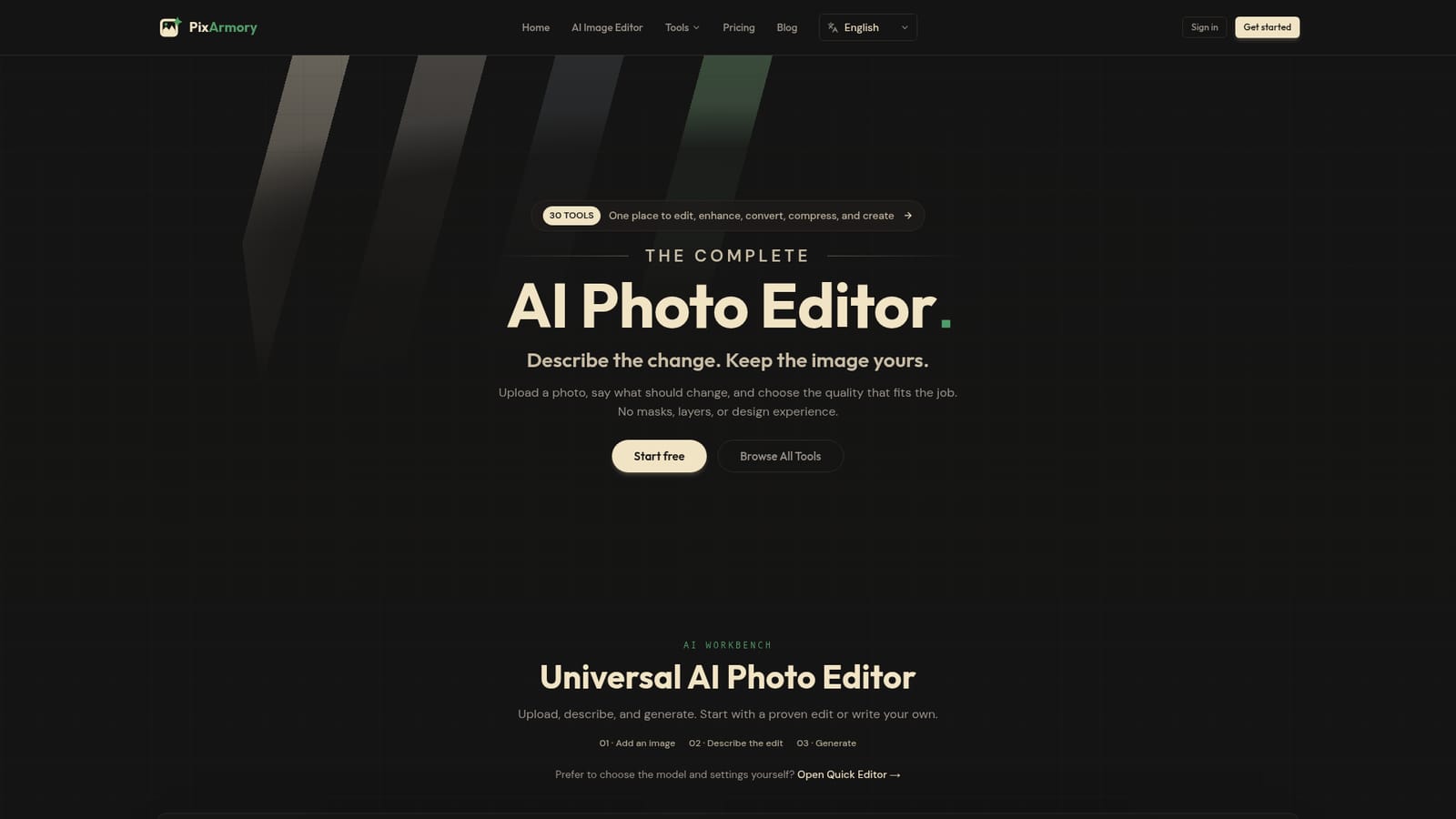
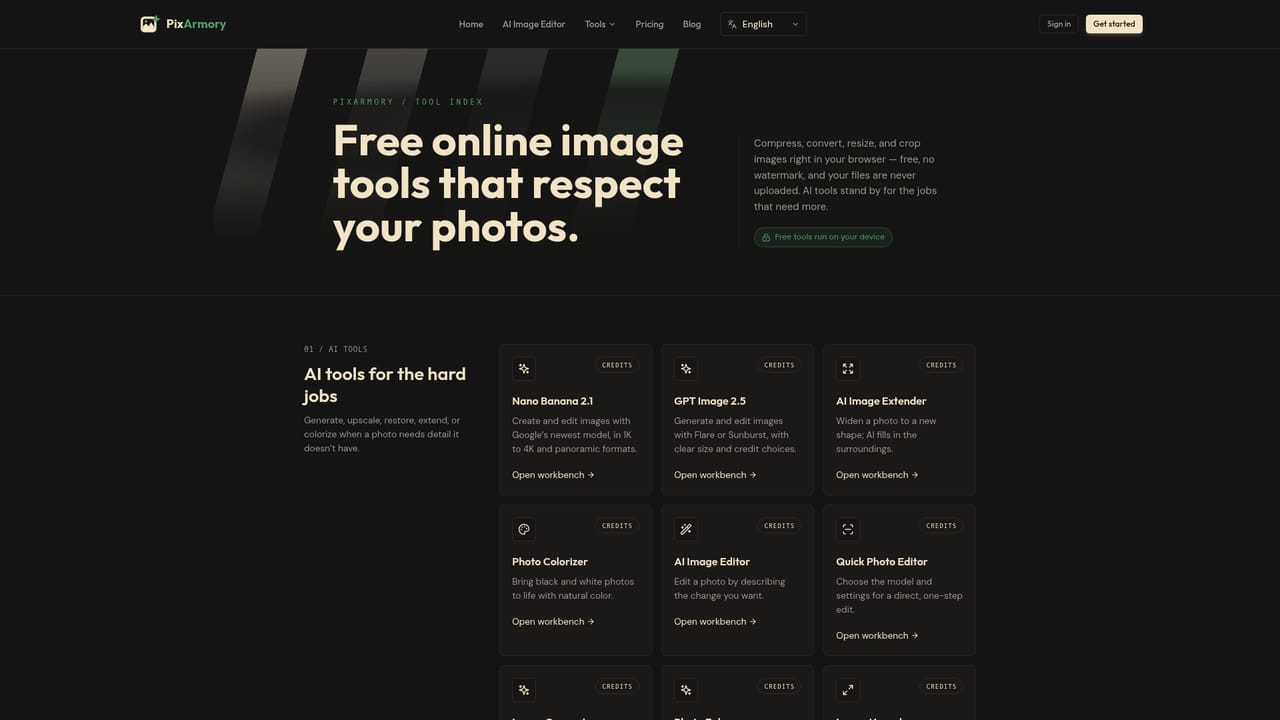
PixArmory is a browser photo editor where you describe an edit in plain English instead of masking by hand. It bundles a general AI editor, six focused AI tools (enhancer, background remover, upscaler, extender, colorizer, generator) and free utilities for compressing, converting, resizing and cropping images.
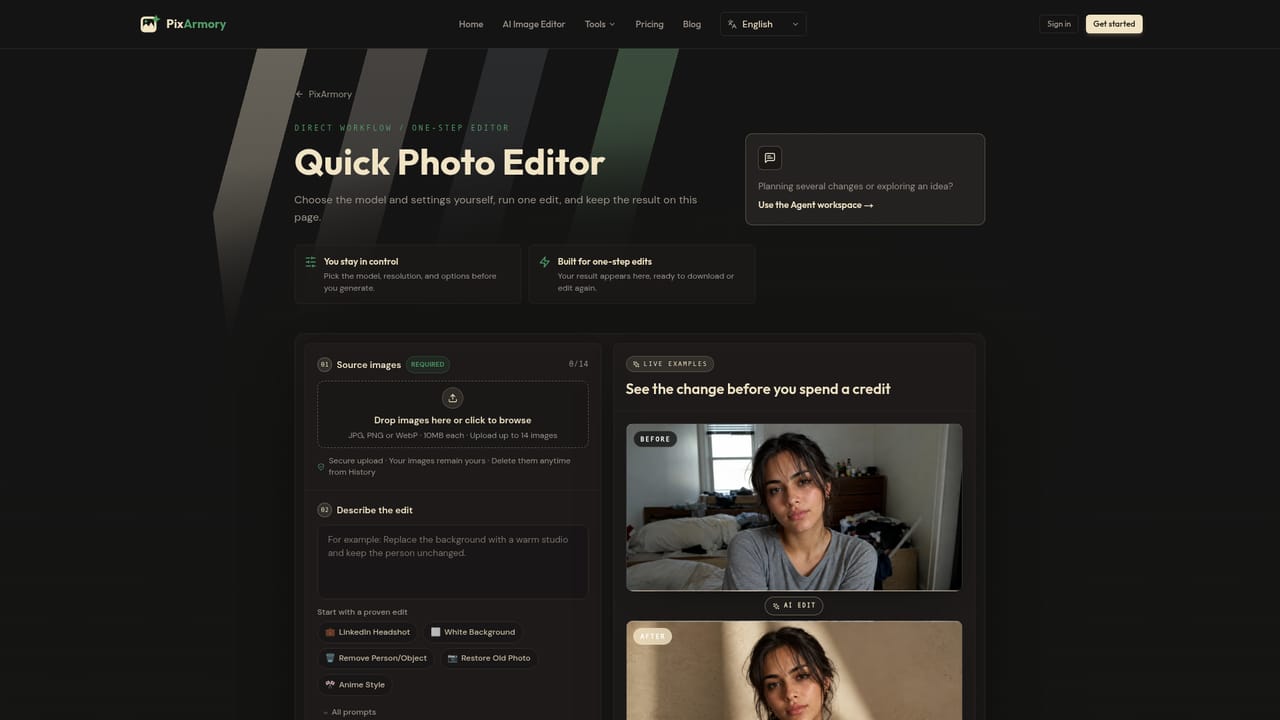
PixArmory is a browser based photo editor built around a single idea: instead of painting masks and stacking layers, you upload an image and describe the change you want in ordinary language. The editor works out which pixels to touch, applies the edit, and returns a finished JPG. Up to 14 reference images can be dropped into one job, which makes it possible to blend several photos into a single composition with matching lighting across the frame. Around that core editor sits a set of focused single-purpose tools for jobs that do not need a written brief: an image generator, a photo enhancer for blurry or flat shots, a background remover that handles hair and soft edges, an upscaler, an extender for changing aspect ratio, and a colorizer for black and white photos. A second tier covers routine file work such as compressing, converting, resizing and cropping, and those tools run free in the browser with no account needed. The practical workflow is quick. Upload a JPG, PNG or WebP file (10MB each), pick a proven preset such as LinkedIn headshot, white background, object removal or anime style, or write your own instruction, then choose a model. Lite is the low cost option, Nano Banana 2 is the general purpose default, Nano Banana Pro handles larger 4K output, and GPT Image 2 is aimed at posters and layouts containing text. Processing usually takes 10 to 30 seconds. Multi-turn editing lets you keep refining an image across passes without the subject drifting. It suits sellers producing product mockups, marketers building ad creatives, and anyone who needs a fast portrait or background swap without opening Photoshop. The catch is that it is not a precision retouching suite: there are no brushes, curves or layer stacks, and every output lands as a JPG, so transparent PNG workarounds are limited. Files stay in cloud storage until you delete them from your history page.
New sign-ups receive 30 free credits with no card required, and the compression, conversion, resizing and cropping tools are free to use in the browser.
Learn moreCredit based rather than a flat per-image fee. New accounts get 30 free credits, and costs are shown before each run: a Lite Gemini edit is 8 credits, GPT Image 2 is 15 credits, and higher resolution Nano Banana modes cost more. Monthly or yearly plans supply larger credit bundles. Exact plan prices are not stated on the homepage.
Learn moreA universal AI editor driven by text prompts, plus focused tools for image generation, photo enhancement, background removal, upscaling, aspect ratio extension and black and white colorization. Editing strengths include likeness consistency across edits, merging up to 14 reference images, style transfer and multi-turn refinement. Free utilities handle compress, convert, resize and crop.
Learn more AI Angels400+ customizable AI girlfriends for NSFW chat, voice calls, and roleplay
 Candy AIExperience the future of companionship with AI friends who chat, role-play, and connect with you on a human level.
 ourdream.aiA vast AI roleplay platform with millions of characters for chat, images, video and voiceAI Angels400+ customizable AI girlfriends for NSFW chat, voice calls, and roleplayCandy AIExperience the future of companionship with AI friends who chat, role-play, and connect with you on a human level.ourdream.aiA vast AI roleplay platform with millions of characters for chat, images, video and voice