Free trial
The homepage promotes starting for free with no credit card required, but does not state how long a trial lasts or what limits apply to free use.
Learn moreTurn any text, PDF, image or video into a ready-to-export quiz

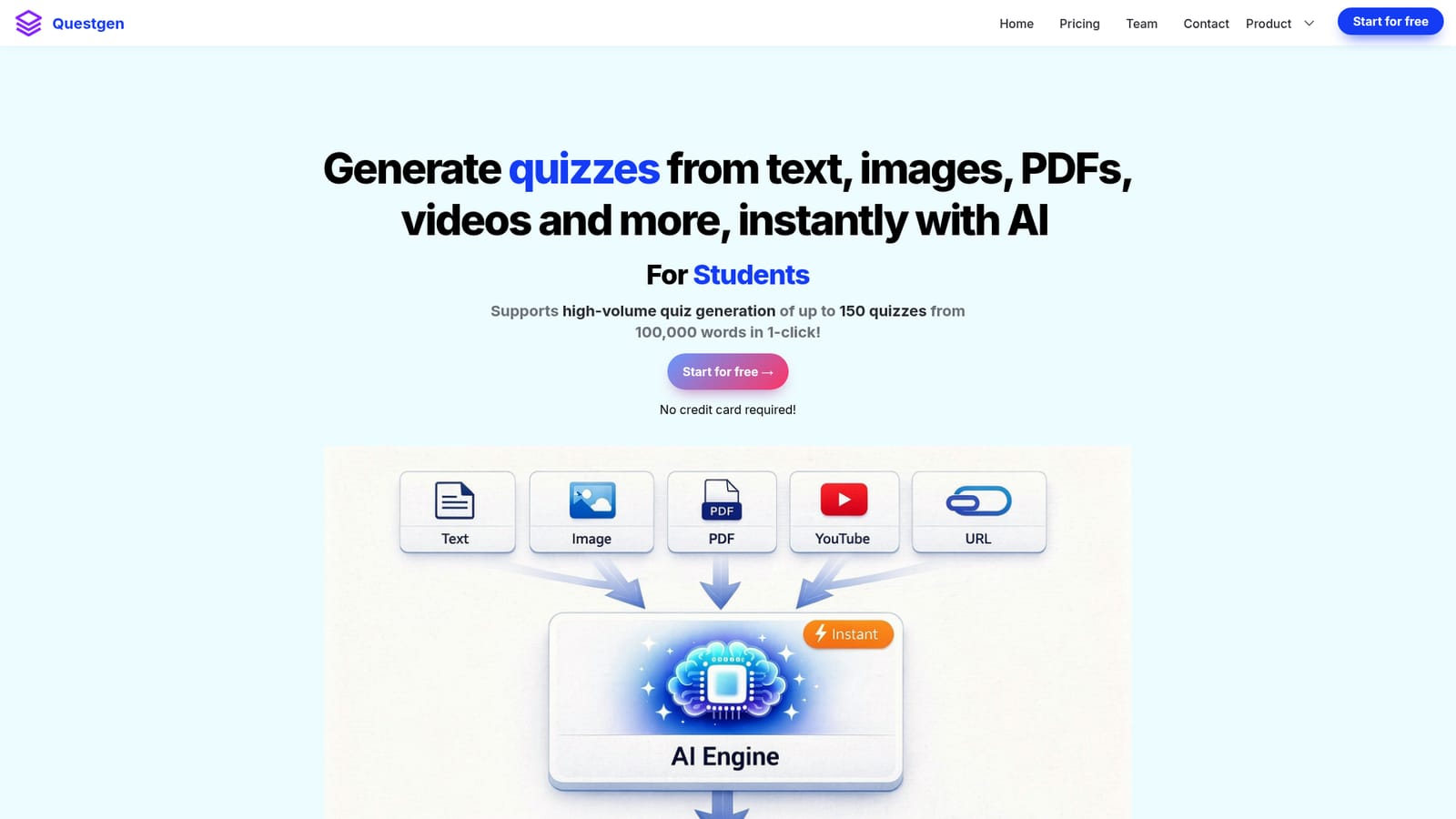
Questgen is a 20 questions game tool that turns any text, PDF, image or video into a ready-to-export quiz. AI quiz generator that converts text, PDFs, Word files, webpages, images and audio or video into MCQs, true/false, fill-in-the-blank, matching, Bloom's Taxonomy and higher-order questions, with editing and export to QTI, Moodle, GIFT, AIKEN and LMS-ready CSV formats.
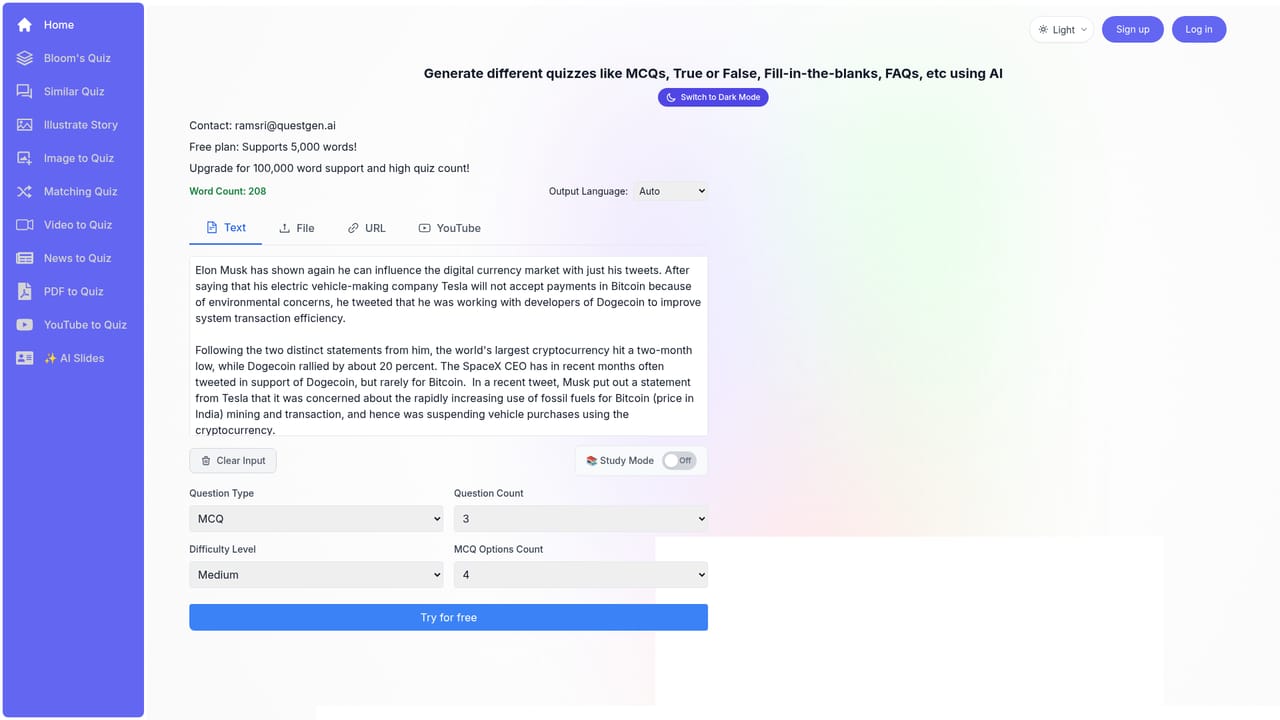
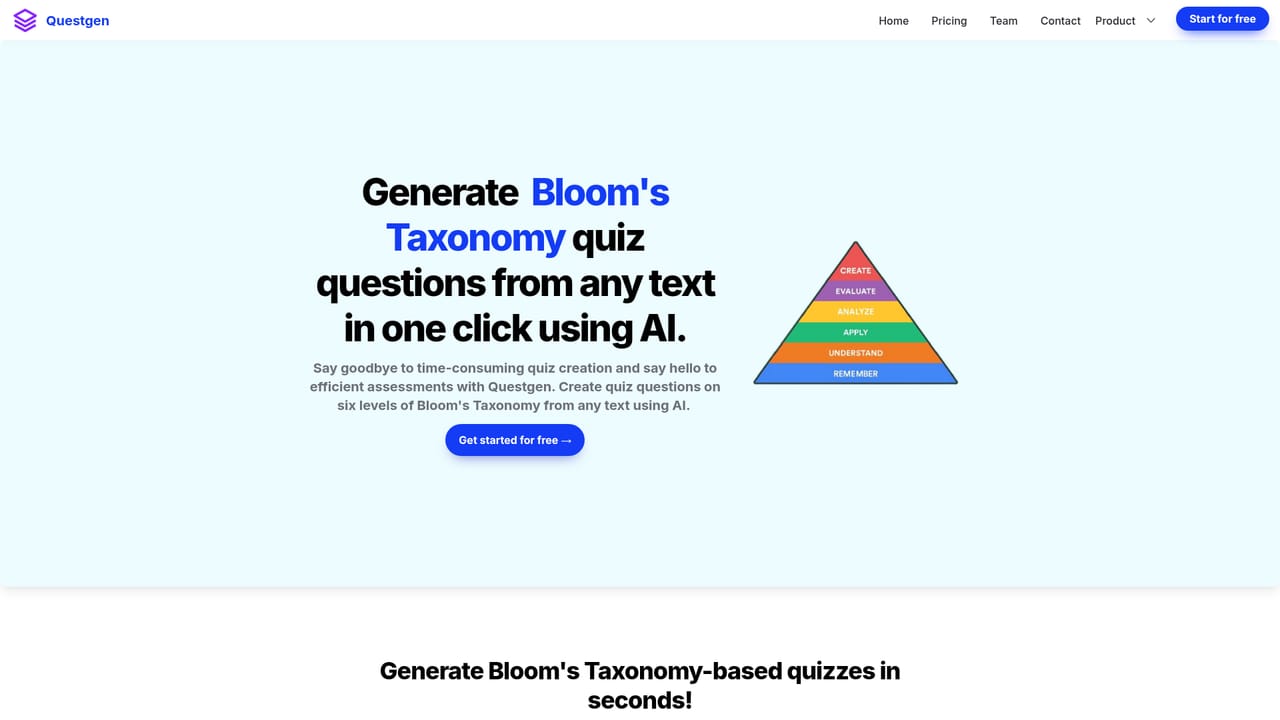
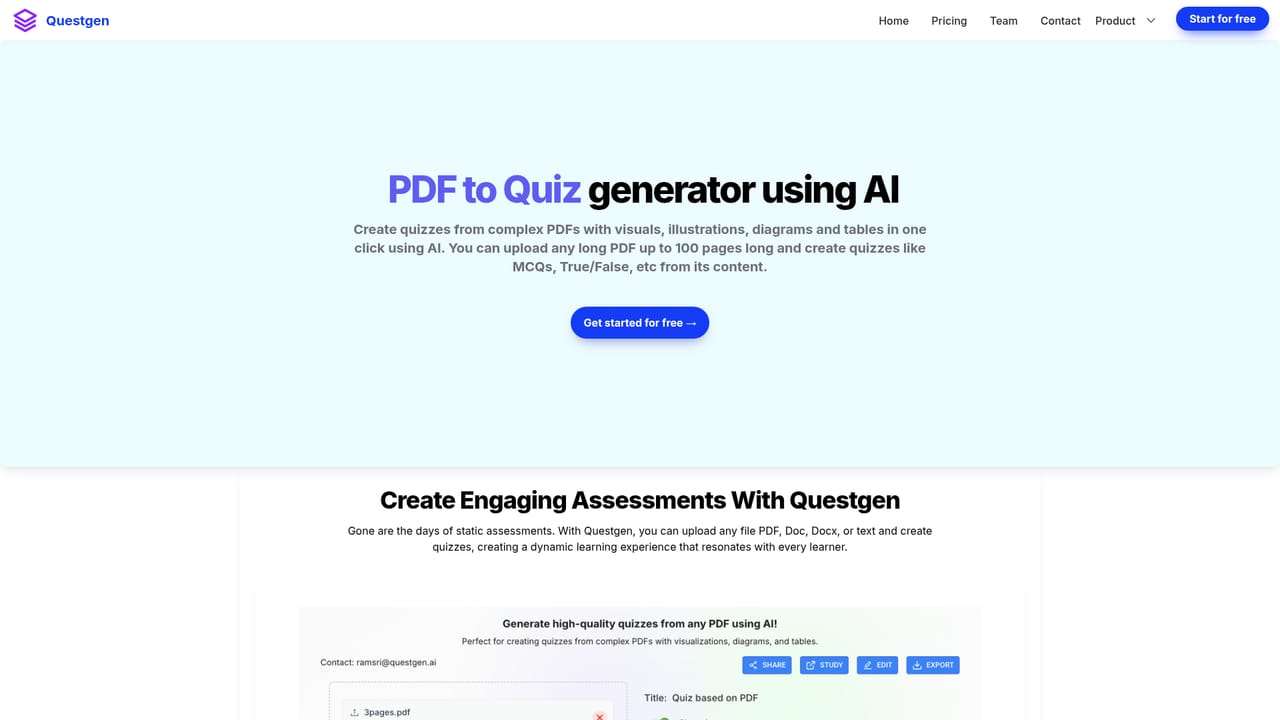
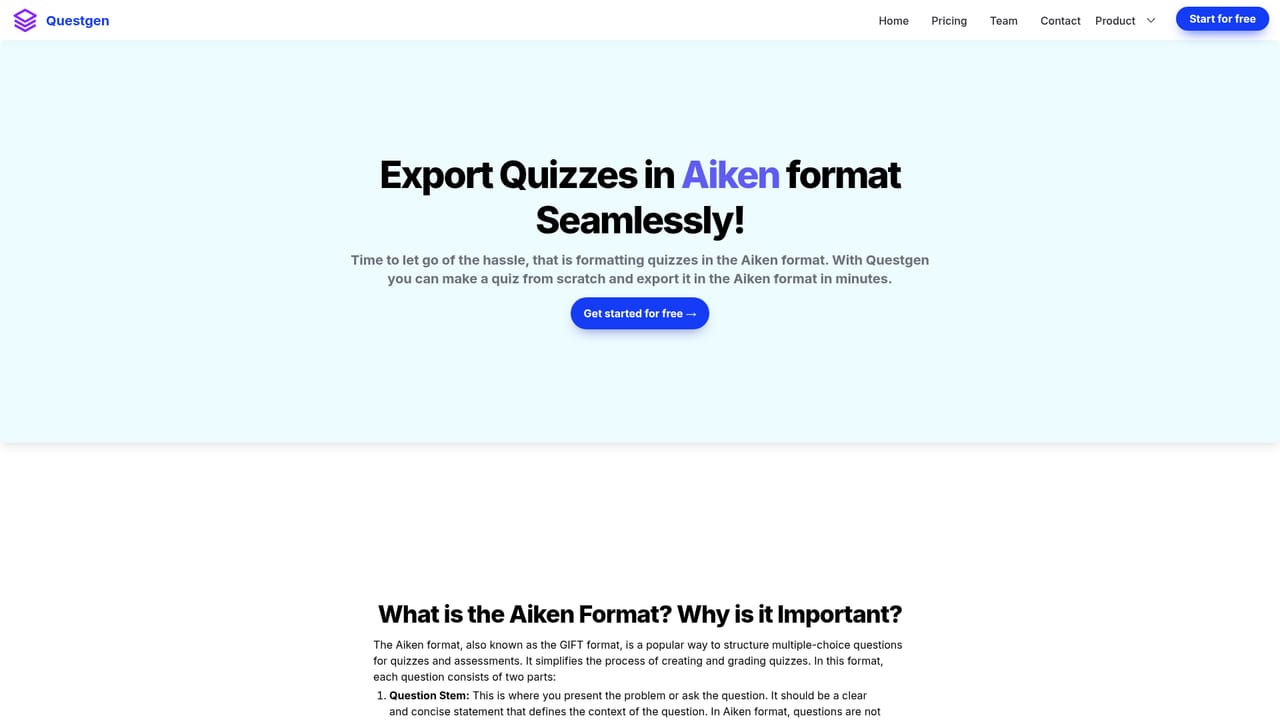
Questgen is an AI question generator built around a single workflow: supply source material, choose a question type, and let the system draft the assessment. The homepage describes it as the "ultimate AI question generator," and the tool lives up to that scope by accepting plain text in any language, website URLs, PDFs, Word documents, images and audio or video files. A notable claim is volume: up to 150 quizzes from 100,000 words in one click, with single text inputs capped at 80,000 words. Question formats cover most of what an instructor or trainer needs. Beyond standard multiple choice, Questgen produces multiple-answer MCQs, true/false, fill-in-the-blank, FAQ, short answer and higher-order question sets. Two features stand out for academic users: Bloom's Taxonomy generation across all six levels (Remember through Create), and a match-the-following generator. There is also a similar-question tool for expanding an existing question bank and a news-driven mode that pulls current events via web search before writing questions. In practice the workflow is two steps. You paste or upload source content, pick a quiz type and submit. The generated worksheet then opens in an editor where individual questions can be rewritten or removed before export. Export options are unusually broad for this category: QTI 2.1, Moodle XML, GIFT, AIKEN and RESPONDUS text, several CSV variants tuned for D2L BrightSpace, Google Sheets form builders, GimKit, TriviaMaker and Quizizz, plus JSON and three PDF layouts. Quizzes can also be shared publicly or embedded on a site as an interactive iframe. Questgen positions itself against manual question banks and against assessment outsourcing. Teachers and schools use it to refresh worksheets each term, HR teams build compliance checks from policy documents, and publishers or edtech companies keep assessment writing in house. Students get a separate study mode with scored practice runs. It is a focused assessment tool rather than a general course platform, so it complements an LMS instead of replacing one. Scale is the headline: the site reports 150,000+ users and millions of generated questions.
The homepage promotes starting for free with no credit card required, but does not state how long a trial lasts or what limits apply to free use.
Learn moreSupport is limited to a contact email address (ramsri@questgen.ai), an FAQs page and LinkedIn and Twitter profiles. No live chat, phone line or ticketing system is described.
Learn moreNo third-party app integrations are listed. Practical connectivity comes through export formats that target Moodle, D2L BrightSpace, Respondus, Quizizz, GimKit and TriviaMaker, plus an embeddable quiz iframe.
Generates MCQs, multiple-answer MCQs, true/false, fill-in-the-blank, FAQ, short answer, higher-order and match-the-following questions from text, URLs, PDFs, DOCX, images and audio or video. Includes Bloom's Taxonomy level targeting, a similar-question generator, a news and current events mode, a scored student study mode, an editor, public sharing and iframe embedding, and export to QTI, Moodle XML, GIFT, AIKEN, RESPONDUS, JSON, PDF and LMS-specific CSV files.
 AI Angels400+ customizable AI girlfriends for NSFW chat, voice calls, and roleplay
 Candy AIExperience the future of companionship with AI friends who chat, role-play, and connect with you on a human level.
 ourdream.aiA vast AI roleplay platform with millions of characters for chat, images, video and voiceAI Angels400+ customizable AI girlfriends for NSFW chat, voice calls, and roleplayCandy AIExperience the future of companionship with AI friends who chat, role-play, and connect with you on a human level.ourdream.aiA vast AI roleplay platform with millions of characters for chat, images, video and voice