Ticket Artisan

Turn design screenshots into development stories and tickets.

Beginner
Screenshot of Ticket Artisan, Turn design screenshots into development stories and tickets

What is Ticket Artisan?

Ticket Artisan is an AI art fixer tool that turns design screenshots into development stories and tickets. Ticket Artisan turns a design screenshot into a development ticket or user story, with an option to split one design into multiple tickets.

Ticket Artisan is a web tool that converts a screenshot of a design into development tasks. Instead of reading a mockup and manually writing user stories, a product manager or developer uploads the image and lets the tool analyze the design and produce a ticket. The workflow is deliberately narrow: a single upload, an option to split the output into multiple tickets, and a generate action. That focus makes it useful for teams that already have a visual design and need a faster bridge to backlog items. The tool is aimed at product managers, designers, and developers working in agile settings where design files and engineering tickets live in separate places. The pitch is that a picture of a screen carries enough information to draft the work: fields, buttons, states, and layout. Ticket Artisan analyzes the image and returns a user story, which can then be refined by the team. The split option helps when a screen contains several independent pieces of functionality that deserve separate backlog entries. In practice, the process is short. You drag a PNG or GIF (up to 10mb) onto the upload area or select a file, decide whether to split into multiple tickets, and press generate. The tool then performs design analysis and returns a ticket, which appears in the results area. From there the text can be copied into whatever project management system the team uses. Because the site does not describe any direct integrations, the handoff is manual rather than automated. Ticket Artisan sits in the same general space as tools that help teams write backlog items, but its input is a design image rather than a text prompt or a meeting transcript. That makes it a complement to design and project management platforms rather than a replacement for them. Teams that want a quick first draft of a user story from a mockup will find the workflow direct; teams that need deep customization, automatic syncing, or detailed acceptance criteria should expect to edit the output before using it.

How do you use Ticket Artisan?

  1. 1Open the Ticket Artisan homepage
    Go to ticketartisan.com, where the upload area and options are presented on a single screen.
  2. 2Upload a design screenshot
    Drag and drop a file onto the upload area or select one from your device. The accepted formats are PNG or GIF up to 10mb.
  3. 3Choose whether to split into multiple tickets
    Use the options area to enable splitting if the design contains several independent features that should become separate tickets.
  4. 4Generate the ticket
    Press Generate. The tool analyzes the design and a user story appears in the results area.
  5. 5Review and copy the output
    Read the generated story, adjust wording as needed, and copy it into your project management or issue tracking tool.

Pros and cons

Pros

  • Very simple workflow: upload a design screenshot, choose options, and generate a ticket.AI
  • Supports PNG and GIF files up to 10mb, which covers most mockup exports.AI
  • Optional split into multiple tickets helps when one screen contains several features.AI
  • No setup described, so a product manager can try the core idea without configuring a workspace.AI

Cons

  • No integrations are described, so tickets must be copied into project management tools by hand.AI
  • The only input is an image; there is no text prompt or context field to guide the output.AI
  • No pricing, plan details, or free trial terms are stated on the homepage.AI
  • Acceptance criteria, story points, and other agile fields are not mentioned as outputs.AI
  • The site gives no detail on which design tools or image styles the analysis handles well.AI

How much does Ticket Artisan cost?

Features

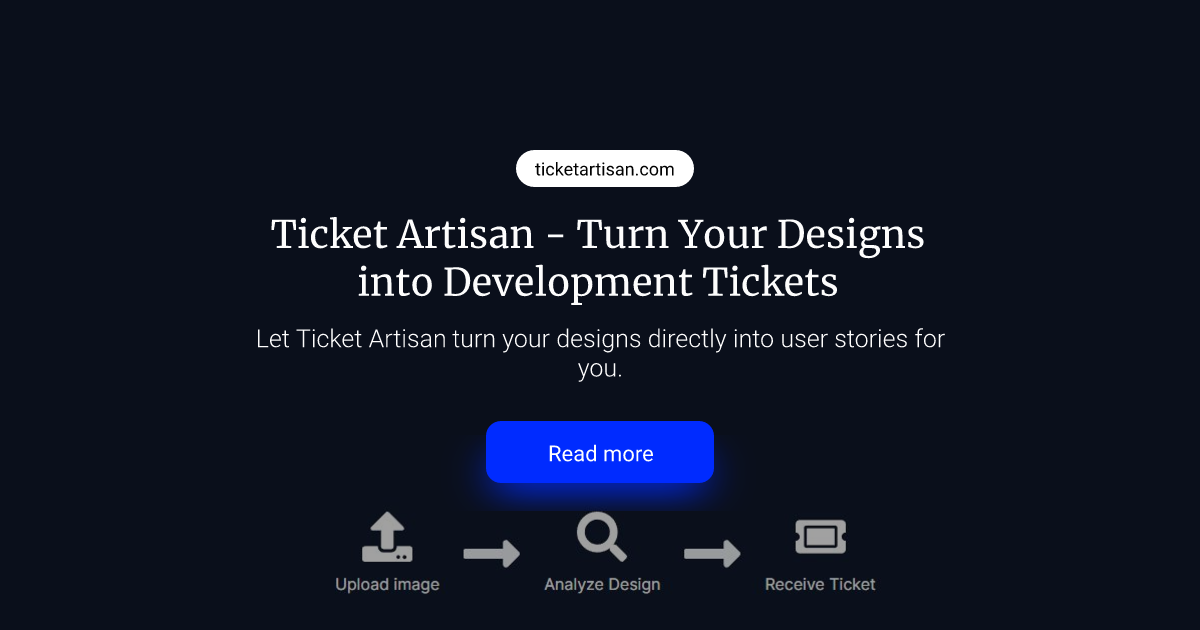
Ticket Artisan accepts a PNG or GIF design screenshot up to 10mb, analyzes the design, and generates a user story or development ticket. An option lets you split the result into multiple tickets when a single design contains several features. The homepage presents a three step flow of upload image, analyze design, and receive ticket.

Frequently asked questions about Ticket Artisan

  • How do you use Ticket Artisan?
    The walkthrough on this page covers 5 steps: 1. Open the Ticket Artisan homepage 2. Upload a design screenshot 3. Choose whether to split into multiple tickets 4. Generate the ticket 5. Review and copy the output.
  • What platforms does Ticket Artisan support?
    Ticket Artisan is available on Web App.
  • What are the limitations of Ticket Artisan?
    No integrations are described, so tickets must be copied into project management tools by hand. The only input is an image; there is no text prompt or context field to guide the output. No pricing, plan details, or free trial terms are stated on the homepage.

Status

StatusActive
Views0
Outbound clicks0
Added10/21/2026

Platforms

Web App

Pricing

Free