Free trial
A free download is offered for Windows, Mac and mobile, but the site describes it as a trial with a comparison page explaining what the full license adds.
Learn moreDesktop converter and editor with a built-in AI enhancement suite
Own VideoProc Converter? Verify ownership to get a dofollow link

VideoProc Converter is an audio enhancer tool. A Windows and Mac desktop suite that pairs a broad video, audio and DVD converter with AI upscaling, frame interpolation, stabilization, face restoration and vocal removal, processed locally with GPU acceleration.
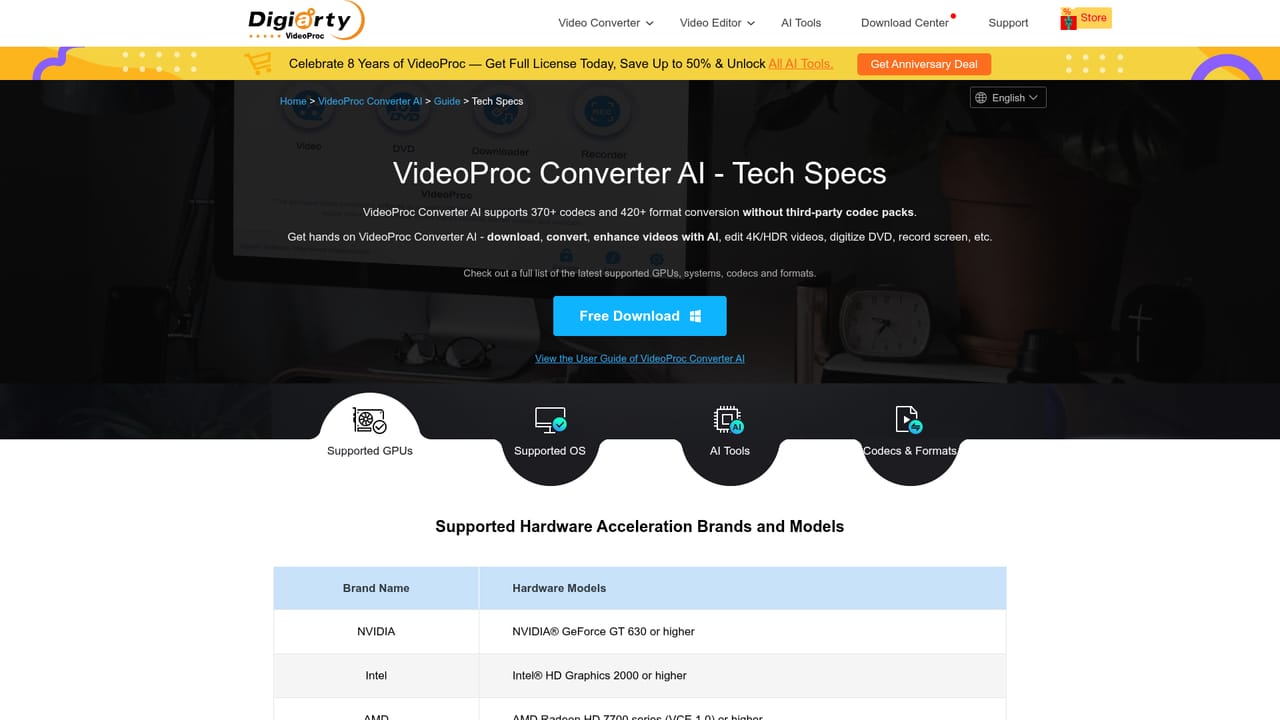
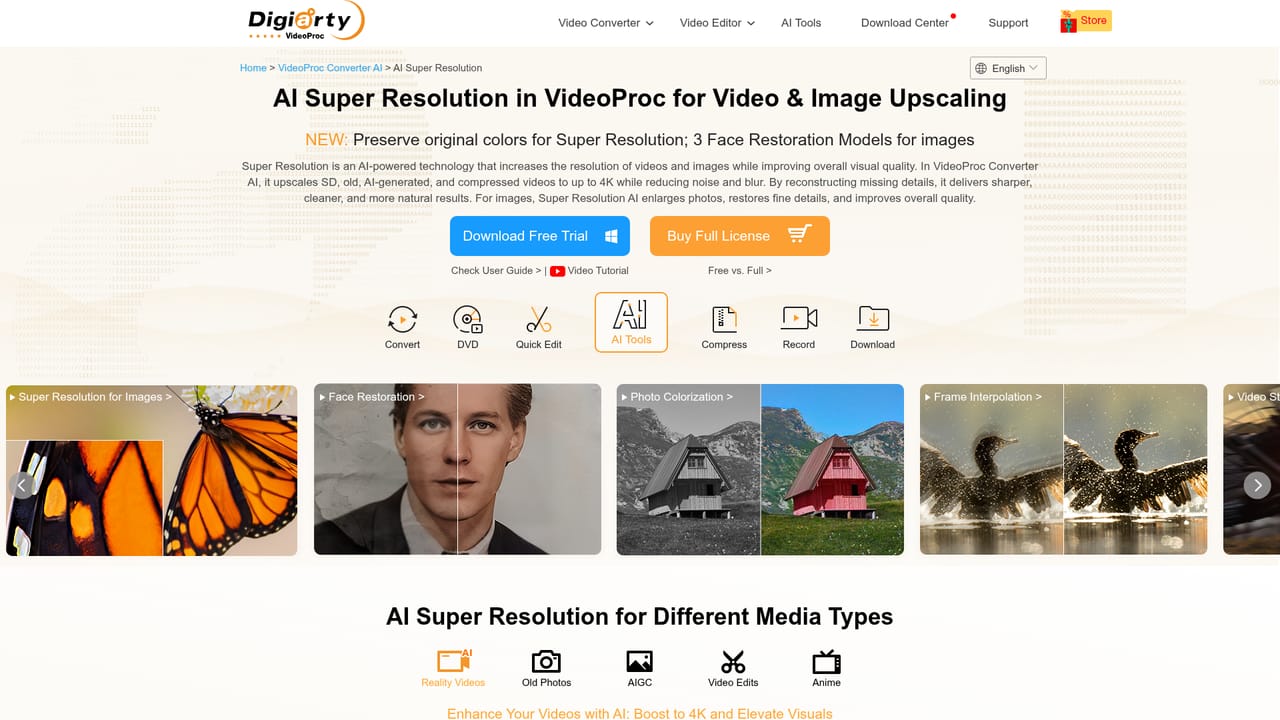
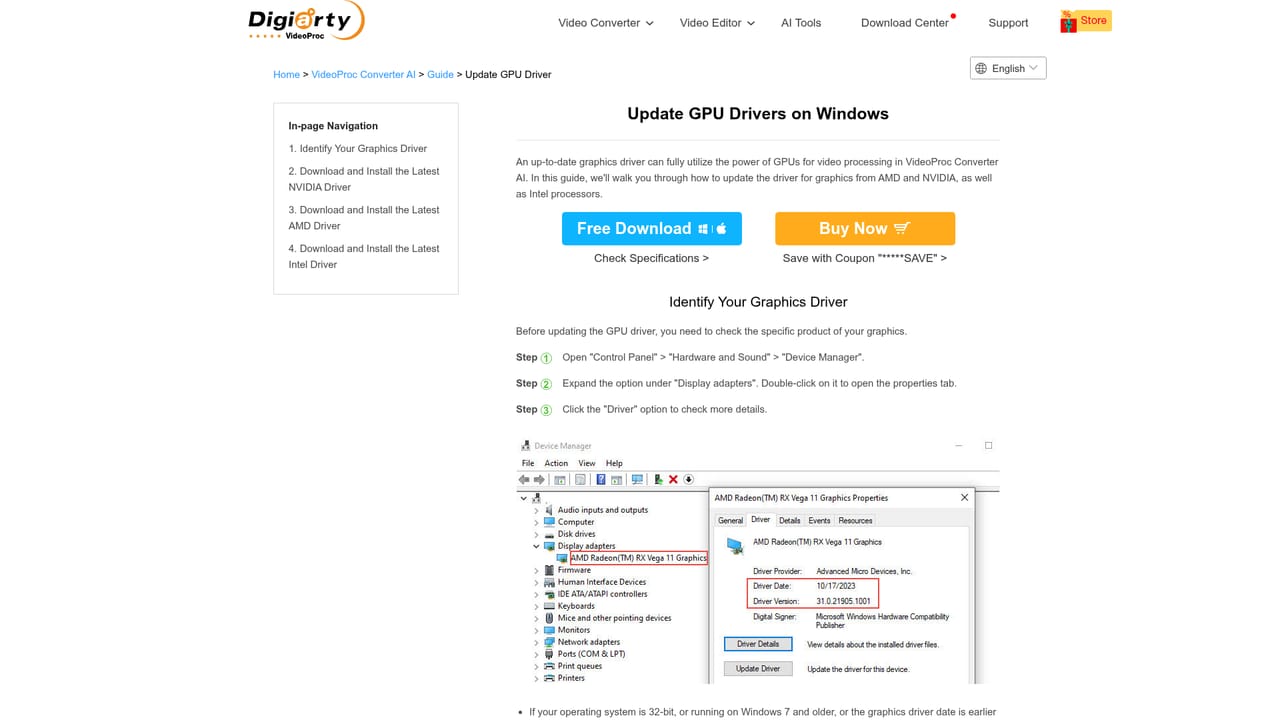
VideoProc Converter AI is a desktop application from Digiarty Software, a company that has worked in multimedia tools since 2006. The program combines two jobs that are usually split across separate apps: a batch converter for video, audio and DVD, and a set of AI tools for cleaning up and upscaling footage. The converter accepts a very wide range of inputs (the site cites more than 370 input formats and more than 420 output profiles) and covers common targets such as MP4 with H.264 or HEVC, MKV, ProRes MOV for Final Cut Pro, device presets for iPhone, Android, TVs and consoles, and DVD backup to ISO or VIDEO_TS at a 1:1 ratio. The AI side is the differentiator. Super Resolution upscales video by up to 400 percent toward HD and 4K, targeting blur, noise, grain and compression artifacts while keeping original colors. Frame Interpolation estimates new frames to raise low frame rate clips toward 480fps or to build slow motion sequences, and Stabilization reduces shake in GoPro, drone, camera and phone footage with adjustable modes and crop ratios. An image module upscales stills to 4K, 8K or 10K, restores faces, colorizes black and white photos, and an audio module separates vocals from instrumentals and suppresses background noise. The product also compresses, records screen and webcam activity, downloads from online sources, and offers quick edits such as trimming, cutting, merging and subtitle handling. Processing runs locally on the machine, and GPU acceleration is used to speed up encoding and enhancement. The tool suits people who already work with heavy media files: videographers handling GoPro, DJI or log footage, archivists restoring family recordings, podcasters cleaning audio, and anyone converting a disc collection or preparing files for a specific device. The free version is a trial with limits, so the realistic comparison is against paid all-in-one suites. Its edge is breadth and local processing; its trade-offs are desktop-only installation, hardware requirements tied to graphics drivers, and AI features that depend on a licensed version.
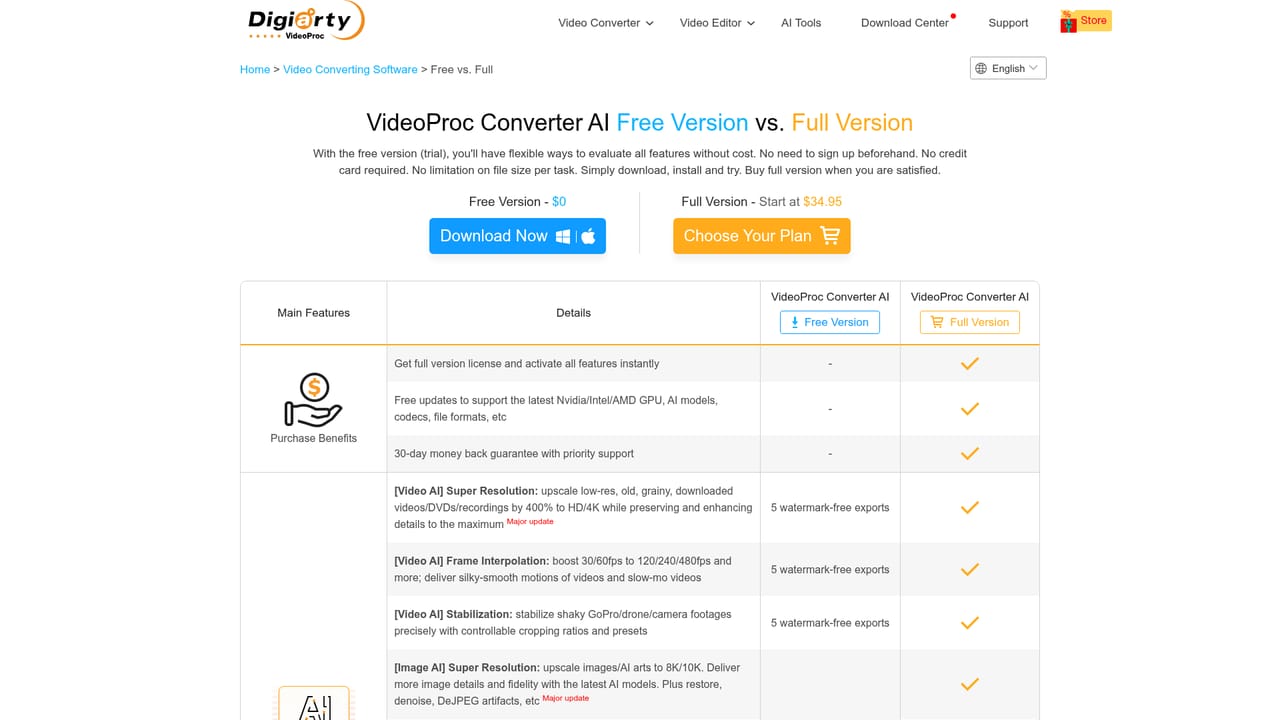
A free download is offered for Windows, Mac and mobile, but the site describes it as a trial with a comparison page explaining what the full license adds.
Learn moreThe homepage promotes a limited-time anniversary deal with savings up to 50 percent and full license access to all AI tools, with separate purchase pages for Windows and Mac. No standard list price is stated on the homepage, so check the buy pages for current figures.
Learn moreThe site has a support section and a support FAQ covering technical questions, plus company contact pages and published ratings and reviews.
Learn moreConversion across more than 370 input and 420 output profiles, DVD backup and copy, audio extraction, compression, screen and webcam recording, online video downloading, quick edits, and AI tools for video upscaling, frame interpolation, stabilization, image upscaling and restoration, face restoration, colorization, vocal removal and noise suppression.
Learn more AI Angels400+ customizable AI girlfriends for NSFW chat, voice calls, and roleplay
 Candy AIExperience the future of companionship with AI friends who chat, role-play, and connect with you on a human level.
 ourdream.aiA vast AI roleplay platform with millions of characters for chat, images, video and voiceAI Angels400+ customizable AI girlfriends for NSFW chat, voice calls, and roleplayCandy AIExperience the future of companionship with AI friends who chat, role-play, and connect with you on a human level.ourdream.aiA vast AI roleplay platform with millions of characters for chat, images, video and voice