
Xdash

A chat workspace built around saving time, not adding another tab

Beginner
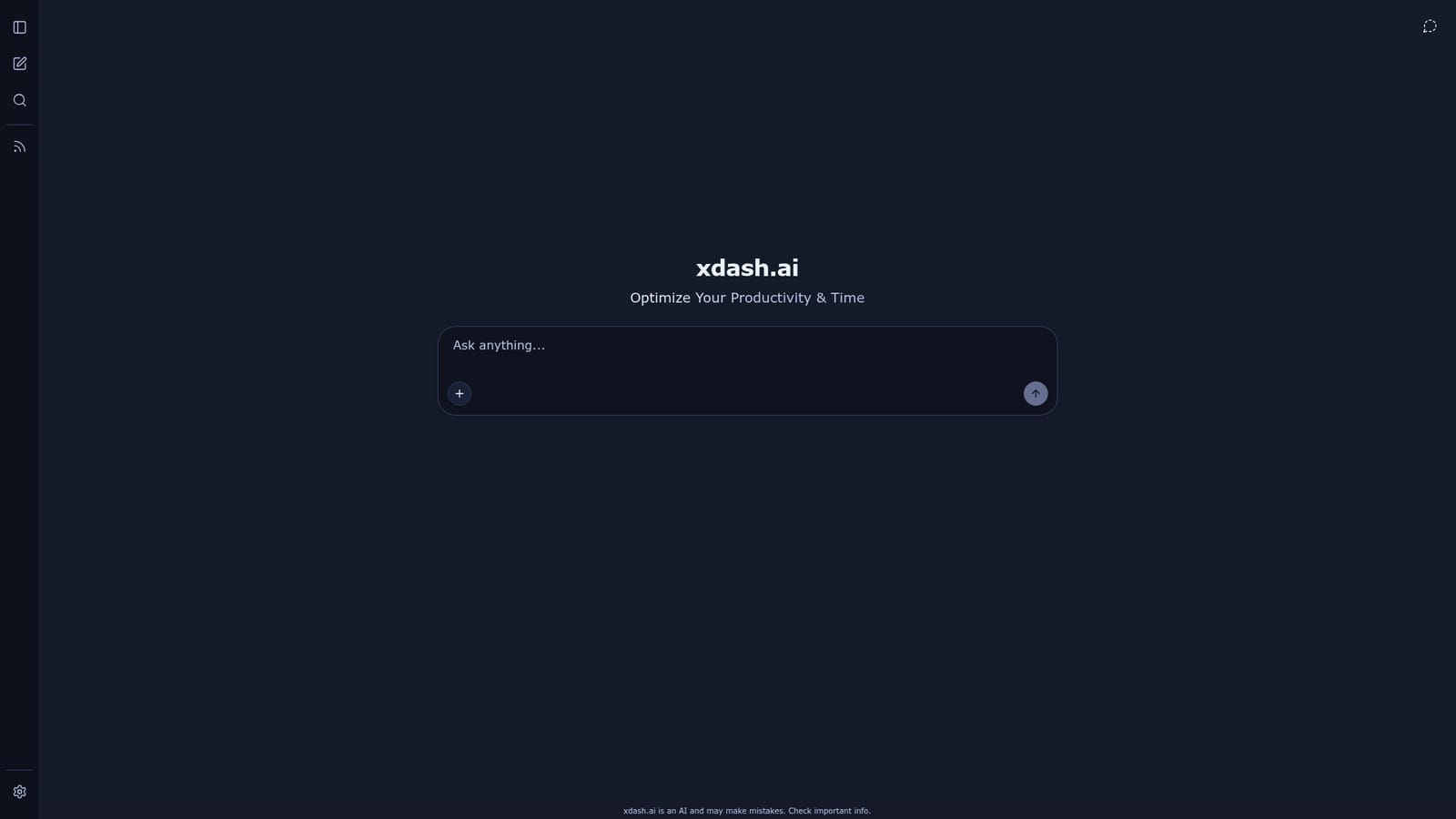
Screenshot of Xdash, A chat workspace built around saving time, not adding another tab

What is Xdash?

Xdash is a web chat workspace with file attachments, conversation search, keyboard shortcuts for starting and finding chats, and a settings panel, positioned around saving time. The public site does not disclose its underlying model, pricing, or integrations.

Xdash presents itself as a chat interface with a productivity remit. The homepage is a working conversation screen rather than a marketing page: a sidebar for conversations, a central thread, a message box with an "Add files and more" control, and a footer line reading "Optimize Your Productivity & Time." The pitch, as far as the public site shows, is a single place to hold conversations and attach material to them instead of losing context across tools. The surrounding chrome is where most of the product detail lives. A "New chat" button sits at the top with a keyboard shortcut, alongside a conversation search field with its own shortcut, a search across chats, and a settings panel. A sidebar toggle handles screen space on smaller windows. The conversation history area shows an empty state until threads exist. Blog is the only other destination linked from the interface, so announcements and deeper explanations about the tool are meant to live there rather than on the app screen. In practice the workflow is conventional and quick to learn: open a new chat, drop in files, type a request, and send. Search over past conversations suggests the tool expects users to accumulate many threads and need to retrieve them later, which is closer to a notes-and-research habit than to one-off prompting. File attachment in the composer points to document or reference material being part of the conversation from the start. Where it fits is harder to pin down from the homepage alone. The interface does not name a model, list integrations, or state a price, and no comparison against other assistants appears. Anyone evaluating it should treat it as an early-stage, general-purpose chat workspace and check the blog for the specifics the landing screen leaves out. Teams that need documented security terms, admin controls, or API access will want those confirmed before adopting it. Editors' note: this listing reflects only what xdash.ai publishes publicly, and some capabilities implied by the UI remain unconfirmed.

How do you use Xdash?

  1. 1Open the app
    Load the xdash.ai homepage, which drops you straight into the chat interface rather than a marketing page. The sidebar on the left holds conversation history and settings.
    Xdash — Open the app
  2. 2Start a new conversation
    Use the New chat button in the sidebar, or the keyboard shortcut shown next to it, to open a fresh thread. Each thread is stored separately in the conversation list.
  3. 3Attach files and send a request
    In the message box, use the Add files and more control to attach material, type your prompt, and press send. The attachment stays with that conversation.
  4. 4Find an earlier conversation
    Use the search field above the conversation list to look through past chats. The shortcut beside the field jumps focus there from anywhere in the app.
  5. 5Adjust your settings
    Open Settings from the sidebar to review the options available to your account. Preferences persist for the session and future visits.
  6. 6Follow product updates on the blog
    The blog link in the sidebar is the public channel for announcements and details the app screen does not show. Check it before assuming a feature exists.
    Xdash — Follow product updates on the blog

Pros and cons

Pros

  • Conversation history is searchable, which helps once threads pile upAI
  • File attachment sits directly in the message composer, so reference material travels with the questionAI
  • Keyboard shortcuts for new chat and search reduce friction for heavy usersAI
  • Clean, uncluttered interface with a collapsible sidebar for smaller screensAI
  • Settings and blog are reachable from the main screen without diggingAI

Cons

  • No pricing information is published on the homepageAI
  • The underlying model or models are not identified, making output quality hard to judge before signing upAI
  • No integrations, API, or export options are described anywhere on the public siteAI
  • No security, data retention, or privacy documentation is linked from the appAI
  • Feature depth beyond chat and attachments is unproven, and the blog is the only source of further detailAI

How much does Xdash cost?

Features

The public interface offers a chat workspace with a persistent conversation list, search across past chats, a new chat action with a keyboard shortcut, file attachment in the message composer, a collapsible sidebar, and a settings panel. A blog link sits alongside the app navigation. No model details, limits, or advanced tooling are described on the homepage.

Frequently asked questions about Xdash

  • How do you use Xdash?
    The walkthrough on this page covers 6 steps: 1. Open the app 2. Start a new conversation 3. Attach files and send a request 4. Find an earlier conversation 5. Adjust your settings 6. Follow product updates on the blog.
  • What platforms does Xdash support?
    Xdash is available on Web App.
  • What are the limitations of Xdash?
    No pricing information is published on the homepage. The underlying model or models are not identified, making output quality hard to judge before signing up. No integrations, API, or export options are described anywhere on the public site.

Status

StatusActive
Views0
Outbound clicks0
Added10/21/2026

Platforms

Web App

Pricing

Freemium