Pricing
The homepage states that AIDE AI is free to start and mentions optional voice features on a Premium tier, but no specific prices or plan limits are published on the page. Current pricing details live on the dedicated pricing page.
Learn moreA focused AI team for coursework, planning, writing, and rhythm on macOS.

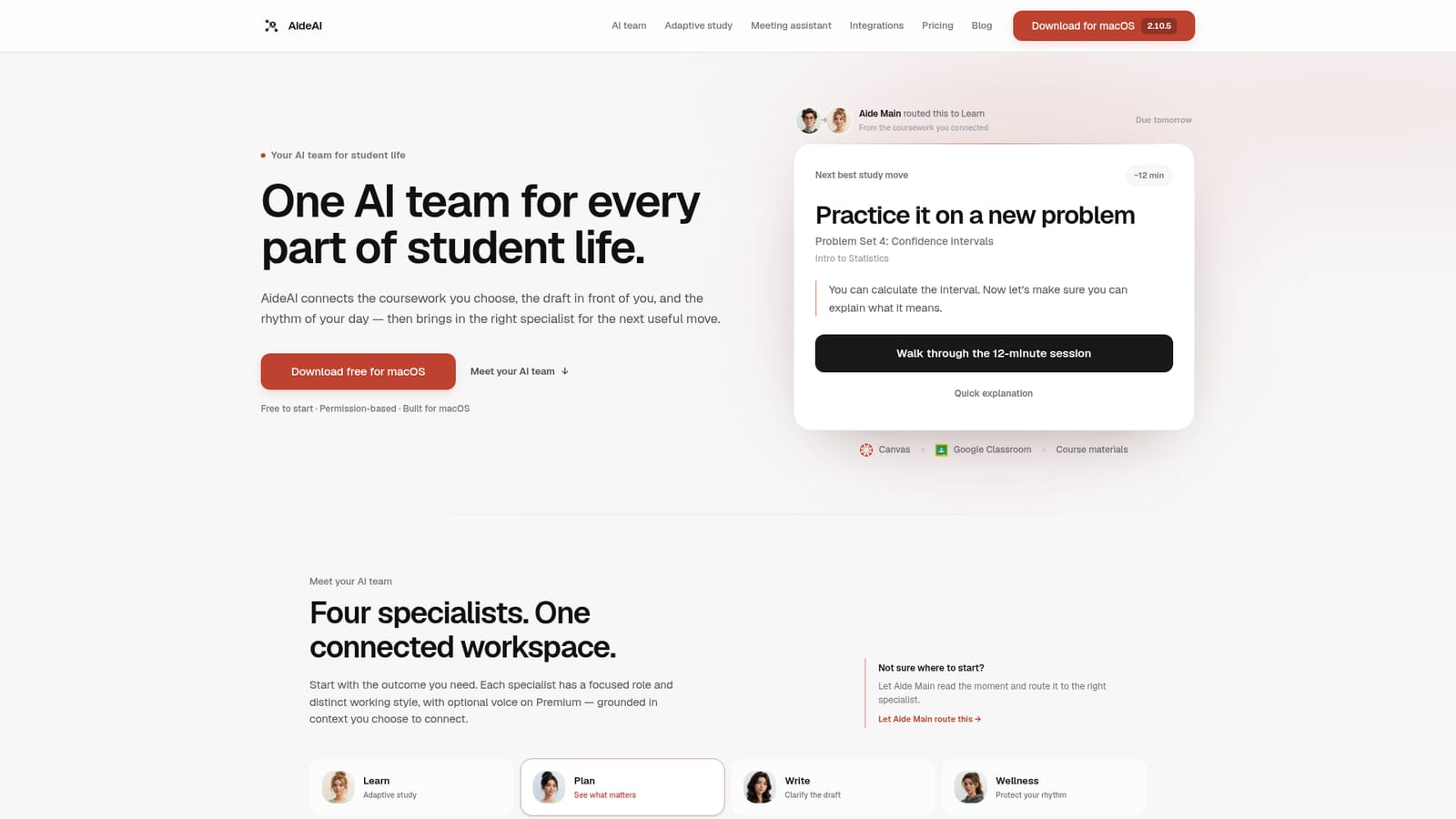
AIDE AI is a macOS workspace built around five student-focused agents (Learn, Plan, Write, Wellness, and Aide Main) that combine connected coursework, a semester overview, meeting transcription, and permission-based screen context to produce a concrete next study move rather than another chat reply.
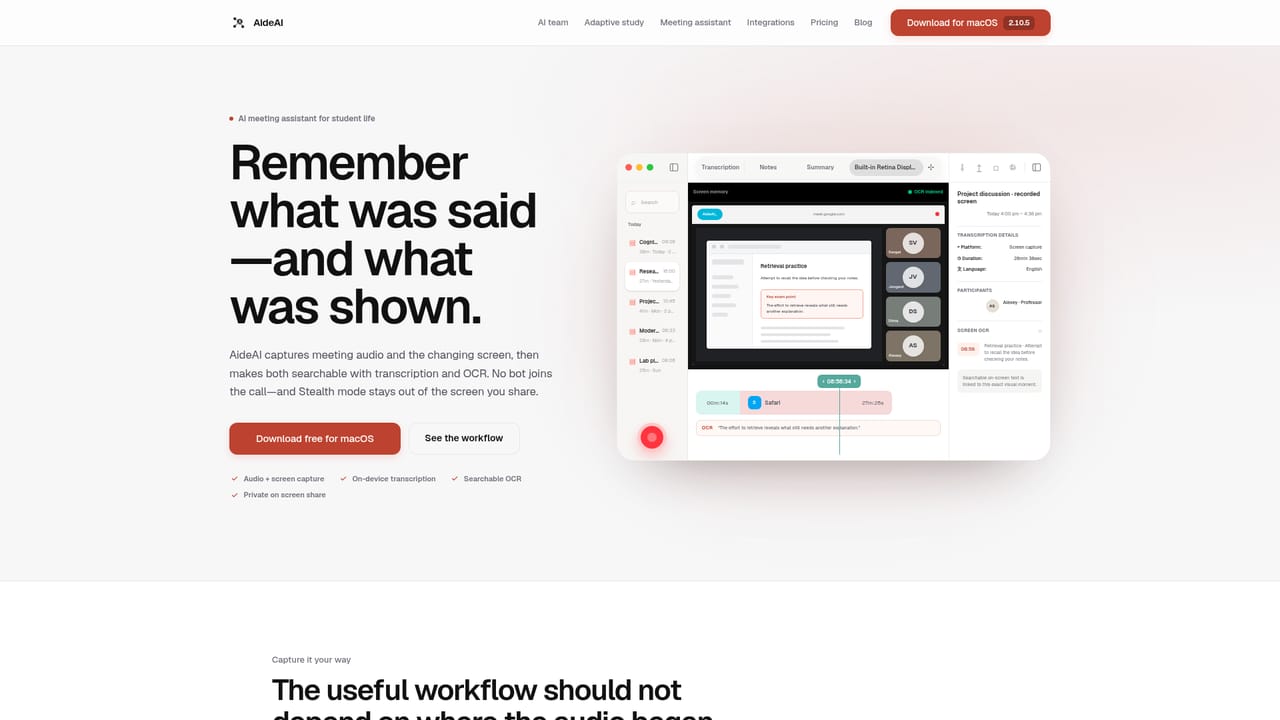
AIDE AI is a macOS application that packages a small team of AI agents aimed at student life. Rather than a single chat window, it splits the work across four specialists: Learn handles adaptive study sessions, Plan builds a realistic view of deadlines and course health, Write helps clarify a draft in progress, and Wellness tracks the rhythm of your day. A fifth agent, Aide Main, reads the situation and routes the task to whichever specialist fits, so a user does not have to decide upfront which mode is appropriate. The most distinctive piece is the adaptive study flow. Learn starts from a real assignment, asks for a short attempt, compares that attempt against the source material, and adjusts what comes next. A quick explanation is always available for users who want the fast path rather than the guided session. Alongside that, a study overview gathers upcoming deadlines, recent changes, course health indicators, and suggested next actions into one academic picture. Connected coursework is the foundation. Canvas and Google Classroom appear as context sources, and a Meeting Assistant captures lecture or office hour audio together with changing screen content, then makes both searchable through transcript and OCR. Everything is permission based: screen context, microphone, wellness patterns, and personal memory each have their own toggle, with local processing used where the capability allows and memory entries that can be reviewed, edited, or forgotten. The tool is aimed at university students who want continuity between sessions rather than a fresh prompt every time. It competes with general assistants by narrowing scope, though the macOS requirement and the coursework-first framing limit it for anyone outside that audience.
The homepage states that AIDE AI is free to start and mentions optional voice features on a Premium tier, but no specific prices or plan limits are published on the page. Current pricing details live on the dedicated pricing page.
Learn moreCoursework connections shown on the homepage are Canvas and Google Classroom. Voice is listed as a Premium capability. Other external services are referenced generally without being named.
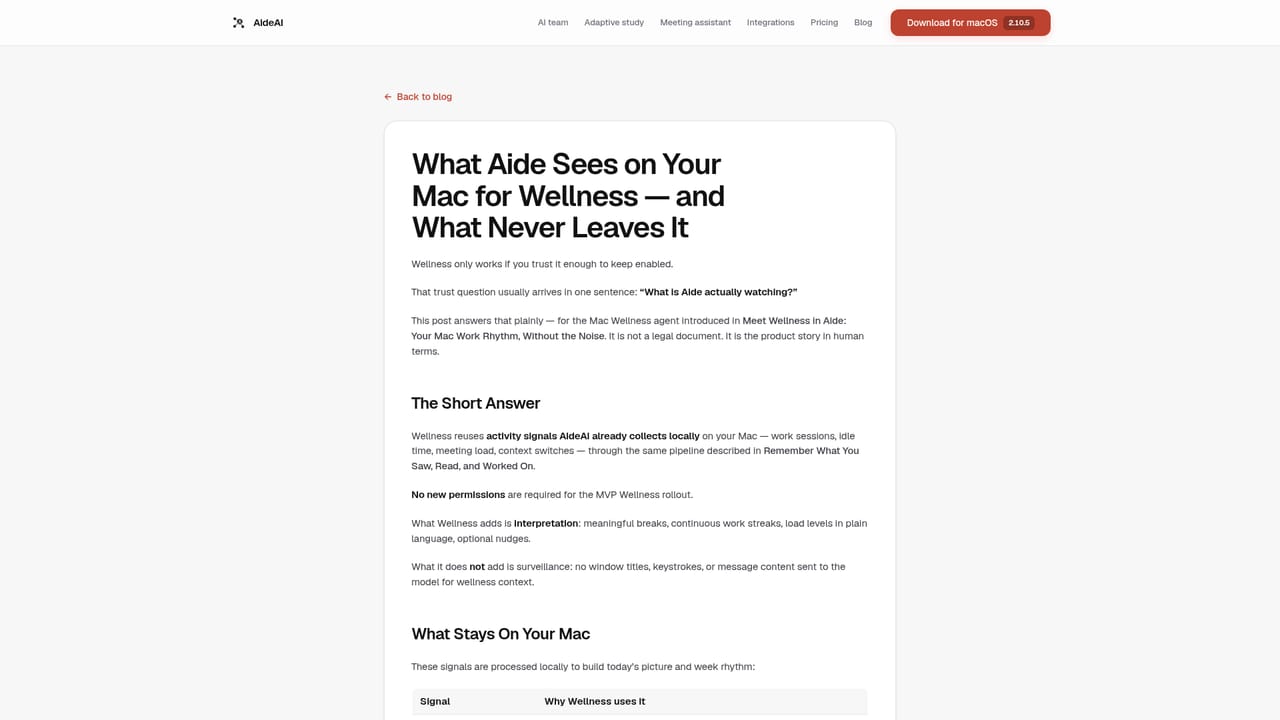
Four specialist agents (Learn, Plan, Write, Wellness) plus Aide Main for routing, an adaptive study session that adapts after a short attempt, a study overview with deadlines and course health, Meeting Assistant with local transcription and OCR search, and granular permission controls covering screen context, microphone, wellness patterns, and editable personal memory.
Learn more AI Angels400+ customizable AI girlfriends for NSFW chat, voice calls, and roleplay
 Candy AIExperience the future of companionship with AI friends who chat, role-play, and connect with you on a human level.
 ourdream.aiA vast AI roleplay platform with millions of characters for chat, images, video and voiceAI Angels400+ customizable AI girlfriends for NSFW chat, voice calls, and roleplayCandy AIExperience the future of companionship with AI friends who chat, role-play, and connect with you on a human level.ourdream.aiA vast AI roleplay platform with millions of characters for chat, images, video and voice


