Free trial
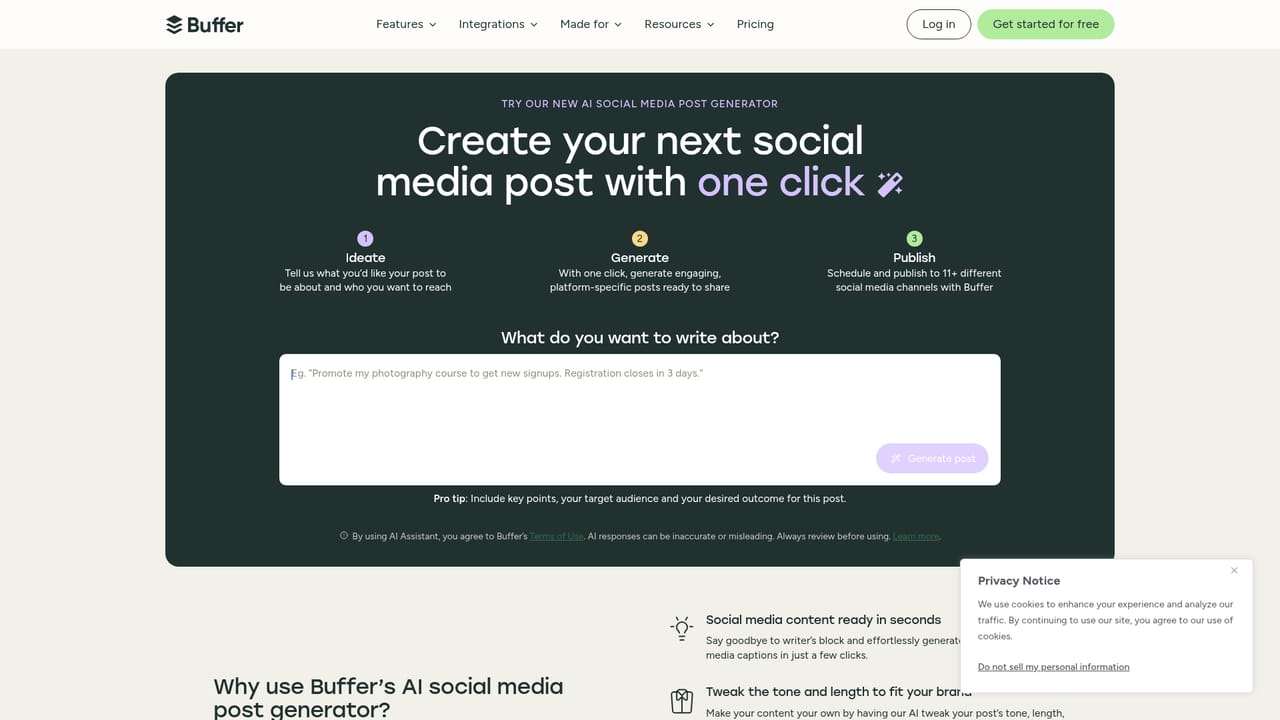
No trial is needed: the assistant is free on a free Buffer account, and the public post generator can be used without an account.
Learn moreAI writing help built into the Buffer social media scheduler
Own Buffer AI assistant? Verify ownership to get a dofollow link

Buffer AI assistant is a content writing tool. Buffer's AI Assistant is a built-in writing helper for the Buffer social scheduler that generates post ideas, drafts captions, repurposes content across platforms, and edits tone or length in one click. It uses OpenAI models and is free without limits on a free Buffer account.
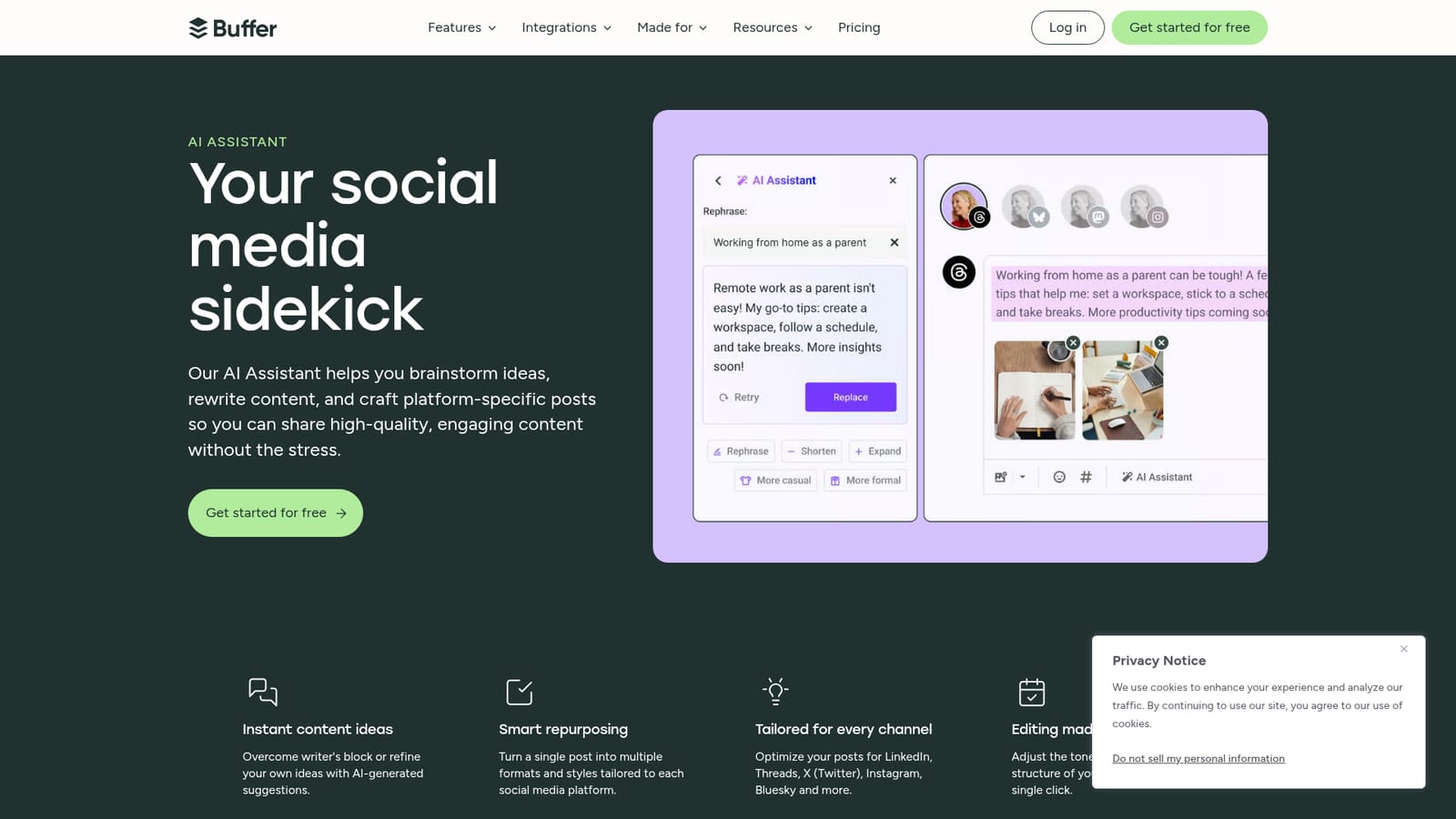
Buffer's AI Assistant is a writing helper built into the Buffer social media scheduler. It generates post ideas, drafts captions, repurposes existing posts into new formats, and tailors text to the style of each platform. The assistant runs inside the post composer and the Create space, so it works on the same content a user is about to schedule rather than in a separate document. The feature is powered by OpenAI's language models. The assistant covers four practical jobs. Content generation turns a prompt into a fresh post or caption. Repurposing reworks an existing post into a different length or format, which helps maintain a presence across several networks without starting from scratch each time. Tailoring adjusts a post for LinkedIn, Threads, X (Twitter), Instagram, Bluesky and other channels, since each has its own tone and length conventions. Editing offers one-click rewrites: shorten, expand, rephrase, or shift the tone more casual or more formal, directly in the composer. The tool suits social media managers, solo creators, and small marketing teams who already publish through Buffer or are willing to. Its main advantage is integration: there is no copy-paste step between the writing tool and the scheduler. Among alternatives, standalone AI writers offer broader long-form capability, and dedicated AI social post generators focus only on drafting. Buffer sits between them, adding writing help to a publishing workflow that includes scheduling and planning. Buffer states that its core features are not AI-powered; the assistant is an optional layer, and posts are not changed unless the user opens the assistant. Usage terms: the text entered into the assistant is shared with OpenAI to produce responses, while account details and media files are not. The assistant is free to use without limits on a free Buffer account, and a public web version of the post generator allows trying it without signing up.
No trial is needed: the assistant is free on a free Buffer account, and the public post generator can be used without an account.
Learn moreThe AI Assistant is free to use without limits on a free Buffer account, and a public AI social media post generator lets anyone try it without signing up. No credit card is needed. Paid Buffer plans exist for scheduling features, but the homepage does not list their prices.
Learn moreThe homepage points to Buffer's Help Center for details on how the AI Assistant works, but does not describe support channels, hours, or response times.
The assistant operates inside Buffer's post composer and Create space, alongside the platform's publishing and scheduling workflow. Channel support named on the page covers LinkedIn, Threads, X (Twitter), Instagram and Bluesky.
Generates post ideas and captions from a prompt, repurposes existing posts into new formats, tailors copy for LinkedIn, Threads, X, Instagram, Bluesky and more, and edits in one click with rephrase, shorten, expand, and casual or formal tone options. Powered by OpenAI language models.
 AI Angels400+ customizable AI girlfriends for NSFW chat, voice calls, and roleplay
 Candy AIExperience the future of companionship with AI friends who chat, role-play, and connect with you on a human level.
 ourdream.aiA vast AI roleplay platform with millions of characters for chat, images, video and voiceAI Angels400+ customizable AI girlfriends for NSFW chat, voice calls, and roleplayCandy AIExperience the future of companionship with AI friends who chat, role-play, and connect with you on a human level.ourdream.aiA vast AI roleplay platform with millions of characters for chat, images, video and voice


