Free trial
The homepage states the tool is free to start, but no trial length or free credit allowance is specified.
Learn moreAnimate a still photo into a short AI clip with Veo, Kling, or Seedance
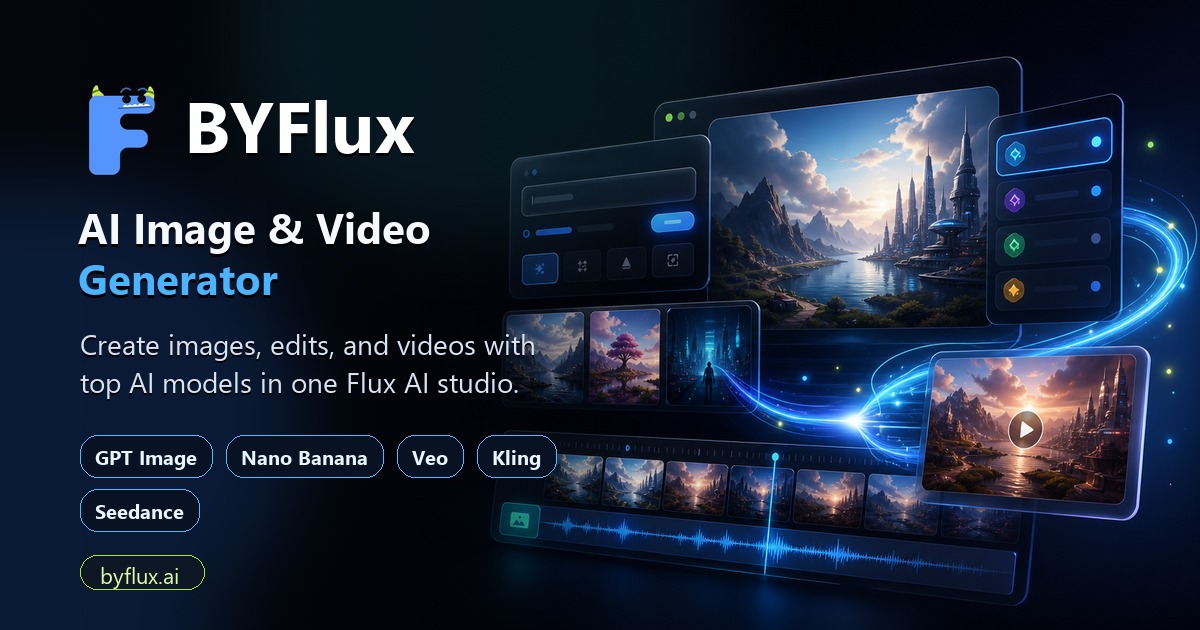
BYFlux is a generative video tool that animates a still photo into a short AI clip with Veo, Kling, or Seedance. BYFlux turns a single uploaded image into a short AI video clip using Veo 3.1, Kling 3.0, or Seedance 2.
BYFlux image to video is a browser based generator that takes a single still frame and turns it into a short motion clip. You upload a JPG, PNG, or WEBP reference image (up to 10MB), write a prompt describing how the scene should move, and the tool renders a clip that keeps the subject, framing, and visual direction of your source image. Motion is directed through words rather than a timeline: camera pushes, blinking, fabric movement, product rotation, drifting atmosphere, and lighting changes are all specified in the prompt. The workspace lets you switch between three video engines from the same page. Veo 3.1 suits portraits and mood-driven shots, Kling 3.0 handles action and reveal footage with first and last frame control plus native audio, and Seedance 2 covers fast cinematic scene motion. Aspect ratio, duration, resolution tier, and audio options depend on the model you pick and are set before generation. Finished clips download directly, and commercial rights are included on every plan. The tool is aimed at social media teams repurposing campaign stills into reels and ads, ecommerce and brand teams animating product photography, and filmmakers or game artists testing camera language on concept frames. It sits alongside BYFlux text to video and image to image pages, so the same credit balance covers all of them. Anyone without a usable start frame should look at the text to video route instead. Practical results depend heavily on the source image. A sharp, well-composed frame with a readable subject works far better than a cluttered or soft one, and prompts that name specific movements outperform vague mood descriptions. Because rendering consumes credits per clip, iterating loosely gets expensive; drafting prompts carefully before generating is the cheaper workflow.
The homepage states the tool is free to start, but no trial length or free credit allowance is specified.
Learn moreThree subscription tiers billed yearly: Basic at $7.50/month ($90/year, 1,000 credits), Pro at $24.17/month ($290/year, 5,000 credits), and Studio at $49.17/month ($590/year, 11,000 credits). Credits convert to roughly 16 to 177 videos per month depending on plan, with no watermark and commercial rights included.
Learn morePriority support is listed on the Pro plan and dedicated support on Studio. No help centre or documentation page is linked from the homepage.
Upload a still (JPG, PNG, WEBP up to 10MB) and generate a short clip from a motion prompt. Supports first-frame and optional end-frame guidance, selectable aspect ratios, durations, resolution tiers, and audio on supported models. Three engines available: Veo 3.1, Kling 3.0, and Seedance 2. Output is watermark free with commercial usage rights.
 AI Angels400+ customizable AI girlfriends for NSFW chat, voice calls, and roleplay
 Candy AIExperience the future of companionship with AI friends who chat, role-play, and connect with you on a human level.
 ourdream.aiA vast AI roleplay platform with millions of characters for chat, images, video and voiceAI Angels400+ customizable AI girlfriends for NSFW chat, voice calls, and roleplayCandy AIExperience the future of companionship with AI friends who chat, role-play, and connect with you on a human level.ourdream.aiA vast AI roleplay platform with millions of characters for chat, images, video and voice