What these tools do
A Google Docs formatter takes text that is structurally messy (pasted notes, AI output, imported Word files, PDFs) and applies consistent formatting: headings, lists, spacing, tables and typography. It replaces the manual pass of selecting paragraphs, setting styles and fixing stray line breaks before a document goes out. The audience is anyone who writes in Google Docs regularly and treats formatting as overhead rather than craft: consultants, students, operations teams and people who generate drafts with AI and then need the output to look intentional.
How to choose one
The first criterion is where the formatting happens. Some tools work inside Google Docs as a browser extension, applying native suggestions you accept or reject. Others are separate web apps that take your text or file and return a finished document. In-editor tools suit people who want to keep the draft in Docs; export tools suit people assembling something from several sources.
Second, check the input types. If most of your raw material is AI output or pasted text, a text-to-document tool is enough. If you regularly import Word files or PDFs, look for one that accepts those formats, since reflowing a PDF is a different problem from styling a paragraph.
Third, decide how much control you want. Fully automatic formatting is fast but opinionated; suggestion-based tools take longer but leave you in charge of every change. For repeatable house styles, favor tools that produce predictable structure over ones that improvise per document.
Notable tools
GPT Workspace makes AI assistance available inside the workspace you already use, with a free tier and subscription options on web and as a browser extension. It suits people who want formatting help alongside other document tasks.
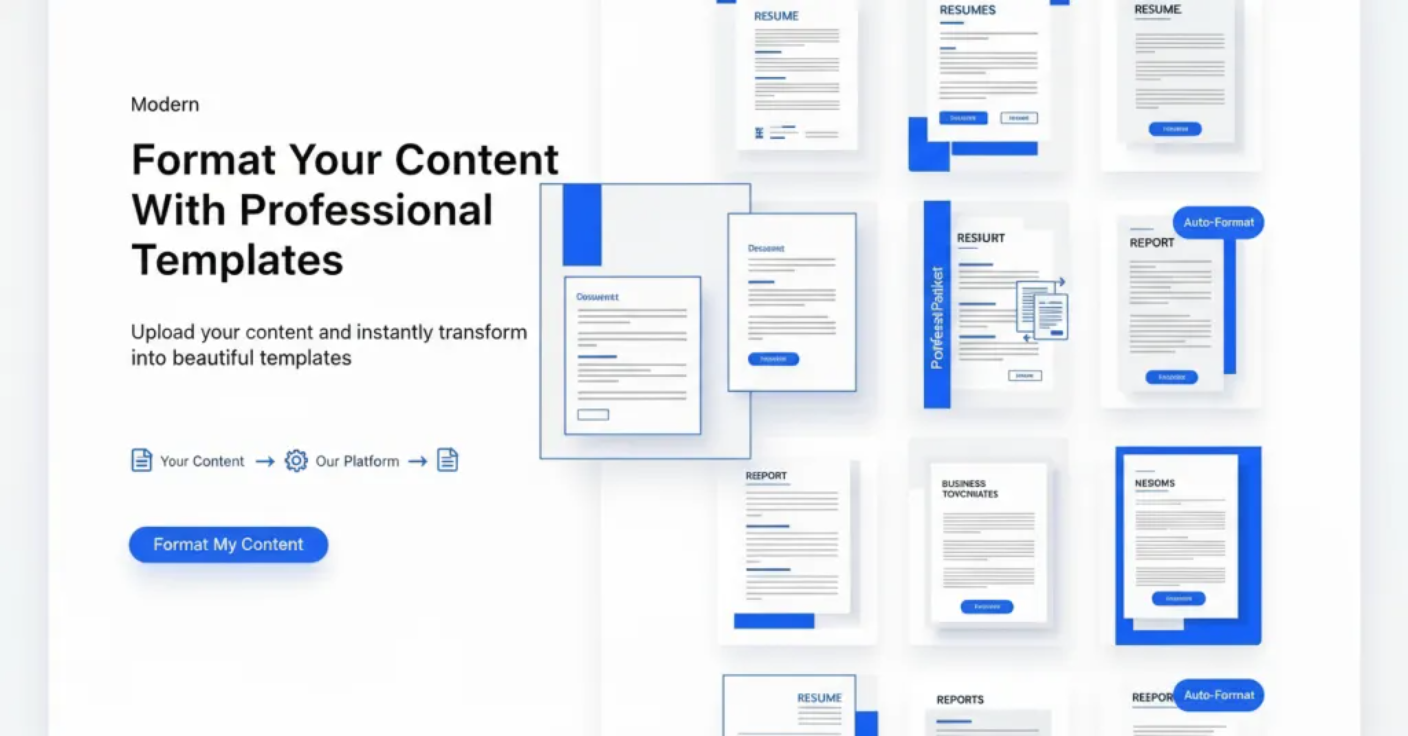
Format Magic converts raw text, AI output or messy Word and PDF files into polished documents in seconds, offered as a free trial on the web. It is the most direct fit when the input is disorganized and the output needs to look finished.
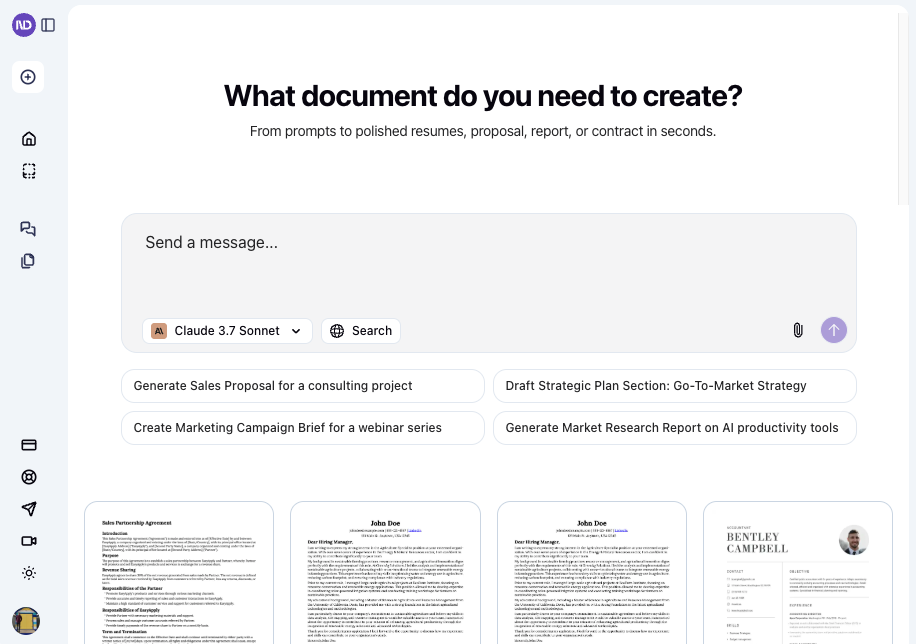
NextDocs.io turns a prompt into slides and documents in seconds, with freemium and subscription tiers on the web. It is useful when a document starts from an idea rather than an existing draft.
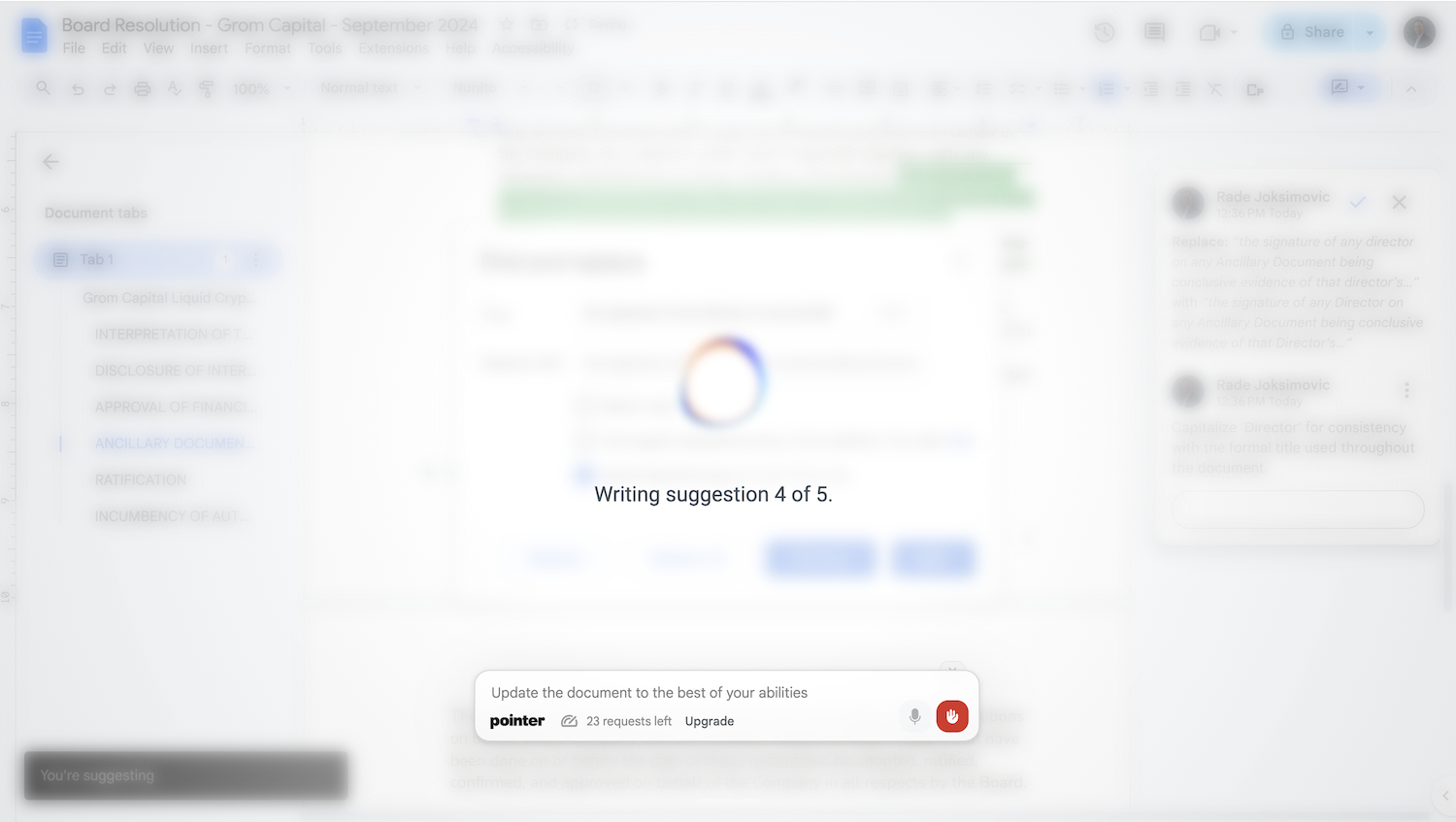
Pointer delivers AI writing help inside Google Docs as native suggestions, with free, freemium and subscription plans via a browser extension. It is the closest match for anyone who wants formatting and editing to stay inside the Docs editor.
Common questions
What is a Google Docs formatter?
It is a tool that applies structure and styling to a document so you do not have to fix headings, spacing and lists by hand. Some run as extensions inside Docs; others are web apps that take text or files and return a formatted result. The goal in both cases is a document that looks deliberate before you share it.
Is there an AI to format Google Docs automatically?
Yes. Several tools read your draft and restructure it, either by suggesting changes you approve or by generating a new formatted version. Pointer works inside the editor with native suggestions, while Format Magic and NextDocs.io produce finished documents outside it. The tradeoff is control versus speed.
What should I know about Google Docs formatting before choosing a tool?
Decide whether your problem is structure (headings, order, lists) or appearance (fonts, spacing, page layout), because tools differ in which they handle. Also confirm the formats you import, especially Word and PDF, and whether the tool keeps you in the editor or moves the work elsewhere. Consistent house styles favor predictable tools over creative ones.
When to look elsewhere
If the real task is capturing raw notes before any formatting happens, the Note Maker category is a better starting point. If the output you need is a schedule or structured task list rather than a document, look at the AI Task Generator instead.