Support
Support is handled by email at hola@nada.studio, listed as the contact link on the homepage. No help centre, documentation site, or community forum is referenced.
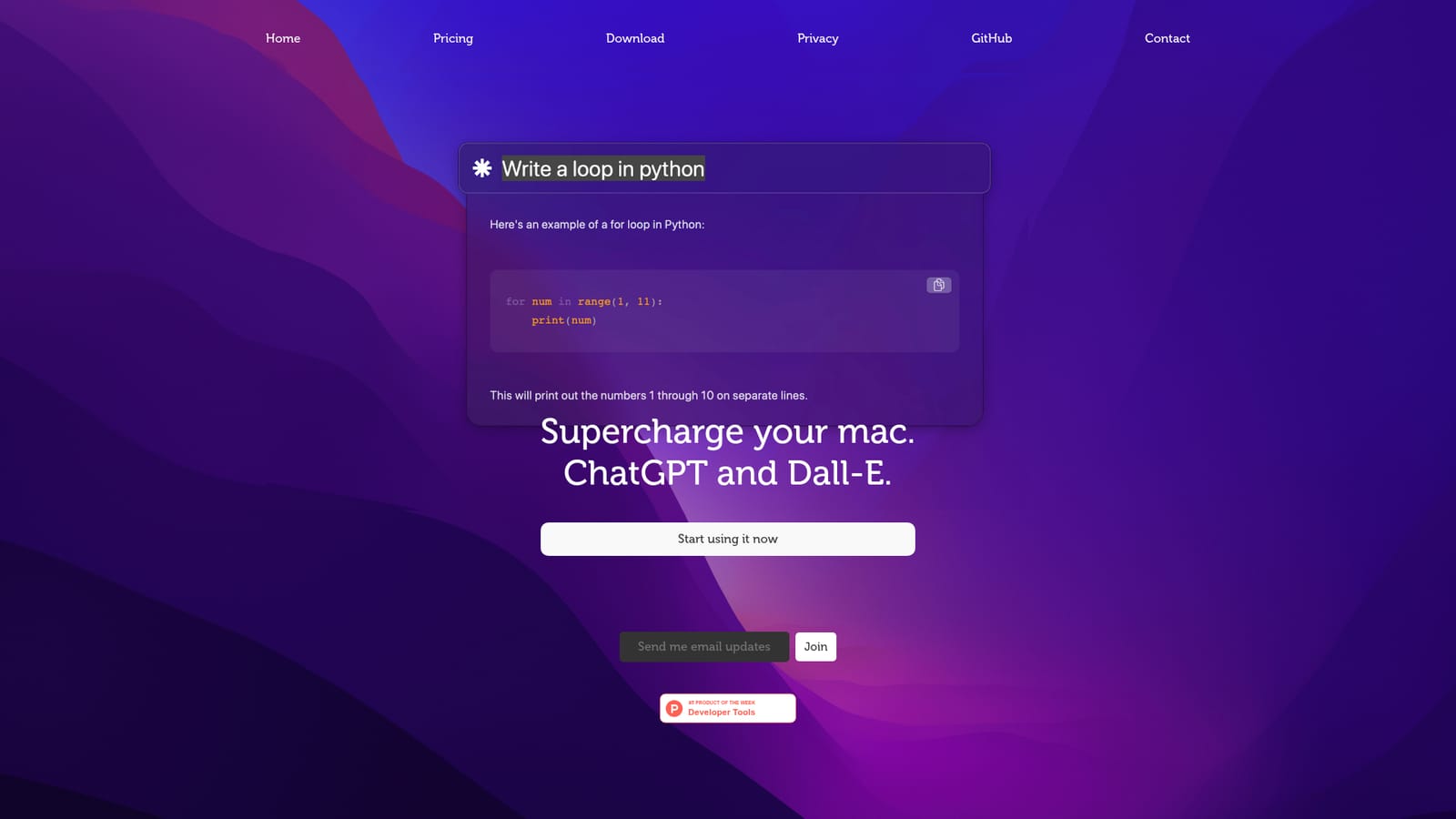
ChatGPT and Dall-E, wired directly into your Mac

ChaiBar is an AI chat bot tool. A Mac menu bar app that puts ChatGPT and Dall-E one click away, aimed at users who want quick chat and image generation without a browser tab.
ChaiBar is a Mac utility that puts ChatGPT and Dall-E behind a small menu bar icon, so the two models are reachable from wherever the cursor happens to be. Instead of opening a browser tab, signing in and typing a prompt again, the app treats a chatbot and an image generator as ambient system tools. The pitch on the homepage is short and unapologetic: supercharge your Mac. The scope is deliberately narrow, and that is the point. The intended audience is the Mac power user who already pays for or uses OpenAI's models daily and resents the context switching. Writers drafting in a native editor, developers reading unfamiliar code, designers who need a quick placeholder image, and anyone who fires off the same class of questions many times a day can keep the flow intact. Because it is a menu bar app rather than a full workspace, it suits short interactions: a rewrite, a summary, an explanation, a generated illustration. Long, multi-turn projects still belong in a dedicated interface with history and file handling. In practice, the workflow is a download from the Mac page, an install, and a sign-in or key setup, after which the icon sits in the menu bar and the ChatGPT and Dall-E surfaces open from there. Prompts are typed into the app's own panel instead of a web page, and generated images arrive in the same place. The homepage does not describe clipboard capture, global hotkeys, or app integrations, so the exact mechanics of how a prompt is captured from another application should be confirmed after installation rather than assumed. Where it fits: the crowded shelf of desktop ChatGPT clients, most of which wrap a web view and add shortcuts. ChaiBar's differentiator is bundling image generation alongside chat in the same lightweight shell. Compared with the official web app it trades features and account tooling for speed of access; compared with full desktop AI suites it trades breadth for a very small footprint. Buyers should weigh how often they genuinely need ChatGPT one keystroke away, because the value scales with frequency of use.

Support is handled by email at hola@nada.studio, listed as the contact link on the homepage. No help centre, documentation site, or community forum is referenced.
ChaiBar bundles two OpenAI capabilities into one Mac menu bar app: ChatGPT for conversational prompts and Dall-E for image generation. The homepage frames the product as a way to supercharge a Mac, implying fast access rather than a full AI workspace. No further feature detail (shortcuts, clipboard handling, history, model choice) is documented on the site.
 AI Angels400+ customizable AI girlfriends for NSFW chat, voice calls, and roleplay
 Candy AIExperience the future of companionship with AI friends who chat, role-play, and connect with you on a human level.
 ourdream.aiA vast AI roleplay platform with millions of characters for chat, images, video and voiceAI Angels400+ customizable AI girlfriends for NSFW chat, voice calls, and roleplayCandy AIExperience the future of companionship with AI friends who chat, role-play, and connect with you on a human level.ourdream.aiA vast AI roleplay platform with millions of characters for chat, images, video and voice


