Free trial
The homepage offers a free try option through the workspace and extension before committing to a paid plan, though the exact free slide allowance is not stated.
Learn moreTurn PDFs, screenshots and videos into native, editable PowerPoint slides
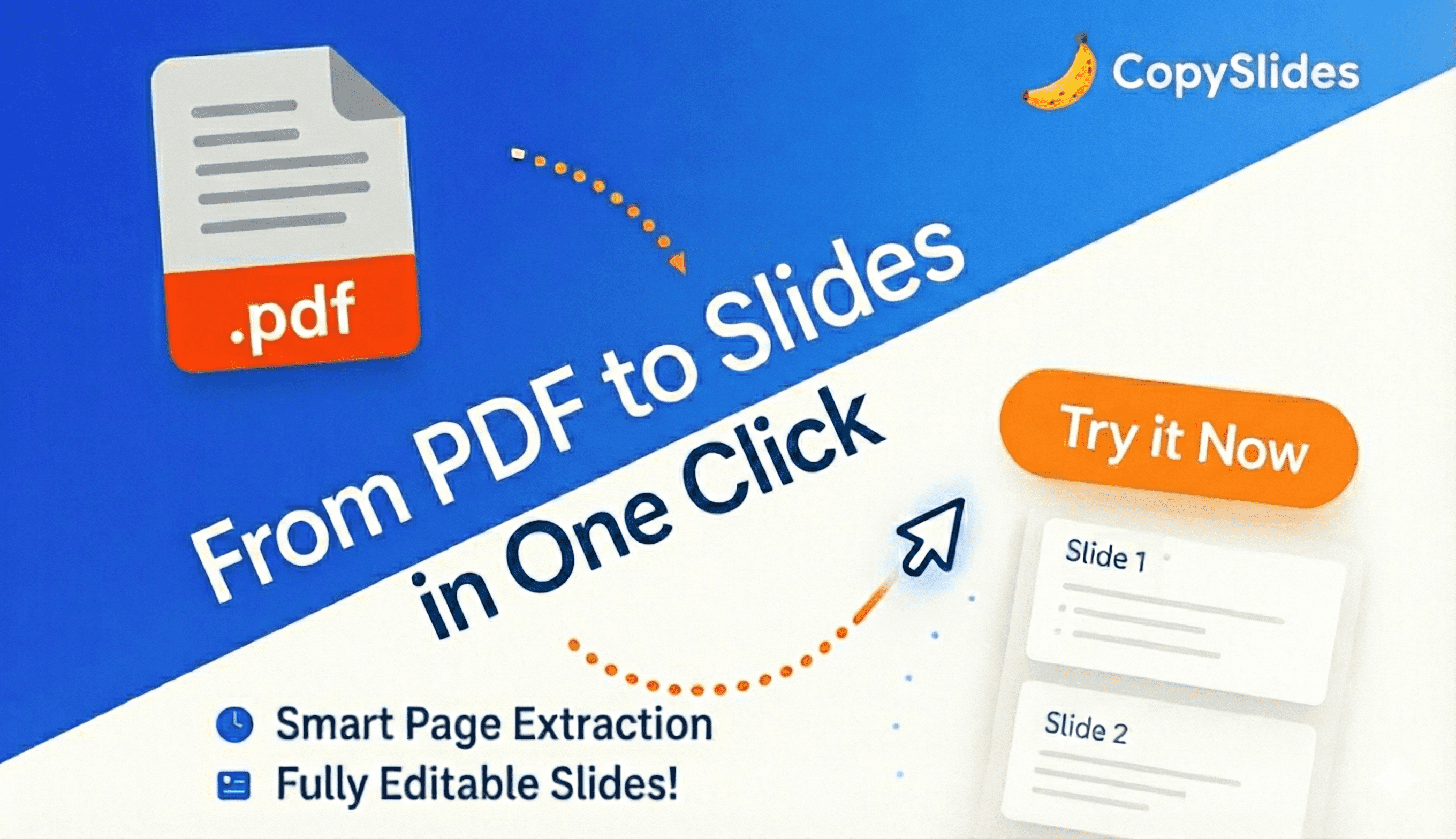
CopySlides is a beautify slides tool that turns PDFs, screenshots and videos into native, editable PowerPoint slides. CopySlides uses AI vision to rebuild PDFs, screenshots and videos as native, editable PowerPoint objects, matching fonts, colours and layout. A cloud web app plus Chrome extension handles conversions, and a separate desktop build runs them fully offline with a one-time lifetime licence.
CopySlides is a conversion tool that rebuilds static slide content as native PowerPoint objects rather than pasting text over a flat image. The pitch is aimed at people who already have slides somewhere else, in a PDF export, a screenshot, or a recorded video, and who would otherwise spend an afternoon recreating the layout by hand. The AI analyses the source, identifies text boxes, shapes, charts and vector elements, and reassembles them into a PPTX file where each piece stays editable. In practice, three input types cover most use cases. PDF conversion is positioned heavily around NotebookLM exports, where notes come out structured but visually plain; CopySlides keeps the content intact and upgrades the formatting. Image conversion takes a screenshot of an existing deck and returns layered, tweakable slides. Video extraction captures slide moments from recorded webinars or meetings and rebuilds them into a clean presentation, which is useful when the original deck file has been lost. The core capabilities are layout recovery, image splitting, font and colour matching, vector element recovery and one-click PPTX export. A desktop build is offered separately for people who cannot upload client or internal material to a cloud service: it runs conversions locally, has no recurring fee and is sold as a one-time lifetime licence. The web app and Chrome extension handle cloud conversions for everyone else. CopySlides sits closest to OCR and PDF-to-PowerPoint converters, but the output differs: those tools typically produce text placed over a background image, while this one attempts to produce genuine PowerPoint objects. That makes it a good fit for consultants, marketers, teachers and analysts who inherit decks from other sources and need to keep editing them. Anyone starting from a blank canvas is better served by a generative slide builder.
The homepage offers a free try option through the workspace and extension before committing to a paid plan, though the exact free slide allowance is not stated.
Learn moreStarter is $9 per month for up to 200 slides, Plus is $19 per month for up to 600 slides, and a Lifetime tier is advertised at $149 (discounted from $199) with unlimited desktop conversions, 10,000 web and extension slides, and up to 3 licensed devices. Subscriptions can be cancelled anytime.
Learn moreEmail support is bundled with the Plus plan, Lifetime buyers get founder-level support, and a direct contact email is published for desktop users. An FAQ on the homepage covers formats, accuracy and failed conversions.
A Chrome extension captures and converts slides from the browser. NotebookLM PDF exports are the only third-party format called out by name; no API integrations are listed.
Intelligent layout recovery, image splitting, font and colour matching, vector element recovery, advanced AI vision and one-click PPTX export. Inputs cover PDFs (including NotebookLM exports), screenshots and images, and video recordings, with charts and vector shapes reconstructed as editable objects.
 AI Angels400+ customizable AI girlfriends for NSFW chat, voice calls, and roleplay
 Candy AIExperience the future of companionship with AI friends who chat, role-play, and connect with you on a human level.
 ourdream.aiA vast AI roleplay platform with millions of characters for chat, images, video and voiceAI Angels400+ customizable AI girlfriends for NSFW chat, voice calls, and roleplayCandy AIExperience the future of companionship with AI friends who chat, role-play, and connect with you on a human level.ourdream.aiA vast AI roleplay platform with millions of characters for chat, images, video and voice