Free trial
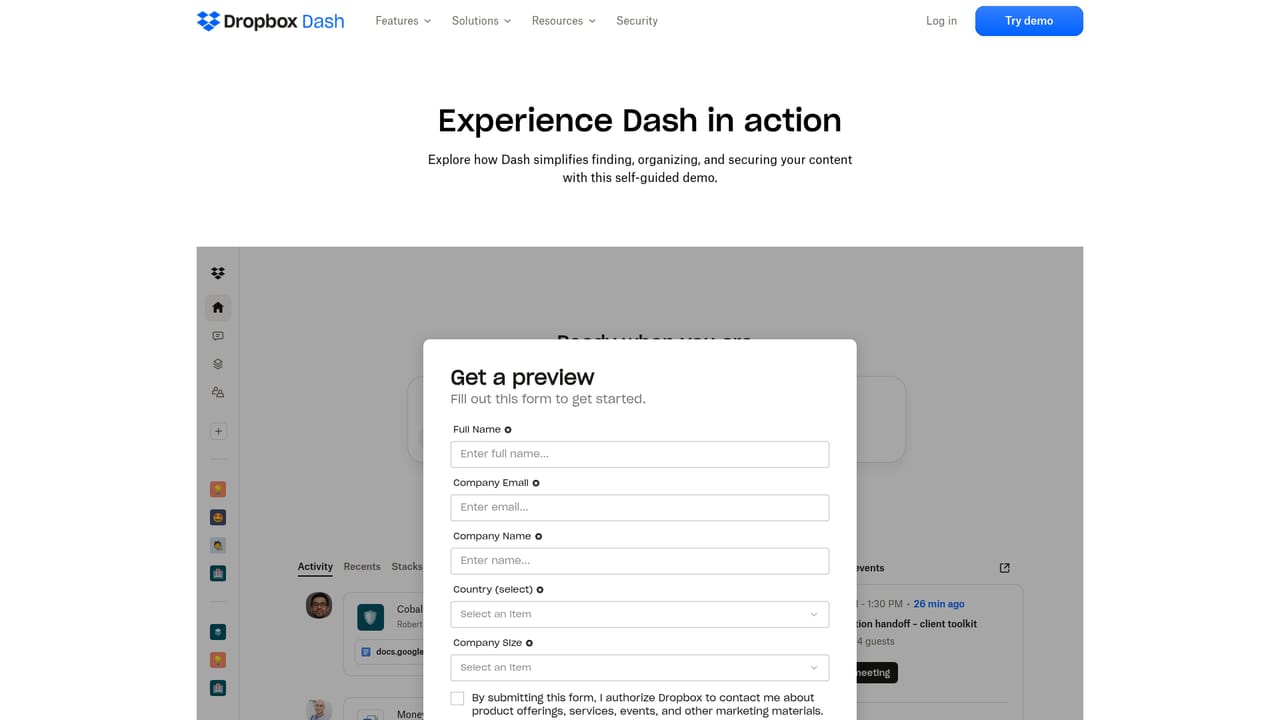
The homepage offers a free signup alongside a demo, but does not state trial length or which features the free tier includes.
Learn moreUniversal search and AI answers across every work app

Dropbox Dash is an AI-powered universal search and organization tool that connects the apps a team already uses, so documents, messages and shared knowledge can be found and queried from one place. It adds AI chat answers, Stacks for grouping resources, and admin controls over content access.
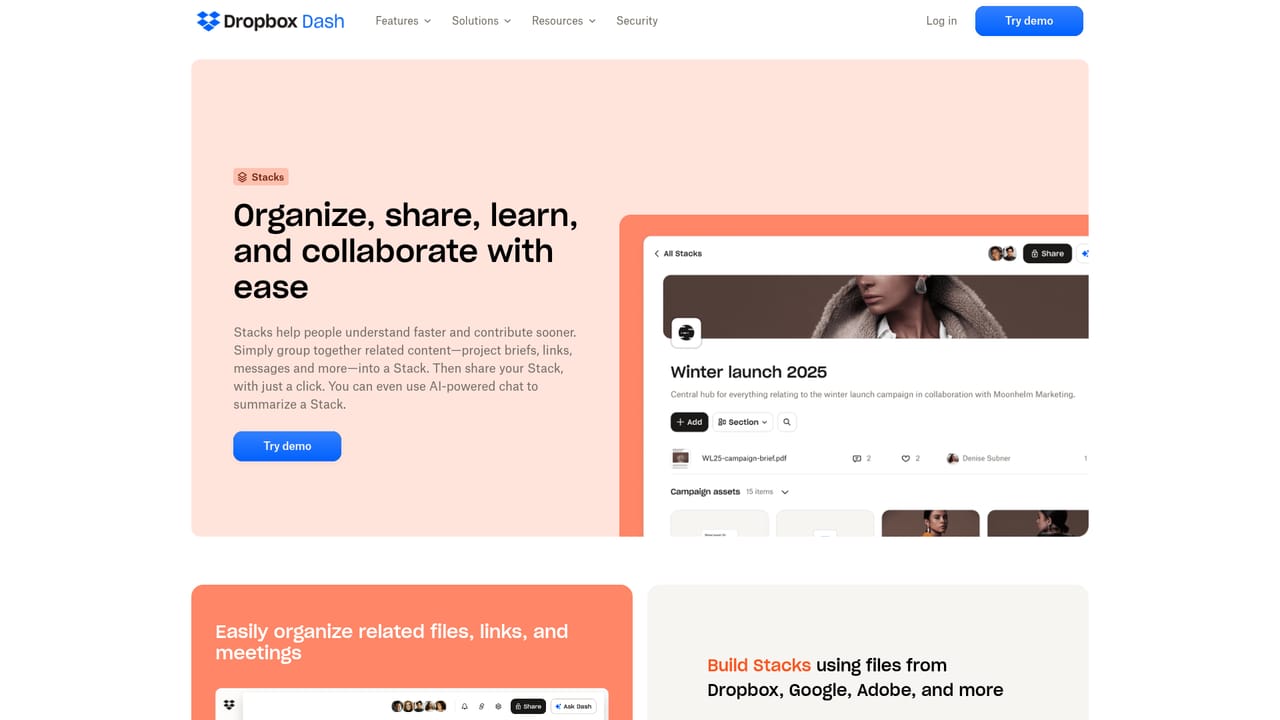
Dropbox Dash is a search and organization layer that sits on top of the apps a team already uses. Rather than opening Slack, Gmail, Notion, Google Drive and Jira one at a time to track down a document or a decision, Dash indexes connected sources and returns results from a single query box. The product pairs that universal search with an AI chat interface, so a question phrased in plain language can be answered from shared team knowledge instead of handing back a list of links. The tool is aimed at knowledge workers inside organizations rather than solo users. Marketing, sales, engineering, HR, operations and professional services teams all get dedicated solution pages, which reflects the intended buyer: a company that wants fewer hours lost to hunting for internal context. Beyond lookup, Dash organizes work through Stacks (collections of links and files grouped around a project or topic) and a start page that puts search, recent items and saved material in one place. Surfaces extend the same access into the tools people already have open. In practice, a user connects their accounts, runs a search or asks a question, and refines from there. Stacks replace ad hoc bookmark folders and give a shared team a common place to park the references that matter to a project. Because the pitch combines discovery with universal content access control, administrators get a way to reason about who can reach what across connected apps rather than auditing each system separately. That security framing is the main thing separating Dash from standalone enterprise search add-ons. Where it fits: teams already invested in the Dropbox ecosystem get the tightest fit, and organizations evaluating Glean-style enterprise search or simple browser bookmark managers should weigh Dash on connector coverage and admin controls. Buyers who only need to search a single drive will find the category overkill. Pricing is not published as a public rate card on the homepage; the commercial path runs through a free signup and a sales conversation.
The homepage offers a free signup alongside a demo, but does not state trial length or which features the free tier includes.
Learn moreA contact sales route and a resources section are linked from the site. The homepage does not describe help desk hours or support tiers.
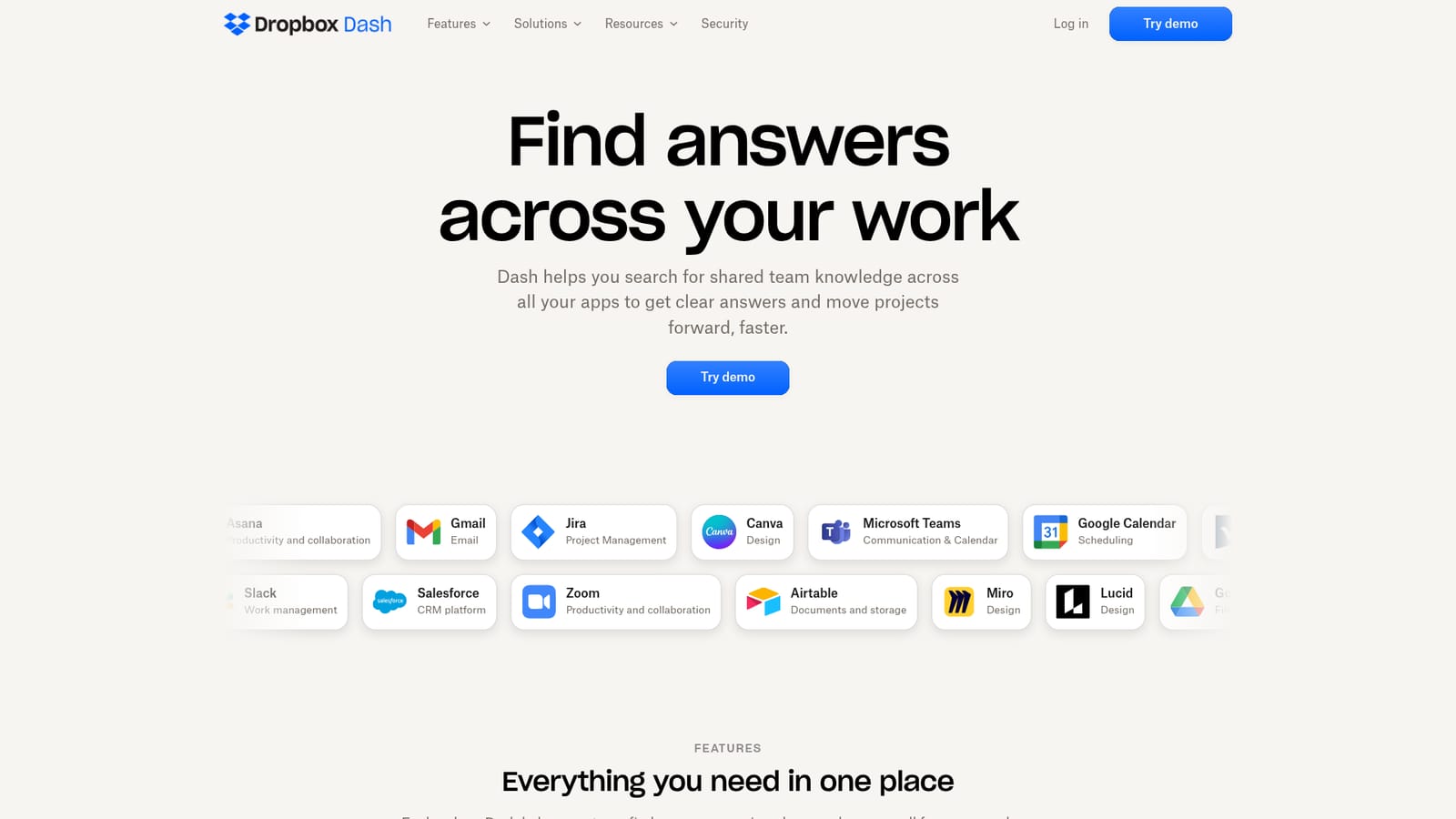
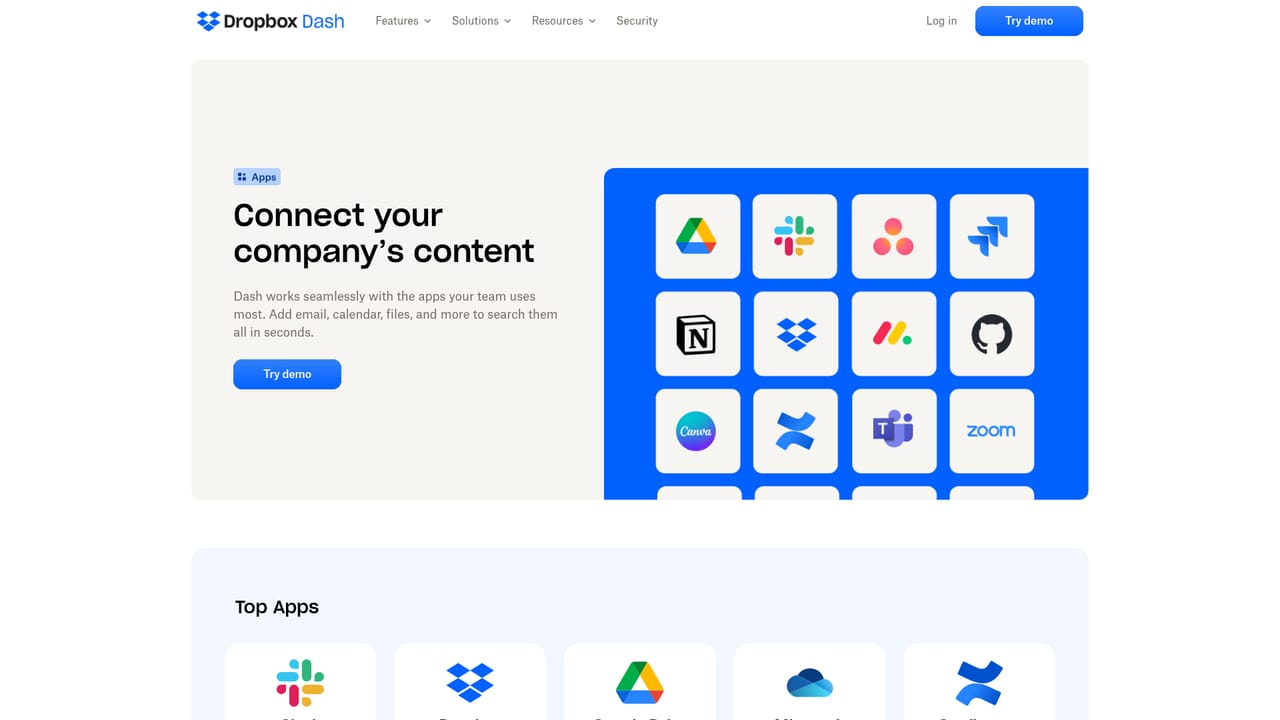
Learn moreThe homepage lists connectors for Canva, Microsoft Teams, Google Calendar, Smartsheet, Dropbox, Notion, Asana, Gmail, Jira, Lucid, Google Drive, Outlook, GitHub, Confluence, OneDrive, Slack, Salesforce, Zoom, Airtable, Miro and others.
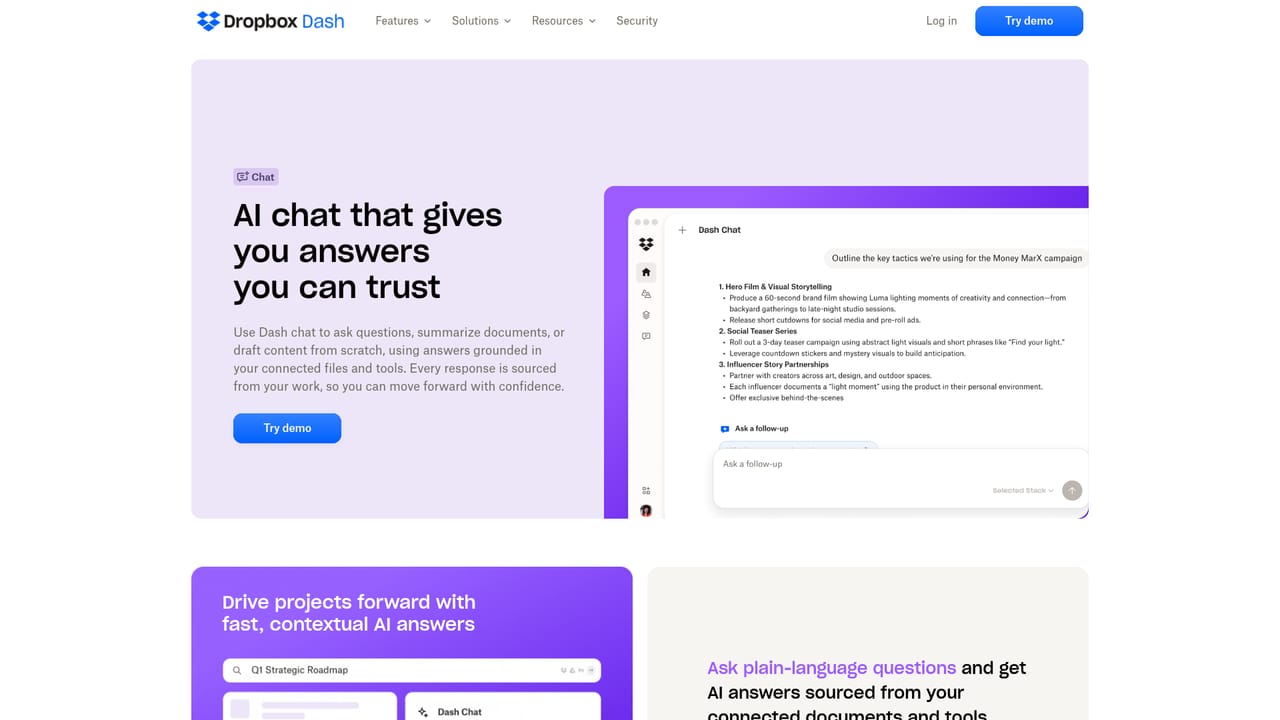
Learn moreCore capabilities are universal search across connected apps, an AI chat interface for question answering, Stacks for grouping resources around projects, a personalized start page, surfaces that bring Dash into other tools, and universal content access control for administrators.
Learn more AI Angels400+ customizable AI girlfriends for NSFW chat, voice calls, and roleplay
 Candy AIExperience the future of companionship with AI friends who chat, role-play, and connect with you on a human level.
 ourdream.aiA vast AI roleplay platform with millions of characters for chat, images, video and voiceAI Angels400+ customizable AI girlfriends for NSFW chat, voice calls, and roleplayCandy AIExperience the future of companionship with AI friends who chat, role-play, and connect with you on a human level.ourdream.aiA vast AI roleplay platform with millions of characters for chat, images, video and voice


