Support
A dedicated support portal is available for help articles and guidance on using the product.
Learn moreAI assisted infographic creation for data heavy teams

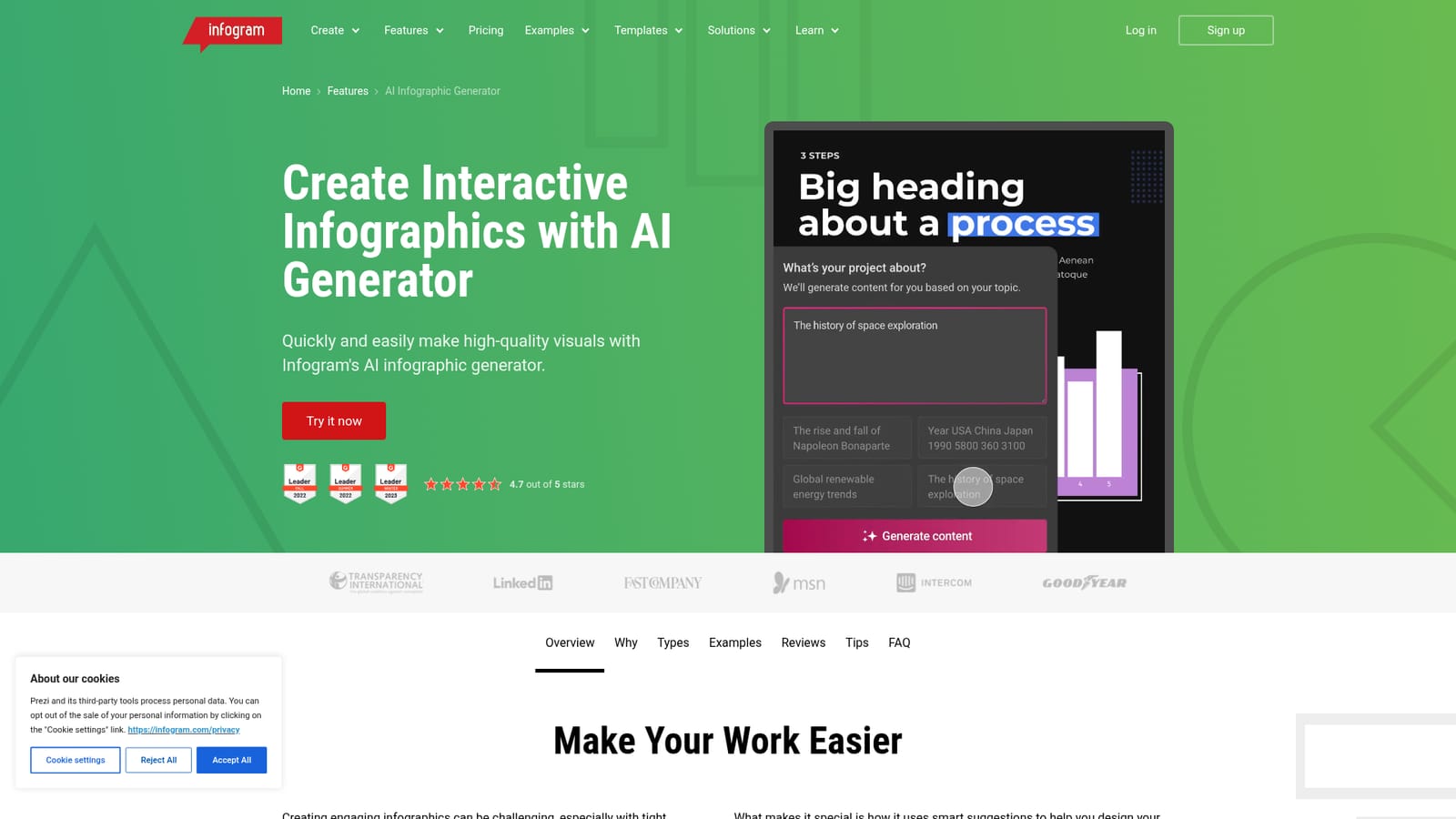
Infogram is an economics graph maker tool. Infogram's AI infographic generator drafts layouts and visuals from a short brief, then hands them to an editor for chart, data and styling work. Built for non designers in marketing, journalism, analysis and teaching who need shareable, interactive data visuals.
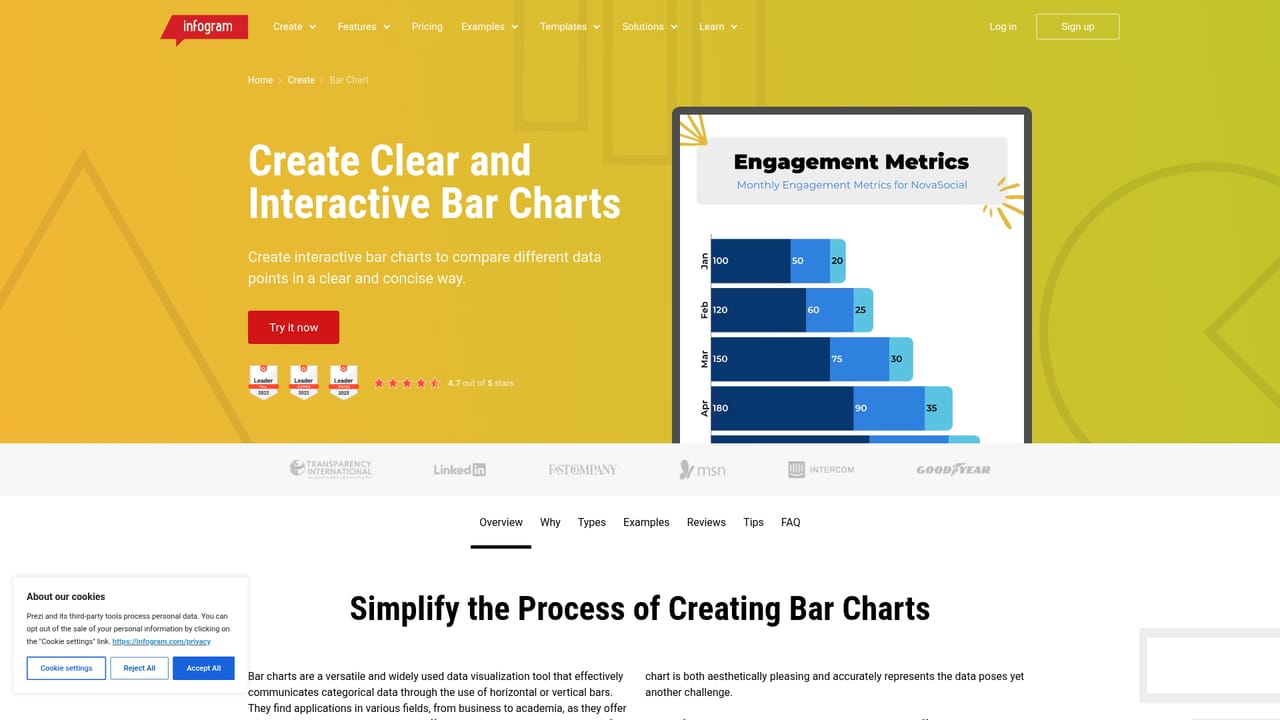
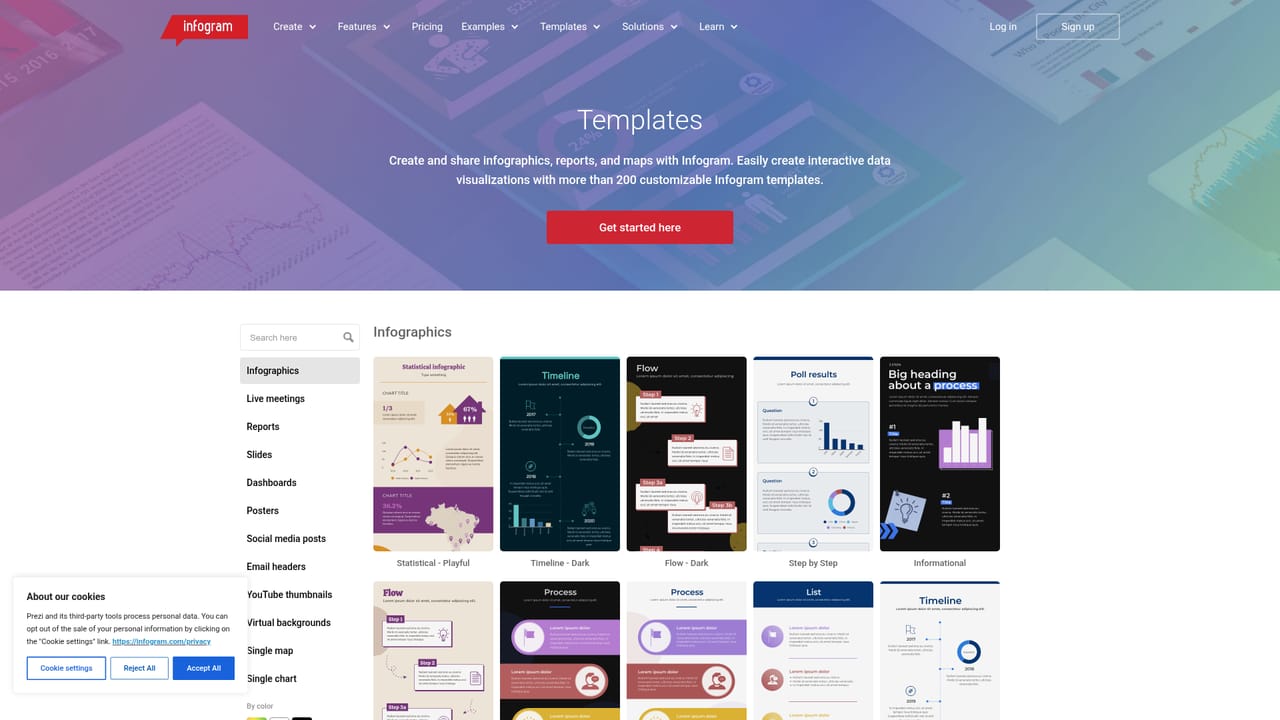
Infogram is a web based visual content platform whose AI infographic generator turns a brief into a starter design with suggested layouts, charts and styling. The tool is aimed at people who need to communicate data clearly but do not have a design background: writers, journalists, analysts, marketers and teachers are the audiences the product itself names. Instead of building every block manually, a user describes the subject and lets the generator propose a structure, then refines it inside the editor. In practice the workflow is iterative rather than one shot. The AI supplies a draft composition, and the real work happens afterwards: swapping chart types, dropping in a spreadsheet or pasted dataset, adjusting labels and colours, and adding interactive elements. Infogram's wider library supports the usual chart formats such as bar charts and pie charts, plus word clouds and map style visuals. Templates and published examples provide reference points, and finished pieces can be embedded or shared rather than exported as a flat image, which keeps hover and click interactions intact. Where it fits among alternatives is the middle ground between generic AI design assistants and heavyweight business intelligence tools. It leans toward presentation and storytelling rather than deep statistical analysis, and the smart suggestions reduce the blank canvas problem for non designers. Teams already producing annual reports, editorial explainers or classroom material will find the most value; anyone needing statistical modelling or custom chart logic will still reach for a dedicated analytics package. A few caveats are worth flagging. The AI output is a starting point that still requires editorial judgement about what the data actually says. Design freedom inside a template driven editor is narrower than in a full illustration suite, and the strongest results depend on having clean, well organised source data before you begin.
A dedicated support portal is available for help articles and guidance on using the product.
Learn moreThe AI infographic generator takes a written brief and proposes layouts and styling with smart suggestions, reducing manual design work for people with little design experience. Around it sits a broader editor for data visuals, including bar charts, pie charts and word clouds, plus templates and a public examples gallery for reference.
 AI Angels400+ customizable AI girlfriends for NSFW chat, voice calls, and roleplay
 Candy AIExperience the future of companionship with AI friends who chat, role-play, and connect with you on a human level.
 ourdream.aiA vast AI roleplay platform with millions of characters for chat, images, video and voiceAI Angels400+ customizable AI girlfriends for NSFW chat, voice calls, and roleplayCandy AIExperience the future of companionship with AI friends who chat, role-play, and connect with you on a human level.ourdream.aiA vast AI roleplay platform with millions of characters for chat, images, video and voice