Free trial
A limited-time free image model is promoted sitewide and described as completely free with no credits required, which functions as free access rather than a timed trial.
Learn moreReference-first image transformation driven by plain-language prompts

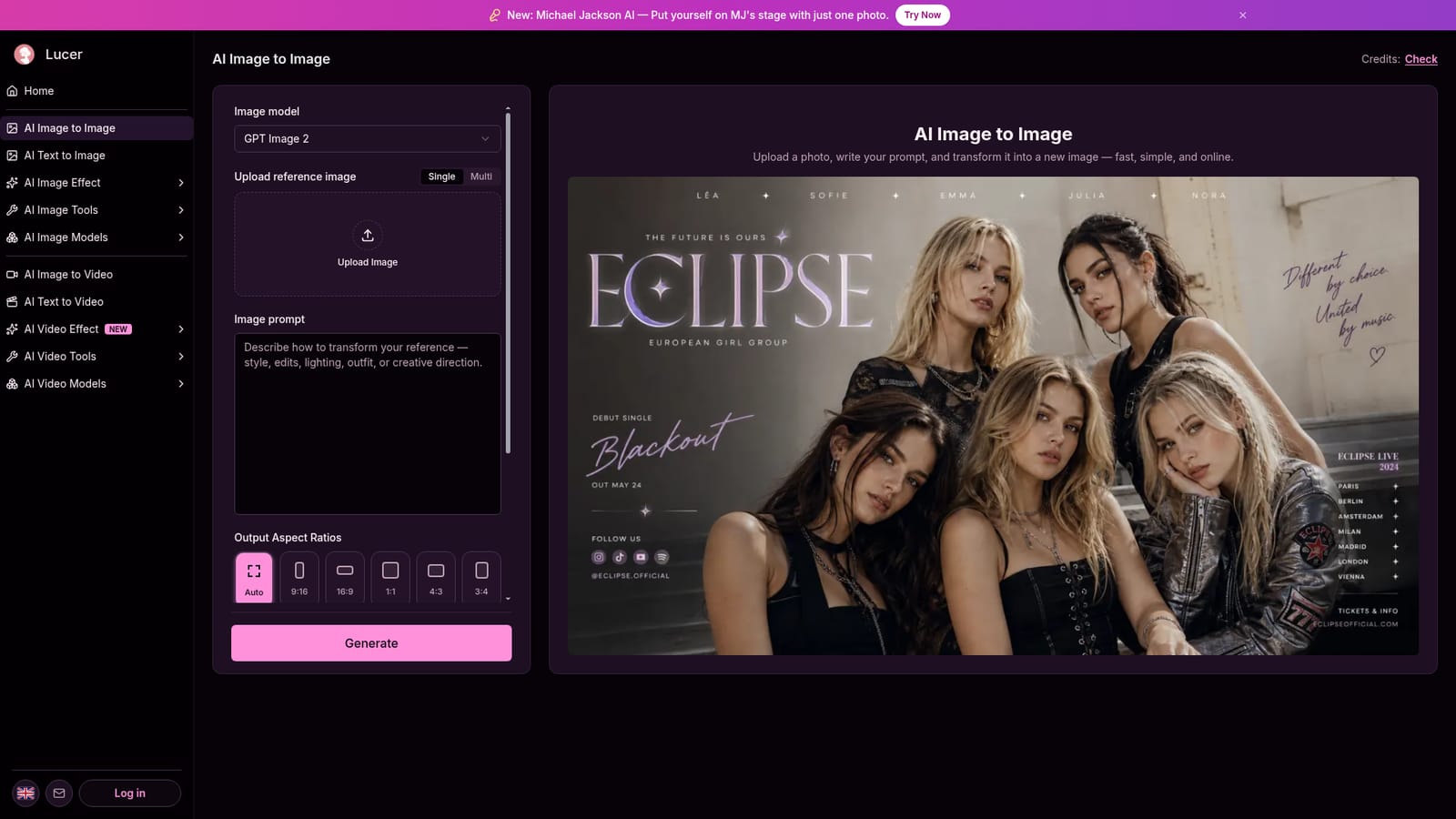
Lucer is an image to image tool. Lucer's image to image tool uses GPT Image 2 to transform uploaded photos from plain-language prompts, with single or multi-reference input (up to five images), aspect ratio, quality, resolution and format controls, and an inline preview for fast iteration.
Lucer's image to image workspace treats your uploaded photo as the anchor for every generation rather than asking you to build a picture from nothing. You supply one reference image in single mode or up to five in multi mode, describe the change you want in ordinary language, and the pipeline returns a new image that still carries the source pixels of the original. Editing, restyling, lighting shifts, wardrobe changes and background swaps all run through the same prompt field, so there is no preset library to wade through. Generation runs on GPT Image 2, which is the only model named for this workflow on the page. Output controls sit alongside the prompt: aspect ratio (auto, 9:16, 16:9, 1:1, 4:3, 3:4), quality at low, medium or high, resolution at 1k, 2k or 4k, and a file format choice between png, jpeg and webp. The page advertises PNG downloads in its feature copy, so treat the format selector as the practical source of truth. Results appear in an inline preview panel, which keeps the iterate and adjust loop on a single screen. The tool suits designers, social media creators and hobbyists who already have a photograph to work from and want a fast, directed edit rather than a full desktop editor. Multi-reference mode is the standout for anyone combining several visual cues in one brief. Anyone needing layer masks, brush-level retouching or batch queues will find it thin, and the surrounding Lucer catalogue (text to image, video generation, themed experiences such as the Michael Jackson and Hotel Lobby pages) shows this is one module in a broader generator suite rather than a dedicated retouching application. Credit accounting is shown before each run, and the site advertises a limited-time free image model that requires no credits. Both sit inside a sign-in flow, so costs and free access should be confirmed on the pricing page before committing to volume work.
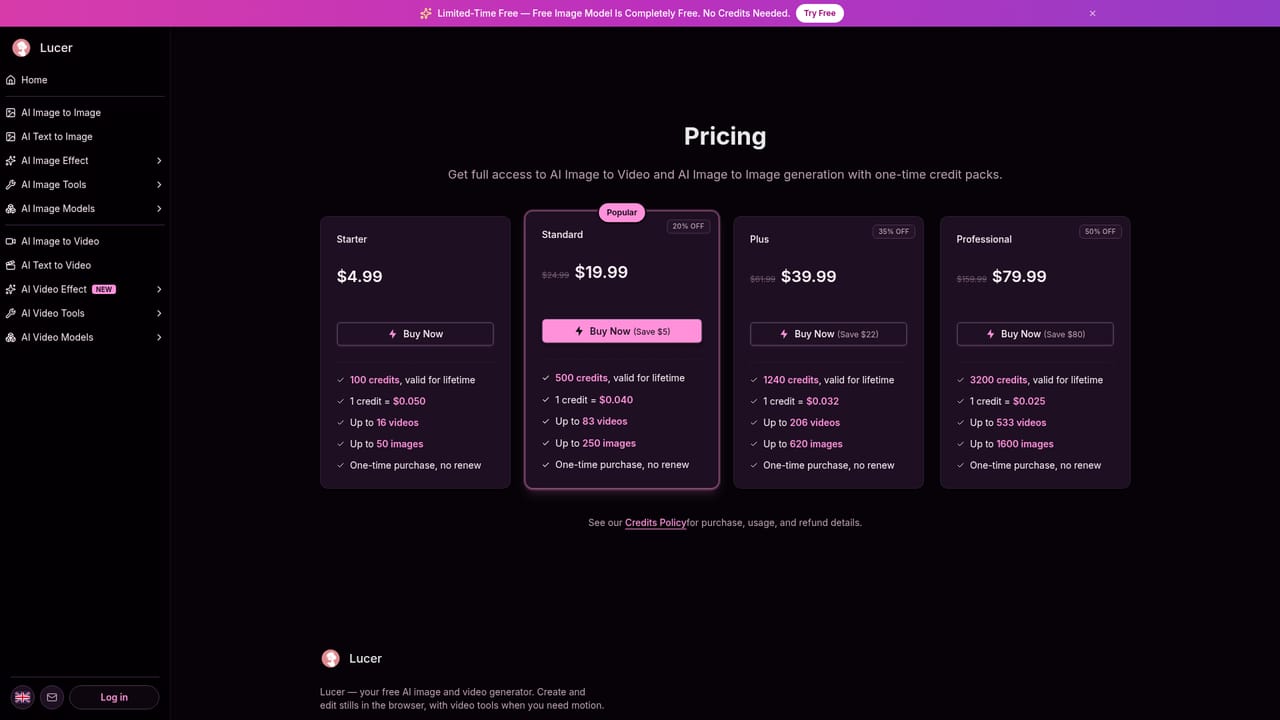
A limited-time free image model is promoted sitewide and described as completely free with no credits required, which functions as free access rather than a timed trial.
Learn moreRuns are paid with credits, and the credit cost for each generation is shown before you generate. A limited-time free image model is advertised as completely free with no credits needed. Exact credit prices and top-up amounts are not published in the homepage content, so check the pricing page.
Learn moreSupport runs through a single contact email listed in the site footer, and the page invites questions about image to image through those footer contact options. No help centre or chat is mentioned.
Reference-first pipeline anchored on your upload, single or multi mode with up to five source images, natural-language edit prompts, GPT Image 2 generation, aspect ratio presets, low to high quality, 1k to 4k resolution, png, jpeg or webp output, inline preview, and credit cost shown before each run.
 AI Angels400+ customizable AI girlfriends for NSFW chat, voice calls, and roleplay
 Candy AIExperience the future of companionship with AI friends who chat, role-play, and connect with you on a human level.
 ourdream.aiA vast AI roleplay platform with millions of characters for chat, images, video and voiceAI Angels400+ customizable AI girlfriends for NSFW chat, voice calls, and roleplayCandy AIExperience the future of companionship with AI friends who chat, role-play, and connect with you on a human level.ourdream.aiA vast AI roleplay platform with millions of characters for chat, images, video and voice