Free trial
The homepage does not advertise a free trial; access is credit based, so you top up before generating.
Learn moreOne workspace for more than ten AI video models, billed per generation

MaxVideoAI is a clone video generator tool. A pay as you go AI video workspace that bundles Kling, Seedance, Wan, LTX, Veo, Luma, Pika, FLUX, MiniMax and Grok models under one credit balance, with live pricing and public model comparisons.
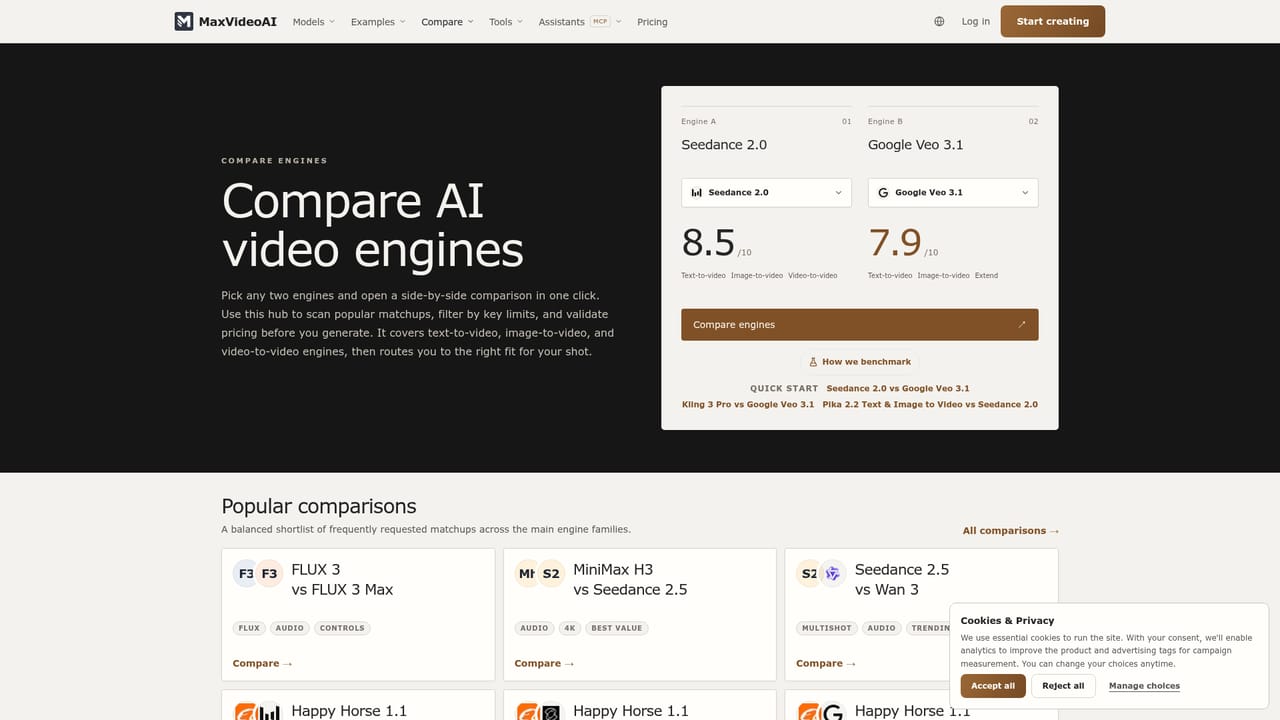
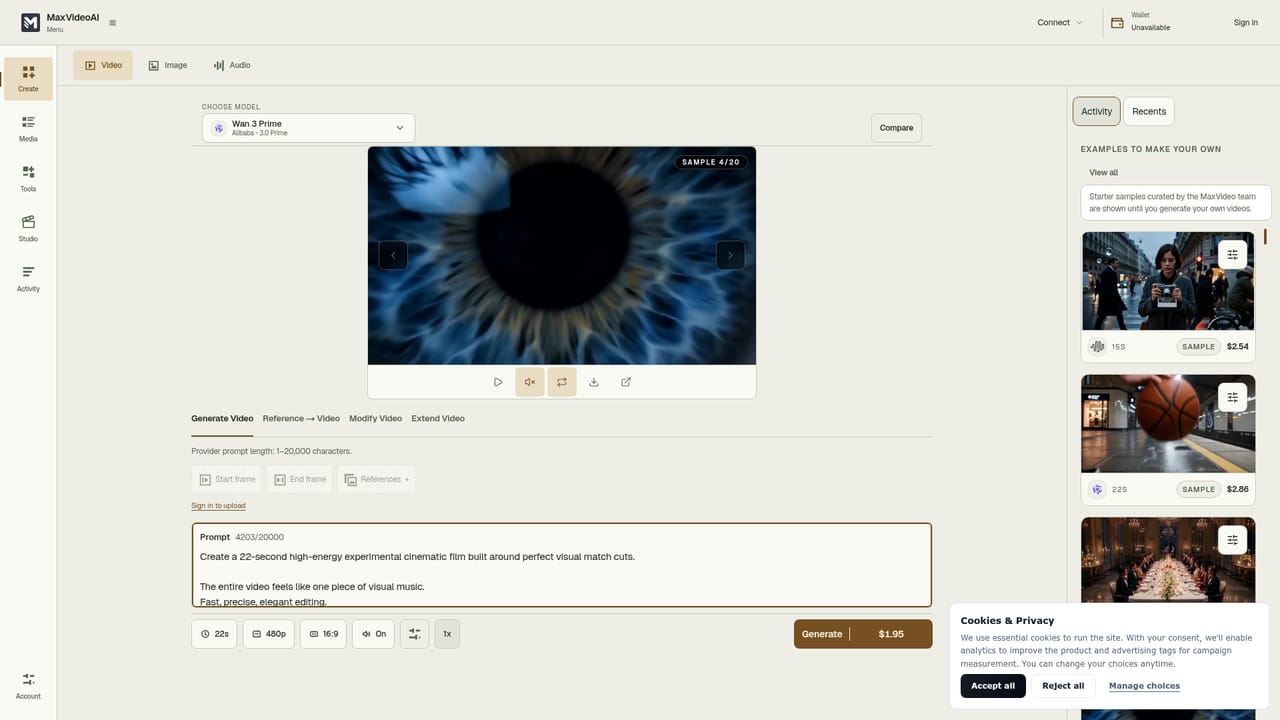
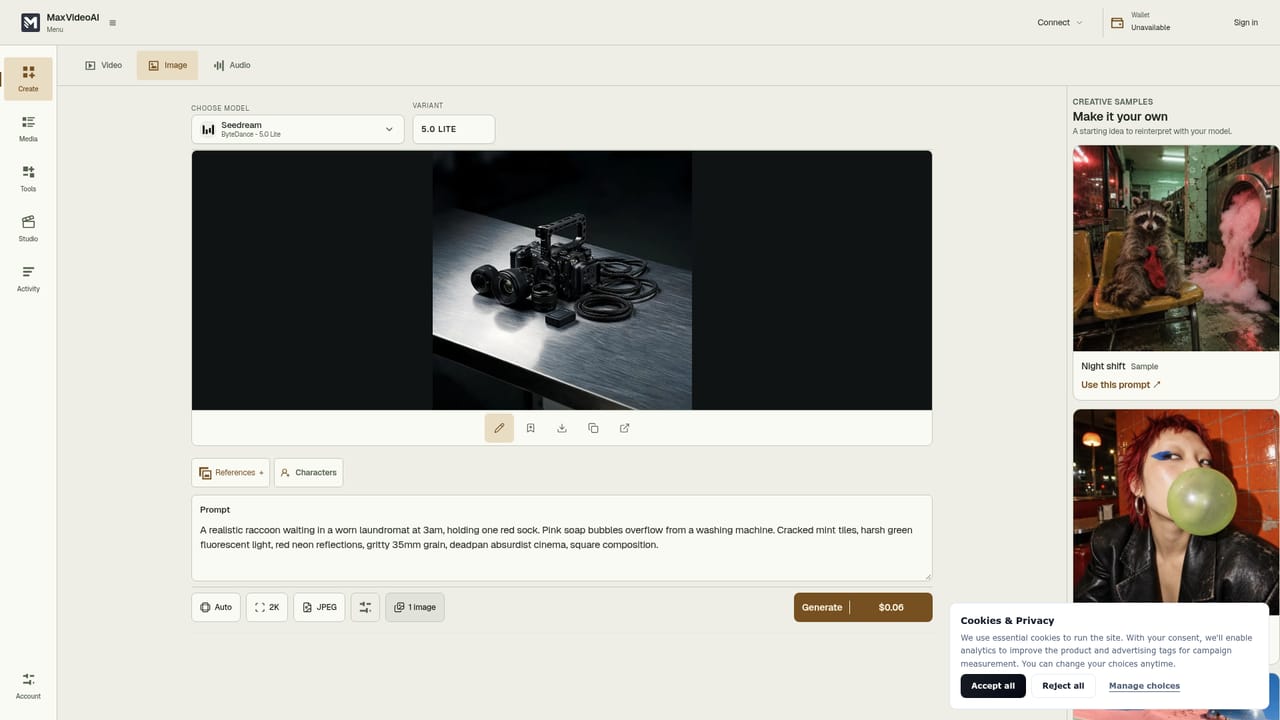
MaxVideoAI is a browser based video generation workspace that pools more than ten third party video models behind a single pay as you go credit balance. Instead of subscribing to Kling, Seedance, Wan, LTX, Veo, Luma or Pika separately, you pick the engine that suits the shot and the budget, then generate from the same interface. The model roster also covers MiniMax, FLUX, Happy Horse and Grok Imagine Video. A public comparison section scores engines on criteria such as prompt adherence, visual quality and natural movement, with head to head pages for pairs like Kling 3 Pro versus Seedance 2.5. In practice the workflow is prompt or reference first. You can describe a scene, upload an existing clip, or create a starting image inside the app and animate it. Duration, resolution, aspect ratio, audio and output count are set before you commit, and the price updates live, so a 5 second 720p Wan 3 clip and a longer 1080p render are visibly different purchases. Credits are only spent on successful generations, which matters when a model misfires on a complex prompt. Priced examples on the site start around $1.11 for a short FLUX 3 Max text to video render. The tool is aimed at solo creators, small marketing teams and agencies that need to test a visual direction quickly rather than lock into one vendor. Studios tend to use fast models such as LTX 2.3 Fast for drafts and switch to MiniMax H3 Max or FLUX 3 Max once the composition works. Supporting utilities round out the workflow: a character builder for consistency, camera angle changes, upscaling, background removal, denoising, motion smoothing and storyboards. The trade off is that quality ceilings are set by the underlying engines, not by MaxVideoAI, so the comparison pages are doing real work rather than marketing. Against alternatives, the pitch is breadth plus price transparency. Single vendor tools are cheaper for one look but narrow; MaxVideoAI charges for what you render and keeps model switching inside one account.

The homepage does not advertise a free trial; access is credit based, so you top up before generating.
Learn morePay as you go credits with no subscription. The price for a generation is calculated from model, duration, resolution, audio and output count, and is shown before you confirm. Example quotes in USD start around $1.11 for a 5 second 720p FLUX 3 Max text to video render. Credits are only spent on successful generations.
Learn morePrompts and ideas can be sent from assistants such as Claude, ChatGPT and Codex through the connections page, with the price reviewed before a generation is approved.
Access to Kling, Seedance, Wan, LTX, Veo, Luma, Pika, MiniMax, FLUX, Happy Horse and Grok Imagine Video models in one workspace, supporting text to video, image to video and reference driven generation. Includes live price estimates, editorial model comparisons, example galleries, an image and audio workspace, and tools for character consistency, camera angles, upscaling, background removal, denoising, blur fixes and storyboards.
Learn more AI Angels400+ customizable AI girlfriends for NSFW chat, voice calls, and roleplay
 Candy AIExperience the future of companionship with AI friends who chat, role-play, and connect with you on a human level.
 ourdream.aiA vast AI roleplay platform with millions of characters for chat, images, video and voiceAI Angels400+ customizable AI girlfriends for NSFW chat, voice calls, and roleplayCandy AIExperience the future of companionship with AI friends who chat, role-play, and connect with you on a human level.ourdream.aiA vast AI roleplay platform with millions of characters for chat, images, video and voice