Free trial
The homepage invites visitors to try Ninja for free, though no trial length or plan details are stated.
Learn moreMulti-tool AI workspace for research, writing, code and images

Ninja AI is an AI project builder tool. Ninja AI bundles research, search, writing, coding and image generation into one prompt box, with an optional autonomous agent called SuperNinja that handles multi-step work such as data analysis and building slides or websites.
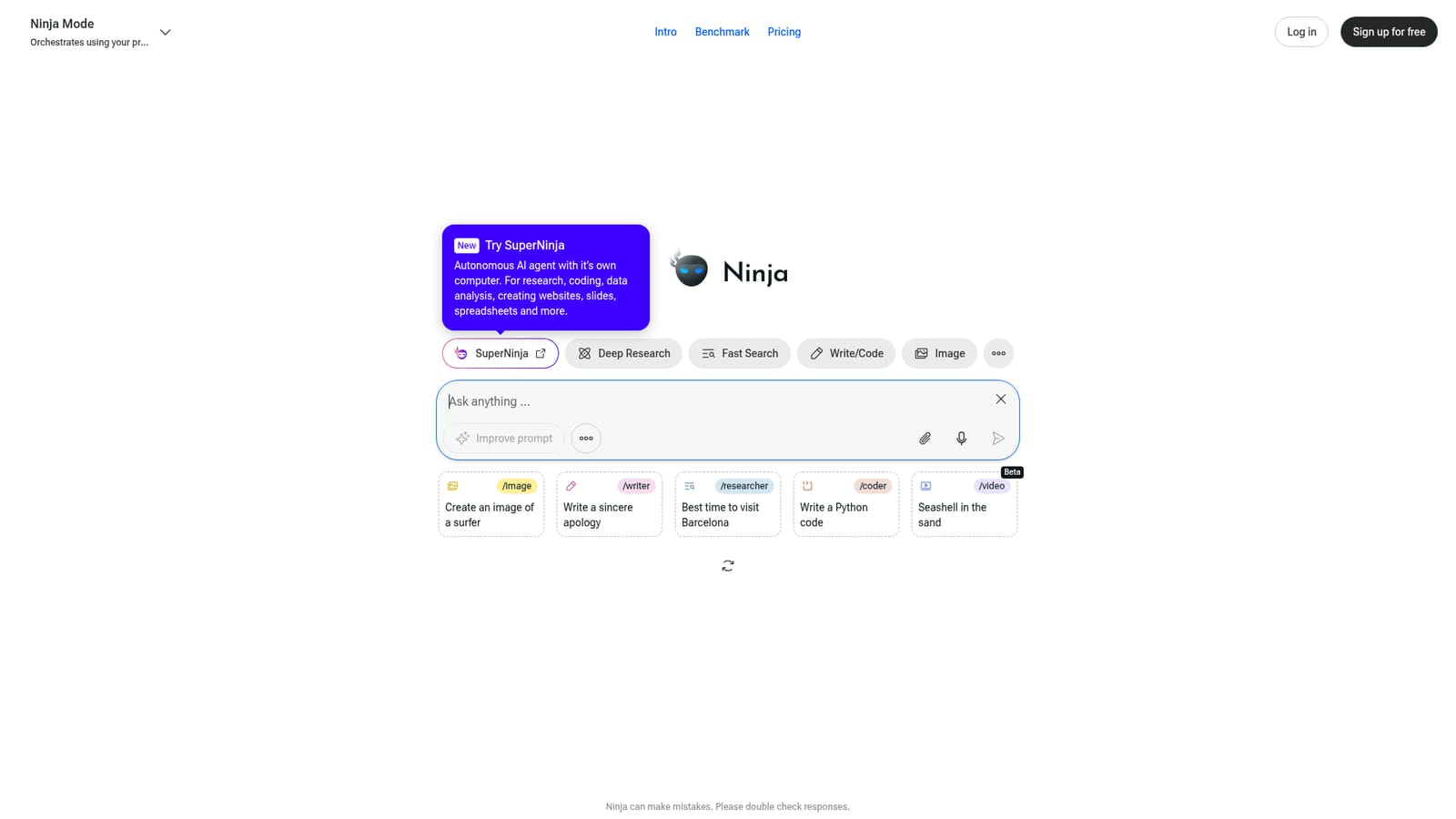
Ninja AI is a browser-based AI workspace that gathers several task-specific assistants behind a single prompt box. Instead of signing into separate products for research, drafting, coding and visuals, you pick a mode and describe what you want. The homepage presents four main modes: Deep Research, Fast Search, Write/Code and Image, each aimed at a different kind of output rather than a single general chat. In practice the tool behaves like a command hub. Typing a plain request sends it to a default assistant, while short slash commands route work to a specific mode: /researcher for topic exploration, /writer for drafting something like a persuasive email, /coder for a code snippet such as a Python function, and /image for picture generation. The /video mode is openly marked Beta, which is a useful signal about where the product is mature and where it is still settling. There is also an improve prompt control that rewrites a rough request into something more explicit before you send it. A second layer sits alongside the workspace. SuperNinja is described as an autonomous agent with its own computer, pitched at research, coding, data analysis and building websites, slides and spreadsheets. That is a different proposition from the chat-style modes: the agent runs multi-step work rather than returning a single answer. The homepage links out to SuperNinja at super.myninja.ai, so the two experiences are presented as related but separate. Who it suits: generalist knowledge workers, students and solo builders who want one bookmark instead of five subscriptions, and who are comfortable choosing a mode before typing. It fits less well for anyone who needs deep, documented control over a single specialty, since each mode here is one part of a broad bundle. The site itself warns that Ninja can make mistakes and that responses should be double checked, which is fair guidance for an assistant that spans this many task types.
The homepage invites visitors to try Ninja for free, though no trial length or plan details are stated.
Learn moreFour task modes (Deep Research, Fast Search, Write/Code, Image) share one prompt box, supported by slash commands, an improve prompt control and a Beta video mode. SuperNinja adds an autonomous agent with its own computer for research, coding, data analysis and building websites, slides and spreadsheets.
 AI Angels400+ customizable AI girlfriends for NSFW chat, voice calls, and roleplay
 Candy AIExperience the future of companionship with AI friends who chat, role-play, and connect with you on a human level.
 ourdream.aiA vast AI roleplay platform with millions of characters for chat, images, video and voiceAI Angels400+ customizable AI girlfriends for NSFW chat, voice calls, and roleplayCandy AIExperience the future of companionship with AI friends who chat, role-play, and connect with you on a human level.ourdream.aiA vast AI roleplay platform with millions of characters for chat, images, video and voice


