Oneimg

Free browser based AI photo editor with restoration and cleanup tools

Beginner
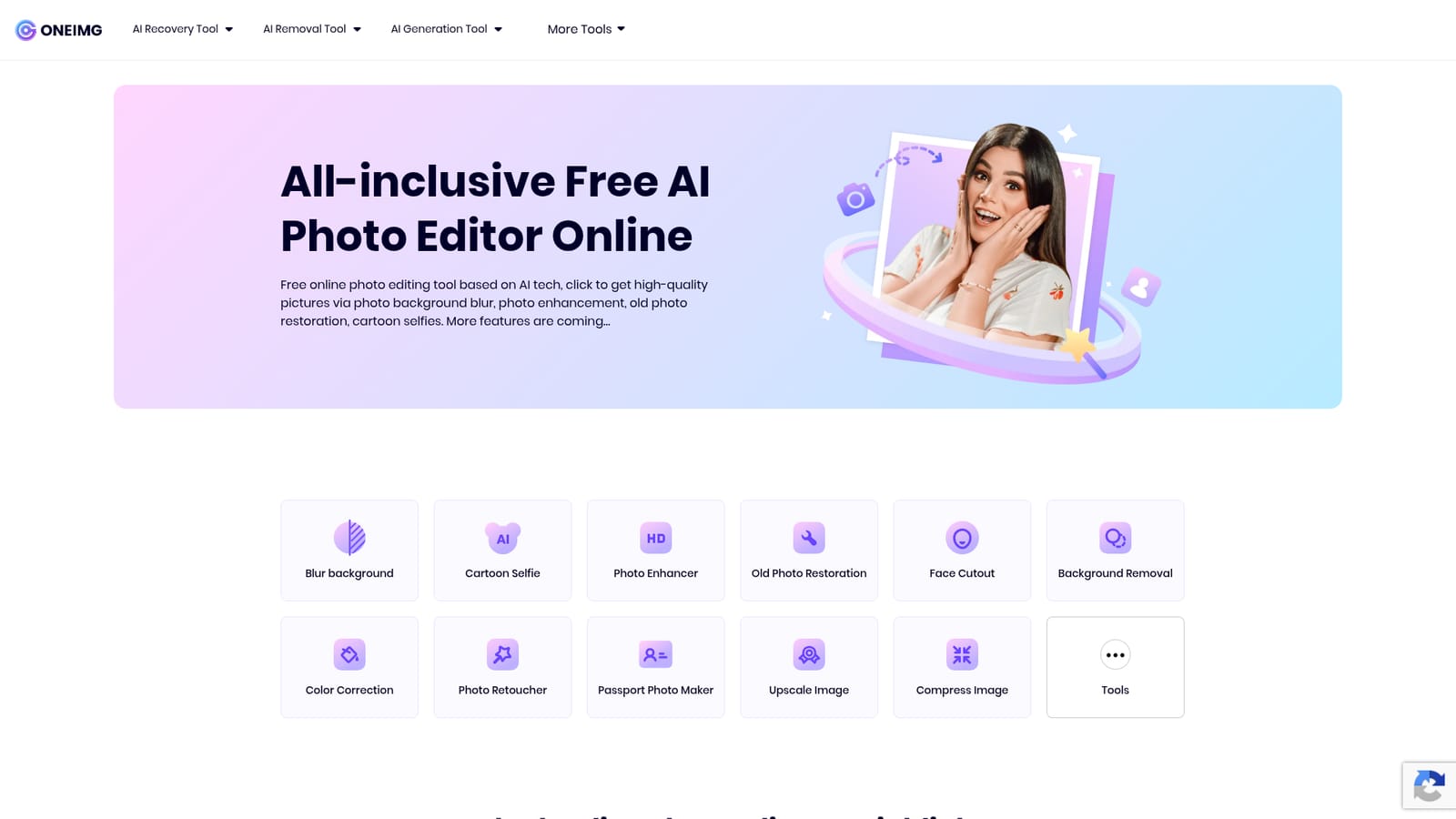
Screenshot of Oneimg, Free browser based AI photo editor with restoration and cleanup tools

What is Oneimg?

ONEIMG is a free web based photo editor offering focused AI utilities for background blur and removal, photo enhancement, old photo restoration, cartoon selfies, passport photos, plus resize, crop, compress, upscale and convert tools. No install needed, and it runs in the browser on desktop and mobile.

ONEIMG is a free, browser based photo editing service built around a set of single purpose AI tools rather than one large canvas style editor. The homepage groups its utilities into four buckets: recovery tools (background blur, photo enhancement, old photo restoration, retouching), removal tools (background removal, face cutout, color correction), generation tools (cartoon selfie, passport photo maker), and a longer list of everyday utilities covering compression, upscaling, meme making, resizing, cropping, rotation, format conversion, watermarking and face blurring. Each utility opens its own page, so the workflow is to pick the task first and upload second. The operating model is deliberately narrow. Users upload a photo, apply a preset driven by the AI, and download the result. There are no layers, curves panels or mask painting, and the site states that it recognizes photos automatically and applies editing instructions through presets. That makes the product a good fit for people who need a specific outcome quickly: a cleaner product shot for a marketplace listing, a distraction free portrait, a restored family snapshot, a formatted passport image, or a smaller file for a web page. Small business owners, social media managers, print on demand sellers and casual users all appear in the testimonials shown on the site. Against alternatives, ONEIMG sits closer to a toolbox than to an editor. It does not compete with full desktop software for compositing or retouching depth, and it does not present itself as a generative image platform. Its pitch is convenience: no download, no install, and access from a phone or laptop through the browser. The homepage says the site is free to everyone and that more features are planned. It also states that uploaded data is protected, with a self service deletion option, and points to its Privacy Policy and Terms of Use for detail, which is worth reading before sending sensitive images. Because the toolset is task specific, results vary by job. Restoration and enhancement are the strongest draws, and background work is a close second. Anything requiring precise manual control will need to be finished elsewhere.

How do you use Oneimg?

  1. 1Pick the tool that matches your task
    Browse the homepage sections for recovery, removal, generation or utility tools, and choose the specific function you need, for example background blur or old photo restoration.
    Oneimg — Pick the tool that matches your task
  2. 2Upload the photo you want to process
    Open the tool page and upload your image. The AI handles the core edit through presets, so no manual selection is described as necessary.
    Oneimg — Upload the photo you want to process
  3. 3Prepare a compliant passport photo
    Use the passport photo maker when you need a formatted identity picture, then review the framing before downloading.
    Oneimg — Prepare a compliant passport photo
  4. 4Clean up background and privacy details
    Run background removal or the face blur tool on images that will be published, so distracting elements or identities are handled before sharing.
    Oneimg — Clean up background and privacy details
  5. 5Optimize size before publishing
    Compress or upscale the finished image depending on whether you need a lighter file or a larger one, then convert to the format your platform requires.
    Oneimg — Optimize size before publishing
  6. 6Review and delete your uploads
    Download the result, and if the image is sensitive, use the self service data deletion option referenced on the site and check the Privacy Policy for details.

Pros and cons

Pros

  • Free to use according to the homepage, with no per feature charge mentionedAI
  • Large spread of single purpose tools so users can pick one task instead of learning a full editorAI
  • No download required; the site positions itself as accessible from phones as well as desktopsAI
  • Preset driven design keeps the effort low for people without Photoshop experienceAI
  • Recovery and cleanup tools cover practical jobs like restoration, face cutout and watermarkingAI

Cons

  • No manual editing depth is described on the homepage; expect presets rather than layer or mask controlAI
  • Free access means no stated service level, priority processing or uptime guaranteeAI
  • Pricing, storage limits and maximum upload sizes are not documented on the homepageAI
  • Uploading photos to a third party site is required, so sensitive images depend on the stated privacy and deletion policyAI
  • Feature quality across such a broad tool list is likely to vary by tool, and the homepage offers no benchmark or comparison dataAI

How much does Oneimg cost?

Pricing

The homepage states that ONEIMG is absolutely free and that no payment is required for each photo editing feature. No paid tiers, credits, usage caps or subscription plans are described on the site, so the free claim is the only pricing information available.

Learn more

Features

Tools span three AI groups plus utilities: recovery (background blur, photo enhancement, old photo restoration, photo retouching), removal (background removal, face cutout, color correction), generation (cartoon selfie, passport photo maker), and general editing (compress, upscale, meme generator, photo editor, resize, crop, rotate, image to JPG, JPG to image, HTML to image, watermark, blur face).

Learn more

Frequently asked questions about Oneimg

  • How much does Oneimg cost?
    The homepage states that ONEIMG is absolutely free and that no payment is required for each photo editing feature. No paid tiers, credits, usage caps or subscription plans are described on the site, so the free claim is the only pricing information available.
  • How do you use Oneimg?
    The walkthrough on this page covers 6 steps: 1. Pick the tool that matches your task 2. Upload the photo you want to process 3. Prepare a compliant passport photo 4. Clean up background and privacy details 5. Optimize size before publishing 6. Review and delete your uploads.
  • What platforms does Oneimg support?
    Oneimg is available on Web App.
  • What are the limitations of Oneimg?
    No manual editing depth is described on the homepage; expect presets rather than layer or mask control. Free access means no stated service level, priority processing or uptime guarantee. Pricing, storage limits and maximum upload sizes are not documented on the homepage.

Status

StatusActive
Views0
Outbound clicks0
Added10/21/2026

Platforms

Web App

Pricing

Free