PicWonderful

A four tool photo cleanup kit that runs in the browser

Beginner
Screenshot of PicWonderful, A four tool photo cleanup kit that runs in the browser

What is PicWonderful?

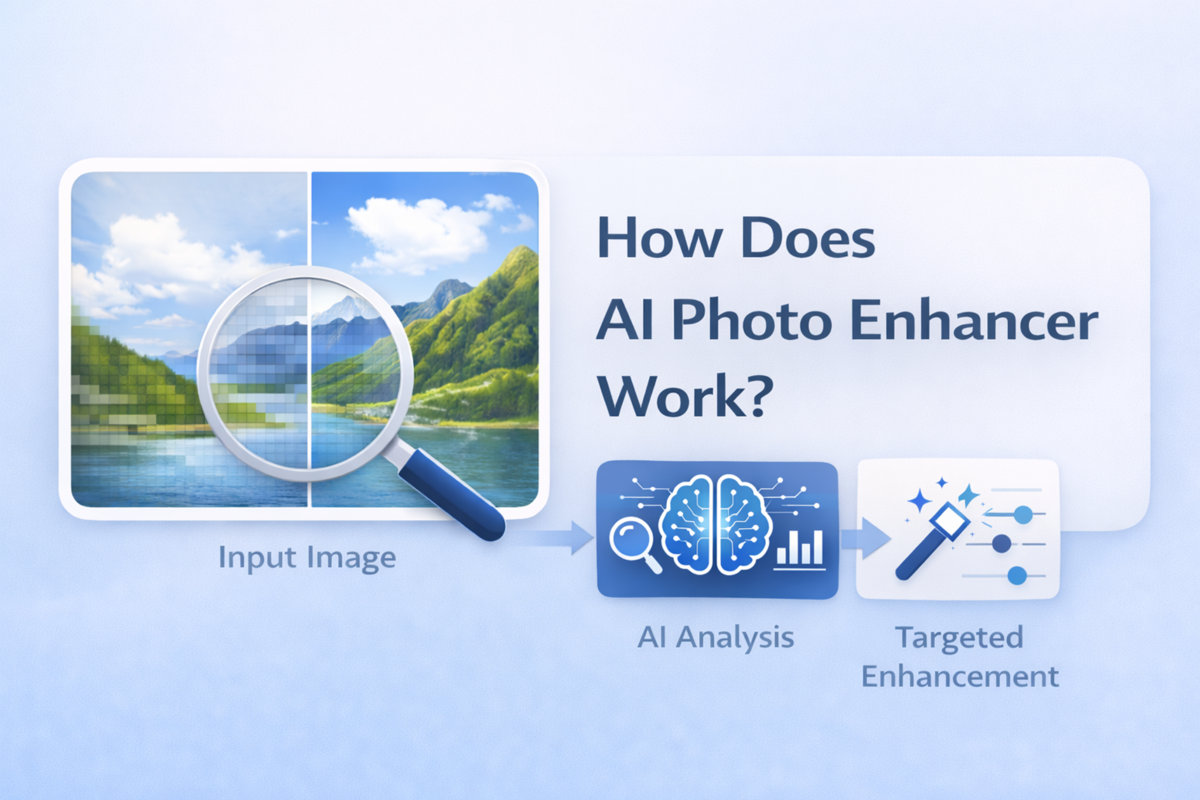
PicWonderful is an AI image upscaler tool. PicWonderful bundles four AI photo tools in one web app: automatic background removal, unblur and upscaling, colorization of black and white photos, and text to image generation. It trades the depth of a desktop editor for a click and download workflow aimed at casual users, sellers, and anyone restoring old photos.

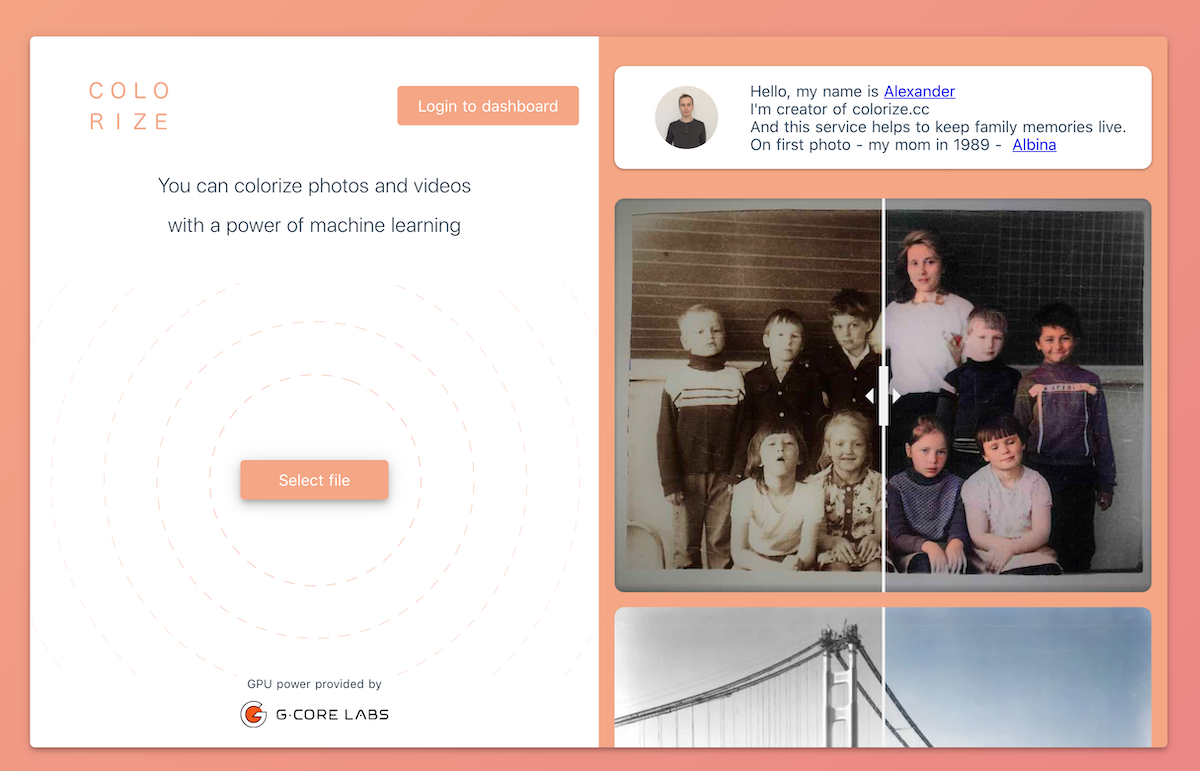
PicWonderful is a browser based photo utility built around four focused jobs: removing a background, sharpening a blurry shot, adding color to a black and white photo, and generating a new image from a text prompt. The site presents itself as an AI powered photo toolkit rather than a full editing suite, and the layout reflects that: a single entry screen sends you straight to the tool you need instead of a canvas with layers and panels. In practice each task is a self contained page. Remove Background does the cutout automatically, which saves the usual pen tool work when you need a clean subject for a product listing, a slide, or a profile picture. Unblur targets low resolution and soft focus images and pushes them toward something sharper. Colorize takes old monochrome family photos and estimates plausible color. Generate from Text sits slightly apart from the editing tools and produces new imagery from a written description. Workflows look like upload, apply, download, with no manual masking step described on the site. The tool is pitched at people who need a quick fix rather than art direction: casual users tidying phone photos, sellers preparing product images, anyone digitizing a family archive, and marketers who need a visual without opening a desktop editor. The site openly compares itself to Photoshop but positions on the opposite axis, arguing that a simple interface removes the learning curve. That is the honest trade. PicWonderful will not give you precise selections, layer control, or fine tonal grading, and there is no indication of batch processing or team features. One thing buyers should note: an API is listed as coming soon, so programmatic access is not available today. Pricing details, storage limits, and output resolutions are not stated on the homepage, so it is worth checking inside the product before committing to it for regular work.

How do you use PicWonderful?

  1. 1Pick the tool that matches your task
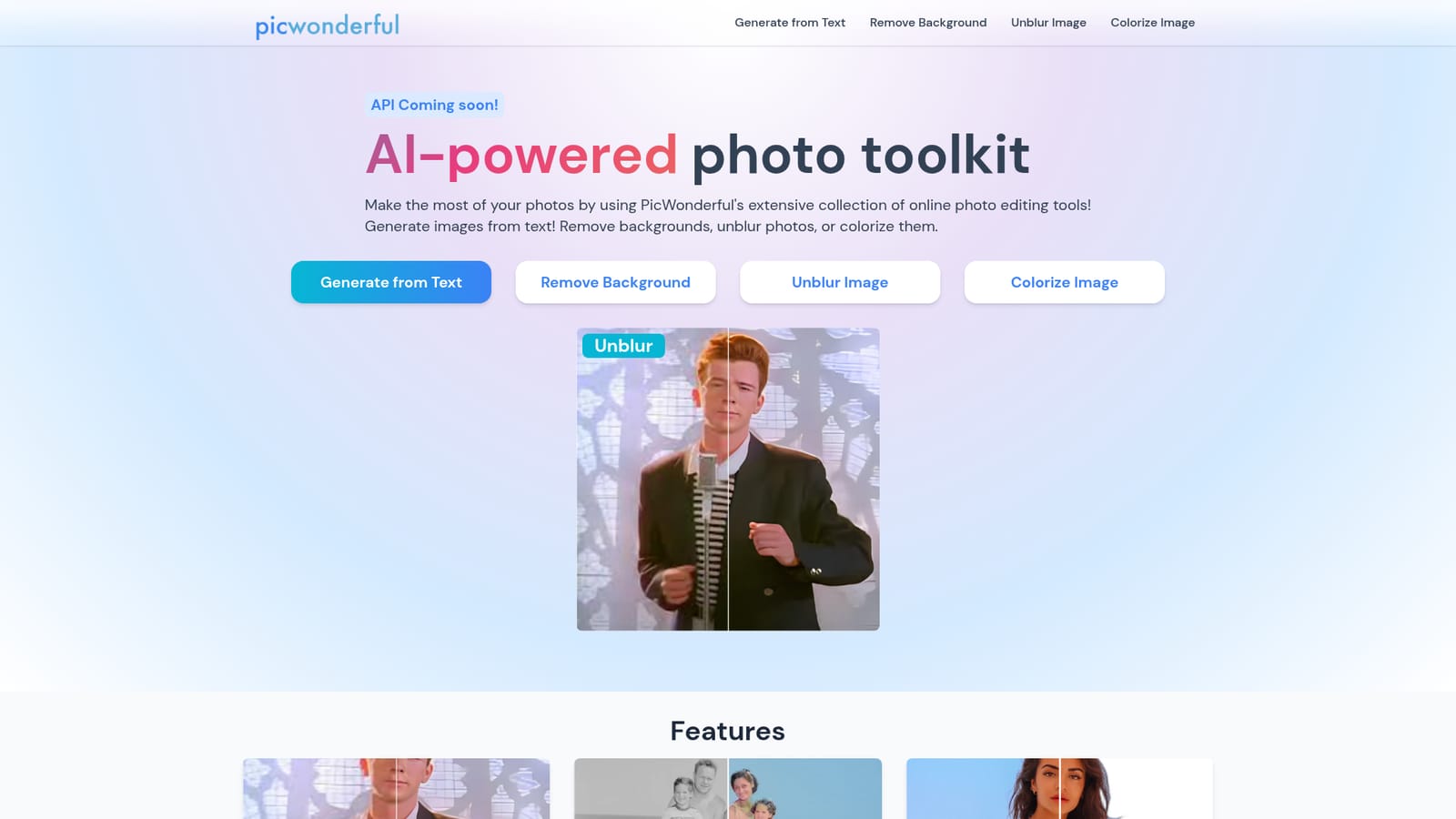
    The homepage lists all four tools: Generate from Text, Remove Background, Unblur Image, and Colorize Image. Choose the one that fits your photo instead of hunting through a menu.
    PicWonderful — Pick the tool that matches your task
  2. 2Remove a background automatically
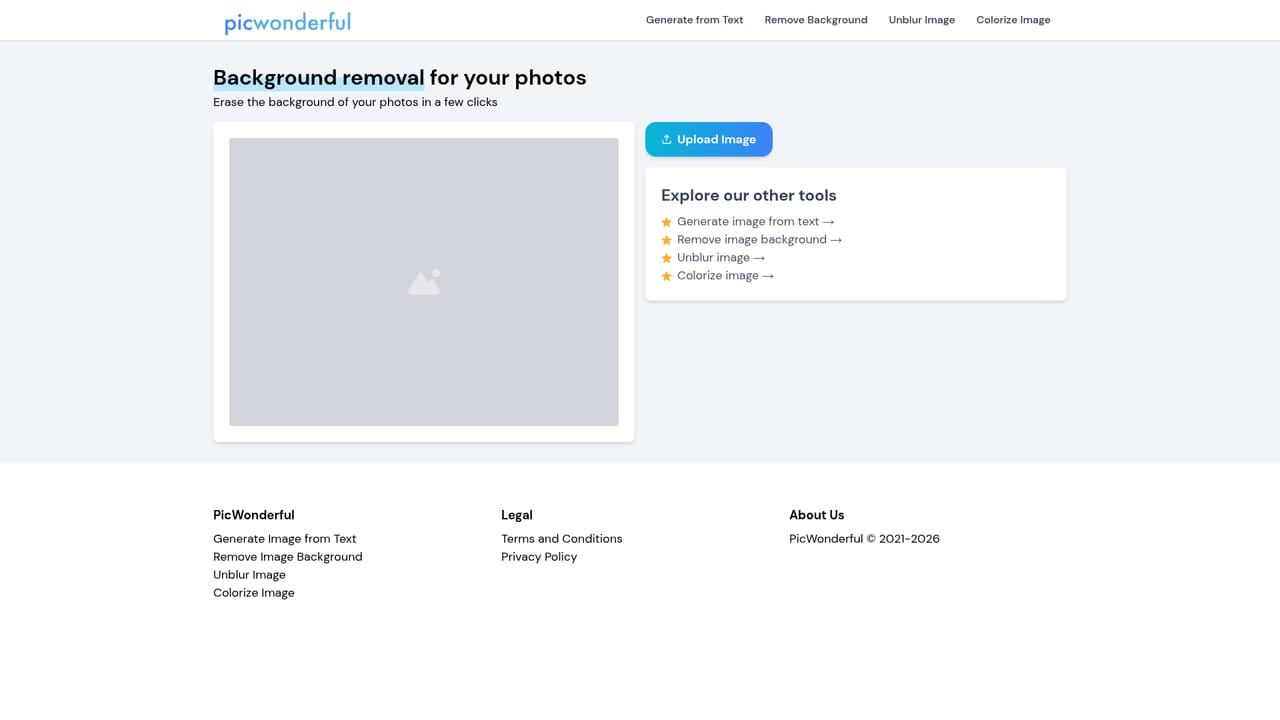
    Open the Remove Background page and upload your subject. The cutout is produced automatically, which suits product shots, portraits, and slide imagery.
    PicWonderful — Remove a background automatically
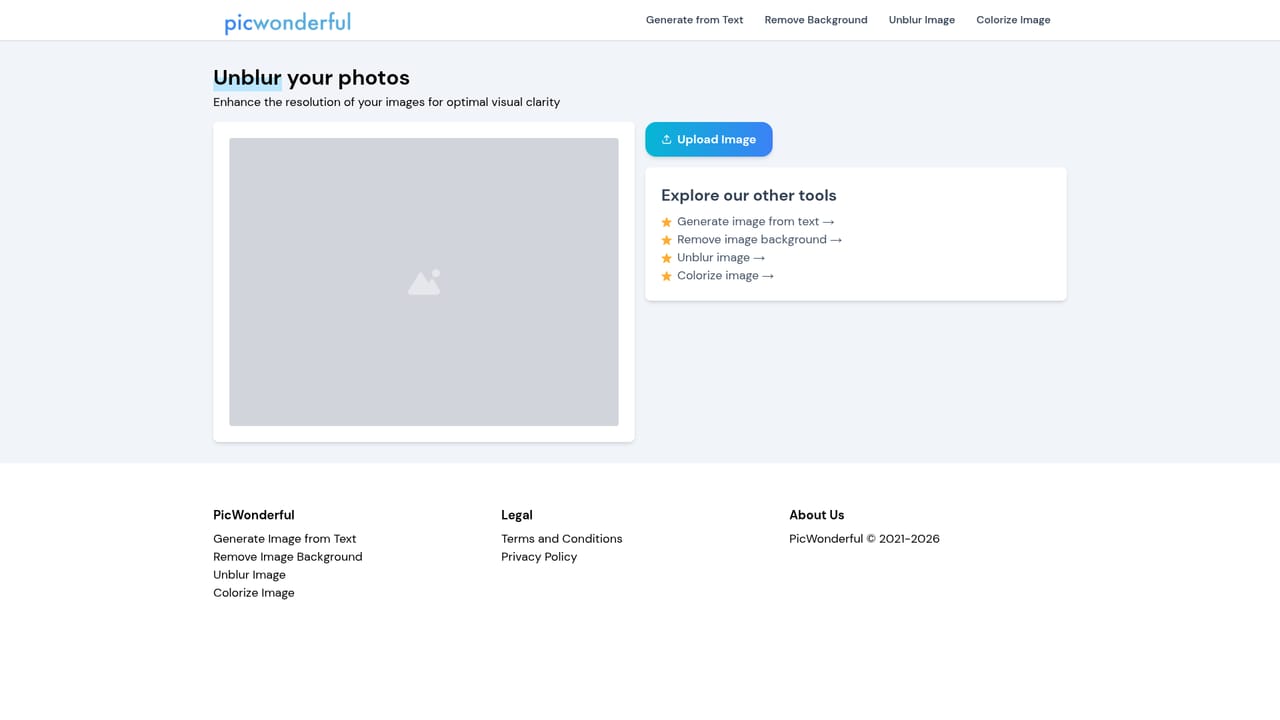
  3. 3Sharpen a soft or low resolution photo
    On the Unblur page, upload the image you want to rescue. The tool aims to turn a low quality capture into a crisper result, so start with the worst copy you have.
    PicWonderful — Sharpen a soft or low resolution photo
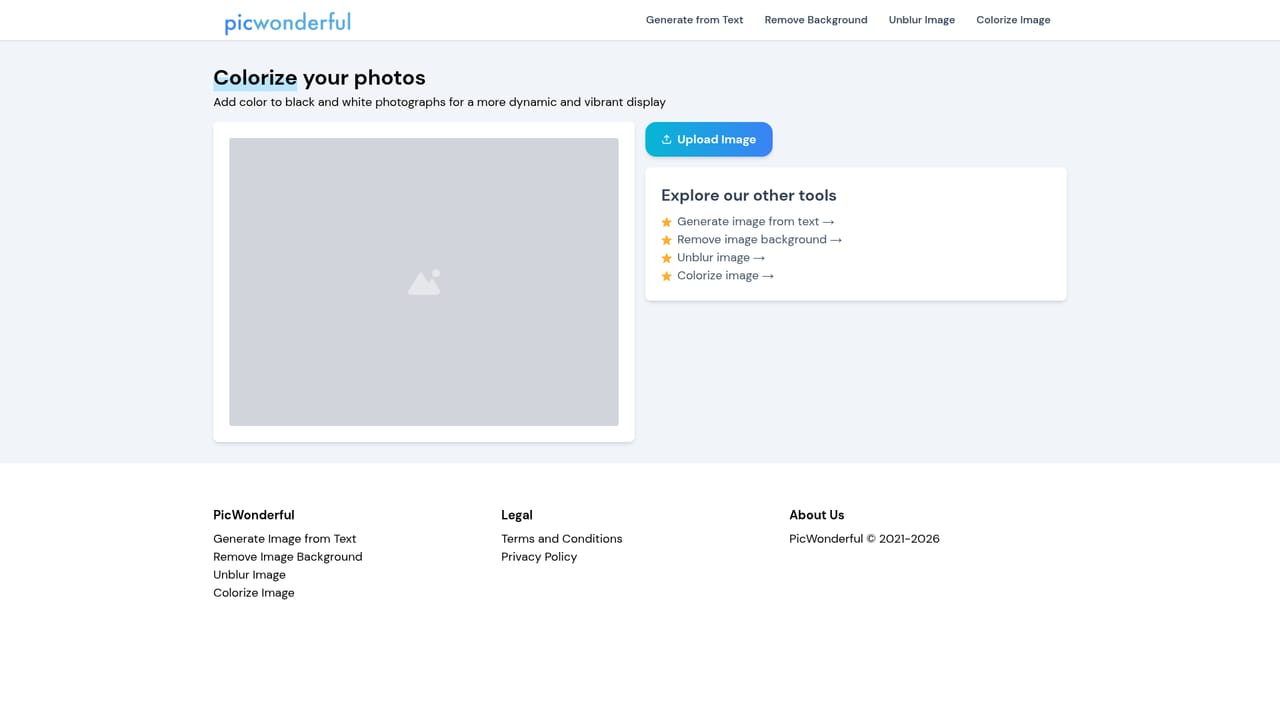
  4. 4Colorize a black and white photo
    Send a scanned monochrome image to the Colorize page. The tool estimates color and returns a colorized version, useful for family archives and historical shots.
    PicWonderful — Colorize a black and white photo
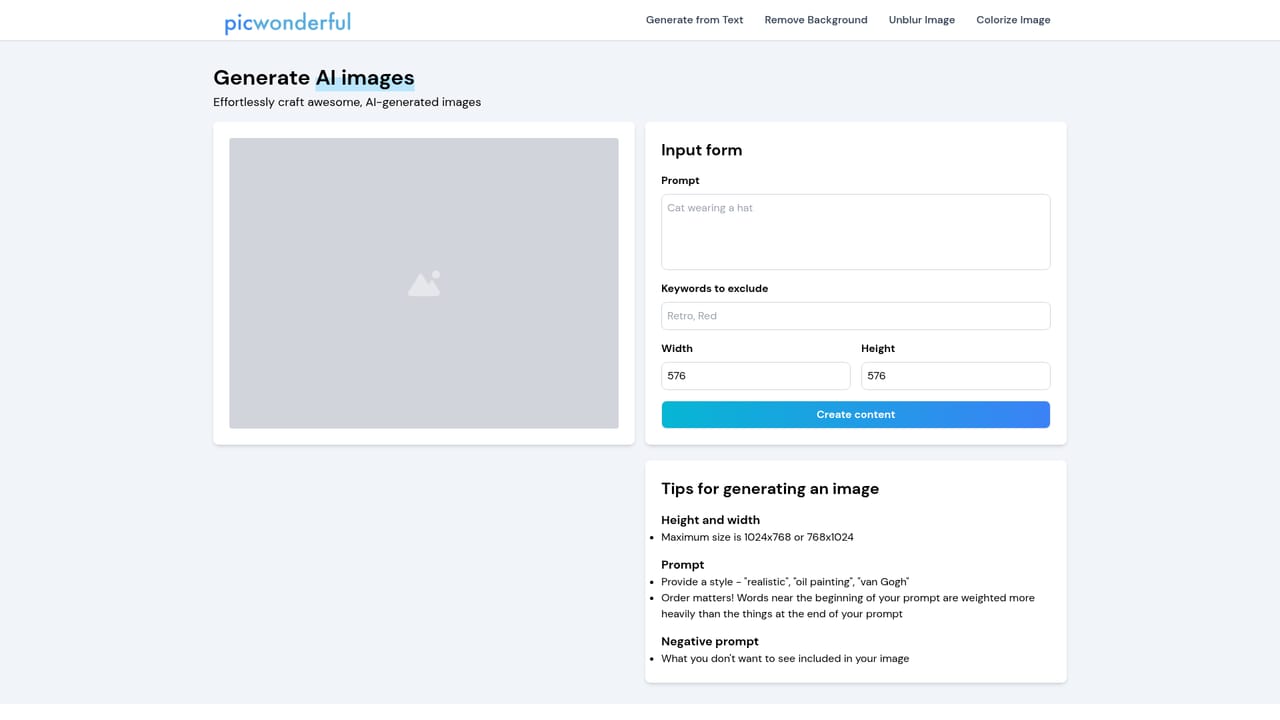
  5. 5Generate an image from a written prompt
    Use the Generate from Text page when you need new imagery rather than an edit. Describe the scene in the prompt field and let the tool produce the output.
    PicWonderful — Generate an image from a written prompt
  6. 6Download the result
    Once a tool finishes, save the processed file to your device. The site describes download and share as the final step of every workflow, with no project storage mentioned.

Pros and cons

Pros

  • Four distinct tools under one roof, so a cutout and a colorization job do not need separate subscriptionsAI
  • Background removal is fully automatic, which removes the slowest part of preparing product or portrait imagesAI
  • Colorize addresses a specific and underserved need: bringing old black and white family photos into colorAI
  • The interface is deliberately stripped back, so a first time user can finish an edit without tutorialsAI
  • Text to image generation sits alongside the editing tools for users who need a new visual, not just a fixAI

Cons

  • No depth beyond the four advertised tools: no layers, masks, curves, or precise selection for anyone who needs controlAI
  • The homepage states no output resolution, file size limit, or format support, which makes it hard to judge fitness for print workAI
  • Batch processing is not mentioned, so cleaning up a large photo library one file at a time looks slowAI
  • API access is labelled coming soon, so developers cannot wire the tools into a pipeline yetAI
  • Pricing is not published on the homepage, leaving cost and any usage caps unclear until you are inside the productAI

How much does PicWonderful cost?

Features

Four tools make up the toolkit: automatic background removal, unblur and image enhancement for low resolution photos, AI colorization of black and white images, and text to image generation. The FAQ also references basic adjustments, portrait beauty, and photo effects inside the editor, though the dedicated pages cover only the headline four.

Frequently asked questions about PicWonderful

  • How do you use PicWonderful?
    The walkthrough on this page covers 6 steps: 1. Pick the tool that matches your task 2. Remove a background automatically 3. Sharpen a soft or low resolution photo 4. Colorize a black and white photo 5. Generate an image from a written prompt 6. Download the result.
  • What platforms does PicWonderful support?
    PicWonderful is available on Web App.
  • What are the limitations of PicWonderful?
    No depth beyond the four advertised tools: no layers, masks, curves, or precise selection for anyone who needs control. The homepage states no output resolution, file size limit, or format support, which makes it hard to judge fitness for print work. Batch processing is not mentioned, so cleaning up a large photo library one file at a time looks slow.

Status

StatusActive
Views0
Outbound clicks0
Added10/21/2026

Platforms

Web App

Pricing

Freemium