Free trial
A free download is offered for both Windows and macOS, though the homepage does not spell out which features or export limits apply to the unlicensed version.
Learn moreDesktop AI toolkit for upscaling, stabilizing and repairing video and images
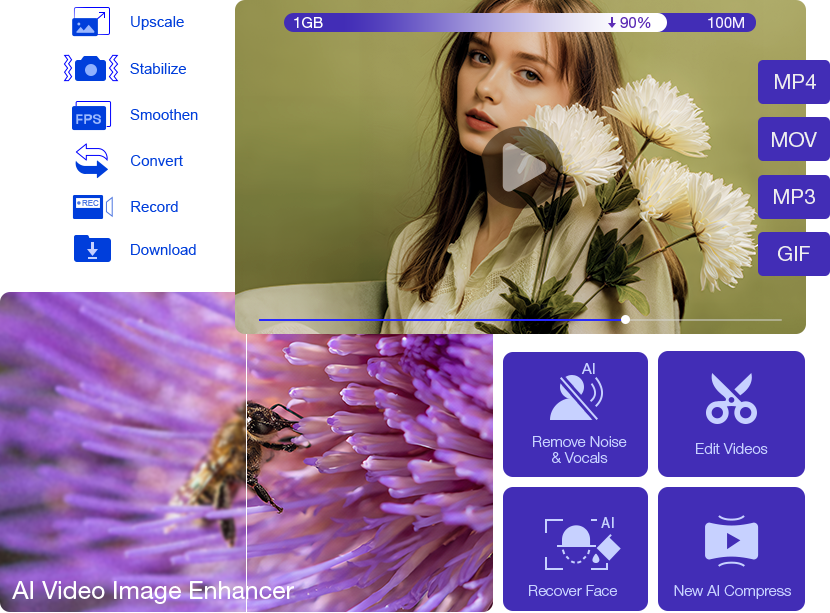
Winxvideo is a 4K upscale tool. A Windows and macOS desktop suite that upscales video to 4K, stabilizes shaky footage, boosts frame rates, restores old photos and cleans audio, alongside conversion, compression, editing and screen recording. Aimed at everyday users who want a one-time-purchase local toolkit rather than a cloud subscription.
Winxvideo AI is a desktop media toolkit from Digiarty Software (the company behind WinX DVD Ripper Platinum) that rebuilt and expanded the older WinX HD Video Converter Deluxe into an AI-first package. The core proposition is repair and upscale: it takes old, noisy, blurry, blocky or heavily compressed footage and pushes it toward 1080p or 4K, with up to 4X upscaling, frame interpolation from 24fps to 60 or 120fps, video stabilization for handheld GoPro, drone, camcorder and phone shots, and facial detail recovery. It runs on Windows and macOS rather than in a browser, and Digiarty advertises more than 30 AI models behind the enhancement features plus GPU acceleration for the heavy lifting. The image side mirrors the video side closely. Separate tools handle denoising, unblurring, upscaling, old photo restoration and black and white colorization, which makes the product a reasonable fit for archivists, family historians and anyone digitizing a shoebox of prints. Audio gets a narrower treatment: background noise removal for audio and video files. Beyond enhancement, the suite keeps the utility functions the original product was known for, so conversion of 4K, 8K and HDR files, compression, trimming and editing, and screen recording all live in the same installer instead of four separate apps. In practice the workflow is file-in, preset-out: load a clip or image, pick the AI task and model, preview the result, then export. There is no timeline-based creative editing layer or collaboration feature, so it complements rather than replaces an NLE. The audience is broad and non-specialist: vloggers cleaning up phone footage, sports shooters wanting smooth slow motion, marketers upscaling AI-generated visuals, and hobbyists restoring VHS or DVD material. Competitors tend to be either single-purpose cloud upscalers billed per minute or full editors with AI modules bolted on; Winxvideo AI sits in the middle as a local, one-time-purchase utility bundle for everyday users. Digiarty has shipped multimedia software since 2006, and the interface assumes no prior AI experience. The tradeoff of a local install is that results depend on your own GPU and free disk space, and the toolkit rewards users who already know which artifact they are trying to remove.
A free download is offered for both Windows and macOS, though the homepage does not spell out which features or export limits apply to the unlicensed version.
Learn moreSold as lifetime access for a one-time fee, with separate Windows and macOS purchase pages. The homepage does not list specific prices, edition tiers or renewal terms, so check the buy page for current figures.
Learn moreDigiarty provides a user guide with step-by-step tutorials, separate sales and technical FAQ pages, and a contact form for purchase questions and technical problems.
Learn moreAI video enhancement includes super resolution upscaling to 4K, stabilization, frame interpolation from 24 to 60 or 120fps and face restoration, backed by more than 30 models and GPU acceleration. Image tools cover denoising, unblurring, upscaling, old photo restoration and colorization. Audio background noise removal, 4K/8K/HDR conversion, compression, editing and screen recording round out the suite.
Learn more AI Angels400+ customizable AI girlfriends for NSFW chat, voice calls, and roleplay
 Candy AIExperience the future of companionship with AI friends who chat, role-play, and connect with you on a human level.
 ourdream.aiA vast AI roleplay platform with millions of characters for chat, images, video and voiceAI Angels400+ customizable AI girlfriends for NSFW chat, voice calls, and roleplayCandy AIExperience the future of companionship with AI friends who chat, role-play, and connect with you on a human level.ourdream.aiA vast AI roleplay platform with millions of characters for chat, images, video and voice