Support
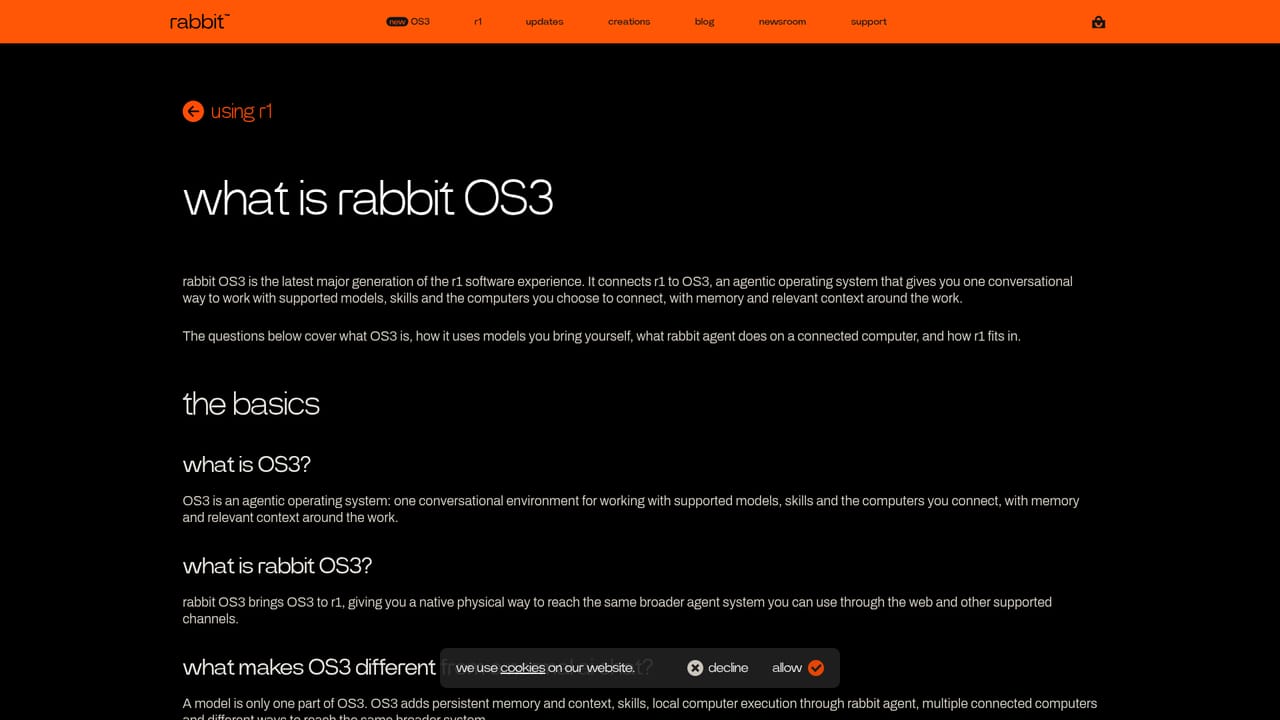
A full rabbit OS3 FAQ and help article is linked from the homepage, covering topics such as permissions, API keys, connected computers and r1.
Learn moreAn agent OS that does the steps for you across web, Telegram and r1

rabbit OS3 is an agent workspace that turns a loosely stated goal into finished work. It runs on the web, desktop apps, Telegram and the r1 device, uses connected computers, keeps memory, and lets users bring their own API key for the model.
rabbit OS3 is an agent-style assistant from rabbit that takes a loosely stated goal and carries out the work behind it. Instead of asking users to find the right app, learn its menus and shuttle text between windows, it accepts a plain description of what someone wants to make, find or finish, then works through the steps and returns when a decision genuinely belongs to the user. Typical jobs named on the homepage include turning scattered research into a comparison or a finished presentation, and sorting and renaming files on a connected computer. In practice OS3 is reached through several entry points: a web workspace that needs no installation, desktop apps for macOS (Apple silicon and Intel) and Windows (x64 and ARM), the Telegram messaging app, and the rabbit r1 handheld, where a button press and a spoken request start a task. Each surface keeps its own thread while drawing on shared memory and context. Connected computers let OS3 use the files and tools already on them, and one task can involve more than one machine. When a job needs to see the screen and operate an app, OS3 can use DLAM, with the user's permission. Longer jobs keep running after the tab is closed, and compatible skills can be brought in so recurring processes do not have to be rebuilt. A distinctive choice is model flexibility. Users can bring their own API key and pick what powers OS3, with a long list of supported options that includes Claude, GPT, Gemini, OpenRouter, Ollama, local models and custom endpoints. Memory, skills and connected computers stay in place when the model changes. Among alternatives, OS3 sits closer to general computer-use agents and desktop automation assistants than to single-purpose chatbots. People who want a conversational interface that can act on their own machines, from several devices, are the natural audience. Buyers who need fixed, auditable workflows or published pricing detail will need to check the linked help article and sign-up page, since the homepage leaves those points open.
A full rabbit OS3 FAQ and help article is linked from the homepage, covering topics such as permissions, API keys, connected computers and r1.
Learn moreWorks with Telegram, the rabbit r1 device, and connected macOS and Windows computers. Supports API keys from providers such as OpenAI, Claude, Gemini, Grok, Mistral, OpenRouter and Ollama, plus local models and custom endpoints.
Goal-based task execution, memory and context carried between requests, background work after the tab closes, connected computers, optional screen-based app control (DLAM) with permission, importable skills, and bring-your-own-key model choice across many providers.
Learn more


