Screen Studio

Mac screen recorder that adds zooms and polish automatically

Beginner
Screenshot of Screen Studio, Mac screen recorder that adds zooms and polish automatically

What is Screen Studio?

Screen Studio is a productivity tool. A macOS screen recorder that automatically adds zoom on mouse actions, smooth cursor movement and framing, aimed at product demos, tutorials, courses and social clips. Records first, then polishes, cutting the manual editing that general recorders and editors leave to the user.

Screen Studio is a macOS screen recorder built for people who need a demo, tutorial or product walkthrough to look finished without opening a separate editor. The capture step is unremarkable by design: record the screen, and the app then applies the treatment that usually takes an hour of manual keyframing, including automatic zoom on mouse actions, smooth mouse movement and framing around the recorded window. The work happens after recording rather than during it. Screen Studio reads cursor behaviour and builds zoom and motion effects from those events, so a click on a small UI control turns into a readable close-up without anyone setting a keyframe. Sound is handled inside the same flow, and the overall emphasis is on output that looks deliberate: clean backgrounds, consistent framing and animation that follows the action instead of distracting from it. The audience is fairly specific. Product marketers recording launch demos, developers and designers showing an interface, course authors producing tutorial videos, and anyone making short social clips from a desktop workflow. It suits people who are comfortable on a Mac and want a repeatable pipeline from raw capture to publishable clip, more than editors who want fine control over every layer. Against general recorders such as the built in macOS capture tools or OBS, the difference is the post capture automation: those tools record well but leave every zoom and cursor refinement to you. Against full video editors, Screen Studio gives up timeline depth in exchange for speed on one narrow job. The trade is deliberate, and it explains both why the app feels fast and why it will not replace an editor for anything beyond screen based content. The current release is version 4.0 and the app requires macOS 13.1 or later.

How do you use Screen Studio?

  1. 1Download and install the Mac app
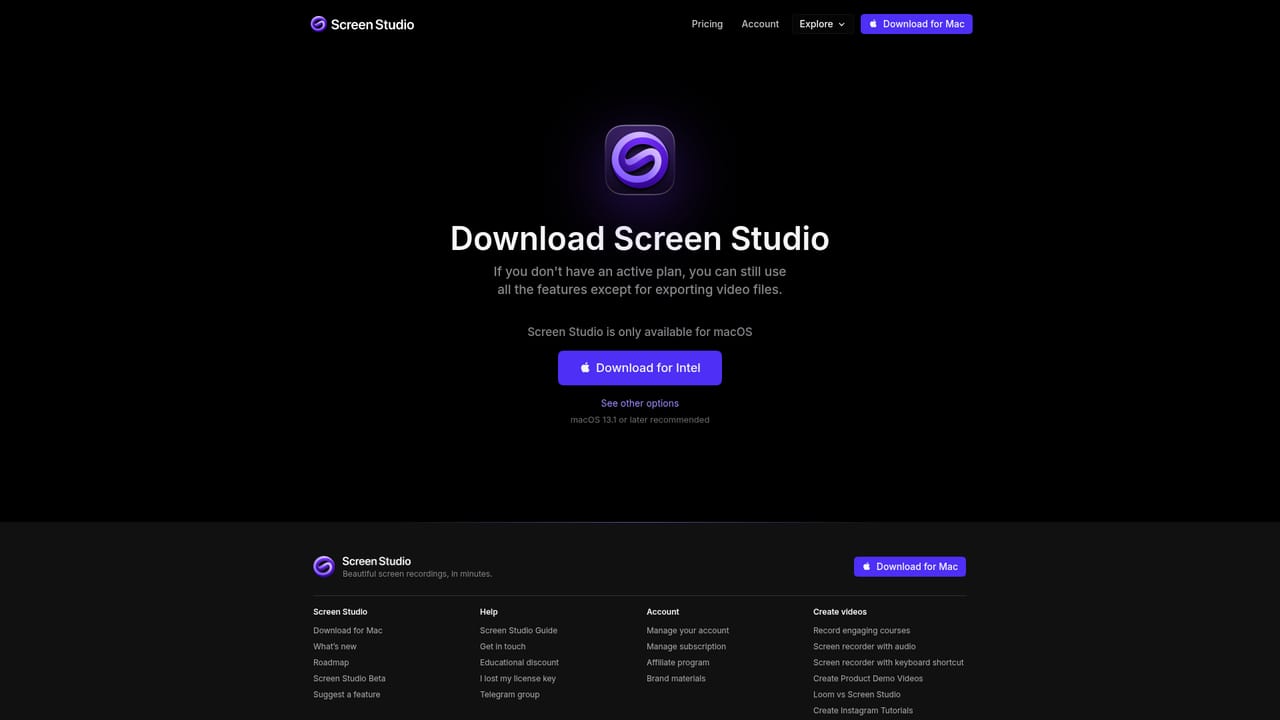
    Get the macOS build from the download page and install it. The site recommends macOS 13.1 or later, so check the OS version before starting.
    Screen Studio — Download and install the Mac app
  2. 2Record your screen
    Capture the window or area you want to demonstrate. Recording is deliberately plain, since the visual treatment is applied afterwards.
  3. 3Let automatic zooms build themselves
    After capture, the app derives zoom and motion from cursor and click activity. Review the generated zooms and adjust the ones that land in the wrong place.
  4. 4Refine motion, sound and framing
    Smooth the cursor path, set the background and framing, and check the audio. This is where a raw capture becomes something presentable.
  5. 5Export and publish
    Render the finished clip and use it for a demo, course lesson or social post.
  6. 6Check the roadmap for what is next
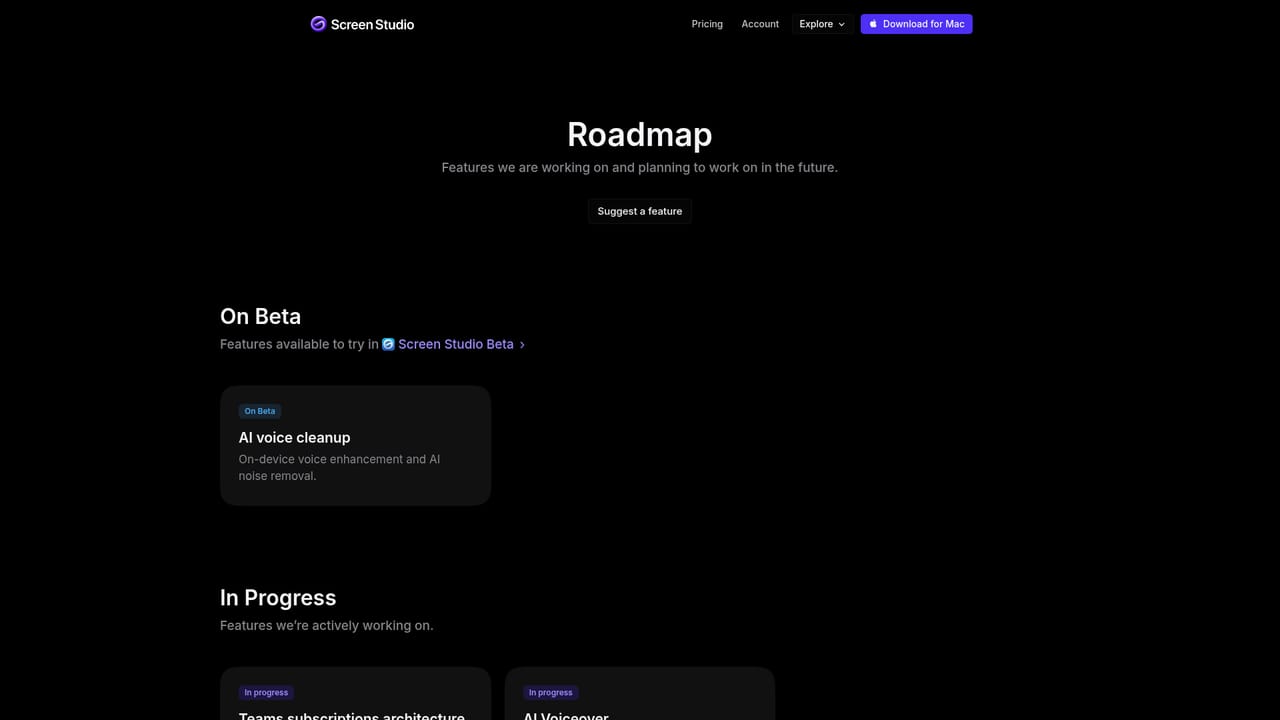
    The public roadmap shows planned work, which is worth a look before committing a workflow to the app.
    Screen Studio — Check the roadmap for what is next

Pros and cons

Pros

  • Automatic zoom on mouse actions removes most manual keyframing from demo videosAI
  • Smooth mouse movement and framing make raw captures look deliberateAI
  • Post capture workflow is fast enough to turn a recording into a clip in one sittingAI
  • Handles zooms, motion, sound and framing in a single app rather than a separate editorAI
  • Widely used across product, design and developer teams, which suggests the output holds up in professional contextsAI

Cons

  • Mac only, with macOS 13.1 or later required, so Windows and Linux teams are excludedAI
  • The automation is opinionated, and users who want frame level control over every zoom will fight itAI
  • Focused on screen based content, so it is not a substitute for a full video editorAI
  • The homepage does not state pricing, trial terms or licence details, which makes budgeting harder up frontAI

How much does Screen Studio cost?

Features

Automatic zoom on mouse actions, smooth mouse movement, sound handling and framing are combined in one recorder, so zooms, motion and presentation are generated after capture rather than edited by hand. The site frames the result as polished demos and tutorials in minutes, and lists version 4.0 as the current release.

Frequently asked questions about Screen Studio

  • How do you use Screen Studio?
    The walkthrough on this page covers 6 steps: 1. Download and install the Mac app 2. Record your screen 3. Let automatic zooms build themselves 4. Refine motion, sound and framing 5. Export and publish 6. Check the roadmap for what is next.
  • What platforms does Screen Studio support?
    Screen Studio is available on MacOS.
  • What are the limitations of Screen Studio?
    Mac only, with macOS 13.1 or later required, so Windows and Linux teams are excluded. The automation is opinionated, and users who want frame level control over every zoom will fight it. Focused on screen based content, so it is not a substitute for a full video editor.

Status

StatusActive
Views0
Outbound clicks0
Added10/22/2026

Platforms

MacOS

Pricing

Paid