TwoShot

A prompt-driven creative suite for music, video, art and scripts

Beginner
Screenshot of TwoShot, A prompt-driven creative suite for music, video, art and scripts

What is TwoShot?

TwoShot is an AI mashup maker tool. TwoShot combines AI music generation, stem splitting, remixing, image and video creation and script writing in one conversational workspace, with a multi-track studio view for shaping audio and a public gallery of sounds and tracks.

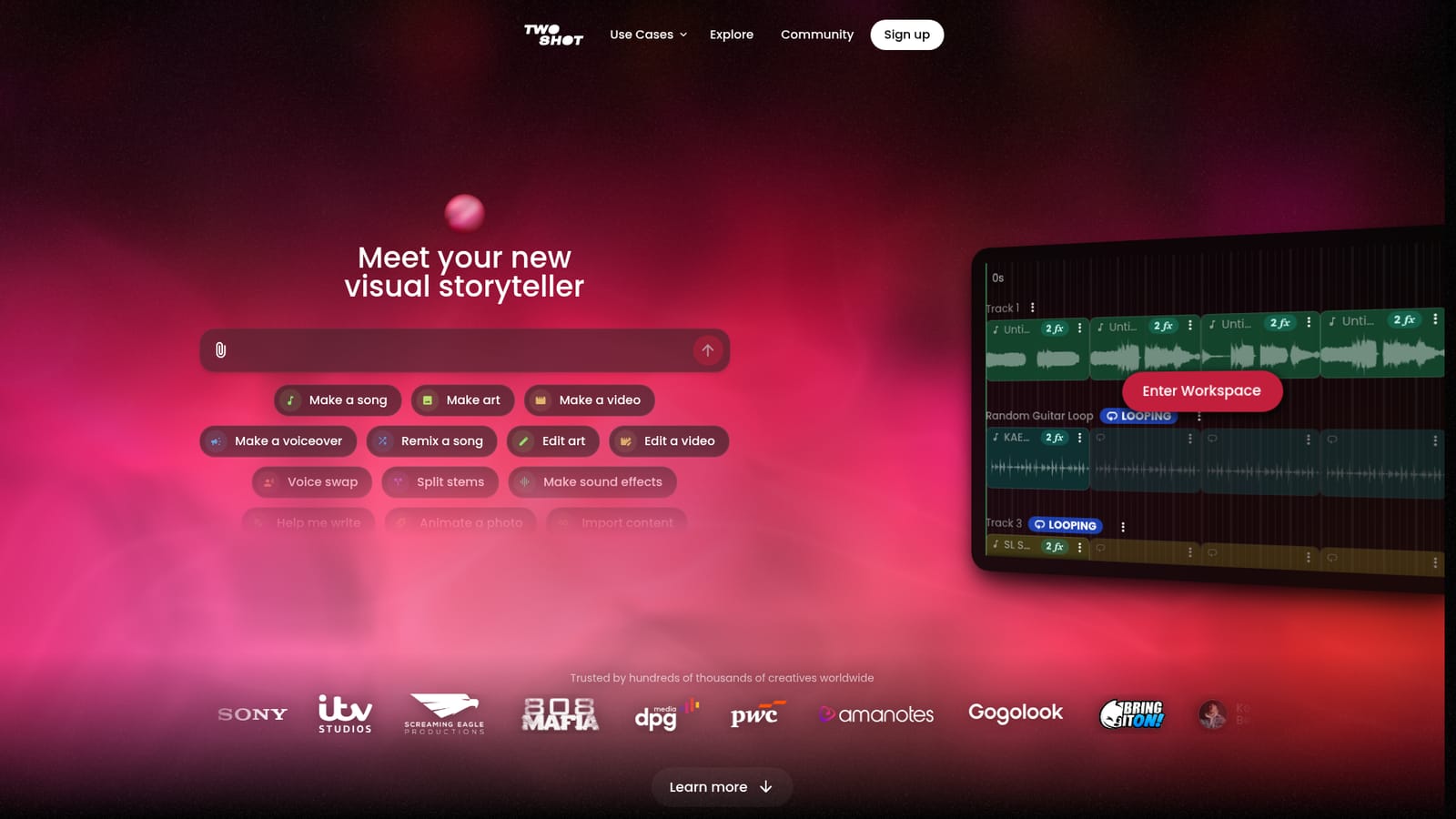
TwoShot is a browser-based creative suite that bundles music generation, image and video creation, voice work and script writing behind a single conversational assistant. Instead of subscribing to a separate tool for every asset, you type or paste a request into one prompt bar and pick the output format you want: a song, a piece of art, a movie clip, a campaign asset, a voiceover or written copy. The homepage positions it as a companion to existing workflows rather than a replacement for a full digital audio workstation, with import options for material you already have. Music sits at the centre of the product. The interface shown on the site resembles a multi-track sequencer, with grouped tracks, mute and solo switches, looping, vacuum and send controls, and draggable clips for drums, piano and percussion. There are shortcuts for remixing a song, splitting stems, generating sound effects, swapping a vocal and making a voiceover. Prompts can be functional, such as request for a sped-up, pitched-up nightcore version of an uploaded track, which is a good indication of how the assistant is meant to be used: short instructions layered on top of audio you bring in. Beyond audio, the suite covers images, short video, photo animation, script drafting and campaign content. Public creator pages and sound and track pages suggest a community layer, where generated or uploaded material can be browsed and shared, and the homepage claims adoption by hundreds of thousands of creators alongside named studios, labels and brands. It suits producers sketching ideas quickly, social teams that need audio and visuals in one pass, and storytellers who want a single interface rather than a stack of subscriptions. Buyers comparing it with dedicated music generators or standalone image tools should weigh breadth against depth: TwoShot aims to be the place where several formats meet, not the most specialised option in any one of them.

How do you use TwoShot?

  1. 1Open the assistant and pick an output type
    Start on the homepage prompt bar, then choose the format you want from the menu: song, art, video, voiceover, script or campaign. This sets the kind of result the assistant returns.
    TwoShot — Open the assistant and pick an output type
  2. 2Bring in existing material
    Use the attach control to drop a track or file into the prompt. Requests can then refer to that audio directly, for example asking for a remix or a tempo and pitch change.
  3. 3Shape the result in the studio
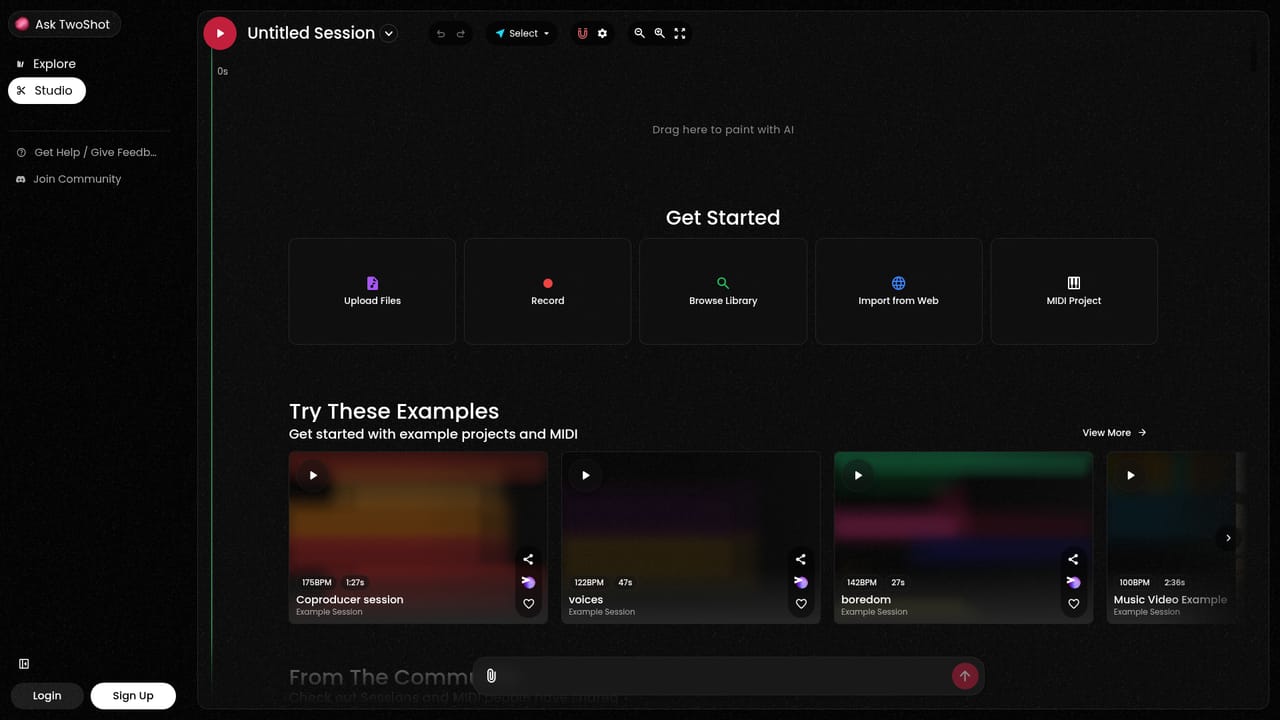
    Move into the multi-track studio to arrange generated clips, adjust loops, mute or solo individual tracks and layer drums, piano or percussion against each other.
    TwoShot — Shape the result in the studio
  4. 4Run audio utilities on a track
    Use the assistant actions to split stems, generate sound effects, swap a vocal or produce a voiceover from material already in the session.
  5. 5Browse community sounds for reference
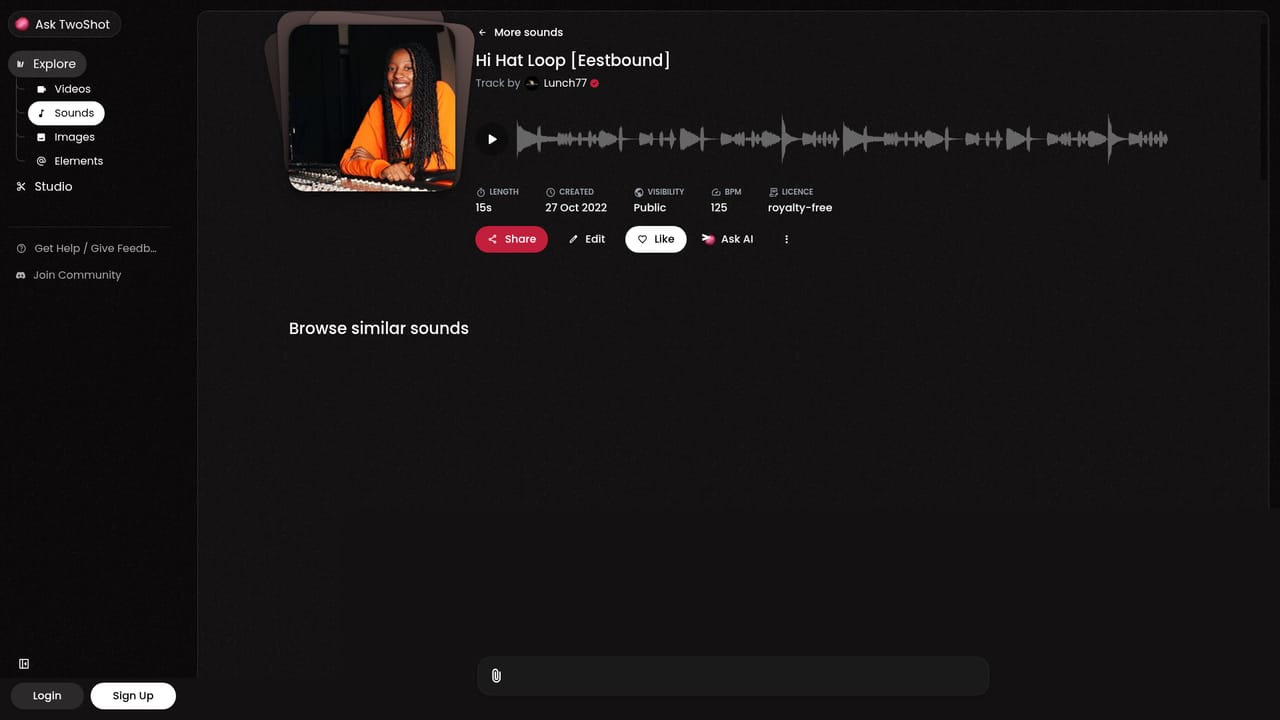
    Explore public sound and track pages to hear what other creators have made and to find loops or ideas worth importing into your own session.
    TwoShot — Browse community sounds for reference
  6. 6Return to your workspace
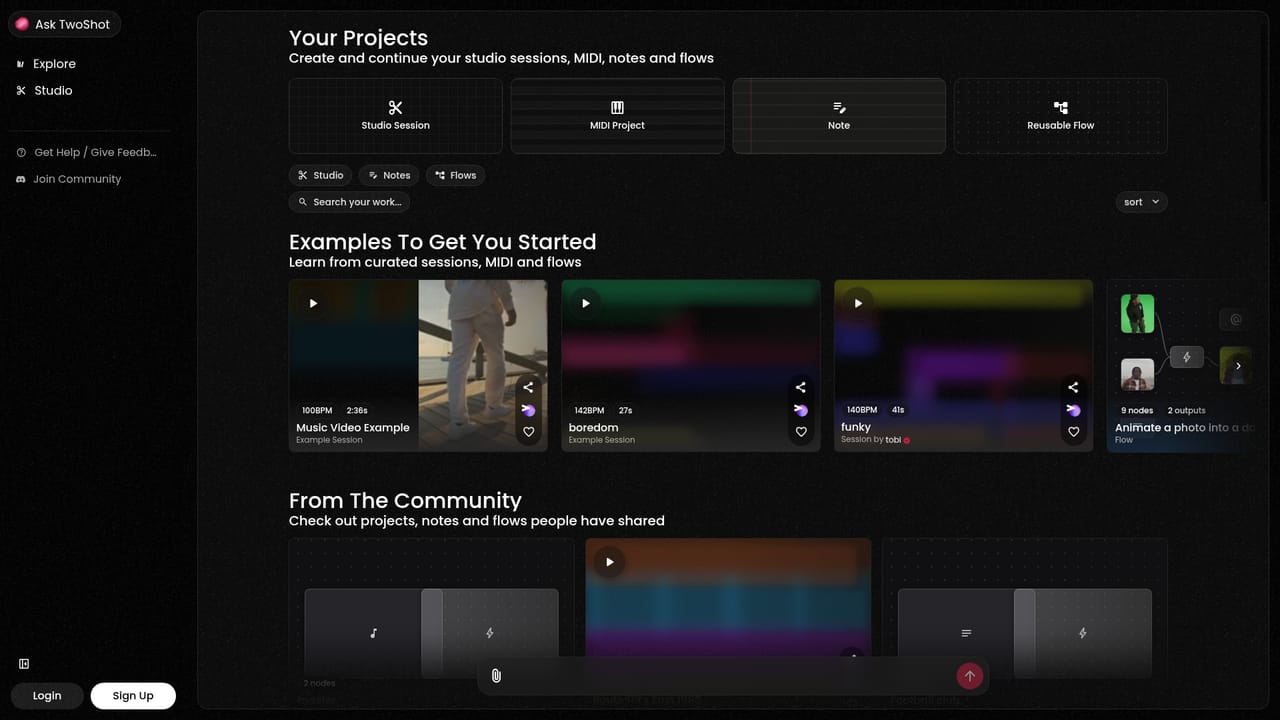
    The workspace collects your sessions and generated assets so you can pick projects back up and keep related material together.
    TwoShot — Return to your workspace

Pros and cons

Pros

  • Several formats (music, image, video, voiceover, scripts) handled from one prompt barAI
  • Studio view with tracks, looping, mute and solo controls gives hands-on editing after generationAI
  • Actions like split stems, remix, nightcore conversion and voice swap cover common producer tasksAI
  • Public sound, track and creator pages make it easy to browse material made on the platformAI
  • Named adoption by studios, labels and brands suggests real production use, not a demo projectAI

Cons

  • The homepage gives no pricing, plan limits or credit model, so cost is unknown before signing upAI
  • Breadth across music, video and art may mean less depth than single-purpose tools in each categoryAI
  • No integrations or export formats are documented on the site, which matters for existing DAW or editor workflowsAI
  • Rights and licensing terms for generated audio and images are not stated on the homepageAI
  • The public gallery and community layer surface mostly curated examples, so judging output quality at scale is hardAI

How much does TwoShot cost?

Features

Prompt-led generation across music, images, video, voiceover and written scripts, all from one assistant. Music tools include remixing, nightcore style speed and pitch conversion, stem splitting, sound effect creation and voice swapping, presented in a multi-track studio with looping, mute, solo, vacuum and send controls. Images can be animated, and content can be imported from elsewhere before editing.

Frequently asked questions about TwoShot

  • How do you use TwoShot?
    The walkthrough on this page covers 6 steps: 1. Open the assistant and pick an output type 2. Bring in existing material 3. Shape the result in the studio 4. Run audio utilities on a track 5. Browse community sounds for reference 6. Return to your workspace.
  • What platforms does TwoShot support?
    TwoShot is available on Web App.
  • What are the limitations of TwoShot?
    The homepage gives no pricing, plan limits or credit model, so cost is unknown before signing up. Breadth across music, video and art may mean less depth than single-purpose tools in each category. No integrations or export formats are documented on the site, which matters for existing DAW or editor workflows.