Free trial
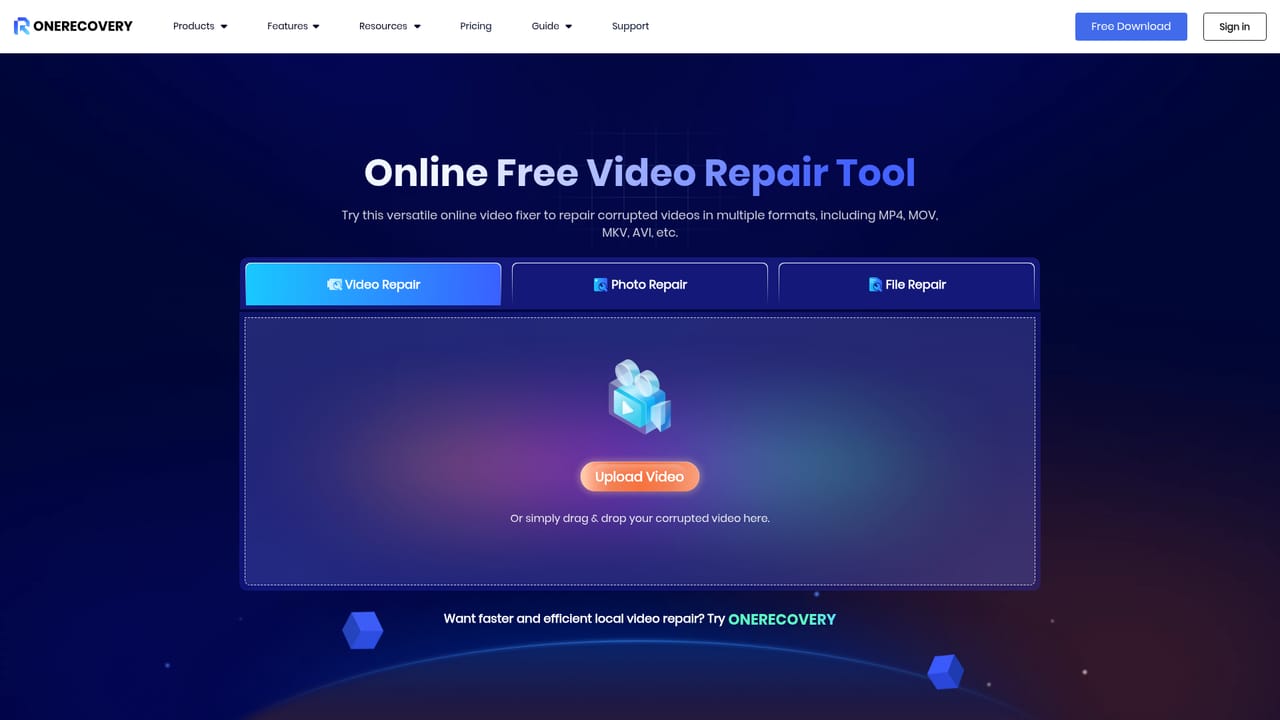
A free download is offered for the video repair product, and a separate browser-based repair tool is described as an online free repair tool.
Learn moreAI repair for corrupted, blurry and unplayable video files
Own Video Repair by Onerecovery? Verify ownership to get a dofollow link

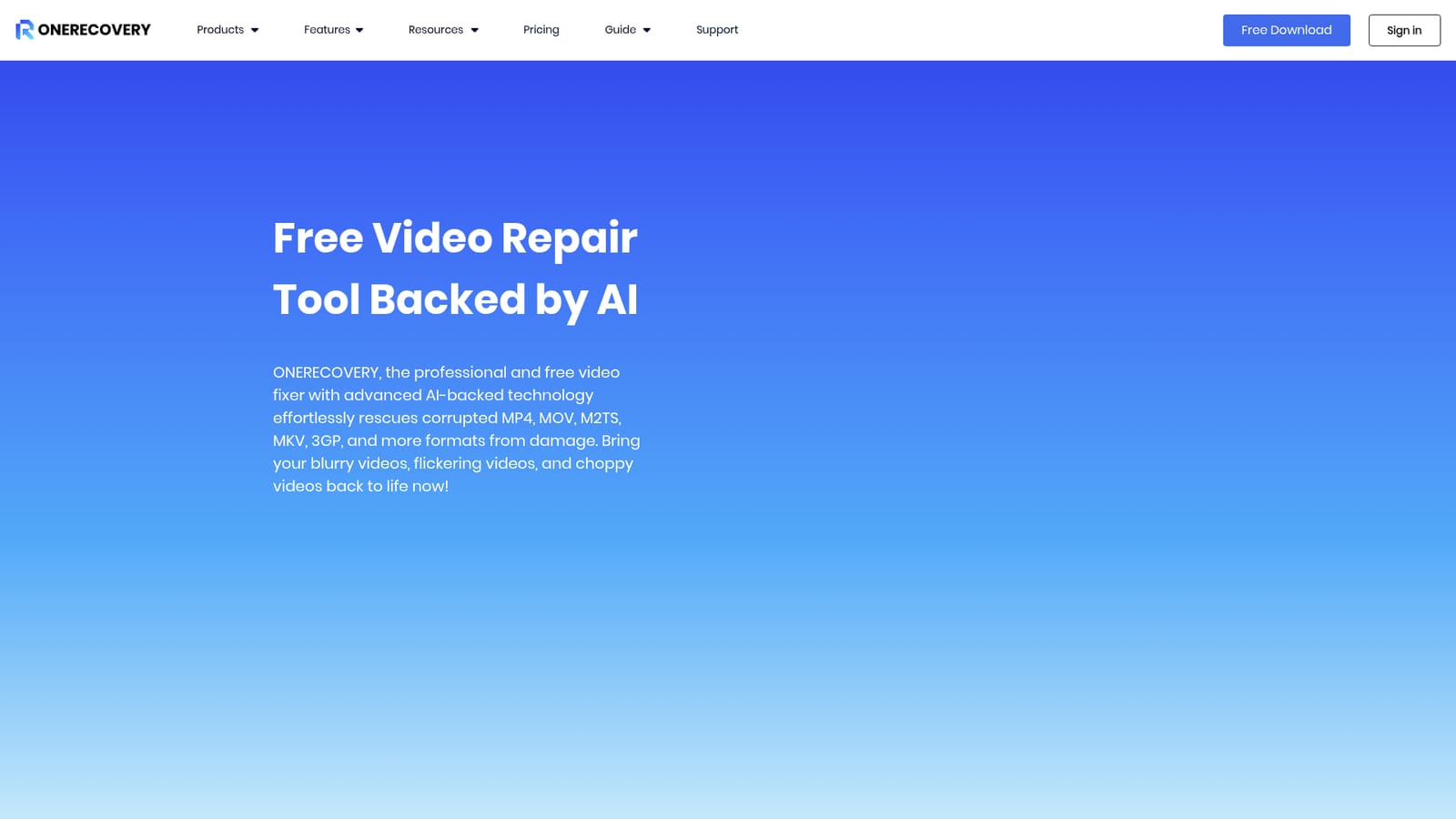
Video Repair by Onerecovery is an image improvement tool. A Windows and Mac video repair tool that uses AI to analyse corrupted, blurry, flickering or unplayable footage across formats like MP4, MOV, MKV and M2TS, with automatic processing and a preview of repaired frames before saving.
Video Repair by Onerecovery is a desktop utility that targets footage which has become unreadable or degraded. The stated scope covers MP4, MOV, MKV, M2TS, AVI, 3GP, M4V and MXF files, and the vendor attributes failures to interrupted transfers, recording or conversion faults, system crashes, and malware. Rather than a single fixed recipe, the software inspects the damaged sections of a file, works out where the corruption sits, and selects a repair approach for that specific case. Intact portions are left alone, which matters when only part of a clip is broken. The tool advertises a fairly wide symptom list: blurry frames, flickering, jitter, stuttering or stuck playback, files that refuse to open, and missing audio or subtitle tracks. Source devices named on the page include phones from Apple, Samsung, Xiaomi, Oppo and Huawei, cameras from Canon, Sony and Nikon, DJI and other drones, dash cams, CCTV recorders, and cards or drives pulled from SD, USB, HDD and SSD media. High definition and 4K or 8K footage is explicitly supported. In practice the workflow is automatic. A damaged file goes in, the repair runs without manual editing decisions, and a preview of repaired excerpts can be checked before anything is saved. If you want to test the engine without installing anything, the vendor runs a separate browser based repair page. The desktop build is limited to Windows and Mac, so Linux users have no native option. It sits in the same bracket as dedicated video repair utilities rather than general editors: the job is recovery of existing footage, not creative work. Buyers should compare it on format breadth, the ability to handle very large 4K and 8K files, and whether a preview is offered before purchase.
A free download is offered for the video repair product, and a separate browser-based repair tool is described as an online free repair tool.
Learn moreThe vendor routes purchases through a buy centre page linked from the main navigation. The video repair page itself markets the fixer as free and offers a free download, but does not publish plan tiers or price points, so exact costs have to be confirmed at checkout.
Learn moreSupport is reached through a dedicated support page, with an FAQ, a blog and a knowledge base also listed in the site navigation for self-service help.
Learn moreAI analysis of corrupted regions, adaptive repair methods chosen per file, automatic processing with no manual editing, preview of repaired excerpts before saving, support for MP4, MOV, MKV, M2TS, AVI, 3GP, M4V and MXF, repair of HD, 4K and 8K video, and coverage of footage from phones, cameras, drones, dash cams, CCTV and SD, USB, HDD and SSD media.
 AI Angels400+ customizable AI girlfriends for NSFW chat, voice calls, and roleplay
 Candy AIExperience the future of companionship with AI friends who chat, role-play, and connect with you on a human level.
 ourdream.aiA vast AI roleplay platform with millions of characters for chat, images, video and voiceAI Angels400+ customizable AI girlfriends for NSFW chat, voice calls, and roleplayCandy AIExperience the future of companionship with AI friends who chat, role-play, and connect with you on a human level.ourdream.aiA vast AI roleplay platform with millions of characters for chat, images, video and voice