Viora

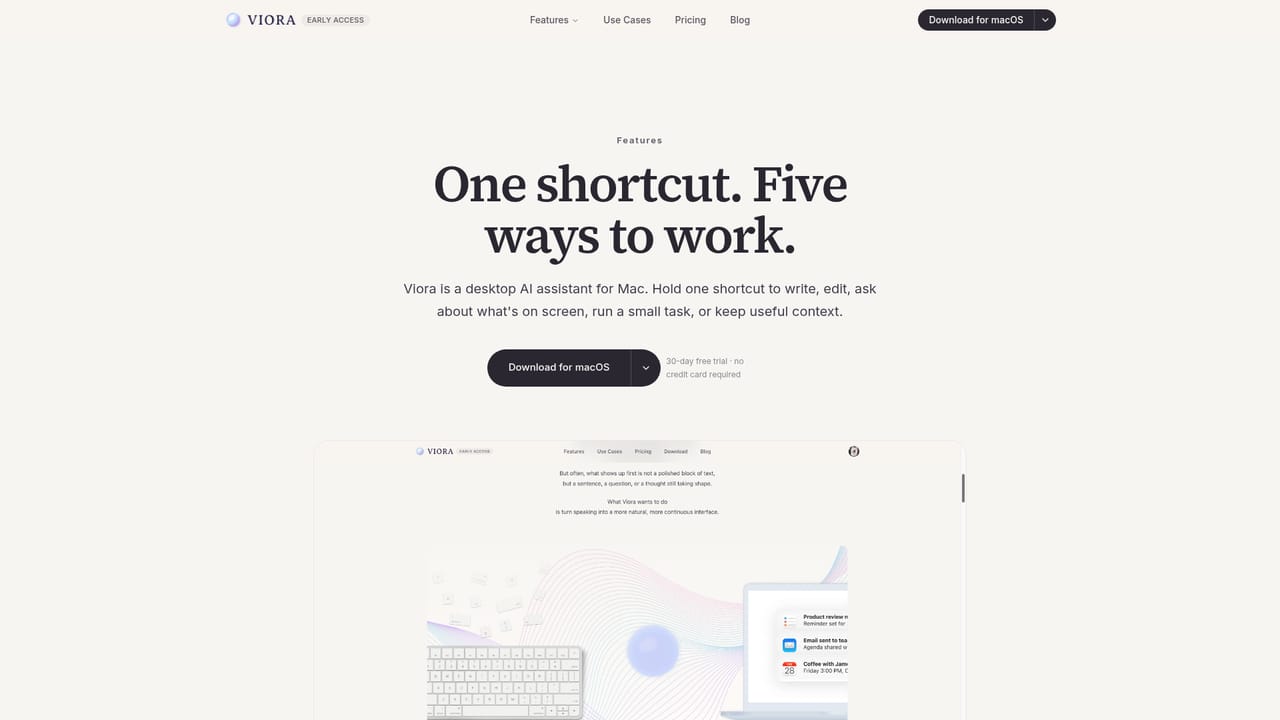
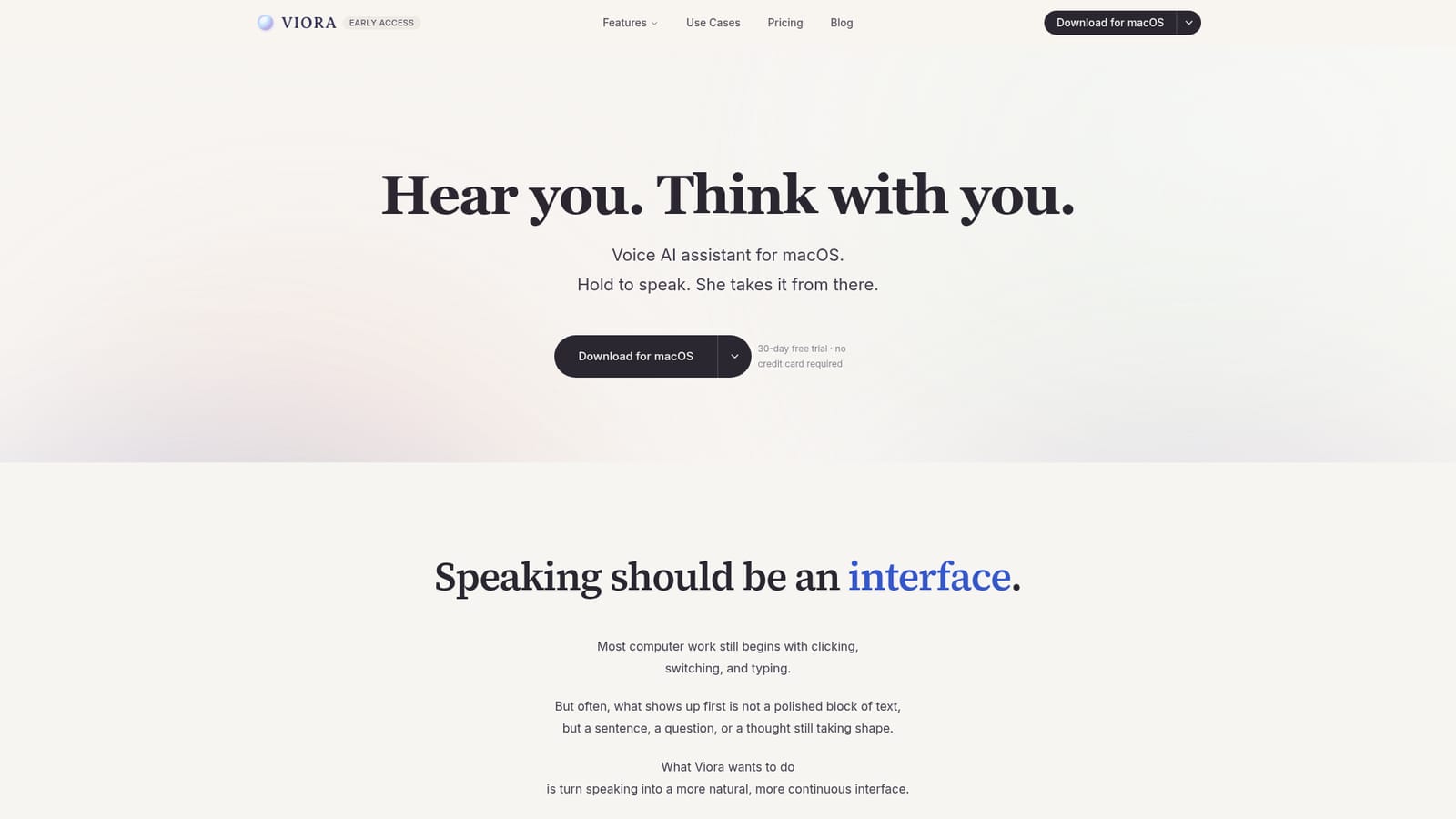
Hold one key, speak, and Viora writes, edits, answers and acts on your Mac.

Beginner
Screenshot of Viora, Hold one key, speak, and Viora writes, edits, answers and acts on your Mac

What is Viora?

Viora is a macOS voice assistant that turns one spoken shortcut into writing, editing, in context answers and background task completion, while remembering preferences across sessions.

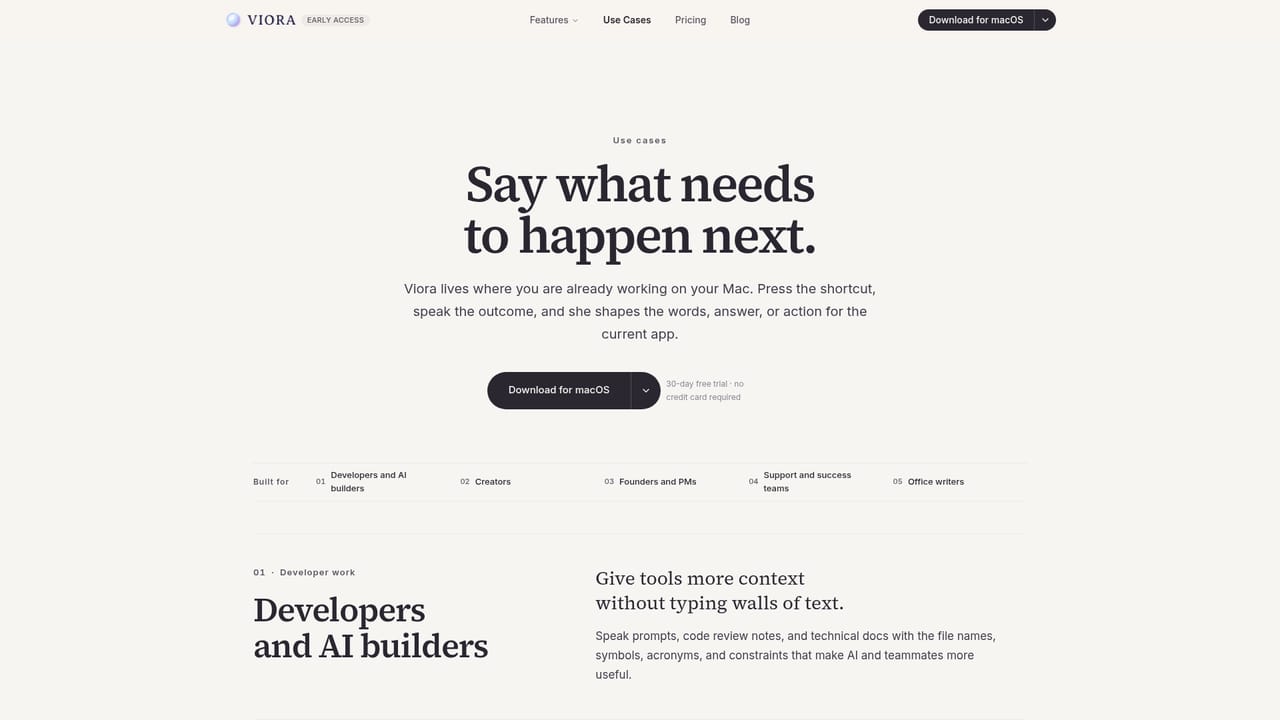
Viora is a voice AI assistant built specifically for macOS, designed to replace typing and app switching with a single spoken shortcut. Holding one key and speaking lets Viora decide whether to write text into the active field, rewrite a selected passage, answer a question about on screen content, or hand off a multi step task to run in the background. Rather than opening as a separate window, it sits at the system level so it can act across browsers, email clients, chat tools and documents without requiring users to leave what they are doing. The tool is aimed at Mac users who spend their day moving between writing, research and communication tasks and want a faster way to capture thoughts before they are lost to typing friction. Writers, knowledge workers and anyone juggling emails, notes and quick drafts can use voice as a primary input instead of a backup for dictation software. Because Viora tracks context and remembers stated preferences, repeated instructions and recurring routines do not need to be re explained each session. In practice, a user might dictate a reply directly into an email thread, select a paragraph and ask for a tighter rewrite, highlight a block of text to get an explanation without switching windows, or assign a research task that Viora works through step by step while away from the keyboard. A daily brief surfaces to do items and scheduled events, and reminders fire when a previously mentioned deadline arrives. Memory entries remain visible, editable and deletable, and Viora states that voice and text data are stored securely and not used to train models. Compared with general purpose dictation tools built into macOS, Viora positions itself less as a transcription layer and more as an assistant that interprets intent, since it distinguishes between writing, editing, asking and task execution from a single spoken cue and persists that context across sessions.
How do you use Viora?

  1. 1Download Viora for macOS
    Get the desktop app from the Viora homepage and install it on a Mac to start the 30 day free trial, which requires no credit card.
    Viora — Download Viora for macOS
  2. 2Set your voice shortcut
    Configure the hold to speak shortcut during setup so Viora can be triggered from anywhere on the system.
  3. 3Try the Write mode
    Click into any text field across an app or browser, hold the shortcut and speak to have Viora generate written text with tone and punctuation handled automatically.
    Viora — Try the Write mode
  4. 4Select text and use Edit or Ask
    Highlight existing text, speak a rewrite instruction to have it replaced in place, or ask a question about the selection to get an answer next to the source.
    Viora — Select text and use Edit or Ask
  5. 5Hand off a task to Do mode
    State an intent such as research or drafting and let Viora step through the task automatically, reviewing the result once complete.
  6. 6Review memory and daily brief
    Check the Help Center for details on managing stored preferences, viewing the daily brief, and editing or deleting memory entries.
    Viora — Review memory and daily brief

Pros and cons

Pros

  • Works as a system level overlay rather than a separate app, fitting into browsers, email, docs and chat tools already in useAI
  • Single voice shortcut handles writing, editing, asking and task execution without switching modes manuallyAI
  • Persistent memory means preferences and context carry over between sessions without repeating instructionsAI
  • Daily brief and reminders surface follow ups automatically based on what was previously discussedAI
  • Memory data is user controlled, with options to view, edit or delete stored entriesAI

Cons

  • Limited to macOS only, with no stated support for Windows, Linux or mobile platformsAI
  • Specific subscription pricing beyond the 30 day trial is not published on the homepageAI
  • Voice and memory data rely on cloud storage, so usage depends on network connectivity and trust in a third party serviceAI
  • No public API is mentioned, so custom integration outside supported apps is undocumentedAI
  • Agent style task execution is described as auto stepped, but error handling or failure recovery is not detailedAI

How much does Viora cost?

Free trial

A 30 day free trial is available for the macOS app, and starting it does not require a credit card.

Learn more

Pricing

Specific subscription pricing is not stated on the homepage; Viora offers a 30 day free trial with no credit card required before any paid plan would begin.

Learn more

Support

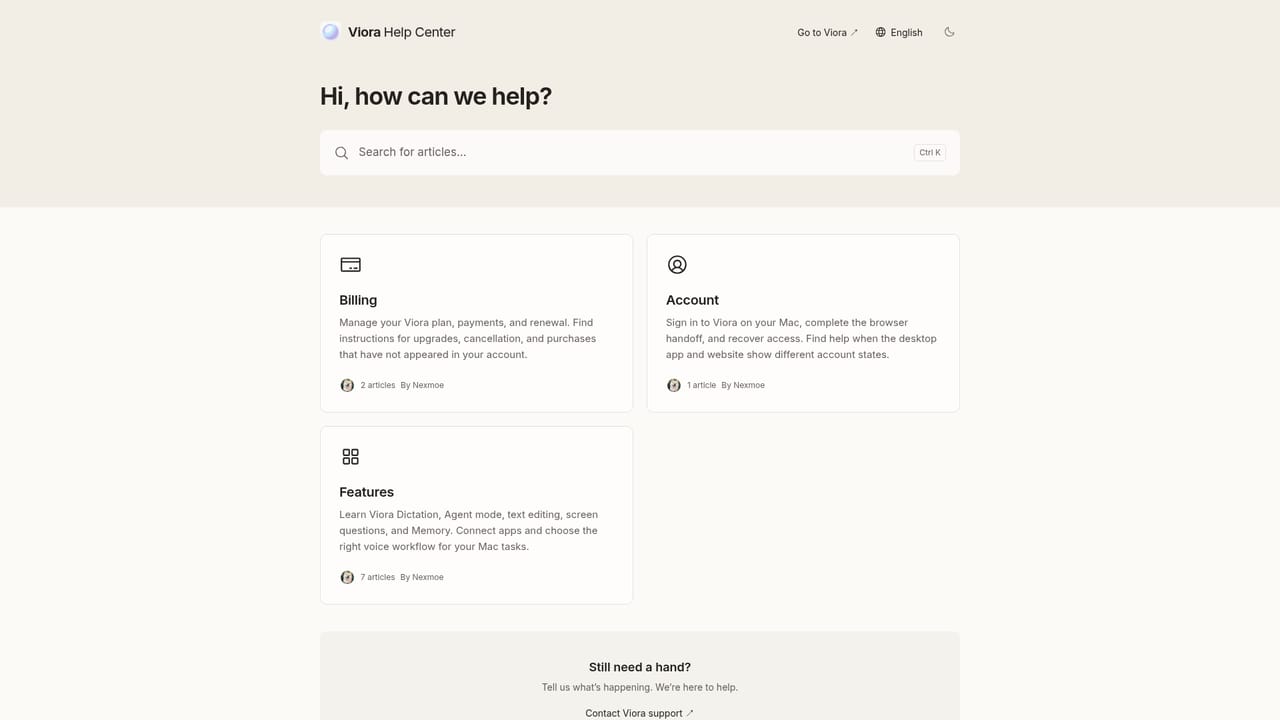
Viora provides a Help Center for setup and usage questions, along with a contact page for direct inquiries.

Learn more

Integrations

The homepage describes Viora working across browsers, email clients, document editors and chat tools at the system level rather than through named integrations, since it operates wherever text input is available on the Mac.

Learn more

Features

One voice shortcut drives four modes: Write, Edit, Ask and Do. Viora operates at the system level across Mac apps, keeps persistent memory of preferences and context, delivers a daily brief with reminders, and runs background tasks like research or drafting.

Learn more

Frequently asked questions about Viora

  • How much does Viora cost?
    Specific subscription pricing is not stated on the homepage; Viora offers a 30 day free trial with no credit card required before any paid plan would begin.
  • Does Viora offer a free trial?
    A 30 day free trial is available for the macOS app, and starting it does not require a credit card.
  • How do you use Viora?
    The walkthrough on this page covers 6 steps: 1. Download Viora for macOS 2. Set your voice shortcut 3. Try the Write mode 4. Select text and use Edit or Ask 5. Hand off a task to Do mode 6. Review memory and daily brief.
  • What platforms does Viora support?
    Viora is available on MacOS.
  • What does Viora integrate with?
    The homepage describes Viora working across browsers, email clients, document editors and chat tools at the system level rather than through named integrations, since it operates wherever text input is available on the Mac.
  • What are the limitations of Viora?
    Limited to macOS only, with no stated support for Windows, Linux or mobile platforms. Specific subscription pricing beyond the 30 day trial is not published on the homepage. Voice and memory data rely on cloud storage, so usage depends on network connectivity and trust in a third party service.

Status

StatusActive
Views0
Outbound clicks0
Added10/17/2026

Platforms

MacOS

Pricing

Free TrialPaid