Support
The homepage includes a question about how to reach the team for further questions, but no support channels, documentation site or response times are specified.
Meeting notes from the browser, with no bot in the participant list
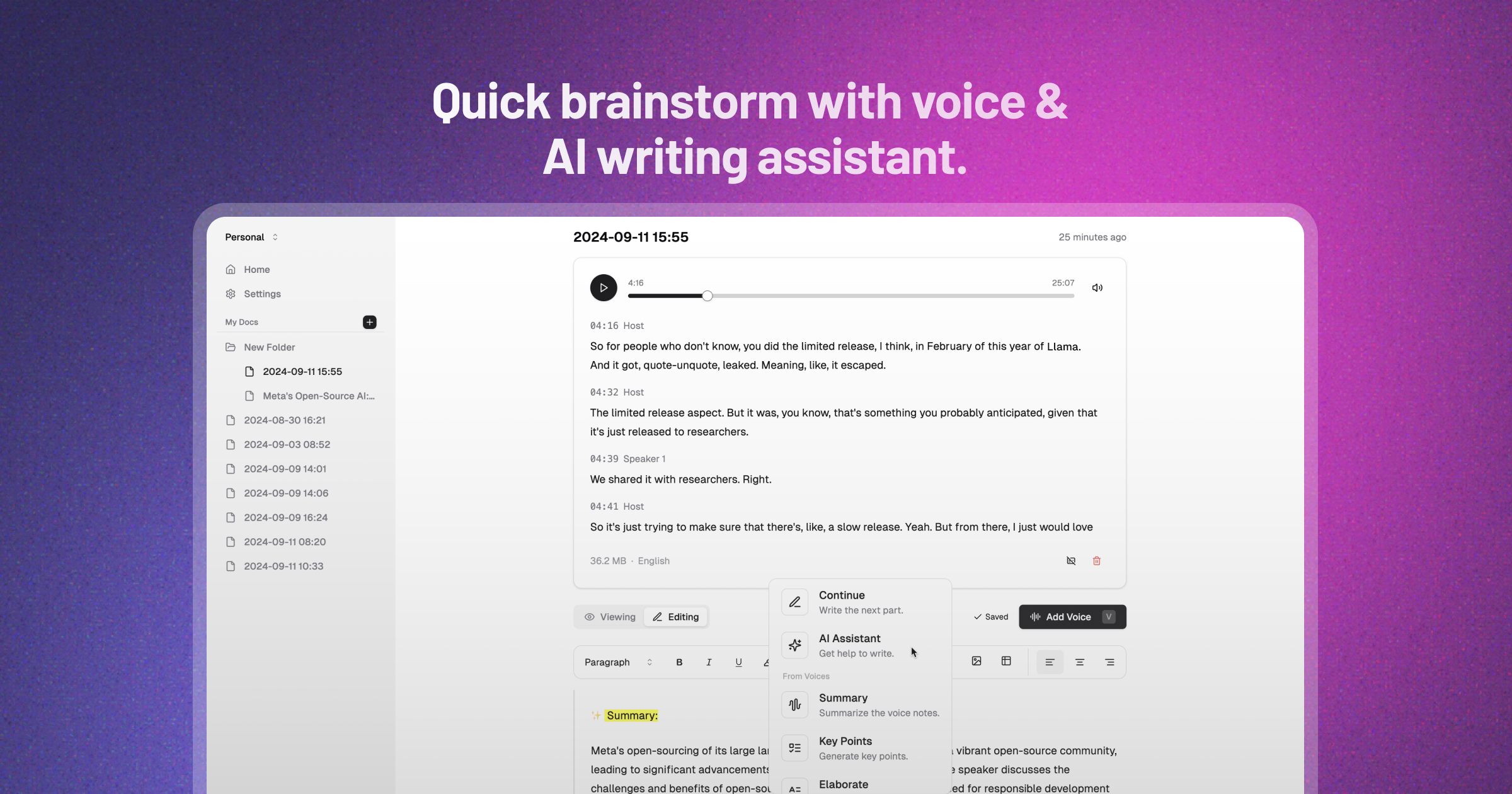
VoiceTaking is an AI transcriber tool. A browser-based meeting note taker that records the call tab plus your microphone, transcribes both sides on separate channels without a bot joining, and turns the result into template-shaped summaries and action items.
VoiceTaking is a browser-based meeting note taker built around a simple premise: the recorder should not appear in the call. Instead of sending a bot into Google Meet, Zoom or Teams, it captures the browser tab running the call together with your own microphone, so the other participants and you are transcribed live on separate channels. Attribution stays intact, which means the transcript preserves who said what rather than collapsing everything into one undifferentiated stream of text. The tool started as a voice notes app and the personal side of it is still there: a Notion-like editor with a voice recorder, slash commands, and an AI writing assistant that can summarize, expand or rewrite within the document. That combination makes it useful outside of meetings as well, for dictating a draft, capturing a thought quickly or cleaning up a rambling voice memo into something readable. For meetings, the workflow is more deliberate. You open the call inside VoiceTaking, choose the tab that holds the meeting and enable tab audio sharing, then add your own context, documents and links before things get going. A live guide can then suggest what to say when a question catches you off guard, citing back to the prep you supplied. After the call, you pick a template (a scorecard for a technical interview, decisions and metrics for a strategy review) and the summary and action items are shaped to match that structure rather than coming out as a generic recap. It suits people who sit in a lot of calls and want the notes handled without inviting a third party bot into the room, which matters in hiring panels, client conversations or any setting where a visible recorder changes the tone. VoiceTaking v2 is purely web for now, with a desktop app announced as coming next.
The homepage includes a question about how to reach the team for further questions, but no support channels, documentation site or response times are specified.
Built around browser tab audio rather than direct integrations, so it works with Google Meet, Zoom and Teams calls running in a browser tab. No native client connections are listed.
Simultaneous capture of the meeting tab and your microphone, live transcription with each side kept separate, a live guide that drafts answers cited from your prep documents, and summary templates tuned to different meeting types. The personal editor adds voice dictation, slash commands and an AI writing assistant that summarizes or elaborates within the document.
Learn more AI Angels400+ customizable AI girlfriends for NSFW chat, voice calls, and roleplay
 Candy AIExperience the future of companionship with AI friends who chat, role-play, and connect with you on a human level.
 ourdream.aiA vast AI roleplay platform with millions of characters for chat, images, video and voiceAI Angels400+ customizable AI girlfriends for NSFW chat, voice calls, and roleplayCandy AIExperience the future of companionship with AI friends who chat, role-play, and connect with you on a human level.ourdream.aiA vast AI roleplay platform with millions of characters for chat, images, video and voice