Voscribe

Fast AI podcast transcription with synced editing and SRT subtitles

Beginner
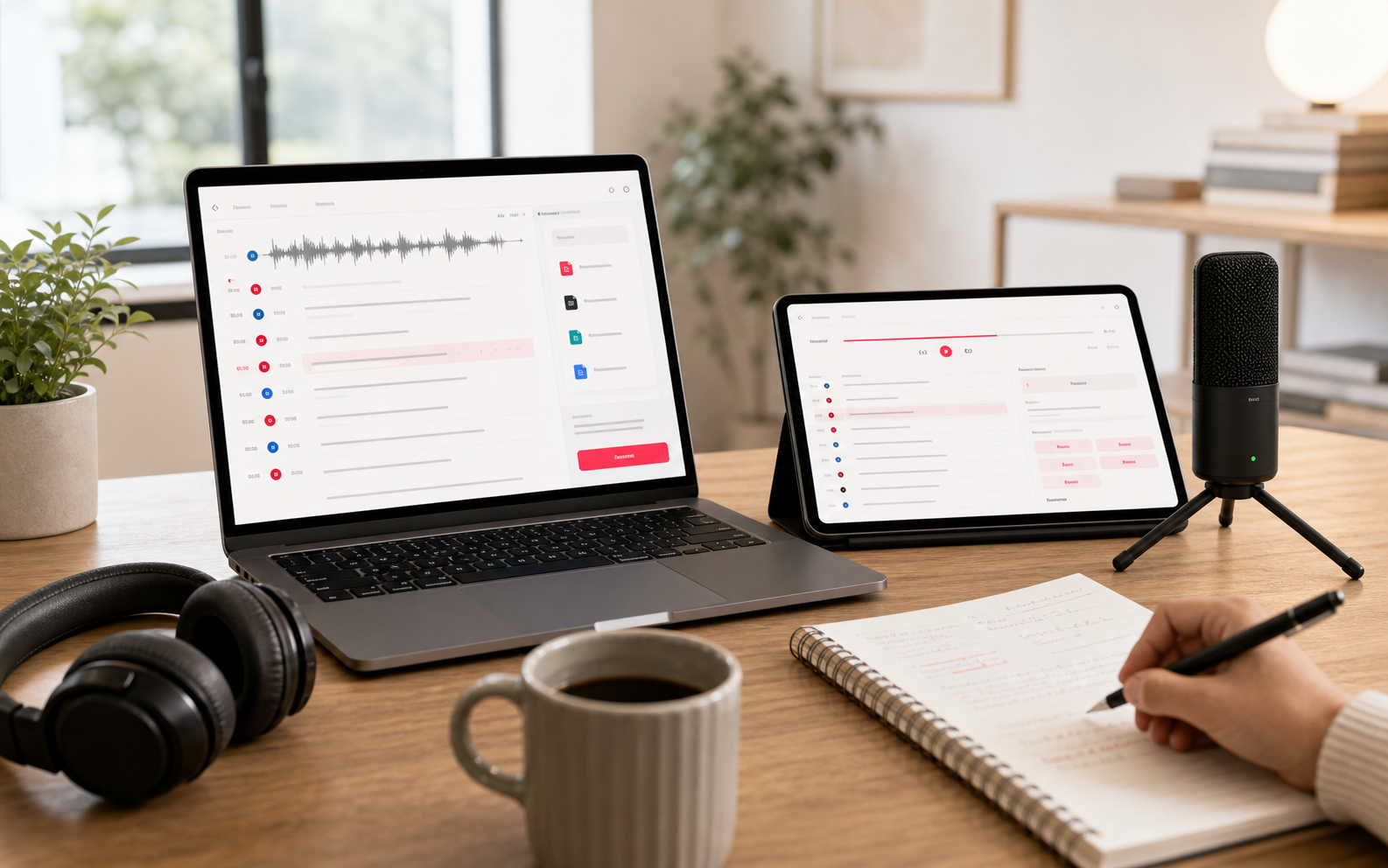
Screenshot of Voscribe, Fast AI podcast transcription with synced editing and SRT subtitles

What is Voscribe?

Voscribe turns podcast and video audio into text transcripts with a claimed accuracy above 95%, an editor that keeps the transcript synced to the audio for corrections, and SRT export for subtitles. It is aimed at podcasters and video creators who want fast transcription and captions without manual typing.

Voscribe is a transcription tool built around podcast and video episodes. Audio or video files go in, and a text transcript comes back with a claimed accuracy rate above 95%. The headline speed figure is one minute of processing for every fifteen minutes of source audio, which puts an hour long episode in the region of four minutes of waiting rather than a full afternoon at the keyboard. The workflow extends past the raw transcript. A dedicated editor keeps text and audio in sync, so corrections can be made against the exact moment they were spoken rather than hunting through a waveform. When the text is right, the transcript exports to SRT, the subtitle format most video players and hosting platforms accept. That covers the common podcast routine: publish the text version of an episode, then reuse the same file as captions for the video cut. The tool suits independent podcasters and small production teams who handle their own post production and want transcription handled in one place. It also fits video creators who need captions without opening a full editing suite. Anyone producing interview shows, solo commentary or recorded panels will recognize the appeal of skipping manual typing entirely. The market is crowded. General purpose transcription services often bundle summaries, speaker diarization or translation at higher price tiers, and dedicated podcast platforms increasingly include transcripts as a feature. Voscribe competes on a narrow promise: speed, editing that stays tied to the audio, and subtitle export. Buyers who need multilingual output, analytics or publishing tools should compare carefully before committing, because this listing cannot confirm those capabilities from the vendor's own materials.

How do you use Voscribe?

  1. 1Create a Voscribe account
    Sign up through the Voscribe app to reach the transcription workspace. An account is the entry point for uploading audio and managing transcripts.
  2. 2Upload your episode audio or video
    Send the recording into Voscribe. The service accepts audio and video and starts the AI transcription automatically.
  3. 3Let the transcript generate
    Processing runs at roughly one minute for every fifteen minutes of audio. Longer episodes take proportionally longer, so plan the wait around episode length.
  4. 4Fix errors in the synced editor
    Open the Voscribe Editor, where the transcript follows the audio playback. Play back any unclear passage and correct the text in place.
  5. 5Export SRT subtitles
    Once the text is clean, export it as an SRT file. That file can be attached to the video version of the episode as subtitles.

Pros and cons

Pros

  • Claimed accuracy above 95% for podcast and video audioAI
  • Fast turnaround, roughly one minute of processing per fifteen minutes of audioAI
  • Synced transcript editor makes corrections easy to place against the recordingAI
  • SRT export turns the same transcript into video subtitlesAI

Cons

  • No pricing information is published on the homepage, so cost has to be checked before committingAI
  • Only SRT export is documented, with no mention of other subtitle or caption formatsAI
  • No stated support for speaker labels, summaries, translations or other post transcription extrasAI
  • Podcast publishing and hosting are not part of the product, so it sits beside your existing stack rather than replacing itAI

How much does Voscribe cost?

Features

Core features cover AI transcription of audio and video at a claimed accuracy above 95%, a processing speed of about one minute per fifteen minutes of audio, a transcript editor that stays synced with the audio for corrections, and SRT export for subtitles on video episodes.

Frequently asked questions about Voscribe

  • How do you use Voscribe?
    The walkthrough on this page covers 5 steps: 1. Create a Voscribe account 2. Upload your episode audio or video 3. Let the transcript generate 4. Fix errors in the synced editor 5. Export SRT subtitles.
  • What platforms does Voscribe support?
    Voscribe is available on Web App.
  • What are the limitations of Voscribe?
    No pricing information is published on the homepage, so cost has to be checked before committing. Only SRT export is documented, with no mention of other subtitle or caption formats. No stated support for speaker labels, summaries, translations or other post transcription extras.

Status

StatusActive
Views0
Outbound clicks0
Added10/21/2026

Platforms

Web App

Pricing

Freemium