Free trial
A free account can be created to get started, and the AI host is free while in beta. The page also points to a free trial, with no software setup and cancellation at any time.
Learn moreAn AI presenter that runs your live trivia show from start to finish

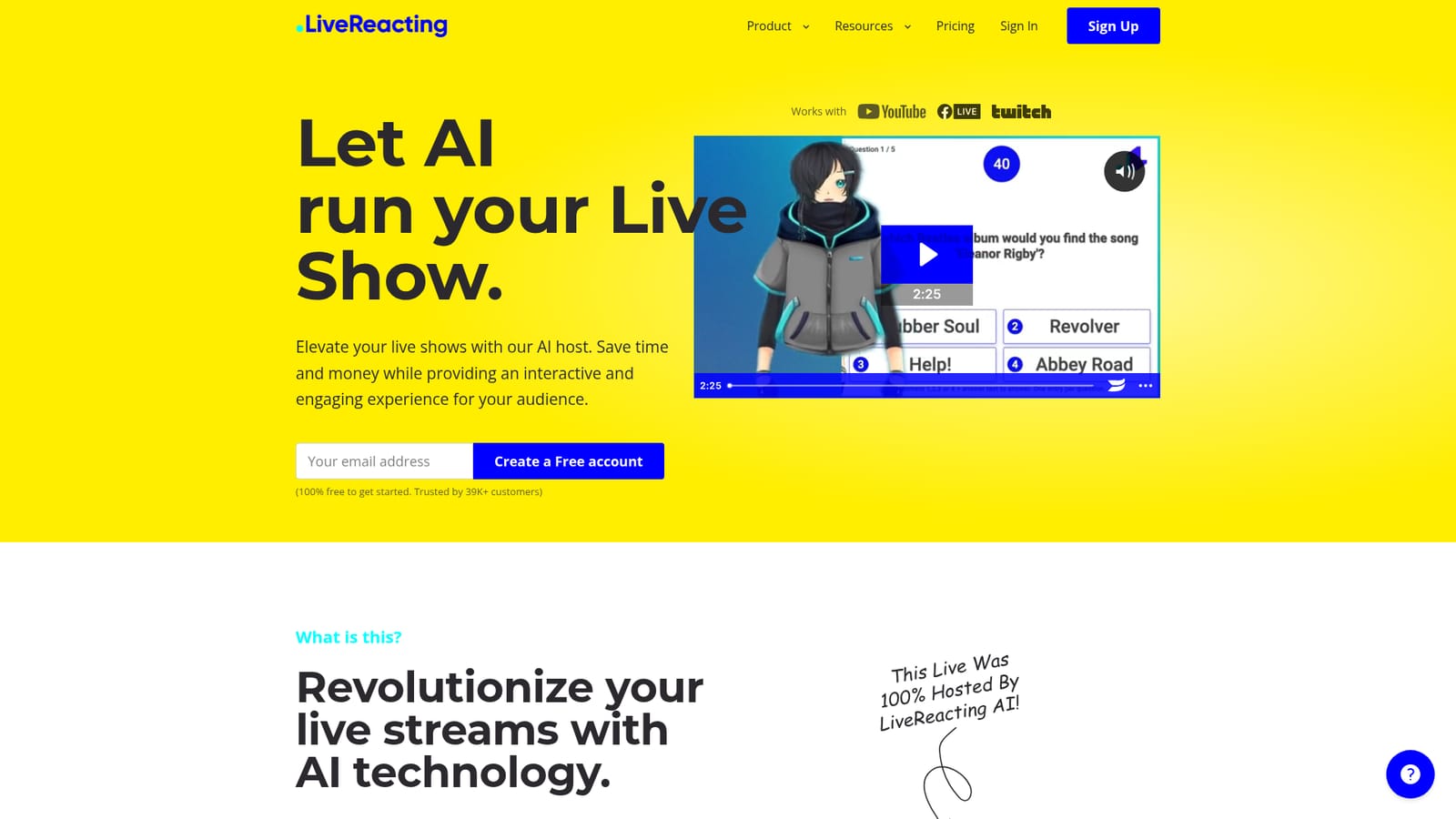
AI Host is an avatar presentation tool. AI Host by LiveReacting is an automated presenter for live trivia shows. It introduces rounds, reads questions, comments on the topic while players answer, shouts out correct respondents and announces winners, in multiple languages, with optional custom instructions and a branded avatar.
AI Host is a feature of LiveReacting that puts an automated presenter in charge of a live trivia show. Instead of standing in front of a camera to introduce rounds, read out questions and announce winners, you let the AI host carry the broadcast. It understands the context and topic of the show within seconds, then speaks and reacts accordingly, so a trivia night can run without a human on screen. The host does more than read a script. It introduces the quiz, reads each question with its possible answers, fills the pause while players respond with facts and commentary about the topic, calls out participants who answered correctly, and announces the winner of every round. The result mixes education with entertainment, which is why the product is pitched at teachers and educational institutions as much as at influencers promoting a product or pub owners running weekly quizzes. Optional instructions let you direct the host, for example to read a sponsor message or state the prize on offer. The host speaks several languages, including English, Spanish, French and Ukrainian, and LiveReacting offers a custom avatar designed around your brand or as a virtual stand-in, priced according to how detailed the customization is. Streaming is handled from LiveReacting's servers, so your computer does not need to stay on and you do not need a live internet connection during the broadcast. One stream can be sent to up to 20 destinations, and camera feeds plus elements such as polls, games and countdowns can be layered into the same broadcast. It sits inside the wider LiveReacting studio rather than as a standalone product, which makes it a natural pick for anyone already producing interactive live content for YouTube, Facebook or Twitch. Ready made templates cover a 24/7 channel, a continuous loop and a simple looping video for teams that want a starting point.
A free account can be created to get started, and the AI host is free while in beta. The page also points to a free trial, with no software setup and cancellation at any time.
Learn moreThe page says the AI host is free to use during the beta version and will become available only to paying LiveReacting customers in the near future. No price for the AI host is published. Custom avatar work is quoted separately based on the level of detail and customization.
Learn moreSupport is available through live chat on the site and a knowledge base at help.livereacting.com.
Learn moreStreams can be sent to YouTube, Facebook and Twitch, and multistreaming supports up to 20 destinations.
The host reads out questions and answers, discusses the show topic while players respond, shouts out correct players and announces round winners. It understands the context of the show, follows optional instructions such as sponsor messages, speaks several languages and can be paired with a custom avatar. Broadcasts run from LiveReacting servers to up to 20 destinations, with cameras, polls, games and countdowns layered in.
 AI Angels400+ customizable AI girlfriends for NSFW chat, voice calls, and roleplay
 Candy AIExperience the future of companionship with AI friends who chat, role-play, and connect with you on a human level.
 ourdream.aiA vast AI roleplay platform with millions of characters for chat, images, video and voiceAI Angels400+ customizable AI girlfriends for NSFW chat, voice calls, and roleplayCandy AIExperience the future of companionship with AI friends who chat, role-play, and connect with you on a human level.ourdream.aiA vast AI roleplay platform with millions of characters for chat, images, video and voice


