Free trial
Free credits or guest trials may be available for supported AI tools. Sign-in requirements, processing options, and usage limits vary by tool and plan and are shown in the product interface.
Learn moreEnlarge, upscale, and uncrop images with focused AI tools in the browser
Own AI Image Enlarger? Verify ownership to get a dofollow link

AI Image Enlarger is a 4K upscale tool. A browser-based suite of AI image tools for enlarging photos up to 8x, upscaling resolution, uncropping backgrounds with outpainting, enhancing clarity, sharpening, and removing backgrounds, plus free editors and format converters. Best for quick one-task fixes, not full manual retouching.
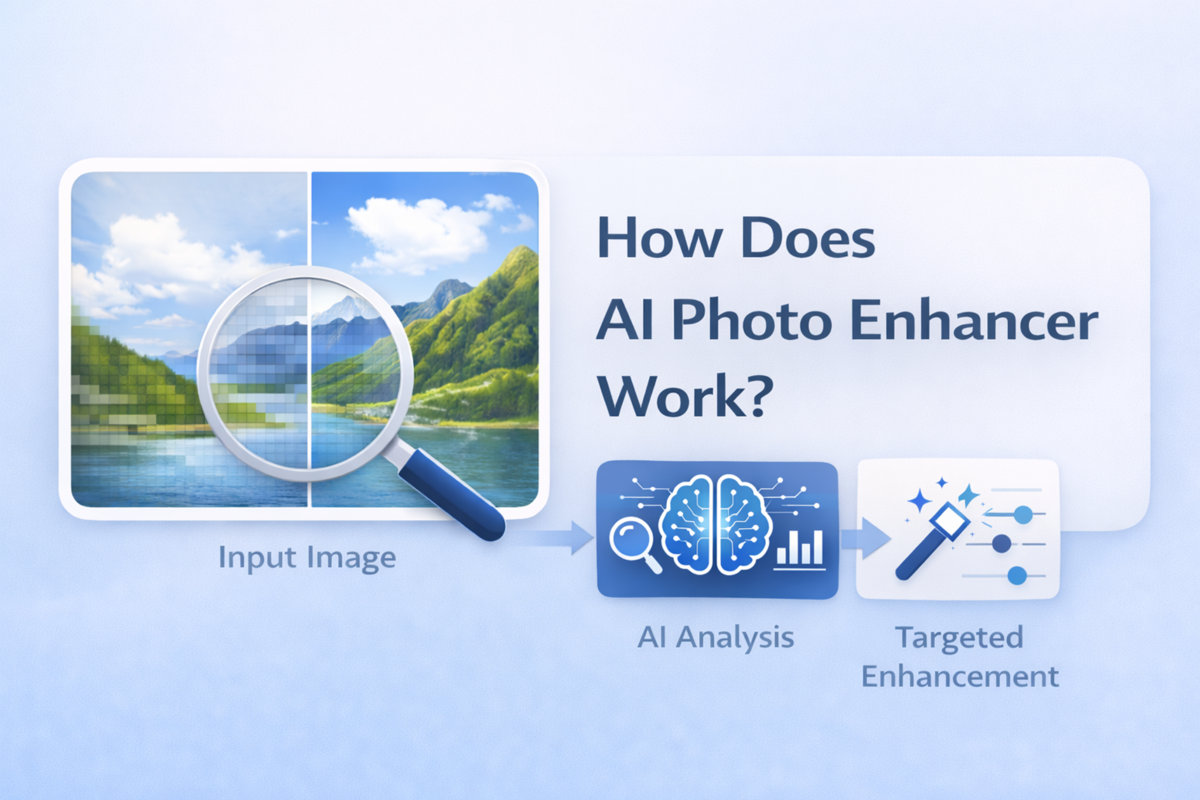
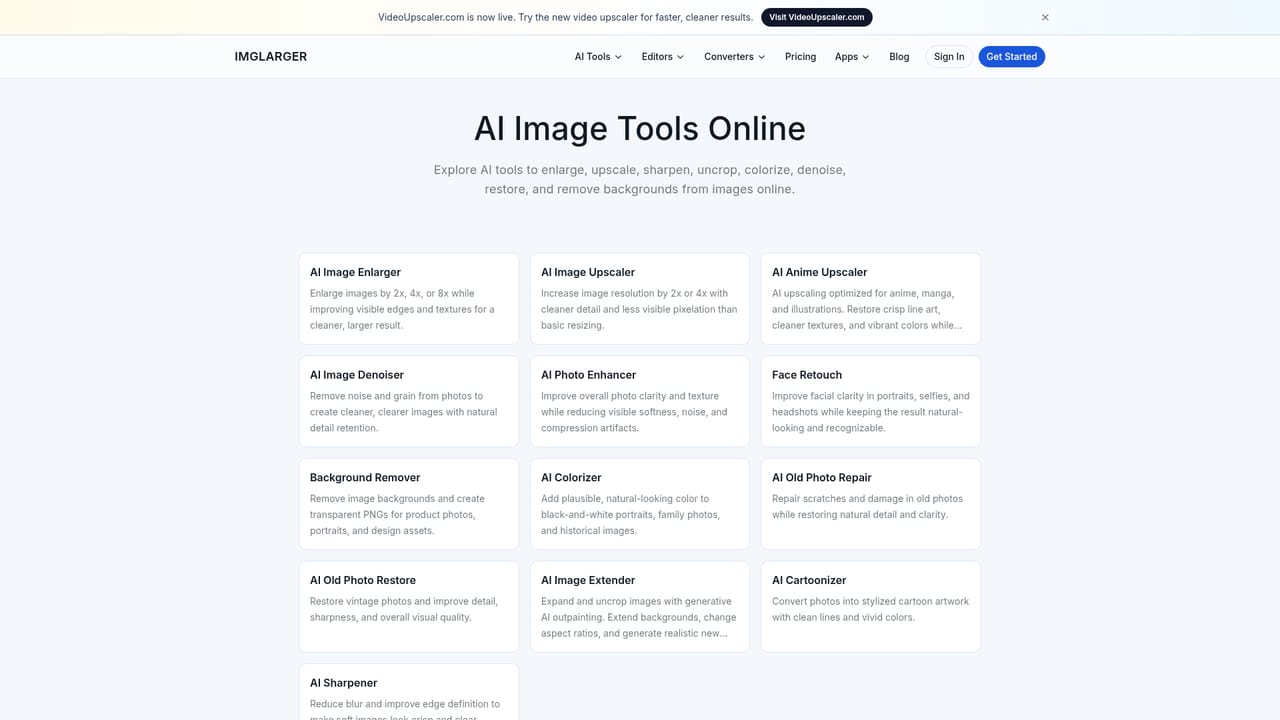
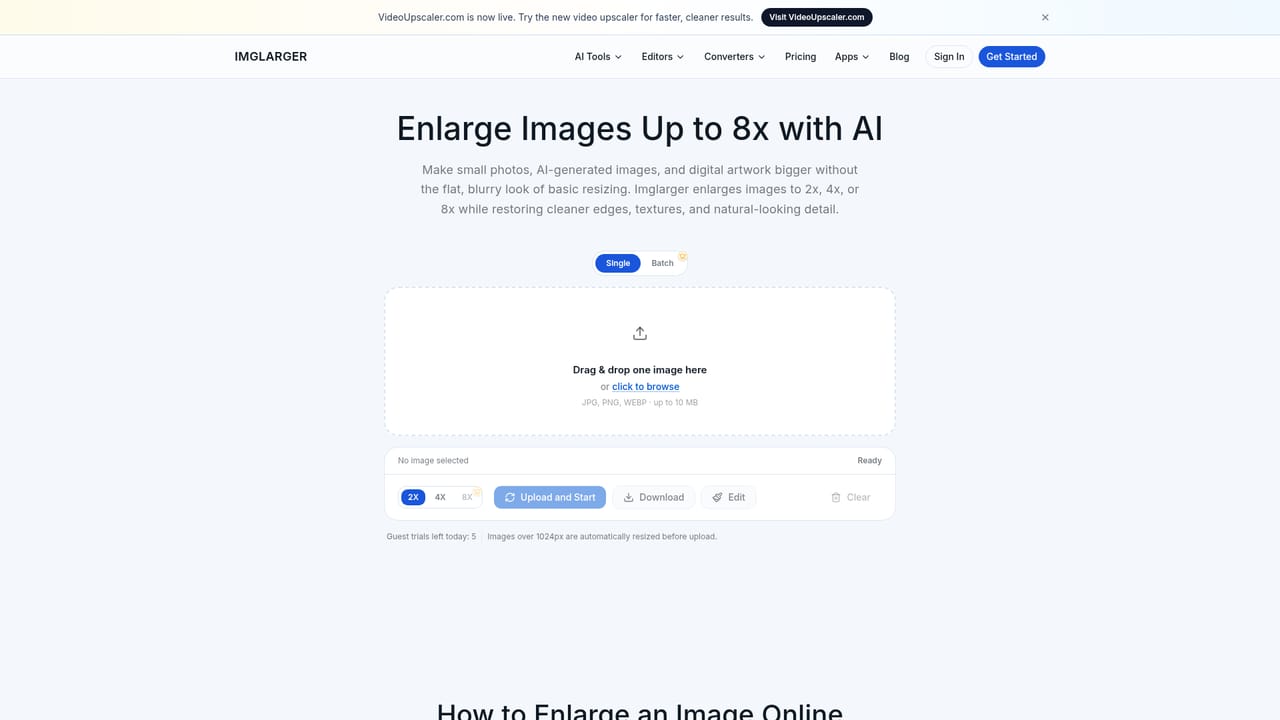
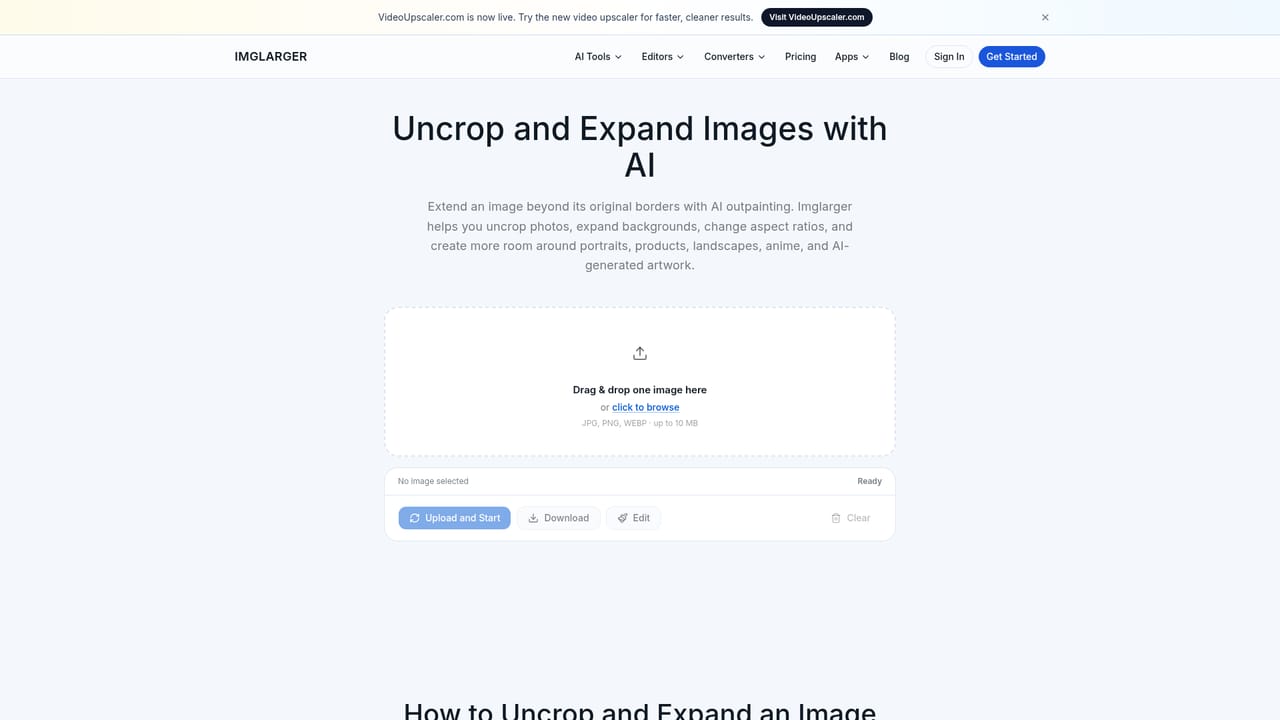
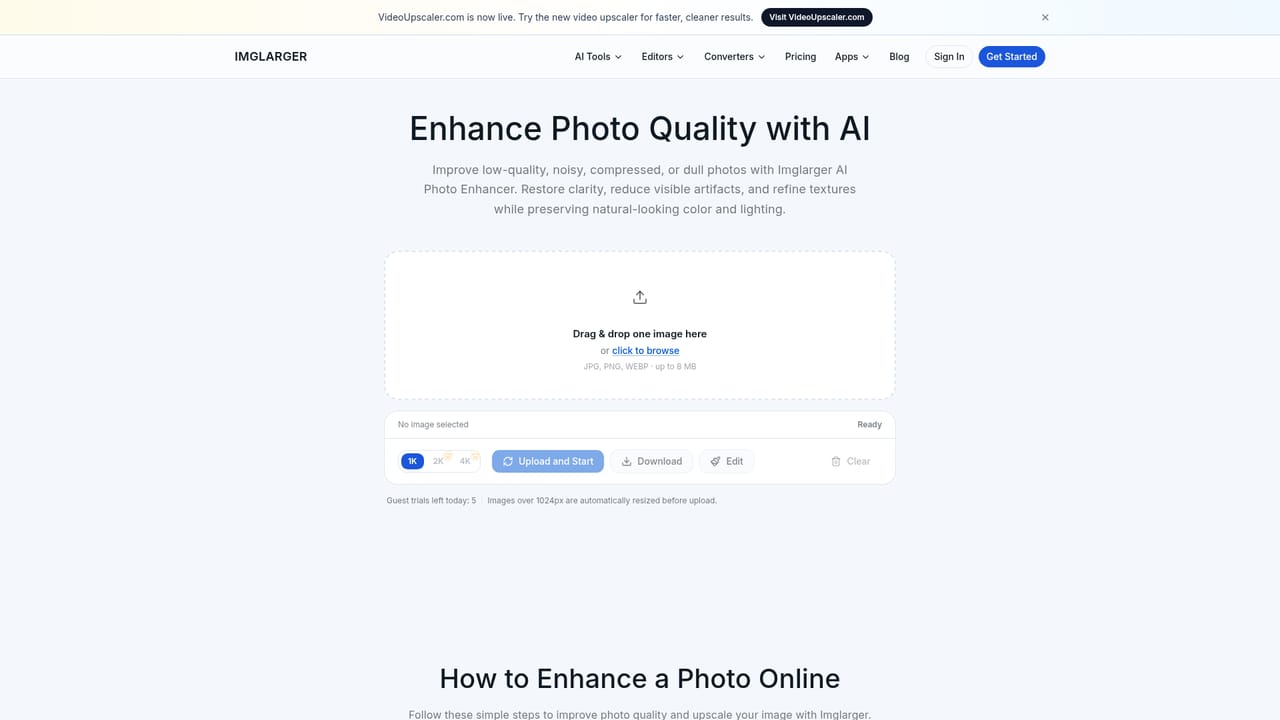
Imglarger (also branded AI Image Enlarger) is a browser-based collection of AI image tools built around one common problem: source images that are too small, too soft, or framed too tightly for where they need to go. The headline tool enlarges an image by 2x, 4x, or 8x while reconstructing visible edges and textures, rather than stretching pixels the way a plain resize would. A separate upscaler targets resolution at 2x or 4x for cleaner output on large displays and high-resolution projects. Around those two core tools sits a wider set of dedicated workflows. AI Image Extender (uncrop) uses generative outpainting to push an image past its original borders, continue the surrounding scene, or change aspect ratio without cutting the subject. AI Photo Enhancer addresses softness, noise, and compression artifacts across the whole frame, while AI Image Sharpener is the narrower option for mild blur and weak edge definition. A Background Remover produces transparent PNGs for product shots, portraits, and design assets. Supporting browser editors handle crop, resize, batch resize with ZIP download, rotate, flip, color and lighting adjustments, and format conversion between JPG, PNG, WebP, and HEIC. In practice the workflow is deliberately simple: pick a tool, upload, choose the ratio or intensity, and compare a before-and-after preview before downloading. That focus is the point. It suits photographers, e-commerce sellers, designers, and marketers who need one specific fix rather than a full editing suite, and it also covers casual users cleaning up old or phone-shot images. Anyone expecting layer-based retouching, masks, or fine manual control will find the toolset too narrow and will need a conventional editor alongside it. Uploaded and processed files are deleted within six hours rather than being kept in a public gallery, and everything runs in a modern browser on desktop, tablet, iPhone, or Android, with no desktop install required. Free credits or guest trials may be offered on supported tools, and limits and sign-in requirements are shown in the interface before processing.
Free credits or guest trials may be available for supported AI tools. Sign-in requirements, processing options, and usage limits vary by tool and plan and are shown in the product interface.
Learn moreThe homepage does not publish prices or plan tiers. It states only that available ratios and output limits can depend on the source image and your current plan, and that limits are shown in the tool before processing. Check the product interface for current costs.
Learn moreCore AI tools: Image Enlarger (2x, 4x, 8x), Image Upscaler (2x, 4x), Image Extender for outpainting and aspect ratio changes, Photo Enhancer, Image Sharpener, and Background Remover. Supporting free browser tools cover single and batch resize with ZIP download, crop, rotate, flip, color and lighting adjustment, text and frames, annotation, selective blur, and conversion between JPG, PNG, WebP, and HEIC.
Learn more AI Angels400+ customizable AI girlfriends for NSFW chat, voice calls, and roleplay
 Candy AIExperience the future of companionship with AI friends who chat, role-play, and connect with you on a human level.
 ourdream.aiA vast AI roleplay platform with millions of characters for chat, images, video and voiceAI Angels400+ customizable AI girlfriends for NSFW chat, voice calls, and roleplayCandy AIExperience the future of companionship with AI friends who chat, role-play, and connect with you on a human level.ourdream.aiA vast AI roleplay platform with millions of characters for chat, images, video and voice