AI Video Upscaler

Browser-based video upscaling to 720p, 1080p and 4K

Beginner
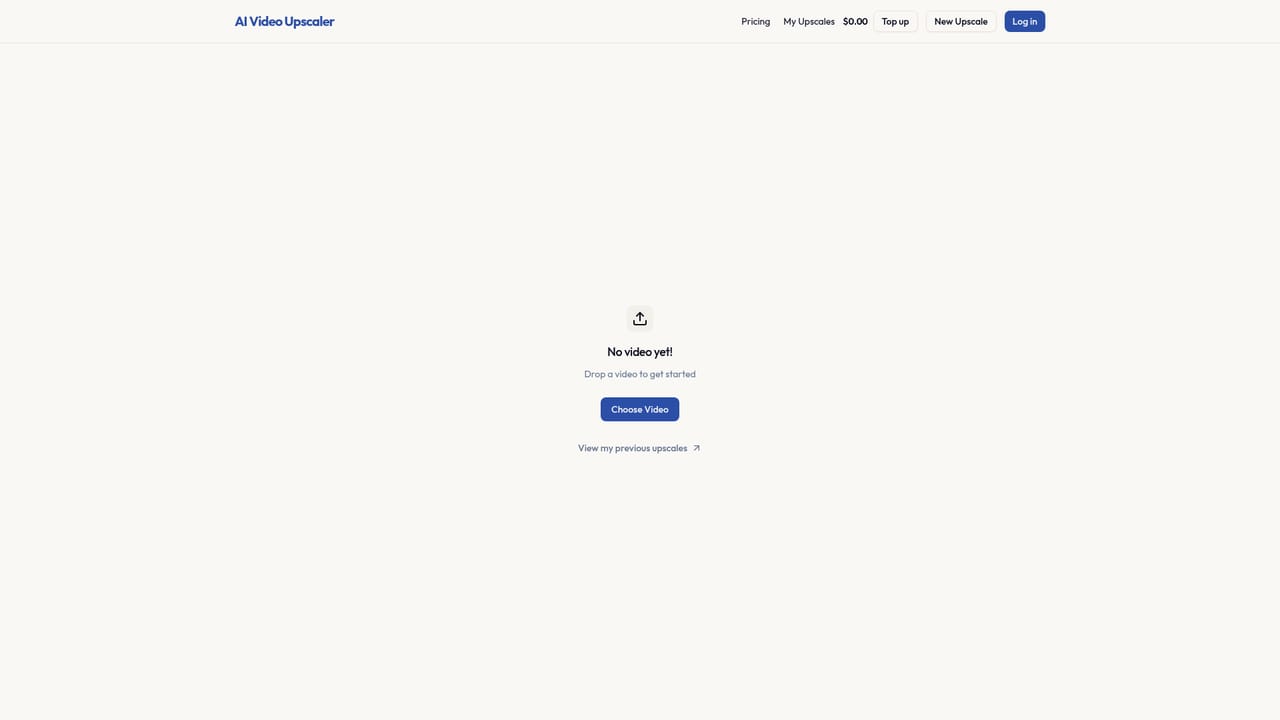
Screenshot of AI Video Upscaler, Browser-based video upscaling to 720p, 1080p and 4K

What is AI Video Upscaler?

AI Video Upscaler is a 4K upscale tool. AI Video Upscaler raises video resolution to 720p, 1080p or 4K in the browser, with pay-per-use pricing based on resolution, frame rate and clip length, plus automatic file deletion after 24 hours.

AI Video Upscaler is a browser-based tool for raising the resolution of existing footage to 720p, 1080p or 4K. It targets creators who need cleaner output for YouTube, TikTok, Instagram and YouTube Shorts, whether the source is an old phone clip, a compressed download or a low-resolution export that no longer meets a platform's quality expectations. There is nothing to install: uploads and processing happen in the web app. The workflow is straightforward. A video is uploaded in any common container (MP4, AVI, MOV, MKV, WMV and others), a target resolution is chosen, and the service rebuilds the frames at the higher resolution. The site notes that aspect ratio and format are preserved rather than cropped or converted, so vertical social clips stay vertical and existing edits do not break. Example pairs on the homepage show sharpened edges on water and a dancing figure, with the claim that fine detail from the original is retained instead of fabricated. Pricing is the most distinctive part. There is no subscription and no monthly tier; users pay per job based on resolution, frame rate and clip length. The estimator breaks a quote down to frames and a per-frame rate, so a one-minute 1440p clip at 30fps comes to roughly $1.08. Large uploads are allowed, since the FAQ states there is no maximum file size, though processing time scales with length and resolution (about two to five minutes per minute of footage). Against subscription upscalers such as Topaz Video AI or cloud video editors with built-in enhancement, the appeal here is narrower and cheaper for occasional use: no licence commitment, no desktop install, and a per-job price. Users who upscale daily may find metered pricing adds up, and anyone needing batch automation or offline processing should look elsewhere. Uploaded files auto-delete after 24 hours, which suits one-off jobs rather than archival work. It fits best with social media creators, small marketing teams and archivists restoring a handful of clips who want a simple resolution bump without software overhead.

How do you use AI Video Upscaler?

  1. 1Open the upscaler
    Go to the upscale page from the site navigation. Processing runs in the browser, so no installation is needed.
    AI Video Upscaler — Open the upscaler
  2. 2Upload your clip
    Select a video in any common format such as MP4, MOV or MKV. The site states there is no maximum file size.
  3. 3Pick resolution and frame rate
    Choose the target output (720p, 1080p, 4K and other listed options) and confirm the frame rate. Aspect ratio and format are kept as they were.
  4. 4Check the estimated cost
    Use the price estimator to see the frame count and per-frame rate before committing. A one-minute 1440p clip at 30fps is quoted around $1.08.
  5. 5Run the upscale and download
    Start processing and wait for the job to finish; expect roughly 2 to 5 minutes per minute of source video. Download the result, which is deleted from the service after 24 hours.

Pros and cons

Pros

  • Runs entirely in the browser, so no desktop software or GPU setup is requiredAI
  • Pay-as-you-go pricing with a transparent per-frame cost estimator and no subscriptionAI
  • Accepts all major formats (MP4, AVI, MOV, MKV, WMV) and imposes no stated file size capAI
  • Preserves original aspect ratio and format, which keeps vertical social clips intactAI
  • Uploaded files are deleted automatically after 24 hoursAI

Cons

  • Metered per-frame billing makes costs hard to predict for long or frequent projectsAI
  • Processing is slow relative to local tools: roughly 2 to 5 minutes per minute of footageAI
  • No API, plugin or editor integration is documented, so it is a manual upload-and-download stepAI
  • The homepage carries no customer references or comparison benchmarks for output qualityAI
  • 24-hour deletion rules out using the service as a storage or review layerAI

How much does AI Video Upscaler cost?

Pricing

Pay as you go with no subscription and no hidden fees. Cost depends on output resolution, frame rate and duration, billed per frame (for example 1,800 frames at 0.0599 cents each for a one-minute 1440p 30fps clip, about $1.08). A cost estimator on the homepage shows a quote before you start.

Learn more

Support

Questions are handled by email through the support address listed on the homepage (hi@pozy.dev). No live chat, knowledge base or community forum is mentioned.

Features

Upscales video to 720p, 1080p or 4K directly in the browser. Supports major formats including MP4, AVI, MOV, MKV and WMV, with no stated upload size limit. Output keeps the source aspect ratio and format, and sample pairs show sharper edges and retained fine detail on water and motion footage.

Frequently asked questions about AI Video Upscaler

  • How much does AI Video Upscaler cost?
    Pay as you go with no subscription and no hidden fees. Cost depends on output resolution, frame rate and duration, billed per frame (for example 1,800 frames at 0.0599 cents each for a one-minute 1440p 30fps clip, about $1.08). A cost estimator on the homepage shows a quote before you start.
  • How do you use AI Video Upscaler?
    The walkthrough on this page covers 5 steps: 1. Open the upscaler 2. Upload your clip 3. Pick resolution and frame rate 4. Check the estimated cost 5. Run the upscale and download.
  • What platforms does AI Video Upscaler support?
    AI Video Upscaler is available on Web App.
  • What are the limitations of AI Video Upscaler?
    Metered per-frame billing makes costs hard to predict for long or frequent projects. Processing is slow relative to local tools: roughly 2 to 5 minutes per minute of footage. No API, plugin or editor integration is documented, so it is a manual upload-and-download step.

Status

StatusActive
Views0
Outbound clicks0
Added10/21/2026

Platforms

Web App

Pricing

FreePaid