Pricing
The page presents the upscaler as free to use, with no login required. No paid tiers or price figures are listed on the homepage.
Learn moreBrowser-based bulk image upscaling that never uploads your files
Own Automated Bulk Image Upscaler? Verify ownership to get a dofollow link
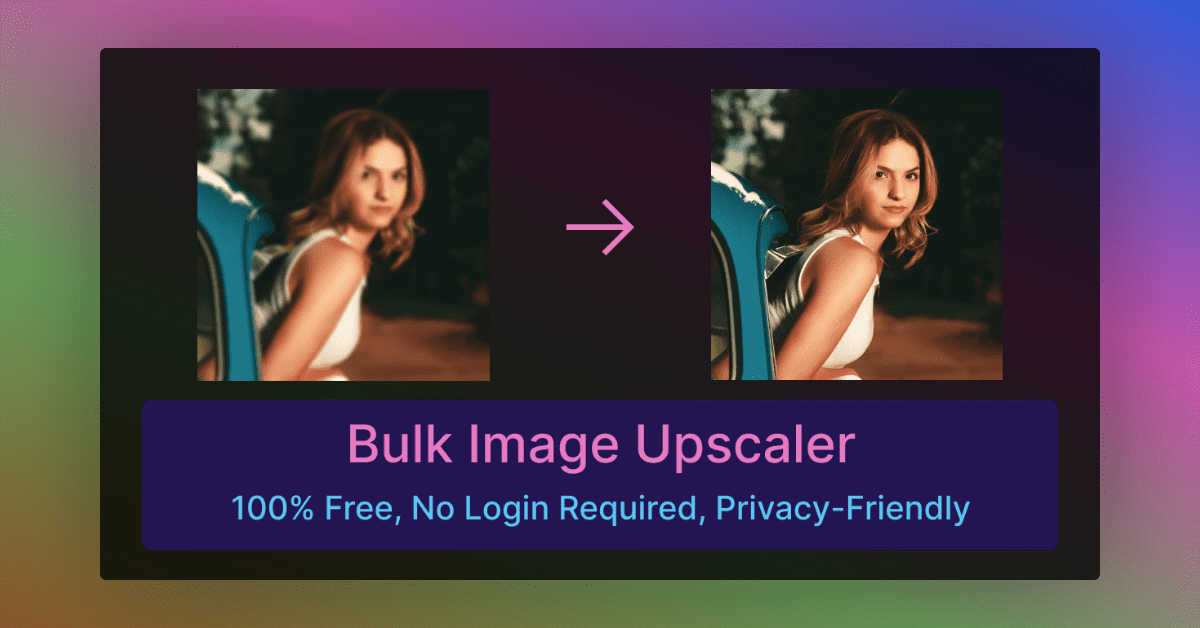
Automated Bulk Image Upscaler is an AI image upscaler tool. A free, no-login bulk image upscaler that runs AI enlargement in the browser so files stay on the user's device, with an optional cloud mode and Zapier and REST API hooks for automation.
Automated Bulk Image Upscaler is a free web tool from ImageToolsHub that enlarges many images in a single run and adds detail while doing so. It requires no account. Files are dropped into the page, an AI model enlarges them, and the results come back as downloads. The headline design choice is local processing: by default the work happens inside the browser on the visitor's own machine, so source images are not sent to a remote server for upscaling. In practice the workflow is short. A user drags in a batch of images, picks a processing mode, and presses a Start Upscaling button that appears once files are loaded. The page offers an on-device mode, whose speed depends on the user's computer, and a cloud mode marked as the faster option. Output arrives as a zip, and when the archive is larger than the browser allows it is split into parts, which requires allowing multiple automatic downloads. The site states that a computer can handle 256 files in parallel, and an optional compression setting for outputs is available. The tool targets people who hold collections of low-resolution pictures: photographers, designers, e-commerce sellers, marketers, web developers, archivists and print publishers. Typical jobs include preparing images for print or large displays, refreshing legacy content without reshoots, polishing digital art, and improving site visuals. The site also pitches the results as a way to support engagement and SEO, though those benefits are claims rather than guarantees. Automation is covered through a Zapier integration and a REST API, which lets the same operation slot into larger pipelines. Compared with desktop upscalers and subscription web services, the appeal here is zero cost, no login and no upload, while the trade-offs are dependence on local hardware and a browser tab that must stay open and active. It suits batch jobs where privacy and price matter more than fine-grained control, and it sits alongside the other bulk tools on the same site, such as a converter, a flip tool and a photo colorizer.
The page presents the upscaler as free to use, with no login required. No paid tiers or price figures are listed on the homepage.
Learn moreAn on-page FAQ covers mobile use, multiple downloads, speed tips and privacy. A review form is offered. No dedicated support channel is described.
Integrates with Zapier and a REST API, so upscaling can be added to automated workflows.
Learn moreBulk AI upscaling of many images at once, on-device or cloud processing modes, a before and after comparison slider, optional output compression, zip downloads, parallel handling of up to 256 files, and no sign-up. Automation is available via Zapier and a REST API.
 AI Angels400+ customizable AI girlfriends for NSFW chat, voice calls, and roleplay
 Candy AIExperience the future of companionship with AI friends who chat, role-play, and connect with you on a human level.
 ourdream.aiA vast AI roleplay platform with millions of characters for chat, images, video and voiceAI Angels400+ customizable AI girlfriends for NSFW chat, voice calls, and roleplayCandy AIExperience the future of companionship with AI friends who chat, role-play, and connect with you on a human level.ourdream.aiA vast AI roleplay platform with millions of characters for chat, images, video and voice