Pricing
The service is fee-based to cover GPU server costs. Purchasing gives tasks priority and relaxes upload size limits. Specific prices are not stated on the homepage.
Learn moreAI upscaling, interpolation and colorization for video files in the browser

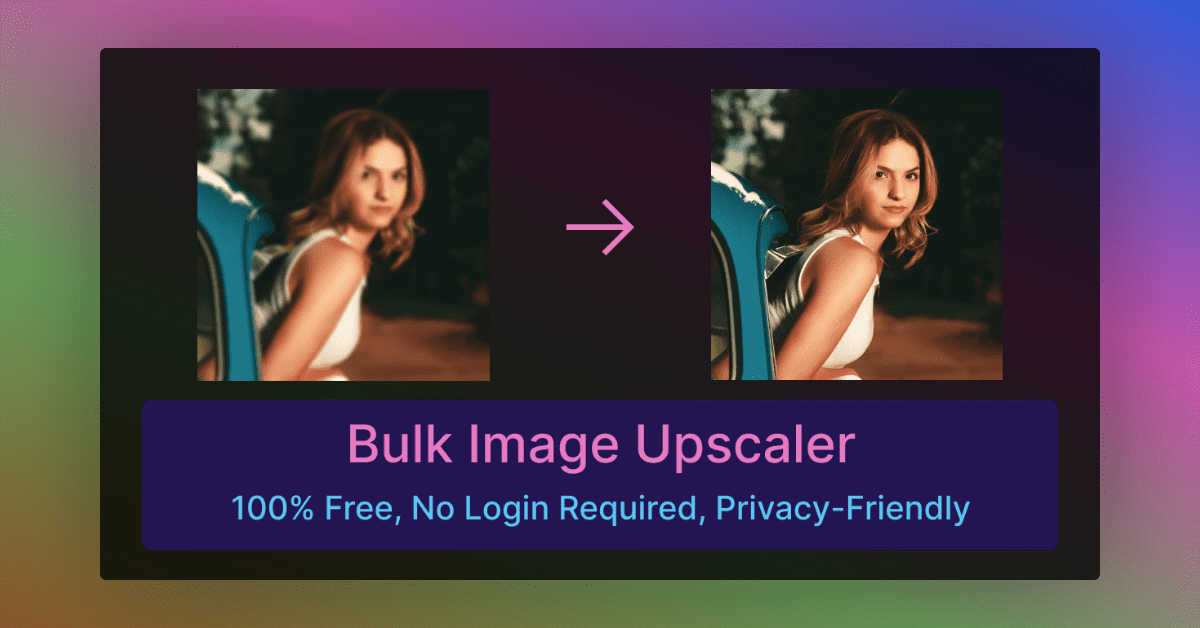
BigMP4 is a web service that uses AI to upscale video to 2K, 4K or 8K, reduce noise, raise frame rate, colorize black-and-white footage and create slow motion. It also handles images, gifs and zip batches.
BigMP4 is a browser-based service that applies AI models to existing video and image files. Its main jobs are enlarging footage to 2K, 4K or 8K, reducing noise, raising the frame rate, colorizing black-and-white material and producing slow motion. Users upload a file, pick the task settings and download the processed result, with no local software to install. The tool suits people working with footage they already have rather than creating new clips: owners of old family films, archivists, hobbyists restoring low-resolution recordings, and editors who need a quick upscale or smoother motion pass. Accepted video formats include mp4, mov, mkv, m4v, mpg, mpeg and avi. Images in jpg, png, bmp, webp and gif are also supported, and a zip archive lets a large batch of images go through enlargement or colorization in one job. Animated gifs can be upscaled, colorized, interpolated or slowed down as well. In practice, interpolation lifts a clip to 60, 120 or 240 fps. Running interpolation while keeping the original playback rate produces slow motion instead. The site is candid about processing: the progress bar is not a true estimate, total time depends on the frame count and chosen settings, and interpolation doubles the frames and therefore the time. It also documents a known side effect, a jelly-like distortion around lens transitions and motion blur, with workarounds such as trimming the clip first or lowering the interpolation multiplier. Processing runs on paid GPU capacity. Purchasing credits gives tasks priority and relaxes upload size limits, and GPU points spent on a failed task are refunded once that task is deleted. Uploaded and result files are deleted automatically within a week. Compared with full desktop restoration suites or general video editors, BigMP4 is narrower and simpler: it does enhancement jobs only, with no timeline, cutting or effects tools, which makes it a quick utility to pair with a separate editor.
The service is fee-based to cover GPU server costs. Purchasing gives tasks priority and relaxes upload size limits. Specific prices are not stated on the homepage.
Learn moreSupport is by email at help@bigmp4.com. The homepage FAQ covers processing time, privacy, refunds for failed tasks and the jelly effect.
Lossless enlargement to 2K, 4K or 8K with noise reduction, black-and-white colorization, AI interpolation to 60, 120 or 240 fps, slow motion, gif support, and zip batch mode for images.
 AI Angels400+ customizable AI girlfriends for NSFW chat, voice calls, and roleplay
 Candy AIExperience the future of companionship with AI friends who chat, role-play, and connect with you on a human level.
 ourdream.aiA vast AI roleplay platform with millions of characters for chat, images, video and voiceAI Angels400+ customizable AI girlfriends for NSFW chat, voice calls, and roleplayCandy AIExperience the future of companionship with AI friends who chat, role-play, and connect with you on a human level.ourdream.aiA vast AI roleplay platform with millions of characters for chat, images, video and voice