Bitcut

Turn long videos into captioned vertical Shorts on iPhone

Beginner
Screenshot of Bitcut, Turn long videos into captioned vertical Shorts on iPhone

What is Bitcut?

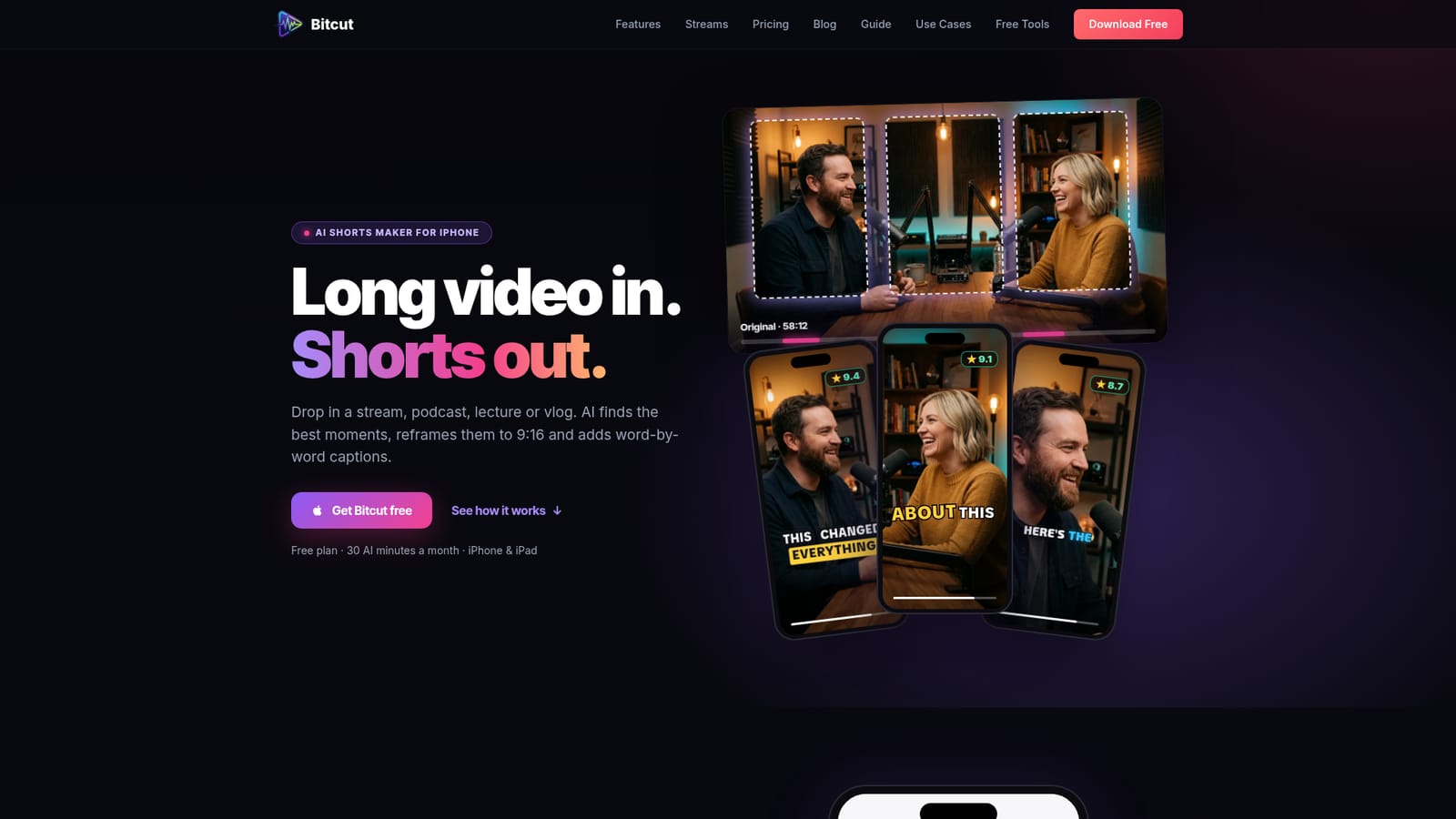
Bitcut is a social media tool that turns long videos into captioned vertical Shorts on iPhone. Bitcut is an iPhone and iPad app that finds the best moments in long videos, reframes them to 9:16 and adds word-by-word captions. It includes scoring, beat sync, face tracking and a streamer highlight workflow, with a free plan.

Bitcut is an iPhone and iPad app that converts long recordings into short vertical clips for Shorts, Reels and TikTok. A user drops in a stream, podcast, lecture or vlog, and the AI scans it for the strongest moments, reframes them from 16:9 to 9:16 and applies word-by-word captions. The pitch is less manual scrubbing: one 58-minute episode can become a set of ready clips in a single pass. Each candidate clip receives a score and a one-line reason, such as a strong hook, a personal story or a clean ending, so the creator can decide what to post first. Results can be filtered by length (under a minute, one to three minutes, or longer). Captions come with 18 looks that preview live on the user's own footage, and any word can be corrected by hand. Cuts can snap to the beat of an added music track, or follow speech so that each clip makes sense on its own. Face tracking, available on paid plans, keeps the active speaker in frame during multi-person conversations. A separate streamer workflow accepts a Twitch or YouTube link, or a file from the phone, for recordings up to five hours. Bitcut lists moments in stream order with scores and summaries, exports a 16:9 highlight reel with YouTube chapters, and can then produce vertical Shorts. Each scene in a Short can use one of five layouts built around a webcam and the main content, with the webcam located automatically. Long jobs run in the background with a visible queue position. The homepage notes this feature is rolling out account by account. The audience is podcasters, YouTubers, educators, musicians, social media managers and streamers who repurpose existing footage. Compared with desktop editors and web-based clipping services, Bitcut is built around the phone and its camera roll, with a full timeline editor included for hand adjustments. The free tier covers 30 AI minutes monthly, with a watermark on exports, which suits testing before paying.
How do you use Bitcut?

  1. 1Install Bitcut and choose a source
    Download the app from the App Store on an iPhone or iPad running iOS 18 or later, then pick a long video from the camera roll. No credit card is needed for the free plan.
    Bitcut — Install Bitcut and choose a source
  2. 2Let the AI find the best moments
    Bitcut analyzes the recording and returns ranked Shorts, each with a score and a short reason. Filter by length to focus on clips under a minute or longer ones.
  3. 3Check captions and framing
    Review the word-by-word captions, fix any wrong word and try a different caption look. On a paid plan, turn on face tracking to keep the speaker framed.
    Bitcut — Check captions and framing
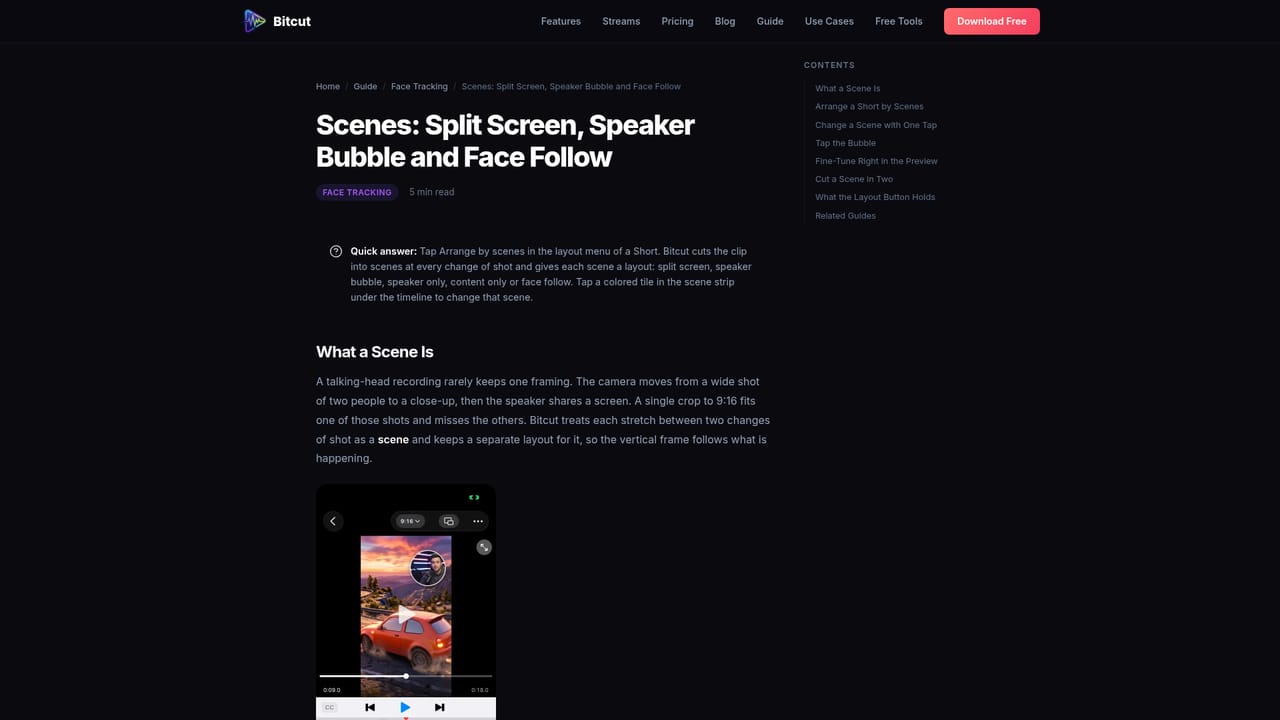
  4. 4Adjust scenes and layouts
    For stream footage, set a layout per scene, such as split screen, bubble or webcam only, and correct the detected webcam box if needed.
    Bitcut — Adjust scenes and layouts
  5. 5Turn a stream into highlights
    Paste a Twitch or YouTube link, choose a reel length, keep the moments you like and export the highlight reel with chapters, then make vertical Shorts.
  6. 6Add music and export
    Add a track so cuts snap to the beat, then export. Free exports include a watermark, which paid plans remove.

Pros and cons

Pros

  • Scores each suggested Short with a one-line reason, making it easy to choose what to post firstAI
  • Word-by-word captions with 18 live-previewed looks and manual word correctionAI
  • Dedicated stream workflow with chapters, five scene layouts and recordings up to five hoursAI
  • Free plan has no time limit and includes the full timeline editor plus beat syncAI
  • Long AI jobs keep running in the background after the app is closedAI

Cons

  • Available only on iPhone and iPad (iOS 18+), with no Android, web or desktop version listedAI
  • Free exports carry a watermark, and removing it requires a paid planAI
  • Face tracking is restricted to Pro and above, so speaker following is not freeAI
  • Free allowance is 30 AI minutes a month, which a single long stream or podcast can use up quicklyAI
  • Stream Highlights is rolling out account by account, so it may not yet appear for every userAI

How much does Bitcut cost?

Free trial

The Free plan has no time limit and needs no credit card, with 30 AI minutes a month. A first stream up to 3 hours is free and exports with a watermark.

Learn more

Pricing

Free plan at $0 with 30 AI minutes a month and watermarked exports. Pro is $9.99/mo ($99.99/yr) with 300 AI minutes. Creator is $19.99/mo ($199.99/yr) with 1000 minutes. Streamer is $29.99/mo, or $9.99 for one stream.

Learn more

Support

The site offers role-based use-case pages, a stream highlights guide, a scenes guide and a blog post on facecam layouts. Creator and higher plans include priority processing.

Learn more

Integrations

Accepts Twitch and YouTube links or files from the iPhone camera roll. Output targets Shorts, Reels and TikTok, and the highlight reel includes chapters for a YouTube description.

Features

AI moment detection with scores, 9:16 auto-reframe, face tracking, word-by-word captions with 18 looks, beat-synced or speech-based cuts, a timeline editor, stream highlights with YouTube chapters, and five scene layouts.

Learn more

Frequently asked questions about Bitcut

  • How much does Bitcut cost?
    Free plan at $0 with 30 AI minutes a month and watermarked exports. Pro is $9.99/mo ($99.99/yr) with 300 AI minutes. Creator is $19.99/mo ($199.99/yr) with 1000 minutes. Streamer is $29.99/mo, or $9.99 for one stream.
  • Does Bitcut offer a free trial?
    The Free plan has no time limit and needs no credit card, with 30 AI minutes a month. A first stream up to 3 hours is free and exports with a watermark.
  • How do you use Bitcut?
    The walkthrough on this page covers 6 steps: 1. Install Bitcut and choose a source 2. Let the AI find the best moments 3. Check captions and framing 4. Adjust scenes and layouts 5. Turn a stream into highlights 6. Add music and export.
  • What platforms does Bitcut support?
    Bitcut is available on iOS.
  • What does Bitcut integrate with?
    Accepts Twitch and YouTube links or files from the iPhone camera roll. Output targets Shorts, Reels and TikTok, and the highlight reel includes chapters for a YouTube description.
  • What are the limitations of Bitcut?
    Available only on iPhone and iPad (iOS 18+), with no Android, web or desktop version listed. Free exports carry a watermark, and removing it requires a paid plan. Face tracking is restricted to Pro and above, so speaker following is not free.

Status

StatusActive
Views0
Outbound clicks0
Added10/18/2026

Platforms

iOS

Pricing

FreemiumSubscription