Pricing
The homepage describes Dubble as free and points readers to the Chrome Web Store to add it. No paid tiers, seat pricing or usage limits are listed on the page.
Learn moreTurn your screen actions into step-by-step guides automatically
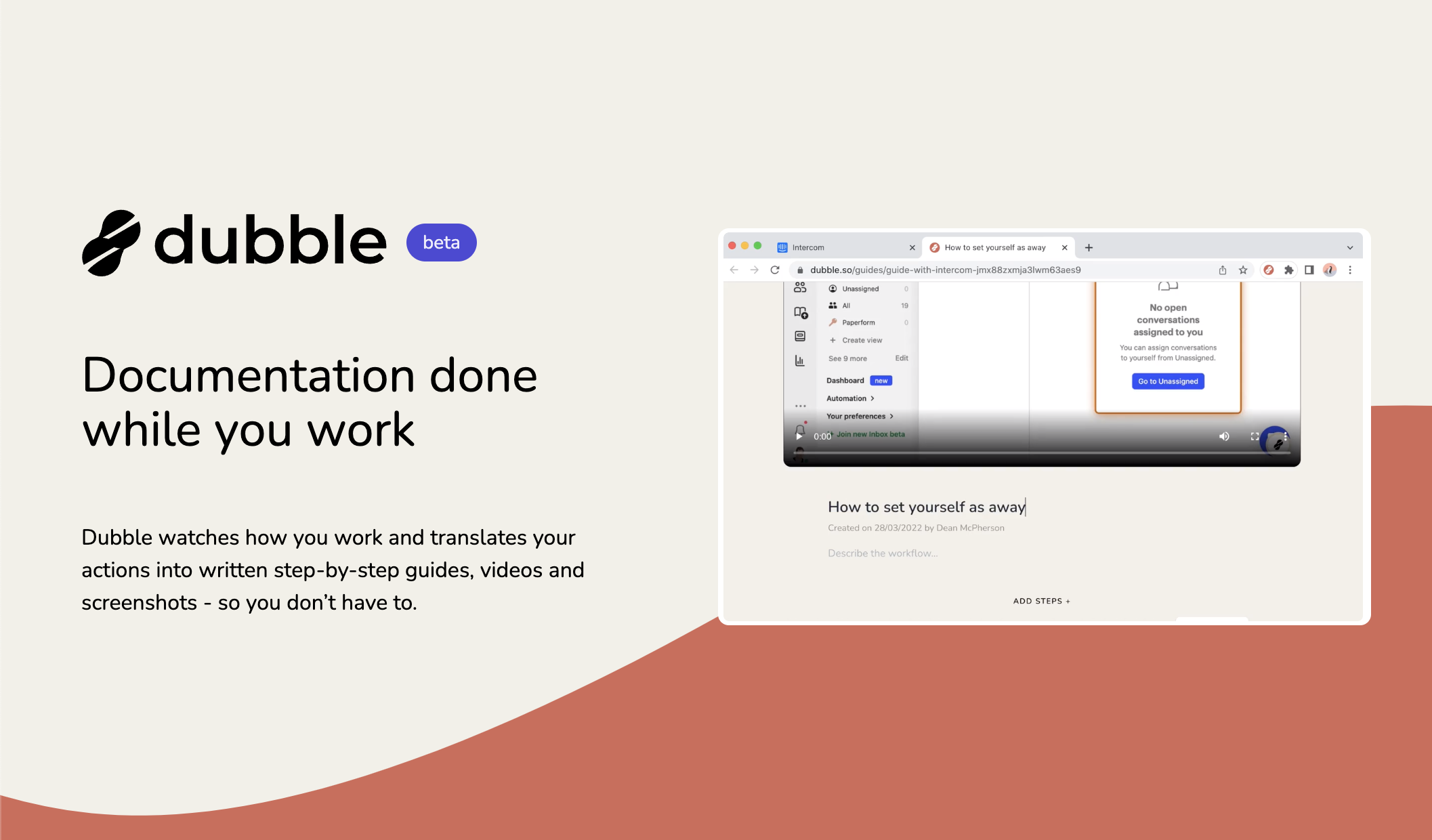
Dubble is an AI screen analyzer tool that turns your screen actions into step-by-step guides automatically. A Chrome extension that records your on-screen actions and turns them into editable step-by-step guides, screenshots and videos. Guides can be shared with a click, edited by teammates, and pasted into Notion, Confluence, Google Docs or any tool that accepts rich content or markdown.
Dubble is a Chrome-based documentation tool built around a single idea: stop writing guides by hand and let a recording do the work. You press record, walk through a process on screen the way you normally would, and the extension converts those actions into a structured step-by-step guide with written steps, screenshots and video. The aim is to remove the slow, repetitive part of documentation so that internal how-tos, onboarding material and support articles actually get finished. The workflow follows three stages the site lays out: record, edit, share. Once a recording stops, the draft guide is ready. Edits happen inside Dubble, where you can rewrite descriptions, adjust markup, redact sensitive details and swap screenshots, including pulling fresh captures from screencasts you already recorded. Sharing is a single click, and teams can be invited to record and edit guides together rather than passing drafts around. The output is not locked inside Dubble. Guides can be copied and pasted as rich content or markdown into whatever knowledge base a team already uses, with Notion, Confluence, Google Docs and Trainual named as examples. When a process changes, you return to the guide, record new steps or lift screenshots from old recordings instead of rebuilding the document from scratch. That maintenance loop is the practical differentiator against generic screen recorders and against writing tools that expect you to describe screens in words. Dubble suits operations teams, customer support groups, product and HR onboarding owners, and anyone maintaining a wiki of internal processes. It is a documentation utility rather than a general content platform: people looking for long-form writing help or AI copy generation are better served elsewhere. Installation is through the Chrome Web Store and the site presents the tool as free.
The homepage describes Dubble as free and points readers to the Chrome Web Store to add it. No paid tiers, seat pricing or usage limits are listed on the page.
Learn moreGuides paste into Notion, Confluence, Google Docs, Trainual or any tool that supports rich content or markdown. These are paste destinations rather than native connectors.
Recording sessions convert into written step-by-step guides, videos and screenshots. Inside the editor you can change descriptions and markup, redact or swap screenshots, and take new captures from existing screencasts. Guides share with one click, support collaborative recording and editing, and paste as rich content or markdown into external knowledge bases.
 AI Angels400+ customizable AI girlfriends for NSFW chat, voice calls, and roleplay
 Candy AIExperience the future of companionship with AI friends who chat, role-play, and connect with you on a human level.
 ourdream.aiA vast AI roleplay platform with millions of characters for chat, images, video and voiceAI Angels400+ customizable AI girlfriends for NSFW chat, voice calls, and roleplayCandy AIExperience the future of companionship with AI friends who chat, role-play, and connect with you on a human level.ourdream.aiA vast AI roleplay platform with millions of characters for chat, images, video and voice


