Free trial
The site offers a Try FigJam for free path that creates an account and opens the whiteboard, and states that FigJam is included with seats on every plan.
Learn moreA shared whiteboard where teams brainstorm, diagram and decide in real time

FigJam is Figma's collaborative whiteboard for brainstorming, diagramming, meetings, agile ceremonies and strategic planning. Multiple people edit one canvas in real time, with templates, community widgets and Asana, Jira and GitHub connectors. Best suited to teams already working inside the Figma ecosystem.
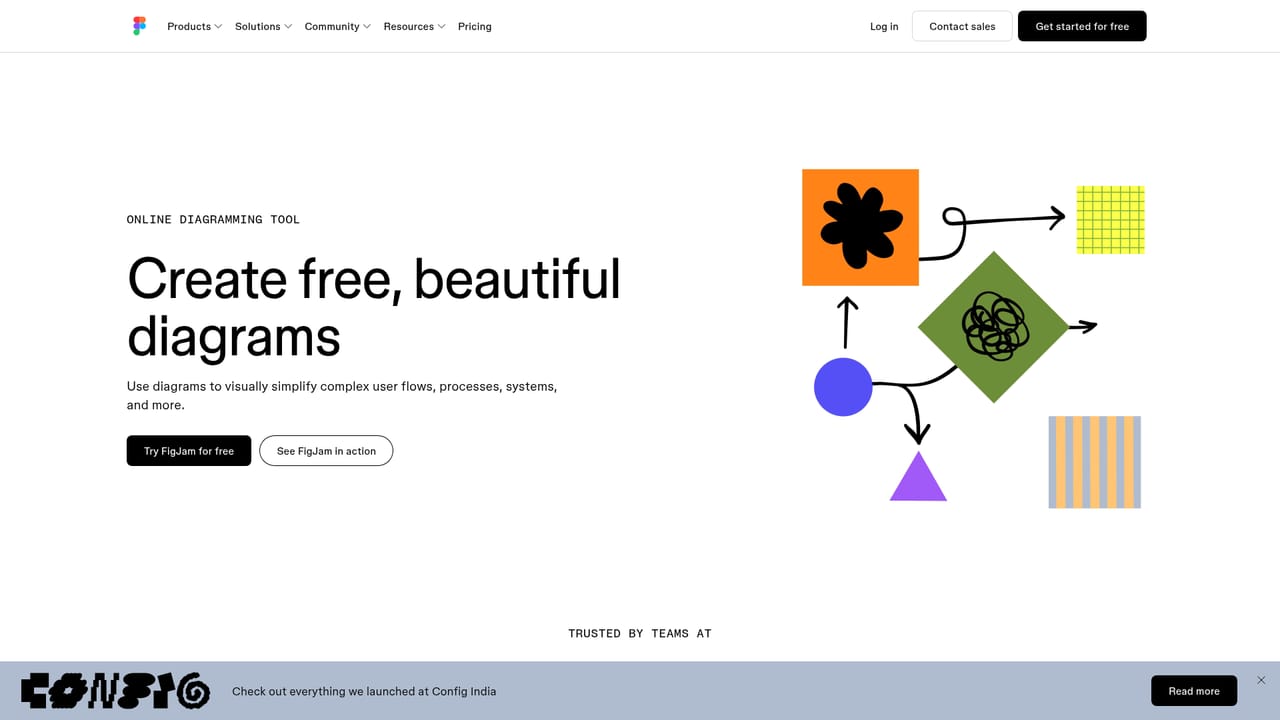
FigJam is Figma's collaborative whiteboard, built for teams that need to think out loud together rather than trade documents. Several people can open the same board at once, drop sticky notes, sketch shapes, add connectors and talk through ideas with live cursors visible on screen. The canvas is shared, so a brainstorm, a user flow and a sprint retro can all live in one file that the whole team can revisit. The product is organised around a handful of recurring team jobs. Brainstorming boards let people riff on sticky notes and vote on the strongest options. Diagramming covers user flows, processes and systems, with shapes and connectors that snap to a grid so the result stays tidy. Meeting and workshop boards add structure to team rituals and large group sessions, while agile workflows support stand-ups and retros, and strategy boards turn objectives into a roadmap the group can align on. It fits teams already inside the Figma ecosystem, especially product, design and engineering groups who want the whiteboard next to their design files rather than in a separate tool. Connectors exist for Asana, Jira and GitHub, so board content can link back to the work tracking systems where tasks actually get executed. Templates and community widgets extend what the blank canvas can do, and a dedicated iPad app covers touch and stylus sessions. The honest comparison is with standalone whiteboard tools. FigJam's advantage is proximity to Figma design work and an interface most designers already know. Teams that never touch Figma, or that want a whiteboard bundled into an existing productivity suite, may find a general purpose board cheaper and simpler. It is also a canvas first: the thinking is still done by the people in the room, and the tool adds structure and shared access rather than generating the ideas itself.
The site offers a Try FigJam for free path that creates an account and opens the whiteboard, and states that FigJam is included with seats on every plan.
Learn moreFigJam is included with all seats on every Figma plan, so existing customers get the whiteboard at no additional cost. A free option exists through trying FigJam for free, and the site points larger organisations to a sales contact for plan details.
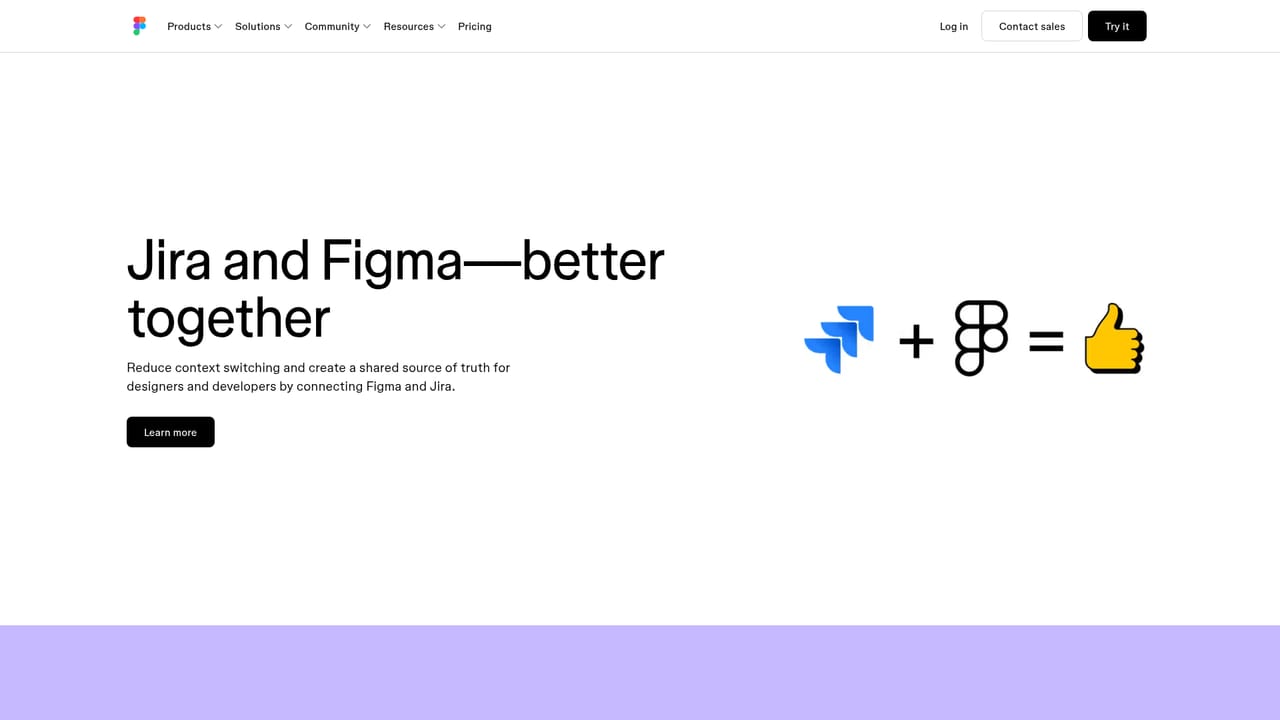
Learn moreAsana, Jira and GitHub connectors are listed, linking board content to project and code tracking. Community widgets add further add-ons, and FigJam sits alongside Figma design, Dev Mode and Slides in the same product family.
Learn moreCore capabilities span brainstorming with real time sticky notes, diagramming with snap-to-grid shapes and connectors, meeting and workshop facilitation, agile ceremonies such as stand-ups and retros, and strategy and roadmapping boards. Templates and community widgets extend the canvas, and a dedicated iPad app supports touch sessions.
Learn more AI Angels400+ customizable AI girlfriends for NSFW chat, voice calls, and roleplay
 Candy AIExperience the future of companionship with AI friends who chat, role-play, and connect with you on a human level.
 ourdream.aiA vast AI roleplay platform with millions of characters for chat, images, video and voiceAI Angels400+ customizable AI girlfriends for NSFW chat, voice calls, and roleplayCandy AIExperience the future of companionship with AI friends who chat, role-play, and connect with you on a human level.ourdream.aiA vast AI roleplay platform with millions of characters for chat, images, video and voice


