Free trial
New accounts get 5 free renders with no credit card required, using Google, Apple or email sign in.
Learn moreTurn a SketchUp screenshot into a photoreal render with a sentence.

Visualizee is a drawing to image tool that turns a SketchUp screenshot into a photoreal render with a sentence. An AI renderer for designers that converts SketchUp screenshots, sketches and empty-room photos into photoreal images from a written brief, with region marking for controlled edits and 4K output on higher tiers.
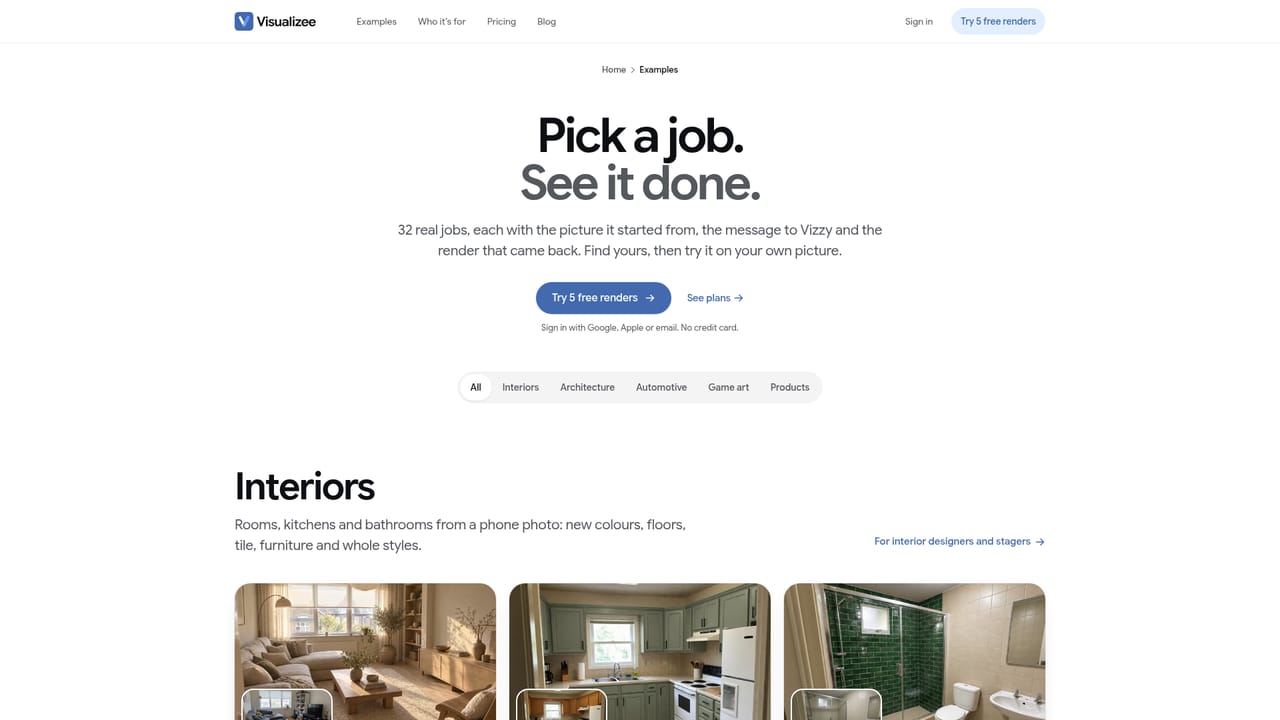
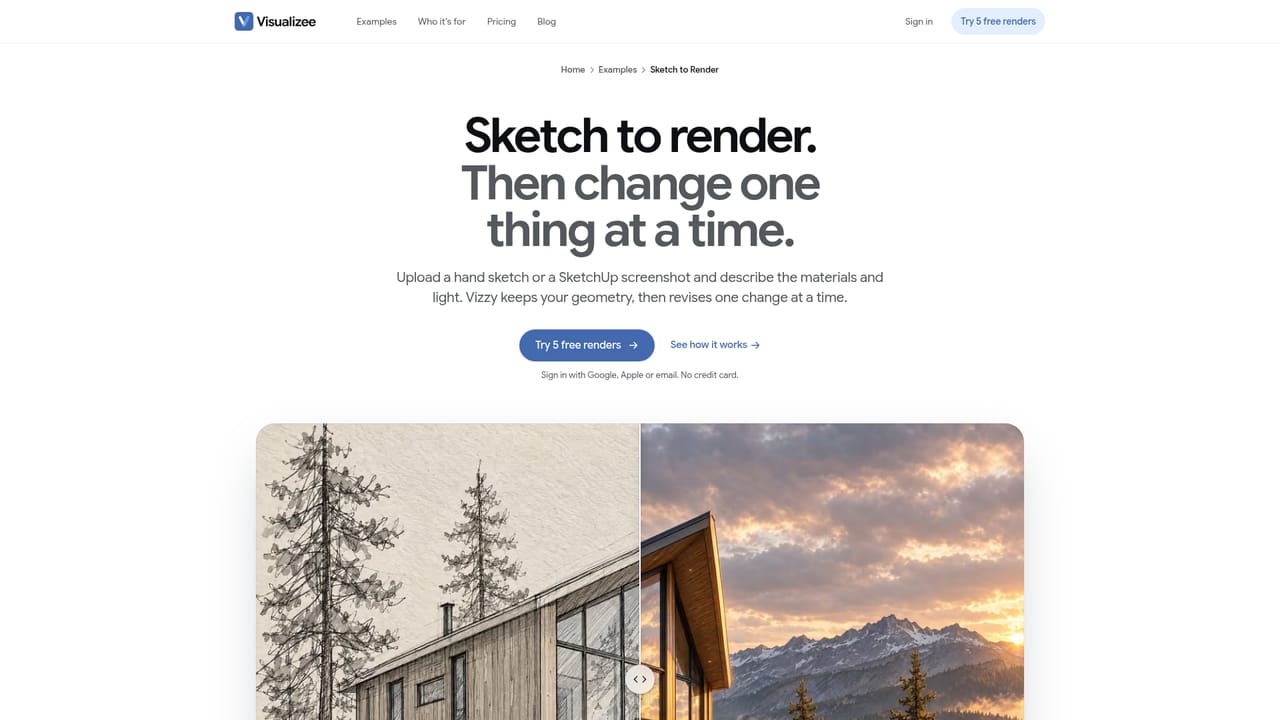
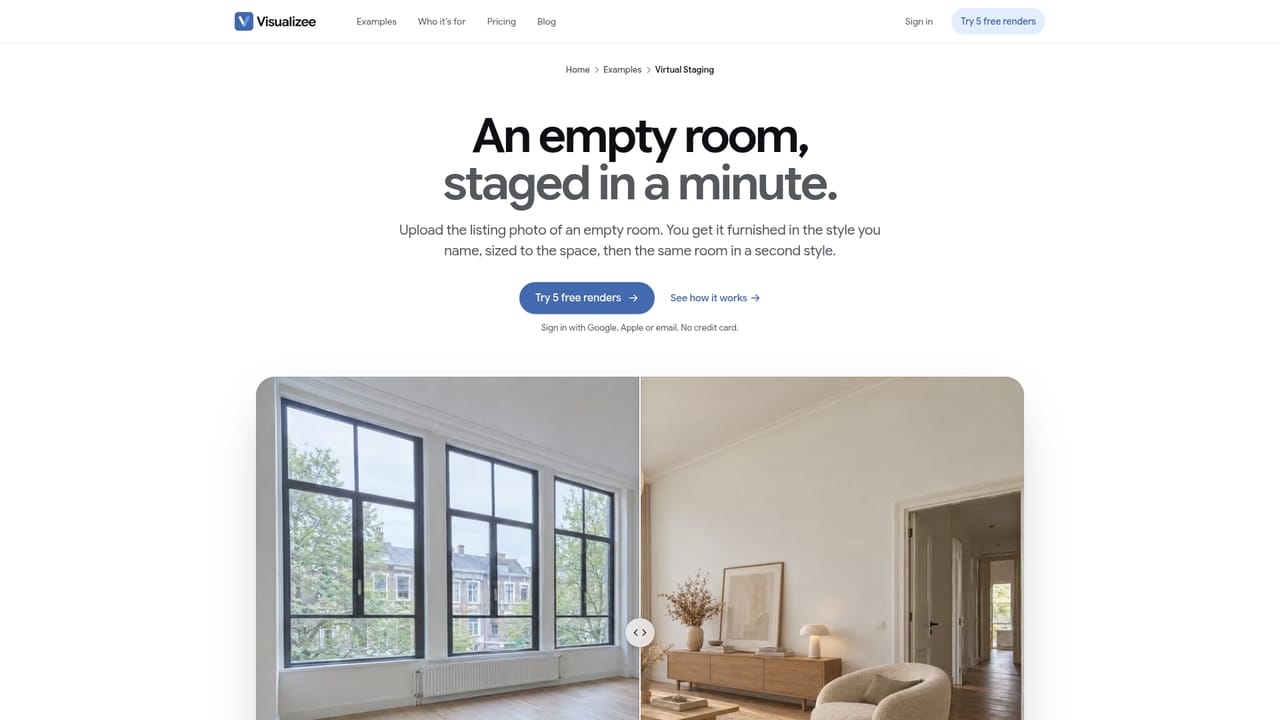
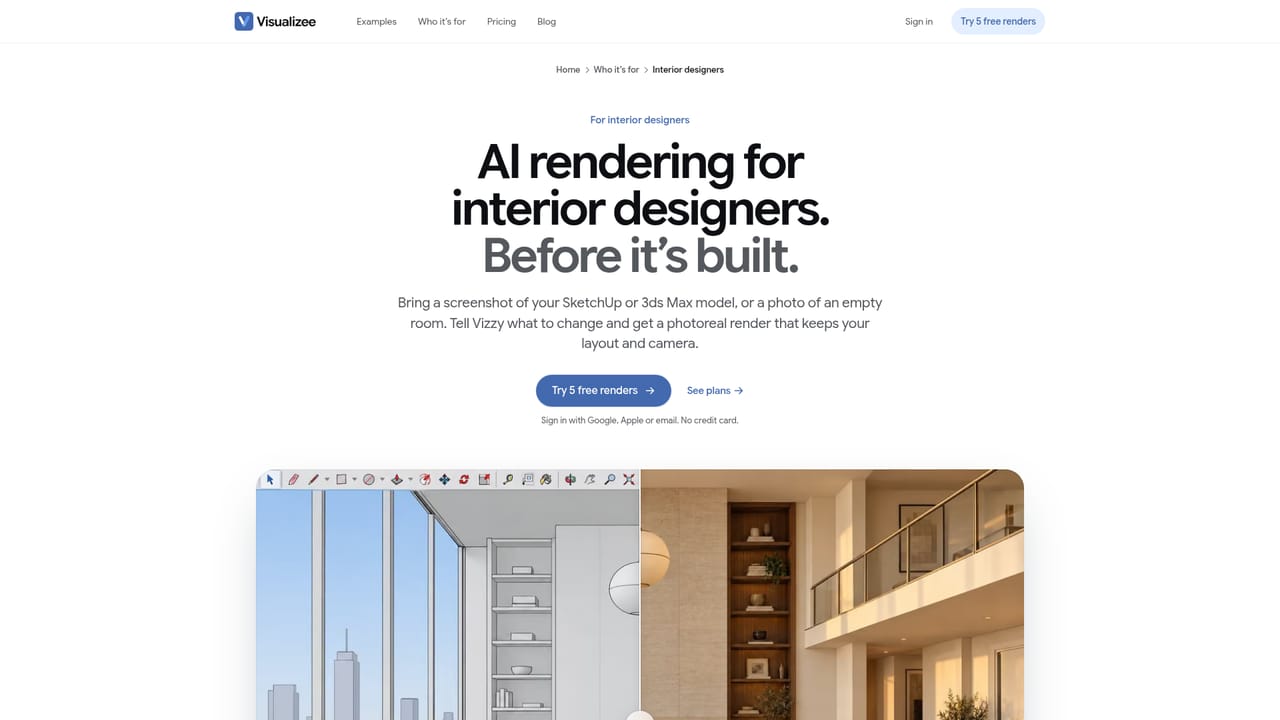
Visualizee is an AI rendering tool built around a simple exchange: you supply a screenshot of a 3D model, an empty room photo or a sketch, and describe in plain words what the image should become. The output is a photorealistic render that keeps the original layout and camera while replacing flat materials with convincing light, texture and furnishing. It is aimed squarely at interior designers, stagers, architects and visualization artists who already model in SketchUp, Revit, ArchiCAD, Rhino or 3ds Max and want presentation imagery without a full offline render pass. The workflow requires nothing installed. You capture your viewport, upload the image to the browser app, sign in with Google, Apple or email and type a brief such as a real living room in warm evening light with the layout and camera kept. Follow-up prompts let you iterate on a single element (swap the sofa for cream boucle, change the floor to light oak herringbone) while everything else stays put. A marking tool goes further: draw a box around the sofa, the cladding or a car's paint, and only what sits inside that box changes. This is the feature that separates Visualizee from generic image generators, where a small edit often drifts the whole frame. Renders come in three quality tiers. Fast returns a draft in roughly 30 seconds with approximate materials, Pro takes around a minute with credible stone and styled shelves, and Ultra adds finer detail and output up to 4K for print. Several variations can be requested at once to compare styles side by side, and on paid plans finished stills can become short video clips at 768p, 1080p or 4K depending on tier. Compared with dedicated architectural renderers, Visualizee trades physical accuracy and material control for speed and conversational iteration, so it suits concept presentation and client conversations more than final construction documentation.
New accounts get 5 free renders with no credit card required, using Google, Apple or email sign in.
Learn morePlans are tiered as Free, Hobby, Pro and Max. Free renders come at 1K, Hobby at 2K, and Pro and Max at 4K. Hobby allows 4 images at once and 15 Pro renders a month; Pro allows 8 images and Ultra quality; Max allows 16 images and 4K video. Exact prices are not stated on the homepage.
Learn moreA public FAQ page covers common questions about the tool, and the homepage references a chat assistant named Vizzy inside the product.
Learn moreNo plugin or install is needed. Inputs are screenshots taken from SketchUp, Revit, ArchiCAD, Rhino, 3ds Max or any other program that produces an image.
Sketch to render from 3D screenshots, photo-based room staging, region marking so only boxed areas change, written prompt iteration, side-by-side variations, three quality tiers from Fast drafts to 4K Ultra, and short video clips on paid plans.
Learn more AI Angels400+ customizable AI girlfriends for NSFW chat, voice calls, and roleplay
 Candy AIExperience the future of companionship with AI friends who chat, role-play, and connect with you on a human level.
 ourdream.aiA vast AI roleplay platform with millions of characters for chat, images, video and voiceAI Angels400+ customizable AI girlfriends for NSFW chat, voice calls, and roleplayCandy AIExperience the future of companionship with AI friends who chat, role-play, and connect with you on a human level.ourdream.aiA vast AI roleplay platform with millions of characters for chat, images, video and voice


